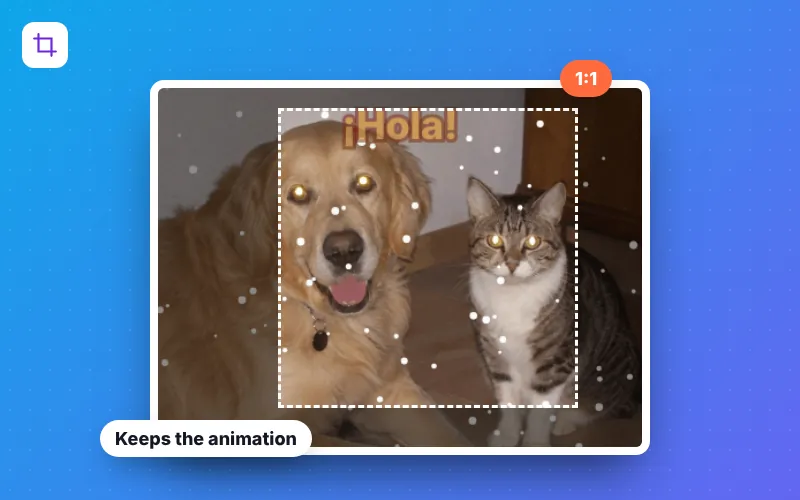
How to crop a GIF in 4 steps
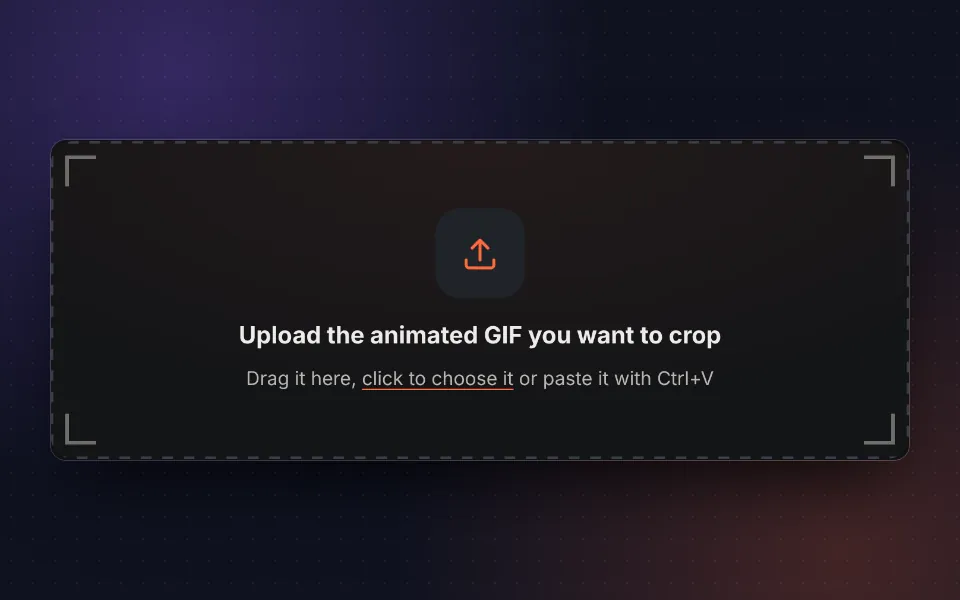
Upload the GIF
Drag your animated GIF, choose it or paste it with Ctrl+V. You can also try the sample GIF.
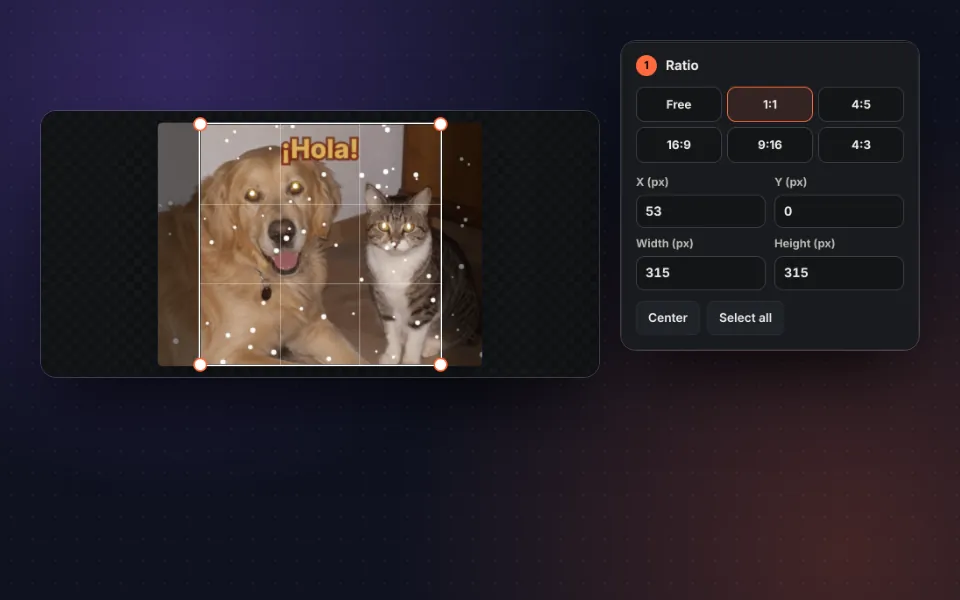
Choose the area
Move and adjust the frame or pick a ratio: free, 1:1, 4:5, 16:9, 9:16 or 4:3.
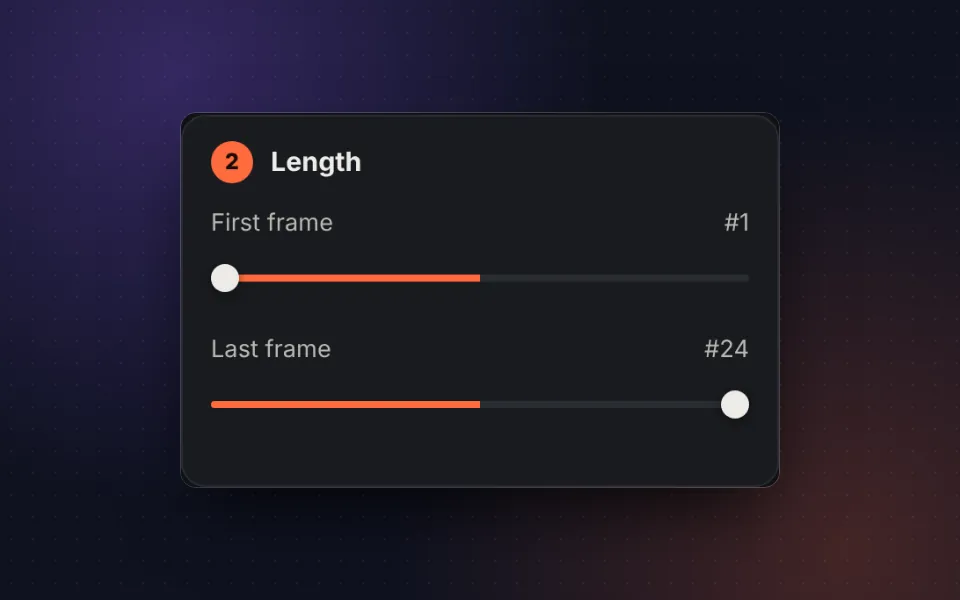
Shorten it if you like
Choose the first and last frame to remove what you don't need at the start or end.
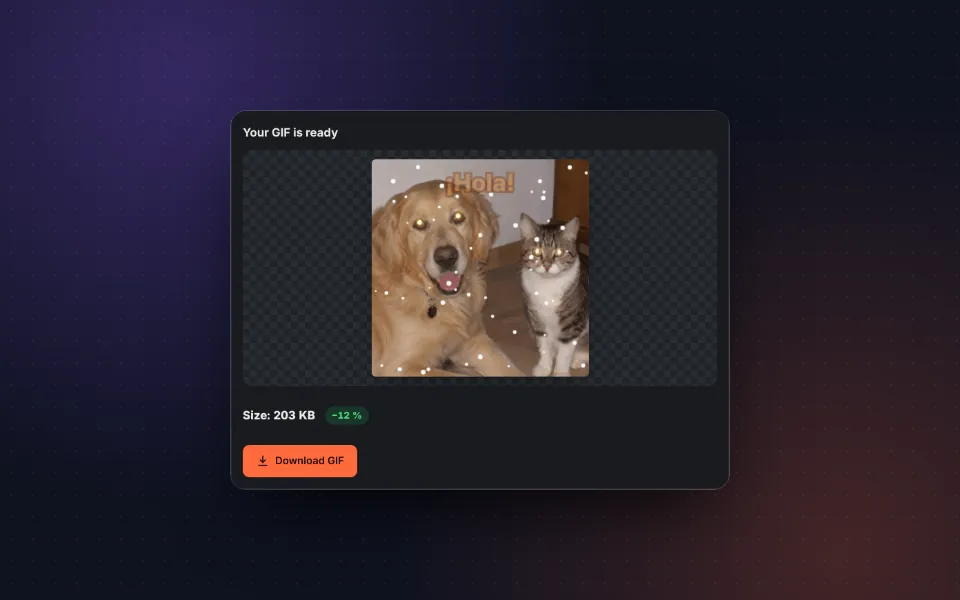
Crop and download
Press Crop GIF, compare the size with the original and download it.
Crop animated GIFs without losing the animation
Many image programs only crop the first frame of a GIF, and the result stops moving. This GIF cropper applies the crop to every frame, respects each frame's timing and keeps the looping of the original GIF, so the result looks exactly the same, only with the area you care about.
It is useful for removing black borders, logos or bars from a converted video, centering a person in a reaction GIF, adapting a GIF to a square format for social media or a vertical format for statuses and stories, or cropping part of a screen recording.
You can also shorten the GIF by choosing the first and last frame. Removing what you don't need at the start or end is the quickest way to make it lighter.
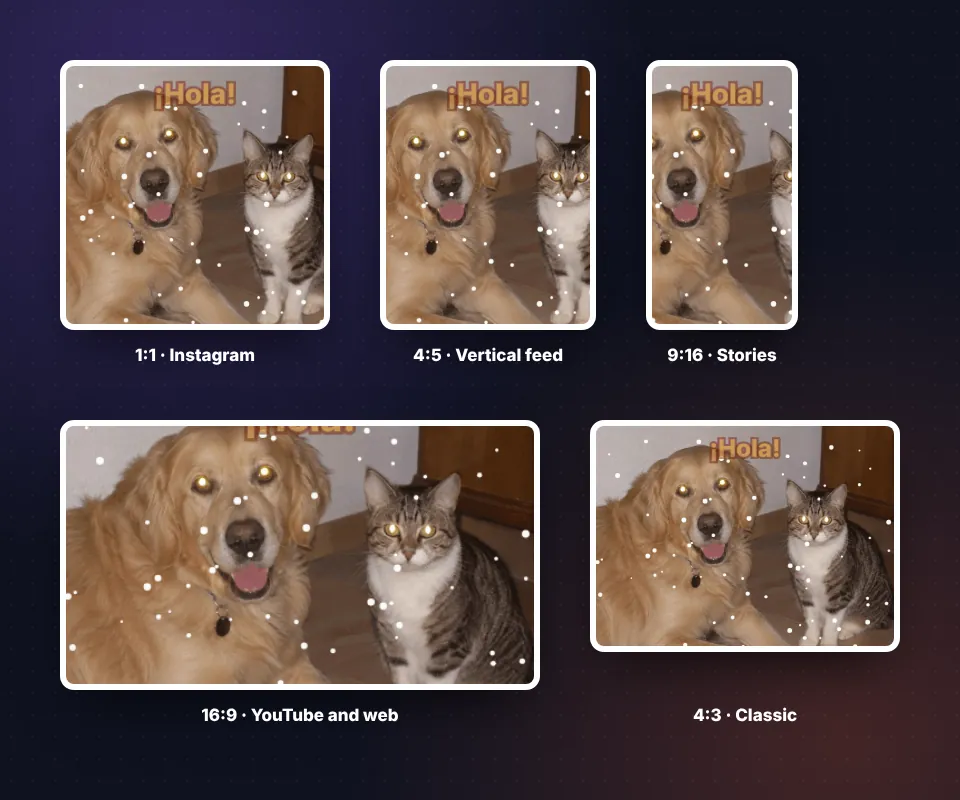
Ratios for each social network
Pick a ratio and the frame keeps it as you move or resize it:
- 1:1 square: profiles, Instagram, forums and stickers.
- 4:5 vertical: the format that takes up the most space in the Instagram feed.
- 9:16 vertical: WhatsApp statuses, Instagram stories, TikTok and Reels.
- 16:9 widescreen: presentations, websites and YouTube.
- 4:3: the classic photo and screen format.
If you prefer an exact crop, type the position and size in pixels.
Tips for cropping a GIF
- Check every frame. Keep the animation playing while you adjust the frame to make sure nothing important falls outside the crop at any moment.
- Crop before resizing. If you also want to make it smaller, crop it first and then use resize GIF.
- Shorten to lighten. Every frame you remove reduces the size. If it is still heavy, run it through compress GIF.
- Starting from a video? It is better to crop the clip directly when you convert the video to GIF.
Privacy: your GIF never leaves your device
The crop uses your browser's technology. The GIF is not uploaded to any server, it is not stored and nobody else can see it.
Frequently asked questions
How do I crop an animated GIF?
Upload the GIF, drag the frame to choose the area you want to keep or type the size in pixels and press Crop GIF. The animation is kept in every frame.
Will the animation be lost when cropping?
No. The crop is applied to every frame, and the timing and looping of the original GIF are preserved.
Can I crop a GIF to a square or vertical format?
Yes. Choose 1:1 for a square GIF, 4:5 for Instagram, 9:16 for stories and statuses or 16:9 for widescreen. The frame keeps the ratio as you move it.
Can I remove frames from the start or end?
Yes. In Length, choose the first and last frame you want to keep. That makes the GIF shorter and lighter too.
Does the cropped GIF lose quality?
No. If the original GIF has 256 colors or fewer per frame, which is normal, the colors are kept exactly.
Is it free and without a watermark?
Yes. It is free, there is no sign-up and no watermark.
Is the GIF uploaded to a server?
No. The GIF is cropped in your browser and never leaves your device.
Does it work on my phone?
Yes. You can move the frame with your finger and adjust the corners on Android and iPhone.
How do I crop precisely?
Type the position and size in pixels in the X, Y, Width and Height fields. With the frame selected you can also move it with the arrow keys, or 10 pixels at a time while holding Shift.