How to enhance image quality in 4 steps
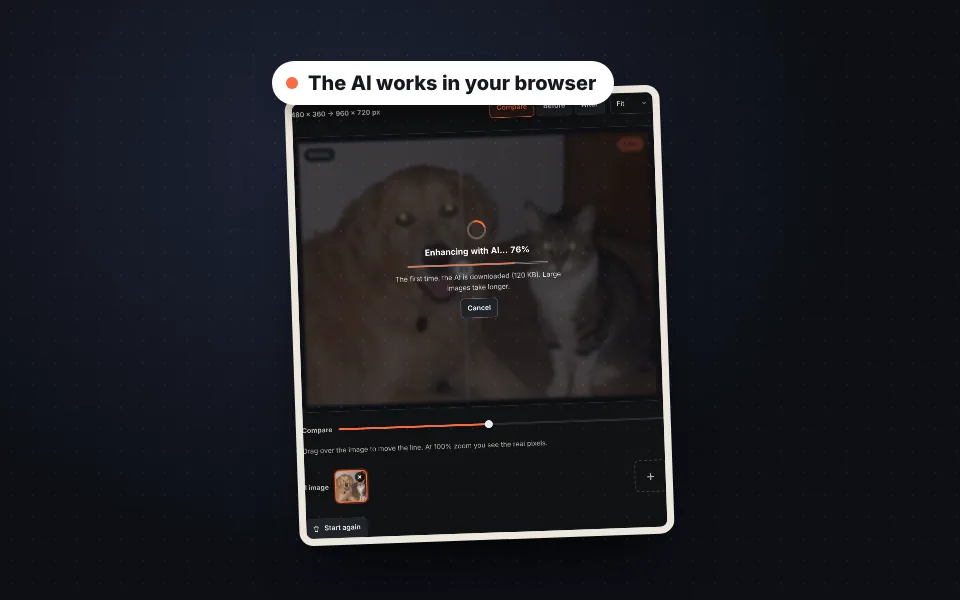
Upload the image
Drag one or more images, choose them or paste them with Ctrl+V. The AI starts working by itself.
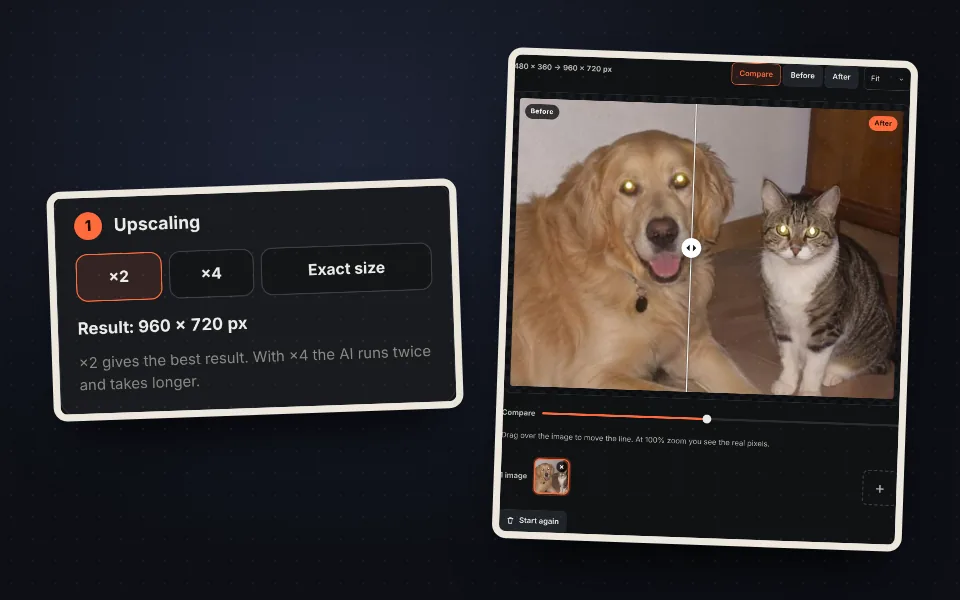
Choose how much to upscale
×2, ×4 or the exact width you need. You see the final size before downloading.
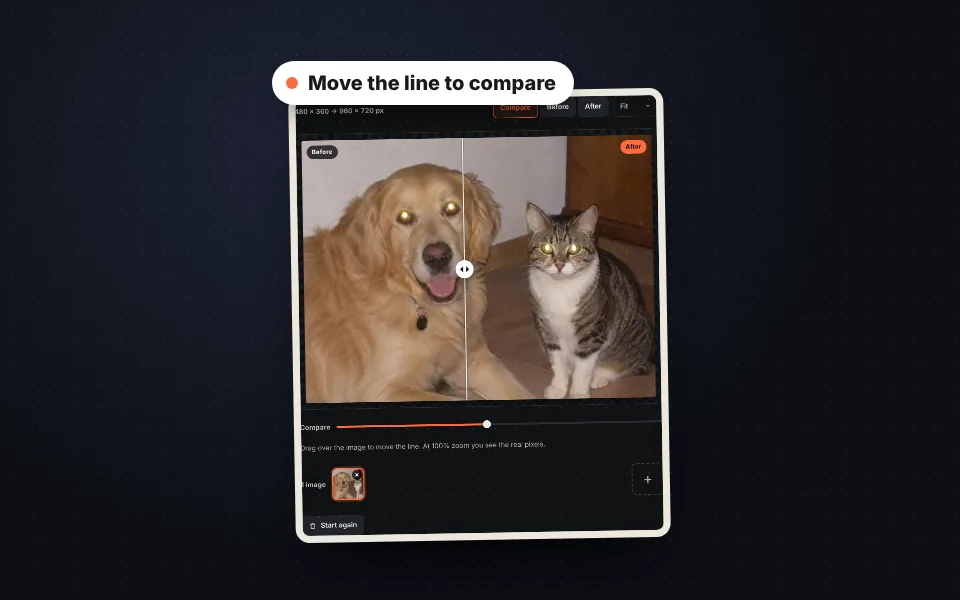
Compare and adjust
Move the line to see the difference and adjust the strength, sharpness and color.
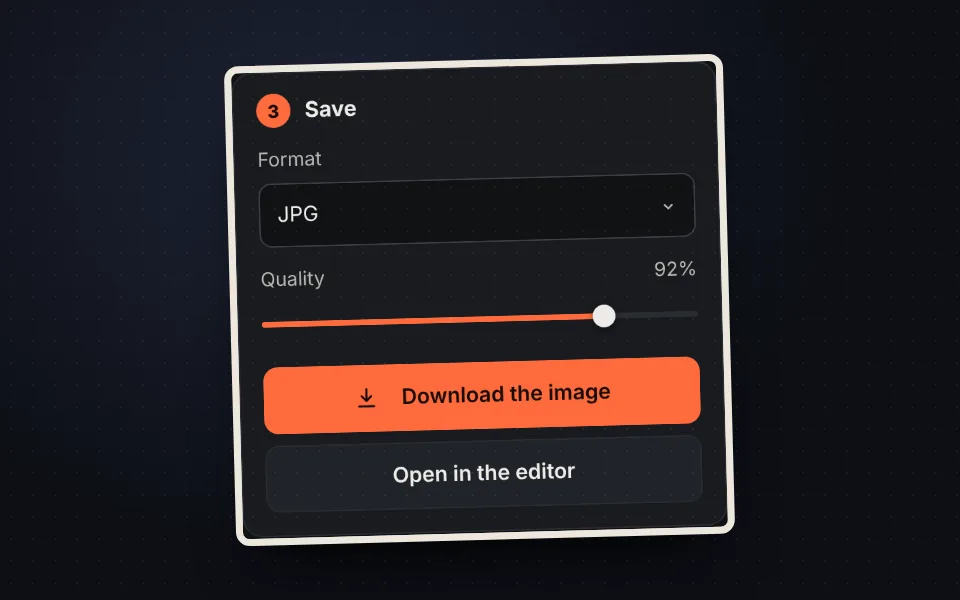
Download the image
As JPG, PNG or WebP, one by one or all in a ZIP.
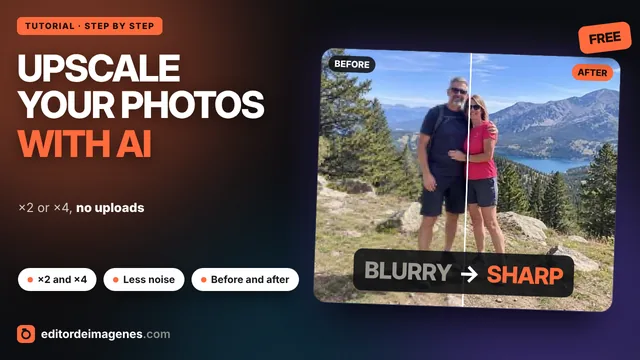
Video tutorial: how to upscale an image with AI
In this video you'll see how a small photo is uploaded, how to compare before and after with the slider and zoom, how to adjust the strength, sharpness and color, how to upscale ×4 or to an exact size and how to download the image. Click a chapter to jump straight to that part.
The video only loads from YouTube when you press play, and YouTube may then set its cookies. More information in the cookie policy.
How the AI enhances your images
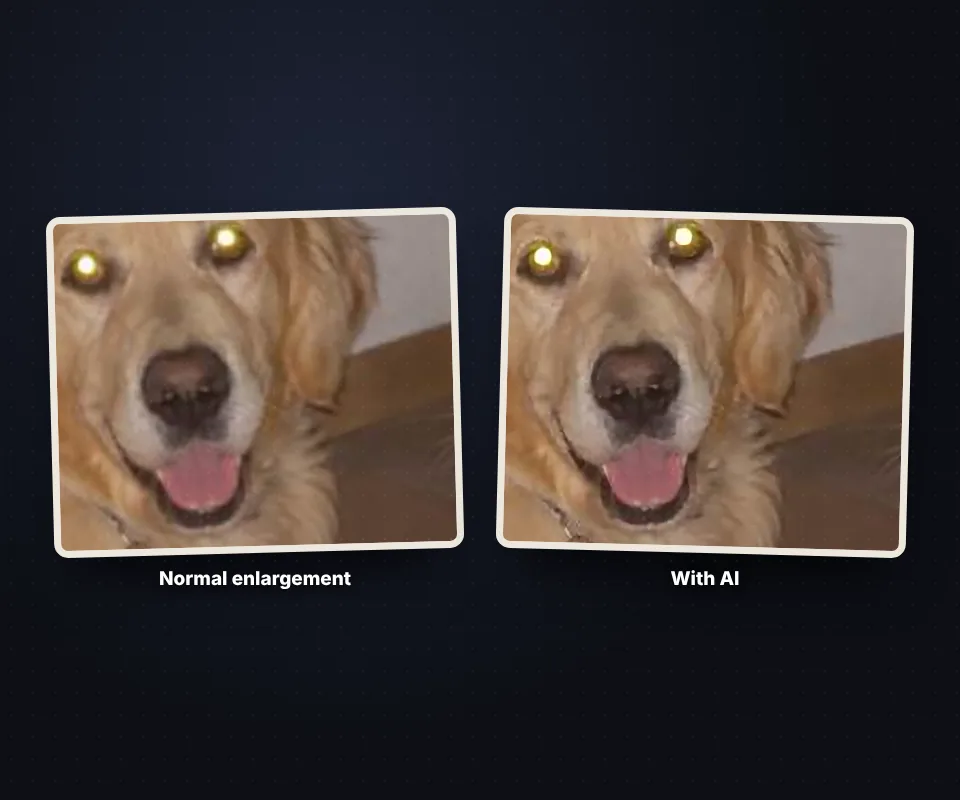
When you enlarge an image the normal way, the program only stretches the pixels it already has and the result looks blurry or pixelated. The AI does something different:
- It rebuilds edges: it has learned what outlines, hair, letters or leaves look like from thousands of examples, and draws them clean at twice the size.
- It removes JPEG defects: the blocks and halos that appear in heavily compressed photos or images downloaded from social media.
- It reduces noise: the grain in photos taken in low light.
The AI does not invent what is not in the photo: an unrecognizable face will not become sharp, but a small or slightly blurry image gains a lot.
Strength, sharpness and color
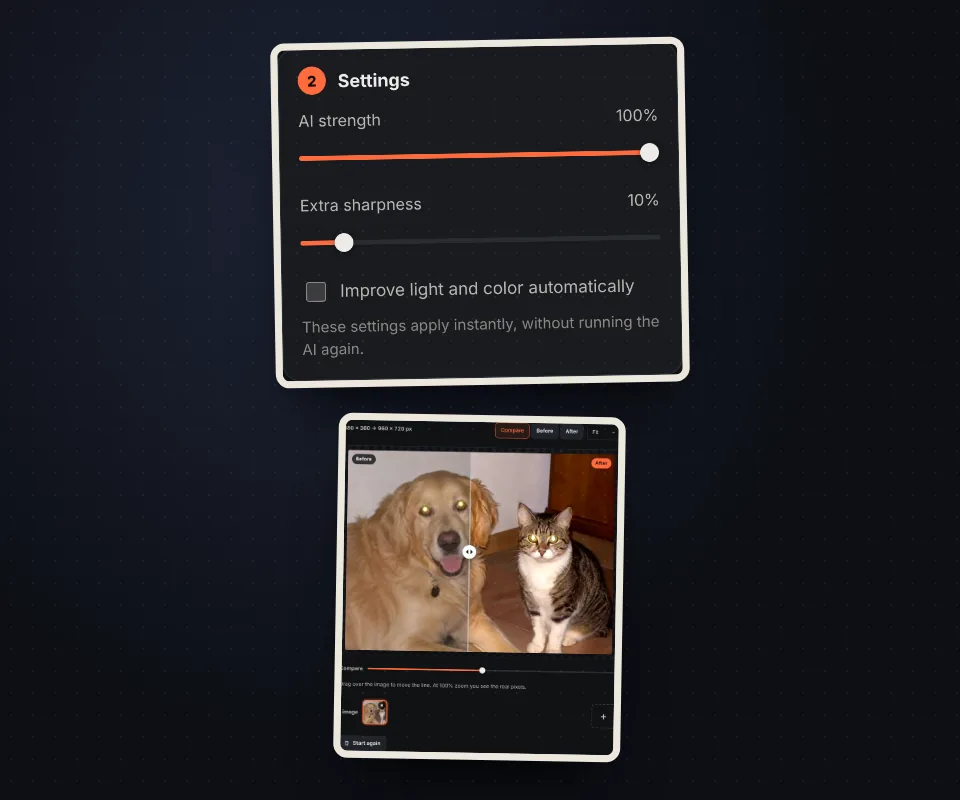
After the AI has run, you can fine-tune the result without waiting again:
- AI strength: if some area looks too defined, lower it to blend the result with the normal enlargement.
- Extra sharpness: brings out fine details. At high values, noisy photos can look rough.
- Improve light and color: stretches the contrast and livens up the colors a little, useful for old or dull photos.
At 100% or 200% zoom you see the real pixels of the final image and can compare any area with the line.
Which images improve the most
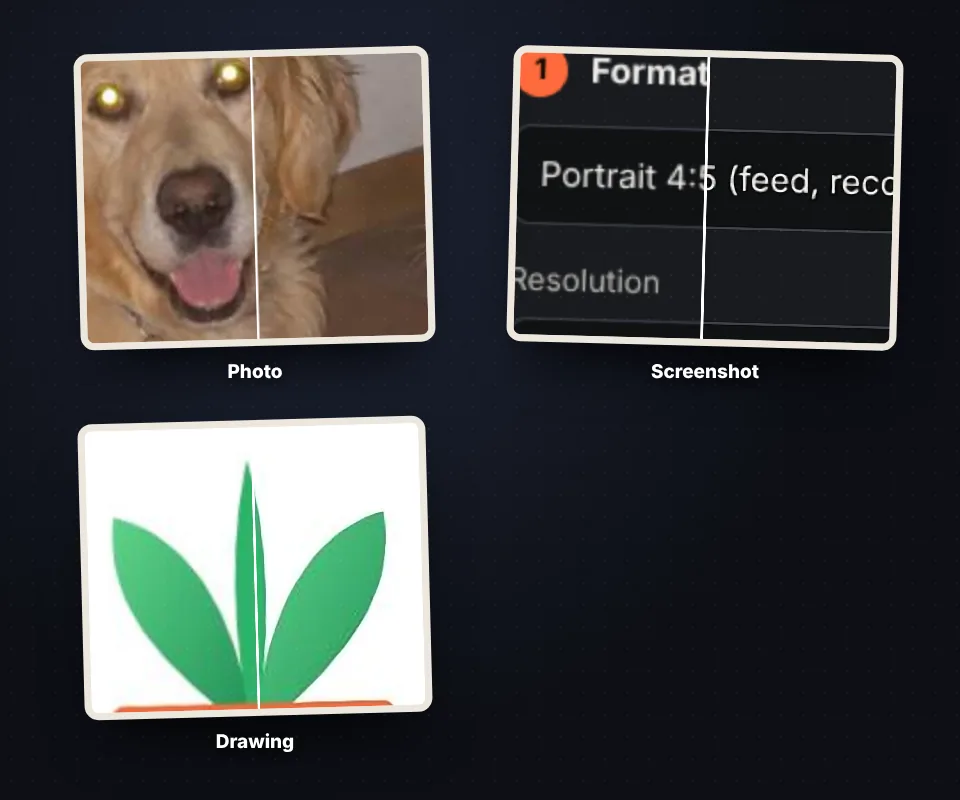
- Small or old photos: the ones taken with old phones or sent to you on WhatsApp.
- Images downloaded from the internet: low resolution or heavily compressed.
- Screenshots: letters and icons look cleaner when enlarged.
- Logos, drawings and illustrations: edges come out crisp, without jaggies.
- Photos to print: to reach the pixels you need on paper.
To print at good quality you need about 300 pixels per inch: a 4 × 6 inch photo needs about 1200 × 1800 px.
The AI runs in your browser
Most websites that enhance photos with AI make you upload them to their servers, sign up or pay for each image. Here our AI is downloaded once (about 120 KB) and runs on your device with TensorFlow.js, using the graphics card if your browser allows it. Your images never leave your computer or phone, there is no image limit and no watermark is added.
On older phones or in browsers that do not allow the graphics card, the AI works the same but takes longer. If an image is very large, start with ×2.
And after enhancing it
If the photo is old and has cracks or scratches, run it through restore old photos first. If you only need to change the dimensions without improving the quality, use resize image, and if it is then too heavy for a form or a website, reduce its size in KB.
Frequently asked questions
How do I enhance the quality of an image?
Upload the image, choose ×2 or ×4 and wait for the AI to finish. Move the line to compare before and after and press "Download the image".
Can I enlarge a photo without losing quality?
Enlarging always means creating new pixels. The AI creates them by rebuilding edges and textures, so the image looks much sharper than with a normal enlargement, although it cannot recover details that do not exist.
What is the difference between ×2 and ×4?
With ×2 the image gets twice the width and height (4 times more pixels). With ×4, four times the width and height: the AI runs twice and takes longer. ×2 usually gives the most natural result.
Can I choose the exact size?
Yes. Choose "Exact size" and type the final width in pixels. The height is calculated automatically so the image is not distorted.
Does it remove noise and JPEG blocks?
Yes. The AI has been trained with compressed and noisy images, so it also cleans up those defects when upscaling.
Why does it take so long?
The AI performs millions of calculations for each image. With the graphics card it takes a few seconds; if your browser does not allow it, it runs on the processor and takes longer. Large images and ×4 are the slowest.
Is there a maximum size?
The final image can have up to about 40 megapixels with the graphics card and 12 megapixels with the processor. If you go over, the tool warns you so you can try ×2.
Does it work on mobile?
Yes, on Android and iPhone. On older phones it takes longer; start with small images and ×2.
Can I enhance several images at once?
Yes. Upload them all and download them together with "Download all (ZIP)". The settings apply to all of them.
Are my images uploaded to a server?
No. The AI is downloaded into your browser and the images are processed on your device. They never leave it.
Is it free?
Yes, free, with no sign-up, no image limit and no watermark.