How to make a GIF from photos in 4 steps
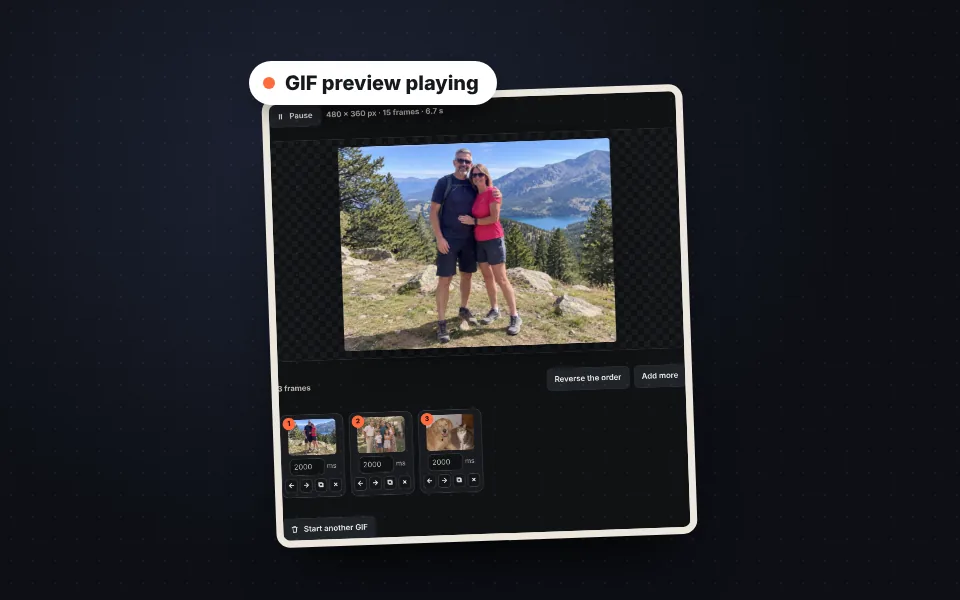
Upload the photos or video
Drag several photos or a video. From the video you choose the part and how many frames per second you want.
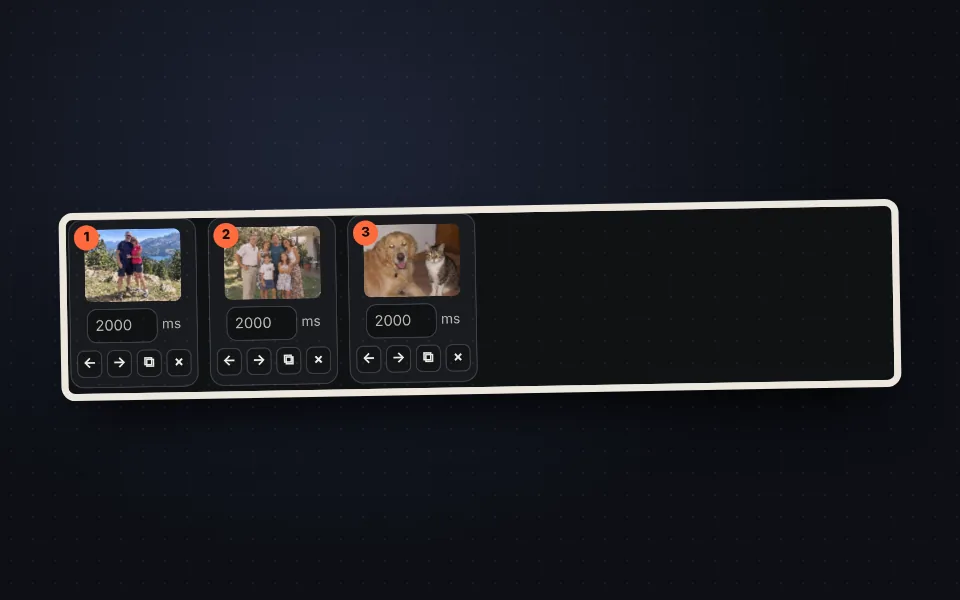
Reorder the frames
Drag them or use the arrows to change the order and type how long each one lasts.
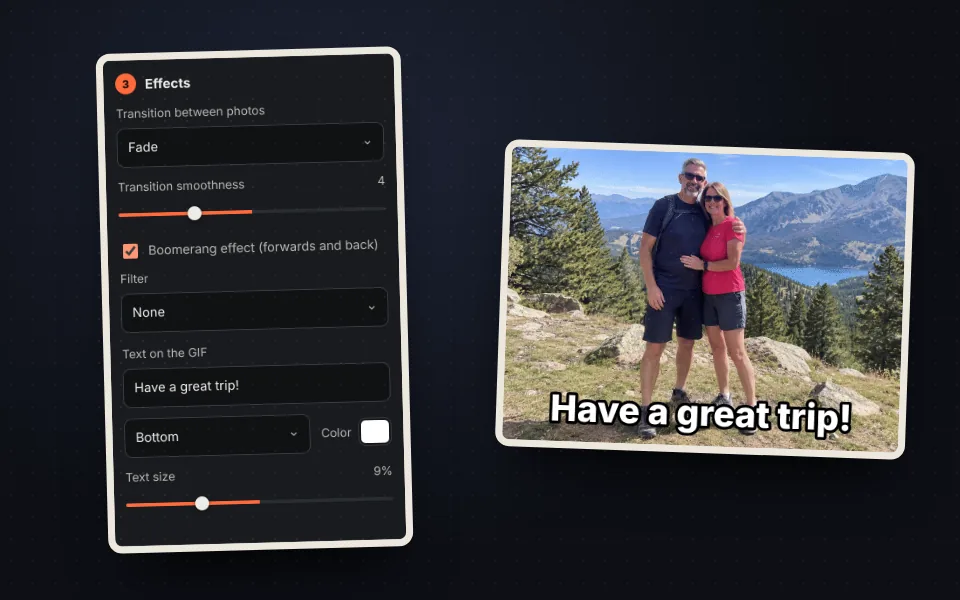
Add effects
Transitions, boomerang, filters and a text. The preview updates instantly.
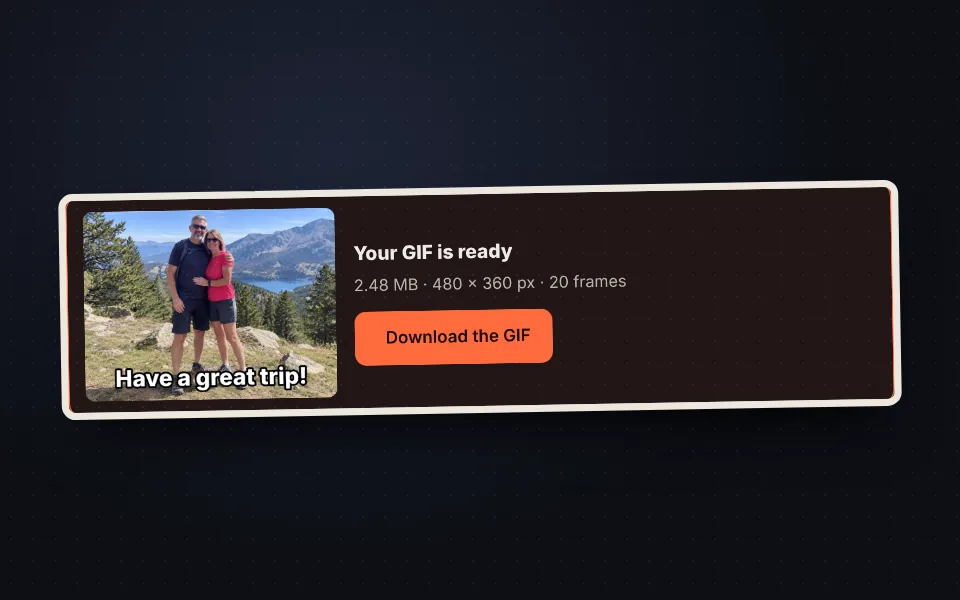
Create and download
Choose the colors, press "Create the GIF" and download it. You will see its size before downloading.
Video tutorial: how to make a GIF
In this video you'll see how to upload three photos, change the order and speed, add a fade, the boomerang effect and a text, choose the size and colors, and create and download the GIF. Click a chapter to jump straight to that part.
The video only loads from YouTube when you press play, and YouTube may then set its cookies. More information in the cookie policy.
A GIF from a video
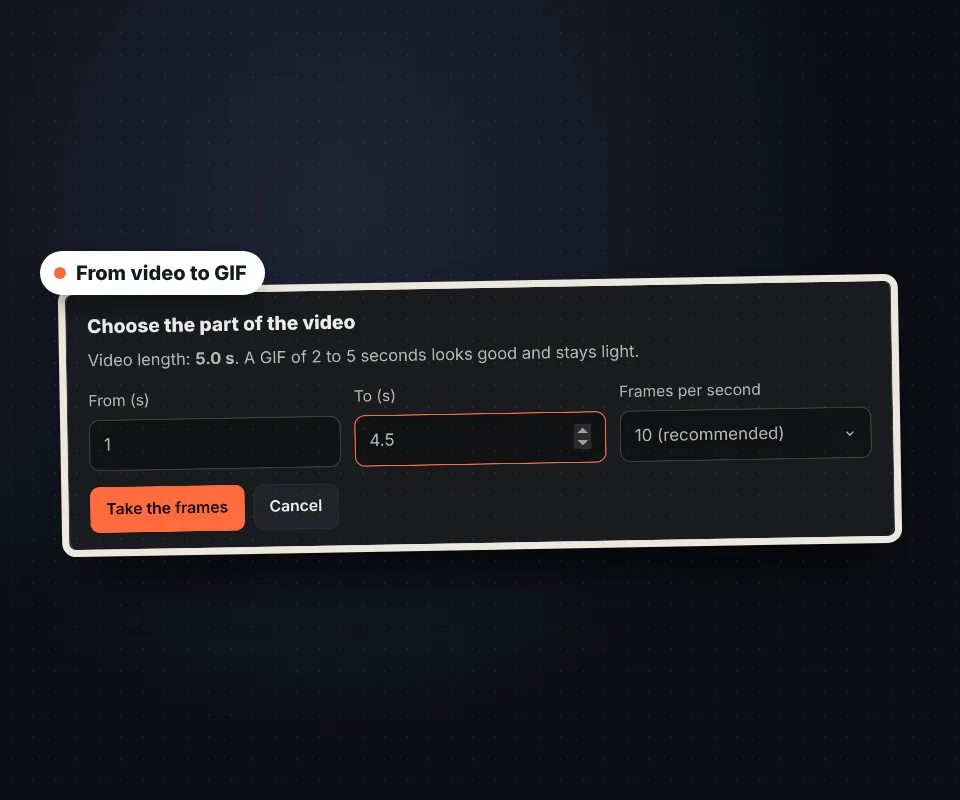
Upload a video from your phone or computer in MP4, WebM or MOV and choose the part you want to turn into a GIF:
- From and to: the second where the GIF starts and ends. Between 2 and 5 seconds is ideal.
- Frames per second: 10 is a good balance; with 15 or 20 the motion is smoother, but the GIF is heavier.
- Afterwards you can remove frames, change the order, turn on boomerang or add a text just like with photos.
The video is read in your browser and is not uploaded anywhere.
Transitions, boomerang, filters and text
With a few settings, a simple photo GIF looks like a small animation:
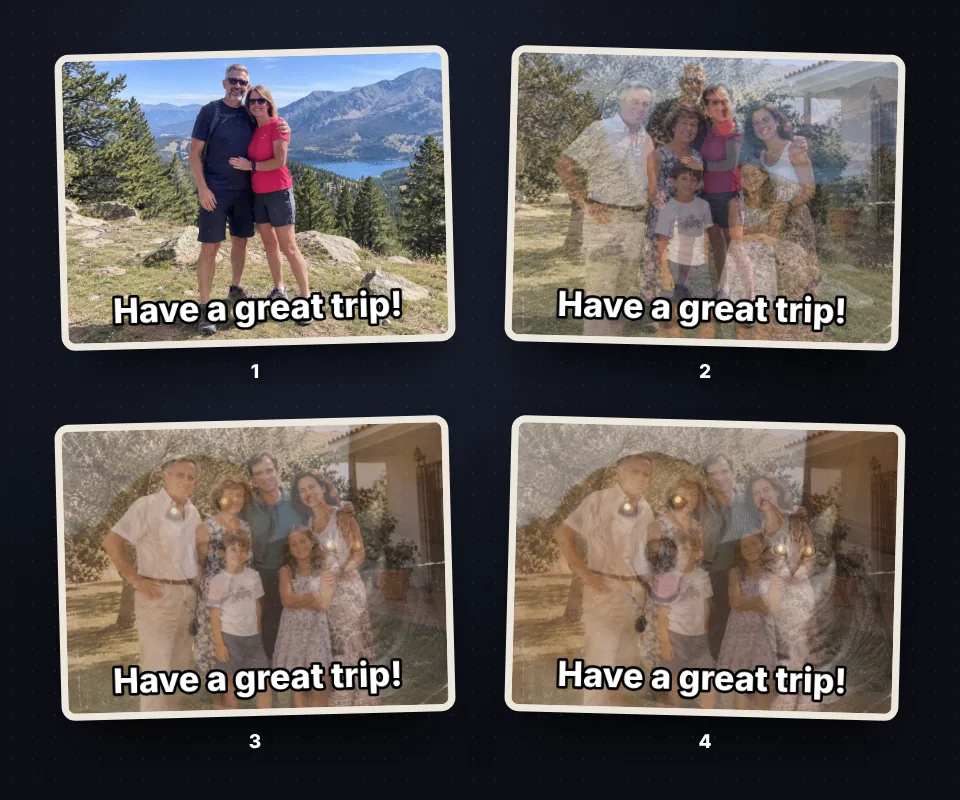
- Transitions: fade, slide, zoom or wipe between one photo and the next, as smooth as you like.
- Boomerang: the GIF plays forwards and then backwards, like Instagram stories.
- Filters: black and white, sepia, vivid colors or negative for the whole GIF.
- Text: a sentence at the top, bottom or center, with white letters and a black outline that can be read on any photo.
How to make the GIF lighter
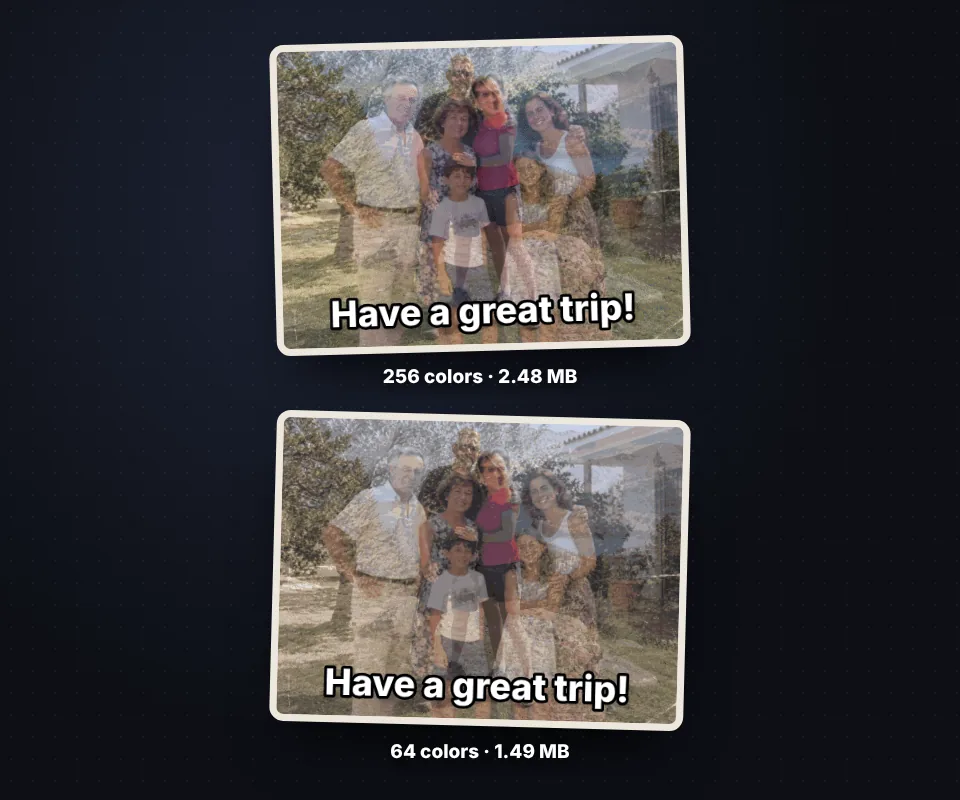
GIFs can be heavy. If you are going to send it by WhatsApp or email or upload it to a website, it should be light:
- Reduce the width: 480 px is enough for most uses and 320 px for stickers or signatures.
- Use fewer colors: with 64 colors you barely notice the difference and the file gets much smaller.
- Fewer frames: remove repeated ones or lower the frames per second of the video.
- Same palette in every frame: it avoids color flicker and sometimes reduces the size.
After creating the GIF you'll see its exact size, so you can try several options before downloading it.
What an animated GIF is for
A GIF plays anywhere without pressing play: in an email, on WhatsApp, on Telegram, on a forum or on a website. Use it to wish someone a happy birthday with several photos, show a product from several angles, explain a step by step in a few seconds, make an animation for your email signature or turn a funny moment from a video into a file you can share.
If you'd rather put the photos together in a single still image, use photo collage or combine photos.
Your photos and videos are not uploaded
The GIF is created in your browser: the photos and the video are read on your device and the file is encoded by a program that runs inside the page. Nothing is uploaded to any server and there is no usage limit and no watermark.
Frequently asked questions
How do I make a GIF with several photos?
Upload the photos, drag them into order, choose how long each one lasts and press "Create the GIF". Then download it with "Download the GIF".
Can I make a GIF from a video?
Yes. Upload an MP4, WebM or MOV video, choose the start and end second and how many frames per second you want, and press "Take the frames".
How do I change the speed of the GIF?
Change the "Duration of each photo" and press "Apply to every frame", or use "Overall speed" to speed up or slow down the whole GIF at once. You can also type the duration of each frame in milliseconds.
How do I change the order of the photos?
Drag each frame into place or use the arrows below it. "Reverse the order" flips them all.
What is the boomerang effect?
The GIF plays to the last frame and then back to the first, without the abrupt jump at the end.
Can I add text to the GIF?
Yes. Type in "Text on the GIF" and choose the position, color and size. It appears on every frame.
Why is my GIF so heavy?
The size depends on the width, the number of frames and the colors. Lower the width to 480 or 320 px, use 64 colors or remove frames.
Can the GIF play only once?
Yes. In "Repeats" choose "Once" or the number of times you want. By default it loops endlessly.
Can the photos have different sizes?
Yes. Choose whether each photo fits whole with colored bars, fills everything by cropping the edges or is stretched.
Are my photos or video uploaded to a server?
No. Everything happens in your browser and your files never leave your device.
Is it free?
Yes, free, with no sign-up and no watermark.