How to view and remove EXIF data in 4 steps
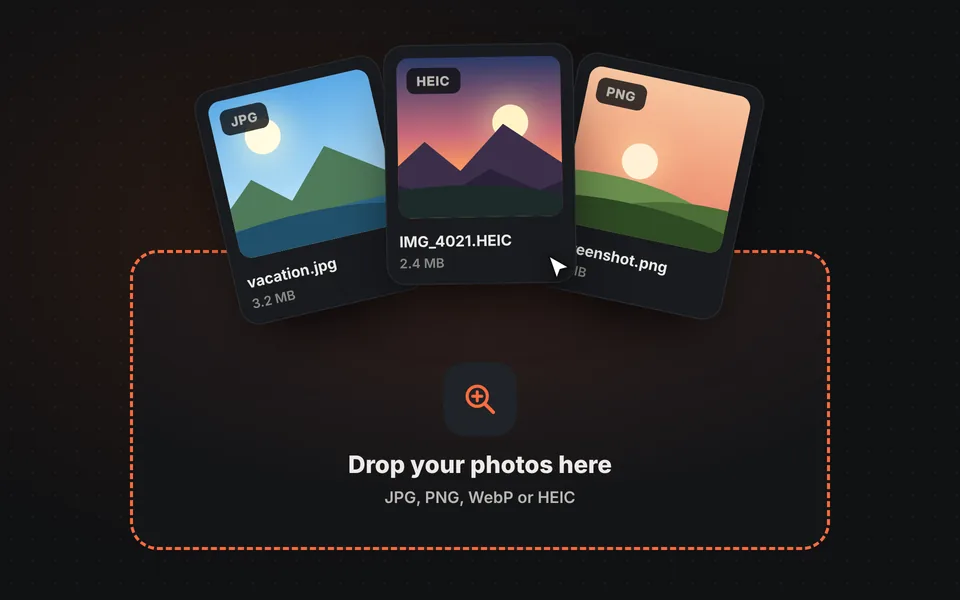
Open your photos
Drag one or more JPG, PNG, WebP or HEIC photos to the upload area. They're read in your browser and never sent to a server.
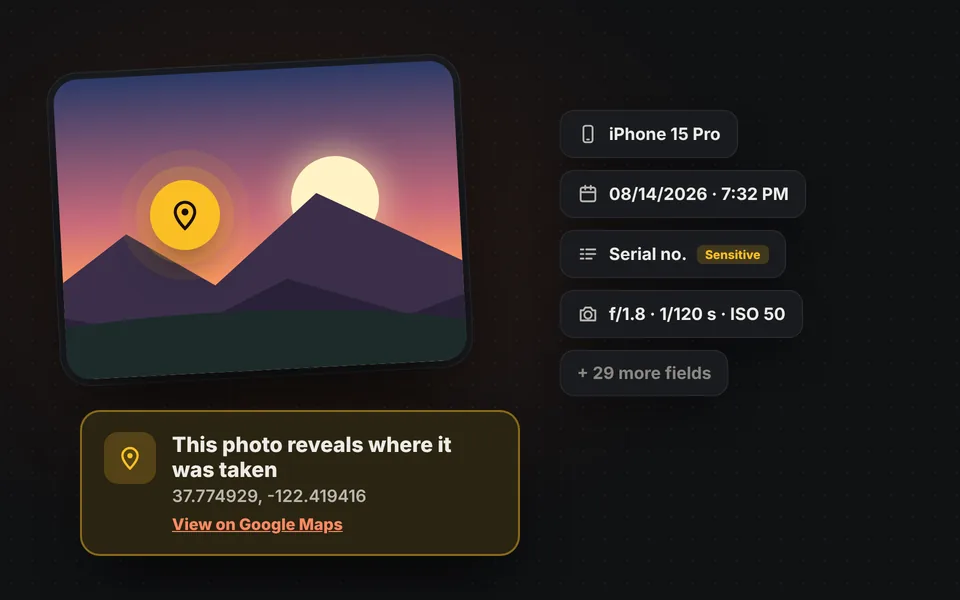
See what they reveal
You'll see all the data sorted into groups. If the photo stores where it was taken, a warning appears at the top and you can see it on Google Maps.
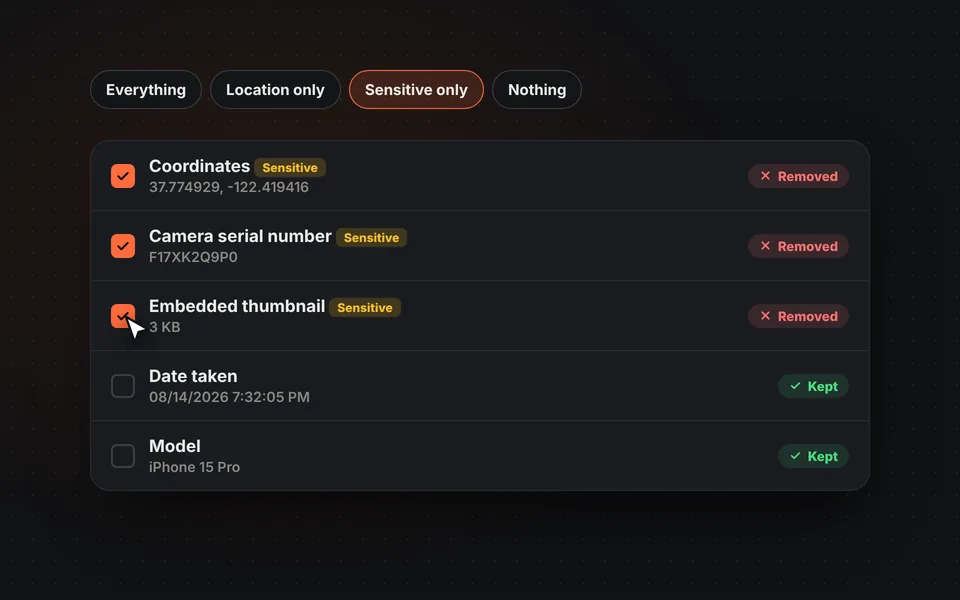
Choose what to delete
Check the data you want to remove or use the quick buttons: all, location only, sensitive or none.
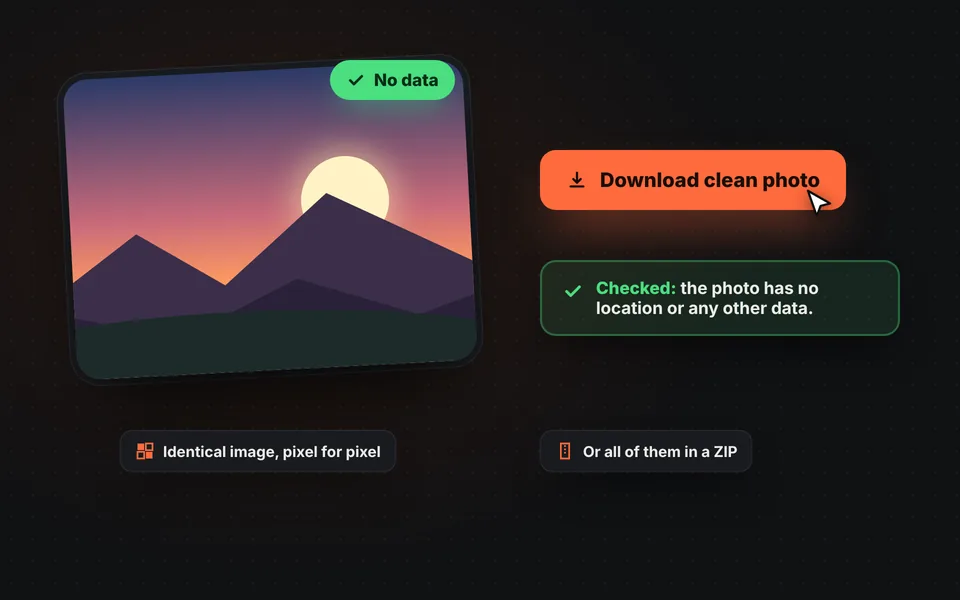
Download the clean photo
Download each photo or all of them in a ZIP. With JPG, PNG and WebP the image isn't recompressed: it stays identical, just without the data.
Video tutorial: how to view and remove EXIF data
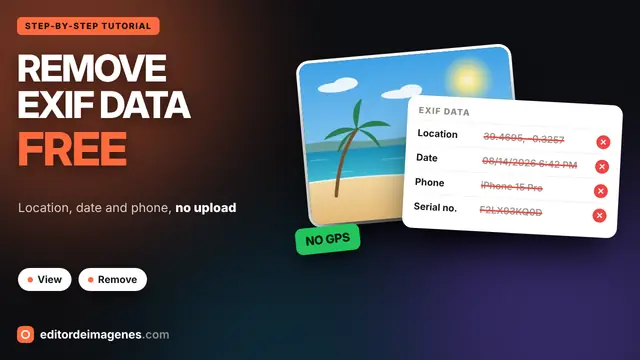
In this video you'll see what three phone photos reveal (the exact location, the date, the model and even the serial number), how to choose what to remove with the quick buttons or item by item, how to download them clean one by one or in a ZIP and how to check the result. Click a chapter to jump straight to that part.
The video only loads from YouTube when you press play, and YouTube may then set its cookies. More information in the cookie policy.
What is EXIF data?
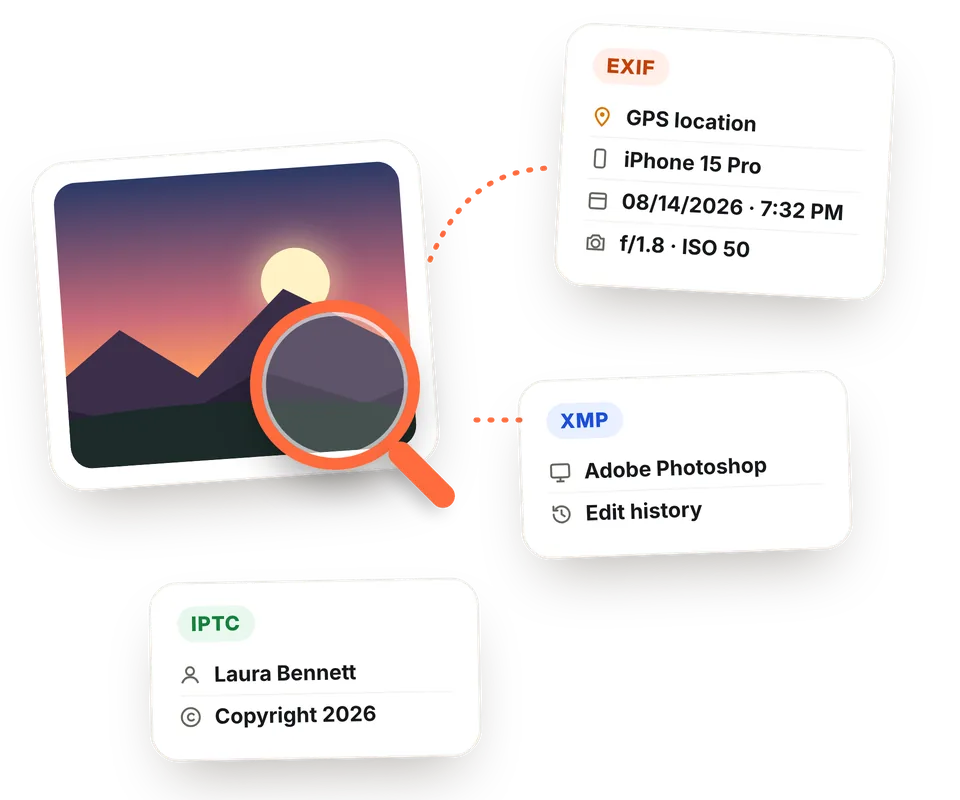
EXIF (Exchangeable Image File Format) is a standard for storing information inside a photo file itself. Every time you take a photo, your phone or camera records the date and time, the device model, the settings used (exposure, aperture, ISO, focal length, flash) and, if location is turned on, the exact GPS coordinates of the place.
Besides EXIF, many photos carry two other kinds of data: XMP, usually added by editing programs like Photoshop or Lightroom, and IPTC, designed for photographers and agencies, with the author, copyright, keywords or city. This tool reads and removes all three.
What your photos say about you without you knowing
Where you were
GPS coordinates pinpoint the place to within a few yards: your home, your workplace or your kids' school.
When
The day, the time and even the time zone. Together, several photos map out your routines.
Serial number
Many cameras store their serial number, which links together every photo taken with them.
The original photo
The embedded thumbnail sometimes isn't updated when you crop, and still shows what you removed.
That's why it's worth checking your photos before emailing them, uploading them to a listings site, sharing them in the cloud or sending them as a file. If you only care about the location, use the "Location only" button and keep the rest.
Remove the data without losing quality
Most online tools recompress the photo to strip its data, so the image loses some quality each time. Not here: with JPG, PNG and WebP only the part of the file holding the data is removed and the image stays identical, pixel for pixel. Even the color profile is kept so the colors don't change.
| Format | What can be read | How it's cleaned |
|---|---|---|
| JPG | EXIF, XMP, IPTC, comments and thumbnail | No recompression: identical image |
| PNG | EXIF, XMP and file text | No recompression: identical image |
| WebP | EXIF and XMP | No recompression: identical image |
| HEIC and AVIF | EXIF | Converted to high-quality JPG |
The orientation is kept when the photo is saved rotated, so it doesn't show up sideways.
Do messaging apps and social networks remove EXIF data?
It depends on how you share the photo. As a general rule:
- They usually remove it: WhatsApp and Telegram when you send the photo as an image, and Instagram, Facebook or X when you post it, because they recompress it.
- They send it as is: email, WhatsApp and Telegram when you send it as a document or file, cloud services like Google Drive, Dropbox or iCloud, AirDrop, listings sites that keep the original and web forms.
If you don't know how a photo will travel, the safest thing is to clean it first. And if it's in another format, you can also convert your HEIC photos to JPG and remove the location in the same step.
How to stop your phone from saving the location
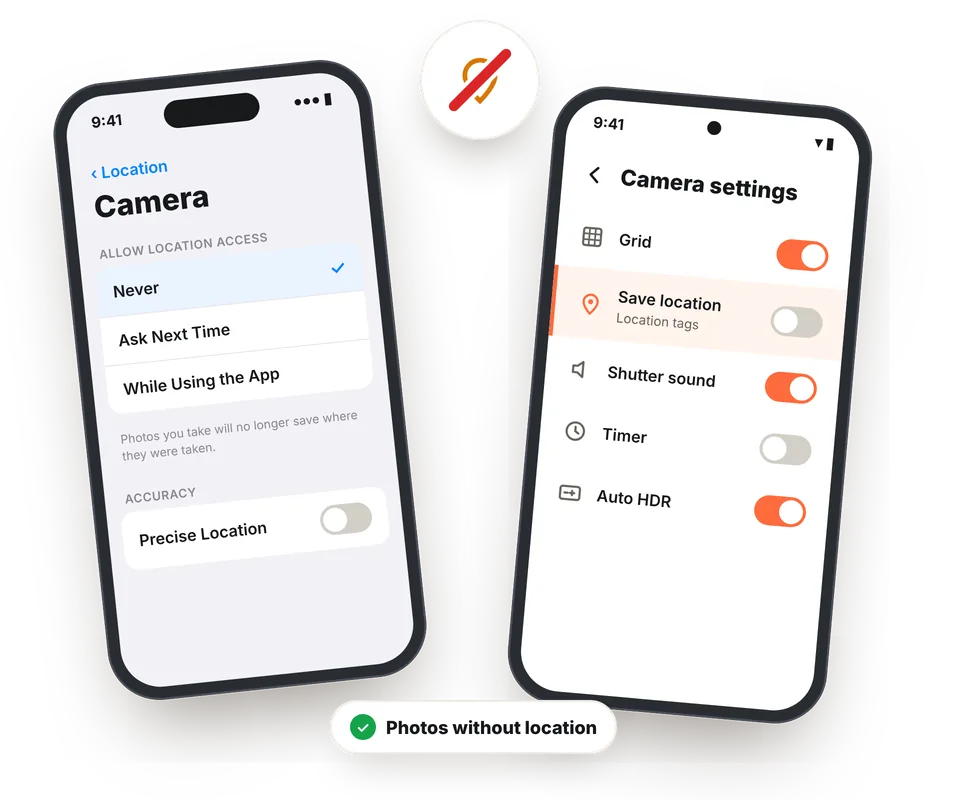
- On iPhone: go to Settings > Privacy & Security > Location Services > Camera and choose "Never". For a single photo, when you share it, tap "Options" at the top and turn off "Location".
- On Android: open the camera app, go to its settings and turn off the option to save the location. Depending on the brand it's called "Location tags", "Save location" or "GPS location".
Photos you've already taken will still store where they were taken. For those, use this tool.
Frequently asked questions
What is EXIF data?
It's data the camera or phone stores inside each photo file: the date and time, the device model, the camera settings and, often, the GPS coordinates of the place. You can't see it when you look at the image, but anyone who has the file can read it.
Are my photos uploaded to a server?
No. The photos are read and cleaned in your browser and never leave your computer or phone. You can check it: with the page open, disconnect from the internet and you'll see it keeps working the same.
Do I lose quality when removing the data?
Not with JPG, PNG and WebP. Only the part of the file holding the data is removed and the image stays exactly the same, pixel for pixel. HEIC and AVIF photos are converted to very high-quality JPG, because that's the only way to rewrite them in the browser.
How do I know if a photo has its location?
Open it here. If it stores GPS coordinates, you'll see a warning at the top with the position and a link to view it on Google Maps. A warning also appears in the photo list.
Can I delete only some of the data?
Yes. Each item has its own checkbox and each group has one too. For example, you can remove the location and the camera serial number and keep the date so you can keep sorting your photos.
Why can't I remove the orientation?
Many photos are saved sideways and the orientation tells the program how to rotate them. If we removed it without rotating the image, the photo would show up sideways. That's why it's kept when needed: it says nothing about you.
Do messaging apps and social networks remove EXIF data?
Usually yes when you send or post the photo as an image, because they recompress it. But if you send it as a document or file, by email, or share it from Google Drive or Dropbox, the file arrives as is, with all its data.
What is the embedded thumbnail?
Many JPG photos carry a small copy of the image inside. Some programs don't update it when you crop or edit the photo, so it may still show the original image. We recommend deleting it.
Which formats can I use?
JPG, PNG, WebP, HEIC, HEIF and AVIF. You can open several photos at once and download them together in a ZIP.
Is it free?
Yes, free, with no sign-up, no watermark and no photo limit.