How to convert WebP to JPG in 4 steps
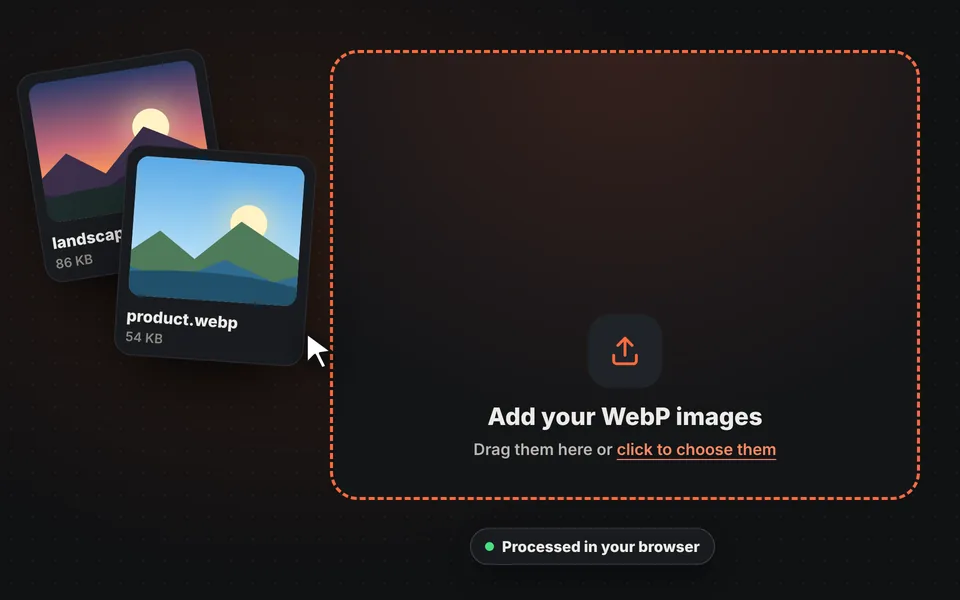
Add your images
Drag one or more WebP images to the upload area, choose them from your device or paste them with Ctrl+V.
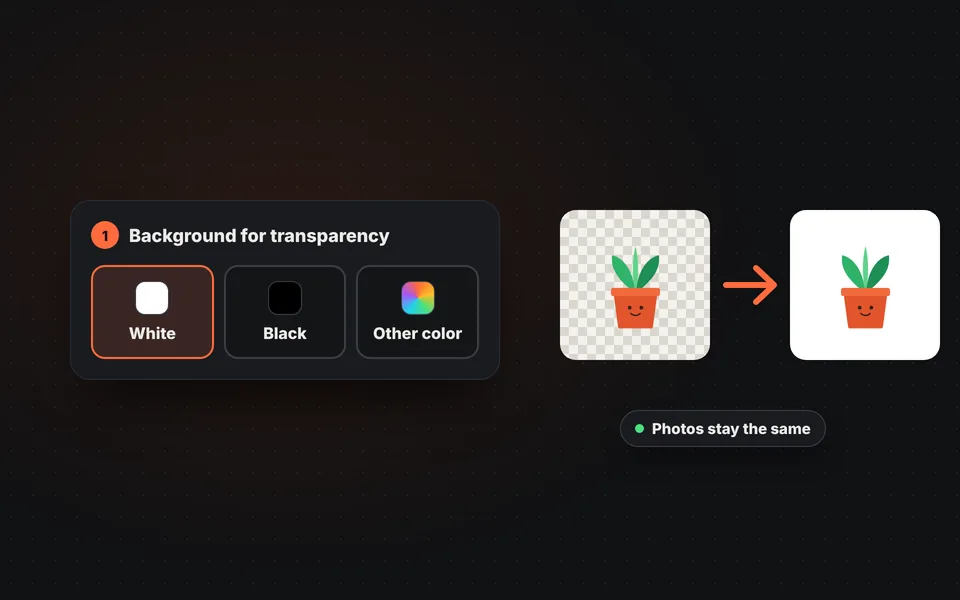
Check the background
If any image has transparent areas, choose which color fills them: white, black or any color you want.
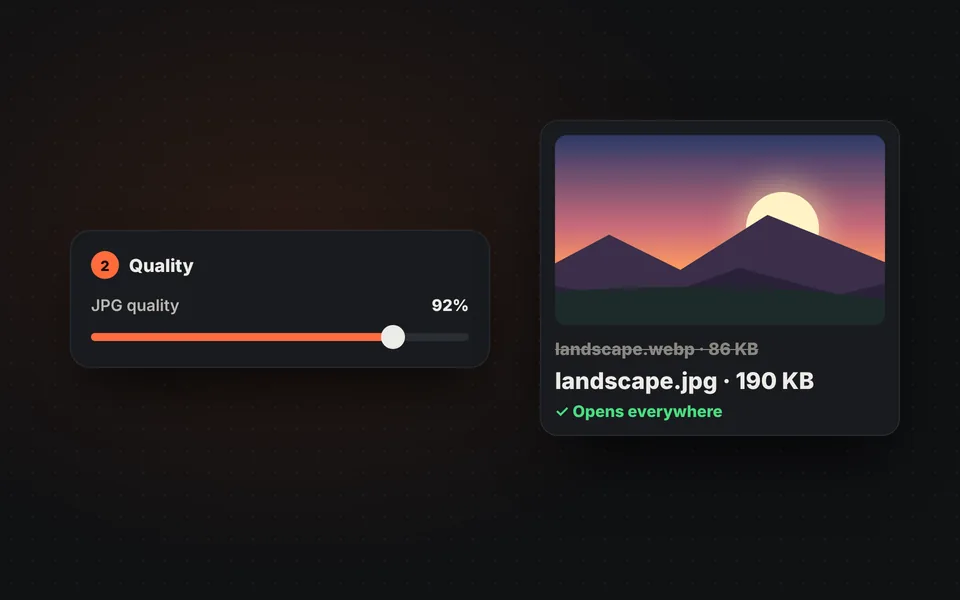
Choose the quality
At 92% the photo looks the same as the original. Lower it if you need a smaller file.
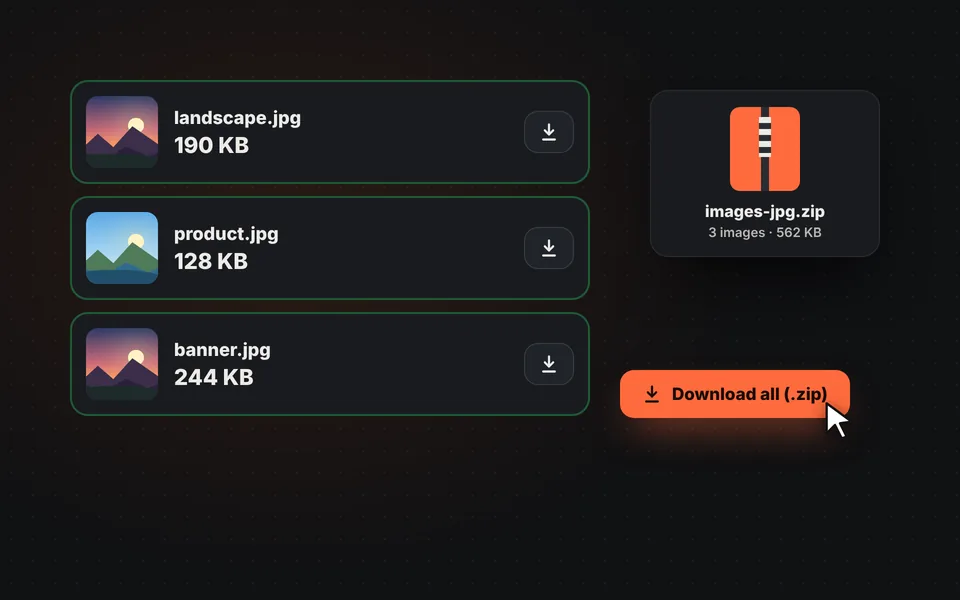
Download the JPGs
Download each image separately or all together in a ZIP, with the same name and the .jpg extension.
Video tutorial: how to convert WebP to JPG
In this video you'll see how to upload the WebP images, choose the background for transparent areas, adjust the quality and download them in a ZIP. Click a chapter to jump straight to that part.
The video only loads from YouTube when you press play, and YouTube may then set its cookies. More information in the cookie policy.
Why do my images download as WebP?
More and more websites, online stores and search engines serve their images as WebP, a format created by Google that's 25% to 35% smaller than JPG. That way pages load faster. That's why, when you save an image with a right-click, you often end up with a .webp file even though it looks like a regular photo.
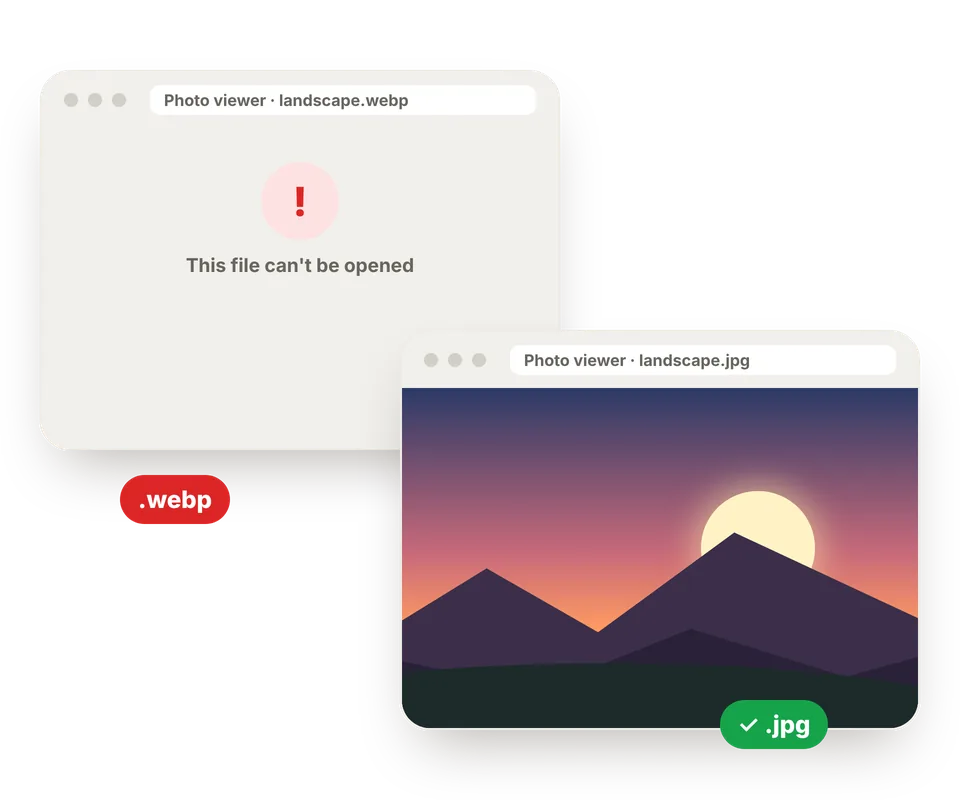
In the browser it looks perfect, but outside it the problems start: the old Windows photo viewer, older versions of Photoshop, Word or PowerPoint, some phones and many apps can't open it. Once converted to JPG, the image works anywhere.
WebP vs. JPG: the differences
Both formats are used for photos and look practically the same. The difference is in file size and, above all, in where you can use them:
| Feature | WebP | JPG |
|---|---|---|
| Size of a photo | 25% to 35% smaller than JPG. | Somewhat larger. |
| Transparency | Yes. | No: transparent areas are filled with a color. |
| Animation | Yes, like a GIF. | No. |
| Compatibility | Recent browsers and programs. | Universal: every program, website and form accepts it. |
| Best for | Making a website load fast. | Opening, editing, printing, sending and uploading to forms. |
Where can't you use a WebP?
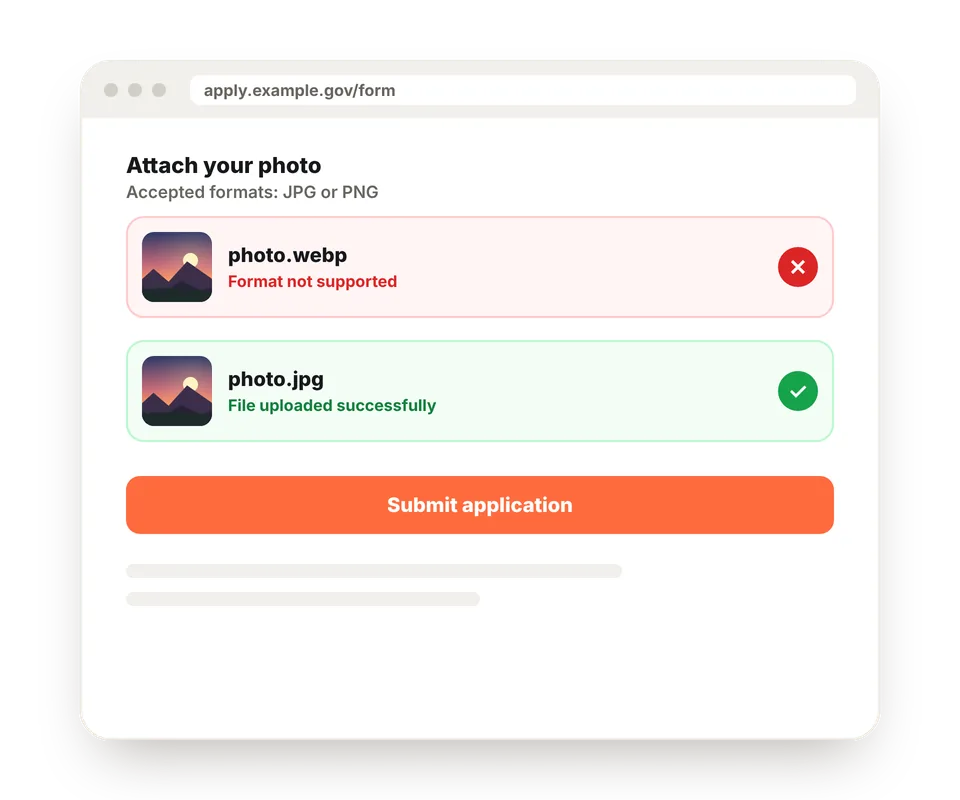
The most common case is forms: government portals, job sites, banks, insurance companies or contest websites that only accept JPG, PNG or PDF. If you get "unsupported format" when uploading an image, convert it to JPG and try again.
Photo printing services, some email programs and digital photo frames also cause problems. If your image has transparency and you want to keep it, convert it to PNG with our JPG to PNG tool, which also accepts WebP images.
Do you lose quality converting WebP to JPG?
At 90% quality or higher, you won't notice. What does change is the size: WebP compresses better, so the JPG is usually much larger, sometimes double or triple. That's normal and it's the price of working everywhere. If you need a small file, lower the quality to 80–85%: the difference is barely visible.
If you're the one publishing images on a website, do just the opposite and convert your photos to WebP: your page will load faster and Google takes that into account.
Frequently asked questions
How do I convert a WebP image to JPG?
Add the WebP image and it will be converted to JPG instantly. Then click the download button. If it has transparent areas, you can first choose which color fills them.
Can I convert several WebP images at once?
Yes. Add as many as you want and they'll be converted one after another with the same settings. Then you can download them separately or all together in a ZIP.
Why can't I open a WebP image?
Because the program you're using doesn't support that format or is an old version. It often happens with the classic Windows photo viewer and with editing and office software released before 2019. As a JPG it opens in any program.
How do I stop images from downloading as WebP?
It isn't always possible: it depends on how each website serves them. The quickest option is to download it as is and convert it to JPG here in a couple of seconds.
Do I lose quality when converting WebP to JPG?
At 90% quality or higher the difference isn't visible. However, the JPG is usually much larger than the WebP, because WebP compresses better. That's normal; if file size matters, lower the quality to 80–85%.
What if the WebP has a transparent background?
JPG doesn't support transparency, so those areas are filled with the color you choose. If you want to keep it, convert it to PNG with our JPG to PNG tool, which also accepts WebP.
Does it work with animated WebP?
The first frame of the animation is converted, because JPG doesn't support motion.
Does it work on my phone?
Yes, on Android and iPhone. Choose the images from your photo library or downloads folder and download the JPGs on the same phone.
Are my images uploaded to a server?
No. The conversion happens in your browser and your images never leave your device.
Is it free?
Yes, free, with no sign-up, no watermark and no image limit.