How to convert PDF to JPG in 4 steps
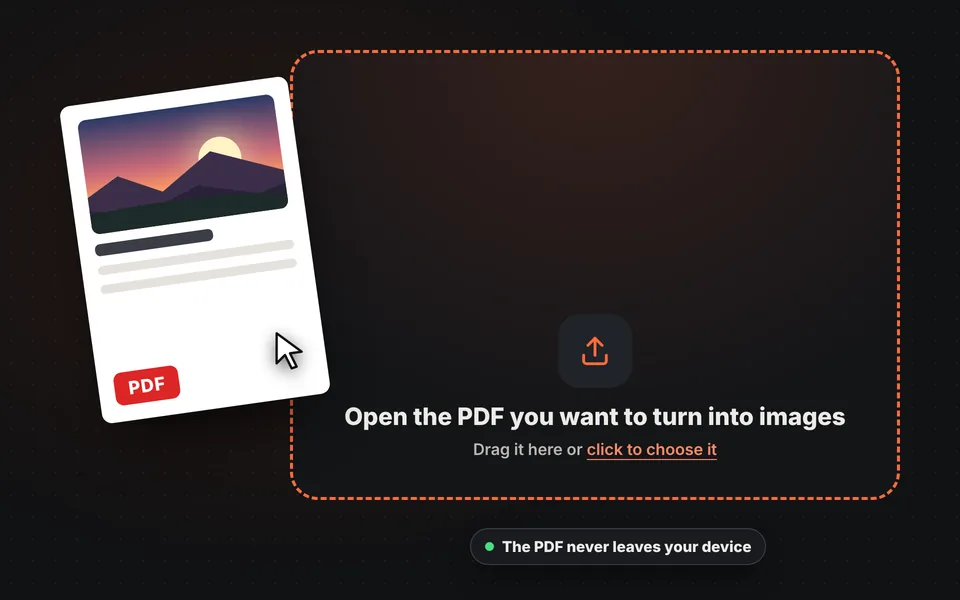
Open the PDF
Drag the file or choose it from your computer or phone. If it has a password, you'll be asked for it; it isn't sent anywhere.
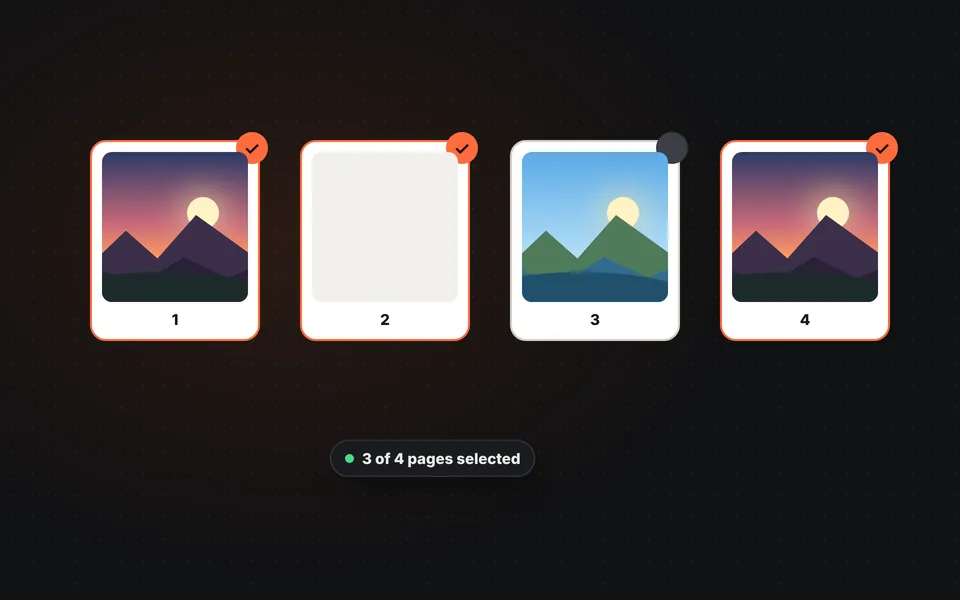
Choose the pages
All of them are selected. Tap a page to deselect it or type a range, for example 1-3, 5.
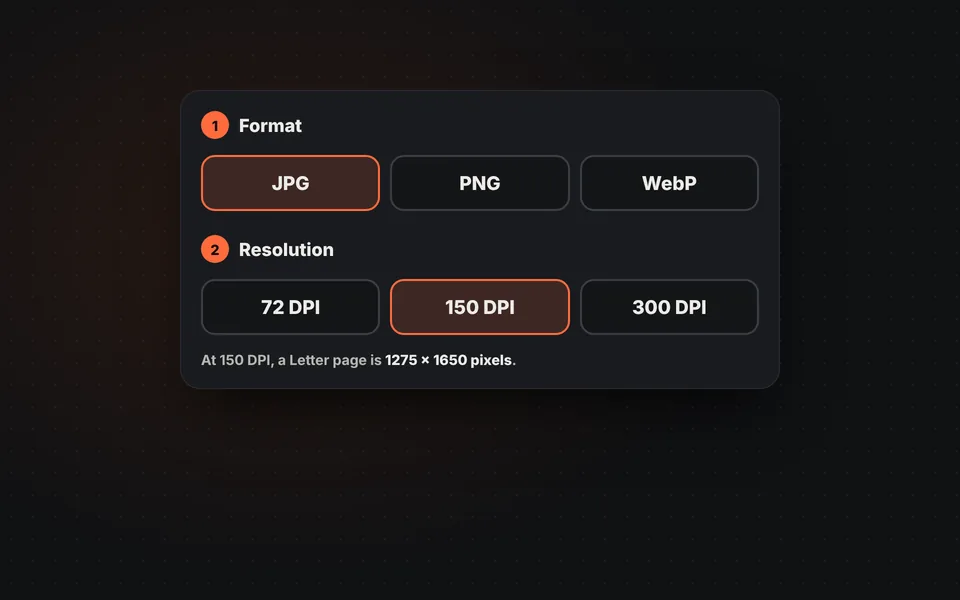
Format and resolution
JPG for almost everything, PNG if you need maximum sharpness and WebP for your website. 150 DPI for screens and 300 DPI for printing.
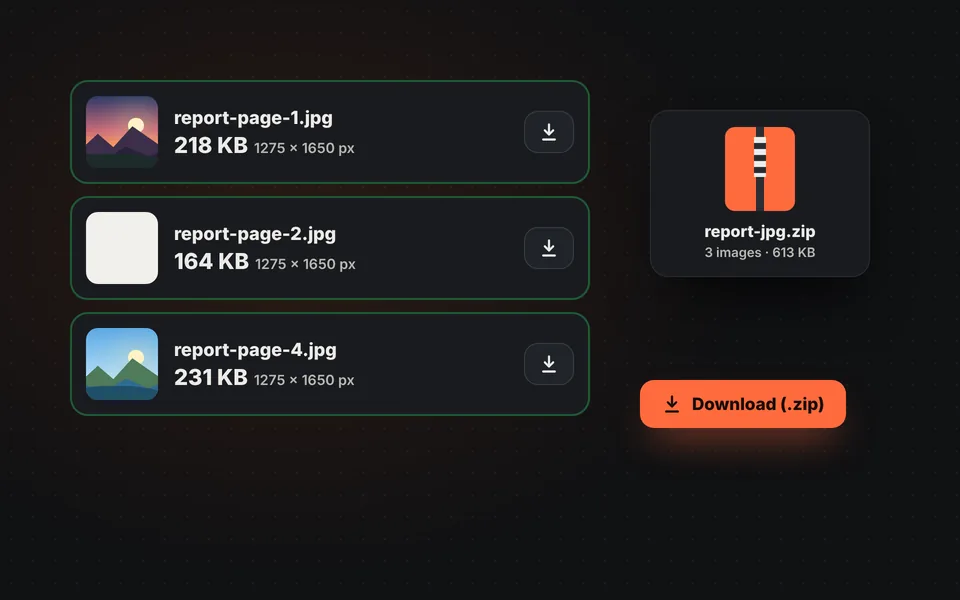
Download the images
A single page downloads directly and several come in a ZIP. You can also download or edit each page separately.
Video tutorial: how to convert a PDF to JPG
In this video you'll see how to open the PDF, choose the pages, choose the format and resolution, and convert and download the images. Click a chapter to jump straight to that part.
The video only loads from YouTube when you press play, and YouTube may then set its cookies. More information in the cookie policy.
What is converting a PDF to JPG for?
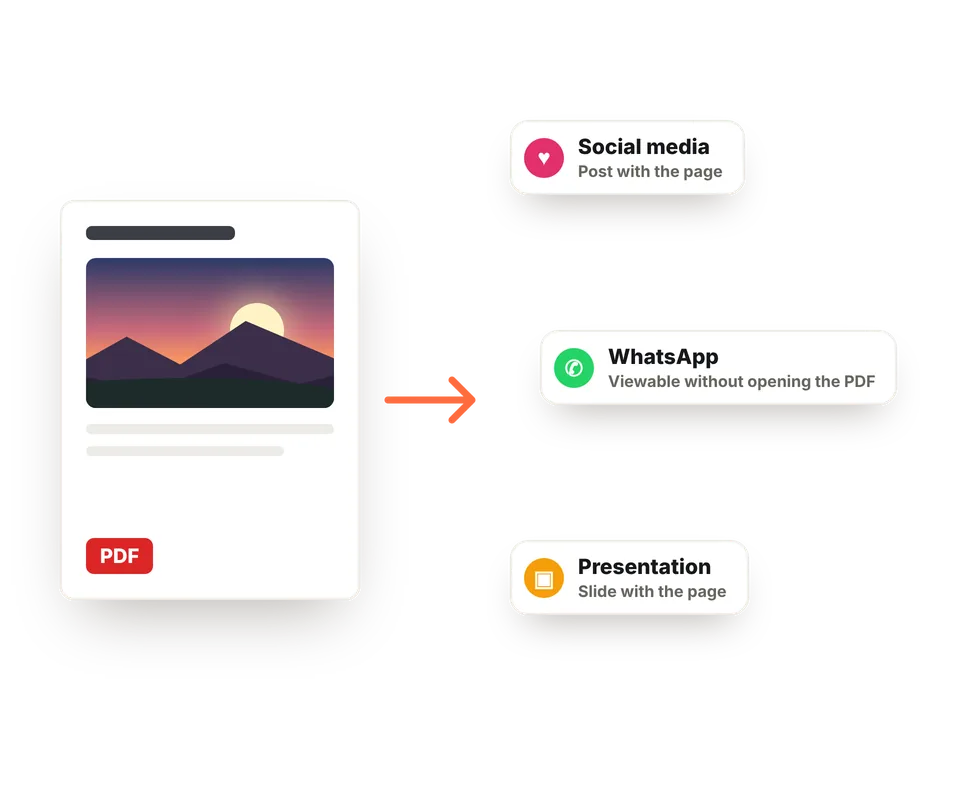
Many places don't accept PDFs: Instagram, most social networks, many websites and some forms only accept images. By turning each page into a JPG you can post it, send it in a message with a preview or upload it wherever you want.
It's also useful for adding a page to a presentation, a Word document or a website, for creating a catalog thumbnail or for touching up a page in our editor: each converted image has its own "Edit" button.
Which resolution should you choose?
Resolution is measured in DPI (dots per inch) and determines how many pixels each image will have. The higher it is, the sharper, especially for small text, but also the larger the file.
| Resolution | Letter page | What for |
|---|---|---|
| 72 DPI | 612 × 792 px | Thumbnails and quick previews on screen. |
| 150 DPI | 1275 × 1650 px | Social media, messages, websites and presentations. The most balanced. |
| 300 DPI | 2550 × 3300 px | Printing or reading blueprints and very small text in detail. |
JPG, PNG or WebP: which format should you choose?
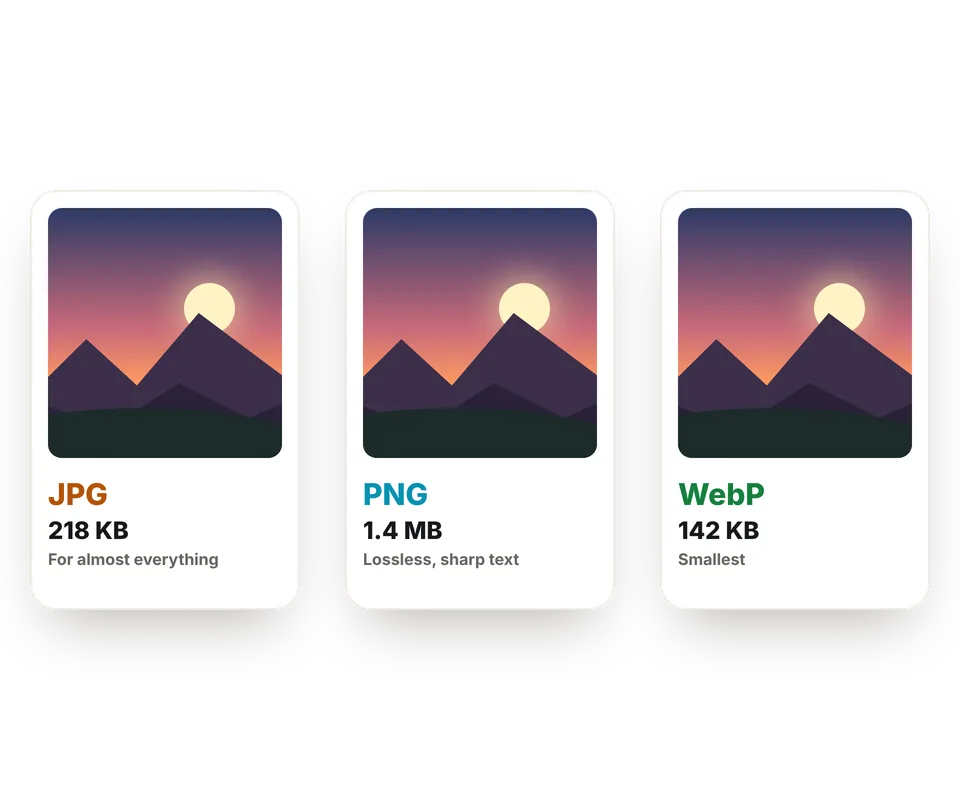
JPG is the most compatible: it opens on any phone, computer, social network or program and the files are small, especially for pages with photos. It's the best choice for almost everything, from sending a page in a message to attaching it to an email.
PNG loses no quality at all, so text, tables, charts and blueprints stay perfectly sharp, without the smudges that sometimes appear around letters in a JPG. In return, it's much larger: a page full of text can take up several times as much as its JPG version.
WebP is the modern web format: it looks as good as JPG and is even smaller. It's ideal if you're going to put the images on your website or an online store, although some older programs still can't open it.
If in doubt, choose JPG. Use PNG when the page is mostly text or blueprints and you want maximum sharpness, for example to print or enlarge it.
Password-protected, scanned or long PDFs
If the PDF has an open password, the tool will ask for it; the password is only used in your browser. Scanned PDFs work just like the rest, because each page is already an image. And with documents that have many pages, thumbnails load as you scroll and you can convert only the ones you need.
Want to do the opposite? To combine several photos into a single document, use our tool to convert JPG to PDF.
Frequently asked questions
How do I convert a PDF to JPG?
Open the PDF, keep the pages you want selected, choose JPG and the resolution and click "Convert". One page downloads directly; several come in a ZIP.
Can I convert only some pages?
Yes. Tap the pages you don't want to deselect them or type a range in the "Pages" field, for example 1-3, 5.
Which resolution is best?
150 DPI is the most balanced for viewing images on screen, social media or presentations. Choose 300 DPI if you're going to print them or they have very small text, and 72 DPI if you only want thumbnails.
Do you lose quality turning a PDF into an image?
Text and graphics in a PDF can be enlarged without limit; an image has a fixed number of pixels. At 150 or 300 DPI the images look sharp, and with PNG nothing is lost to compression.
Does it work with password-protected PDFs?
Yes, if you know the password. The tool will ask for it when opening the file and it's only used in your browser.
How many pages can the PDF have?
There's no fixed limit. With very long documents, thumbnails load as you scroll and conversion takes longer, so it's best to select only the pages you need.
Can I select the text in the images?
No. When a page becomes an image, the text becomes part of it and can no longer be selected or copied.
Can I put the images back together into a PDF?
Yes, with our JPG to PDF converter, where you can also change the order of the pages.
Does it work on my phone?
Yes, on any phone or tablet with a current browser. With very large PDFs or at 300 DPI it may take a bit longer than on a computer.
Is my PDF uploaded to a server?
No. The PDF is opened and converted in your browser and never leaves your device, so you can use it with private documents.
Is it free?
Yes, free, with no sign-up, no watermark and no page limit.