How to add text to a photo in 4 steps
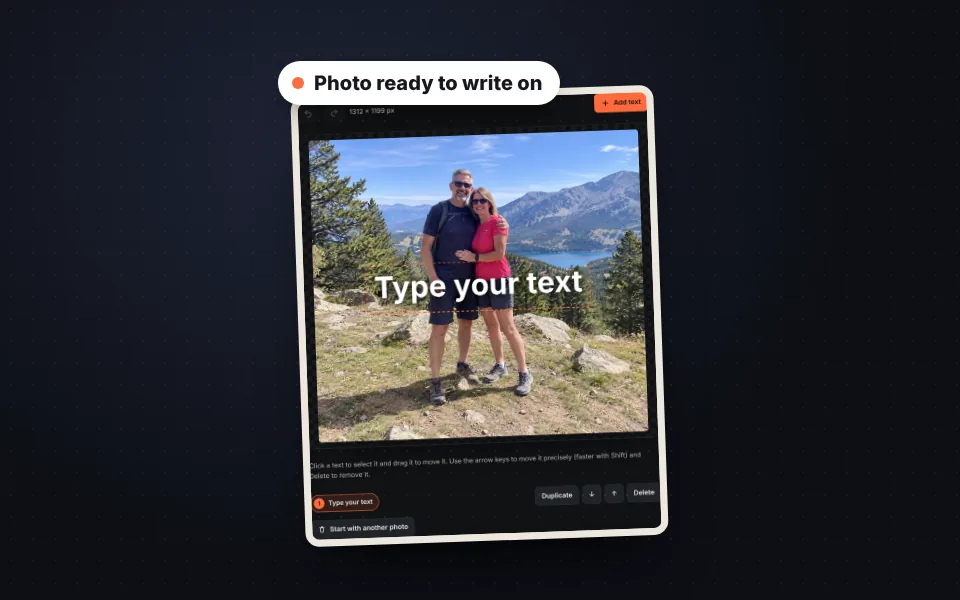
Upload the photo
Drag it, choose it or paste it with Ctrl+V. If you have no photo, start with a colored background.
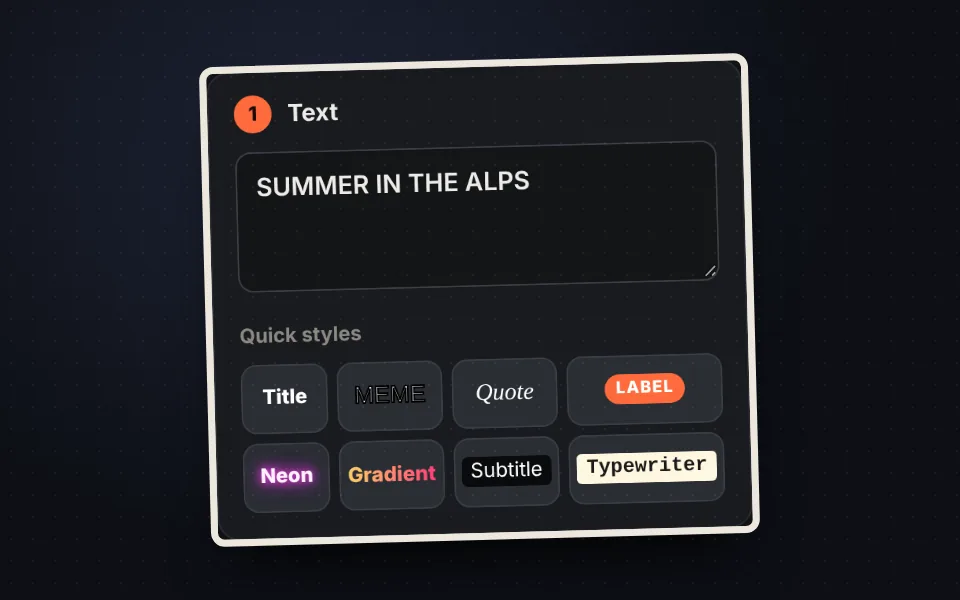
Type the text
Type in the text box or apply a quick style. With "Add text" you can add as many as you want.
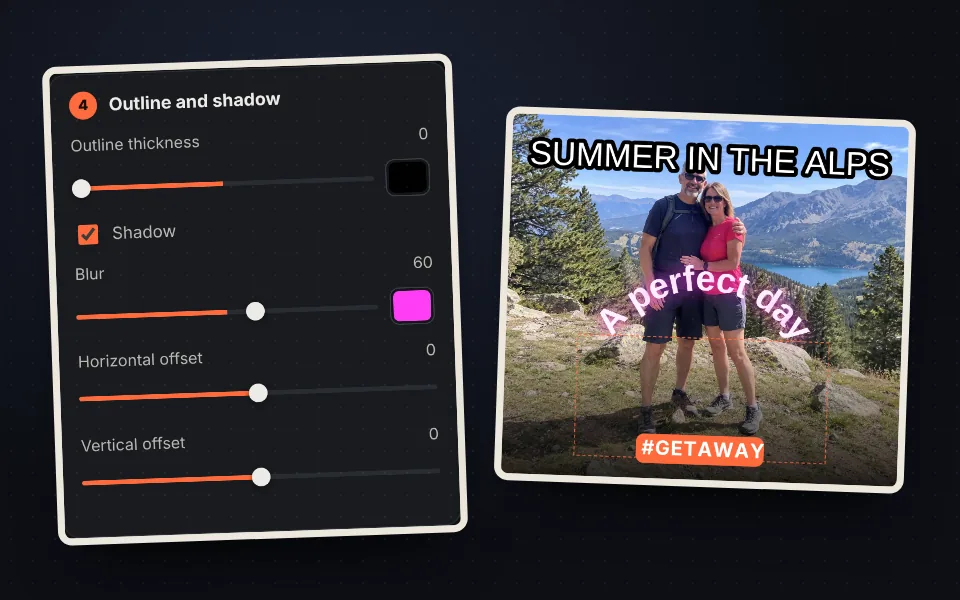
Style it
Choose the font, color, outline, shadow or a box behind it. Drag the text into place.
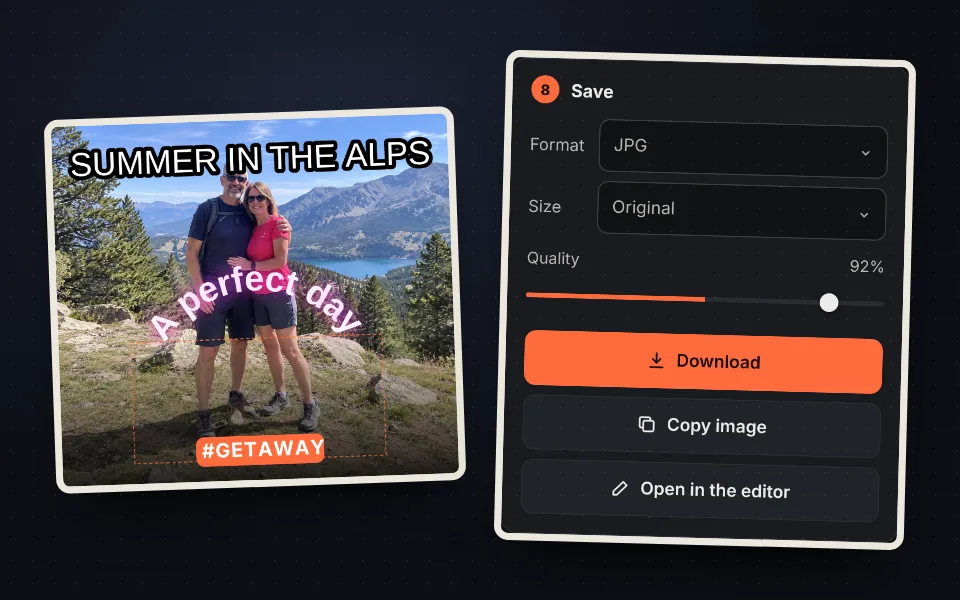
Download the image
Save it as JPG, PNG or WebP, copy it to the clipboard or open it in the editor to keep going.
Video tutorial: how to add text to a photo
In this video you'll see how to upload a photo, type a title and try the styles, change the font, outline and darkening, add a label and a curved text, and save the photo. Click a chapter to jump straight to that part.
The video only loads from YouTube when you press play, and YouTube may then set its cookies. More information in the cookie policy.
Ready-made styles: meme, neon, quote and more
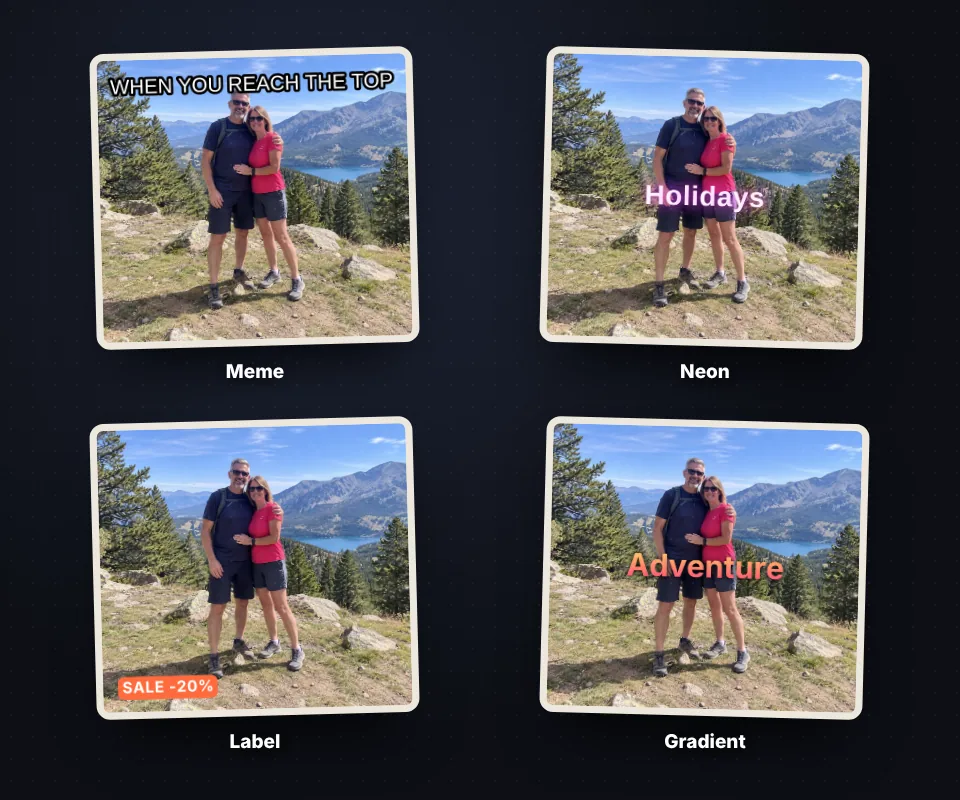
If you don't want to adjust every detail, apply a style in one click and change whatever you like afterwards:
- Meme: Impact lettering in capitals, white with a black outline, like classic memes.
- Neon: light text with a colored glow around it that imitates a neon sign.
- Label and subtitle: text on a colored box, perfect for prices, notices or video subtitles.
- Quote, gradient and typewriter: for nice quotes, covers and stylish posts.
Each text on the photo can have its own style, so you can combine a big title with a small label.
Make the text readable on any photo
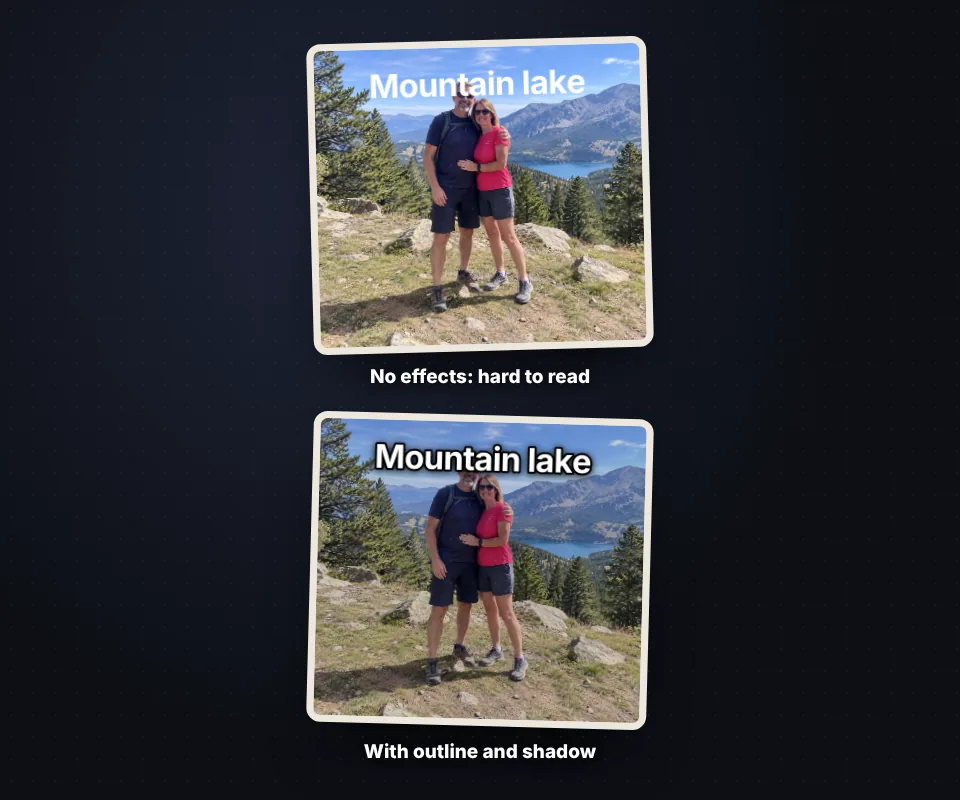
White text on a light sky or black text on a dark area can't be read. There are several ways to fix it:
- Outline: a border of another color around each letter. It stands out the most.
- Shadow: blurred for a soft effect or offset to add depth.
- Box behind the text: with the color, opacity, padding and corners you want.
- Darken the photo or add a bottom gradient: it lowers the light of the background without touching the text, like on magazine covers.
Curved, rotated and multi-line text
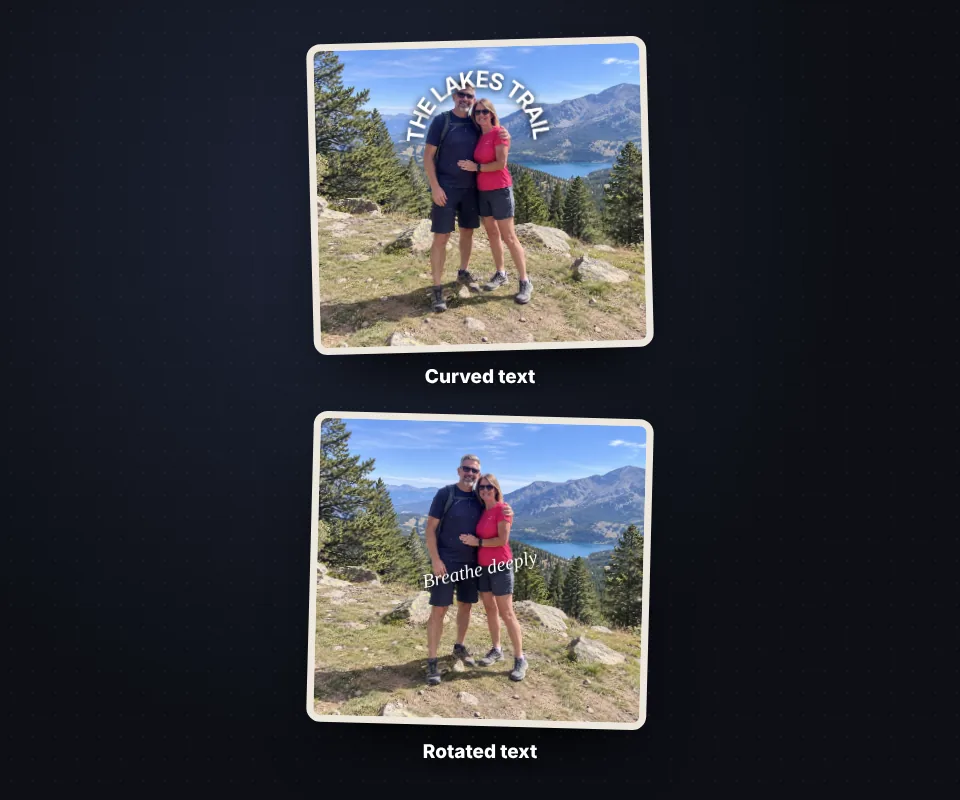
Text doesn't have to be straight. With the Curved text control you turn it into an arch or a smile, ideal for logos, stamps and product photos. With Rotate you tilt it at any angle.
To write on several lines, press Enter in the text box. Adjust the line and letter spacing, and align the text left, center or right.
The position grid places the text in a corner, at the top, at the bottom or in the center in one click, and when you drag it, it snaps to the center of the photo.
Ideas for adding text to your photos
Writing on a photo is useful for much more than memes. Use it to make YouTube thumbnails and Instagram posts, add a price or an offer to a product photo, put the date and place on your travel photos, create invitations and greeting cards, point out something important in a screenshot or write a nice quote on a landscape.
If what you need is to protect your photos with your name or website, use add a watermark, which places the text as a tiled pattern and on several photos at once.
Your photo never leaves your device
The text is drawn in your browser with HTML5 canvas technology. The photo is not uploaded to any server, it is not stored anywhere and the image you download has no EXIF data, so it doesn't include the location or the phone model.
It works on computers and phones, with nothing to install and no sign-up.
Frequently asked questions
How do I add text to a photo?
Upload the photo, type in the "Text" box and drag the text on the photo to place it. Change the font, color or size in the panel on the right and press "Download".
Can I add several texts to the same photo?
Yes. Press "Add text" as many times as you want. Each text has its own font, color and position, and you can duplicate it, delete it or bring it in front of or behind the others.
How do I make a meme?
Apply the "Meme" style: it uses Impact lettering in capitals, white with a black outline. Place one text at the top and another at the bottom with the position grid and download the image.
What if the text is hard to read?
Add an outline or a shadow, put a box behind the text or use "Darken the photo" or "Bottom gradient" in the Photo section.
Can I write on several lines?
Yes. Press Enter in the text box to go to the next line and adjust the line spacing and alignment.
Can the text be curved or rotated?
Yes. With "Curved text" you turn it into an arch or a smile and with "Rotate" you tilt it to the angle you want.
Which fonts can I use?
Inter, Arial, Impact, Georgia, Times New Roman, Palatino, Trebuchet, Verdana, Courier, Comic Sans, a handwriting font and a monospace font, with bold, italic, underline and capitals.
Can I add text without a photo?
Yes. Choose a size, for example square for Instagram or 1920 × 1080 for YouTube, and a background color, and press "Start".
I made a mistake, can I undo it?
Yes. Use the undo and redo buttons or the Ctrl+Z and Ctrl+Y shortcuts.
Does the photo lose quality?
No. The image is saved at the same size as the original. Choose PNG if you don't want any compression or JPG with high quality.
Is my photo uploaded to a server?
No. Everything happens in your browser and the photo never leaves your device.
Is it free?
Yes, free, with no sign-up and no watermark.