How to make a beautiful screenshot in 4 steps
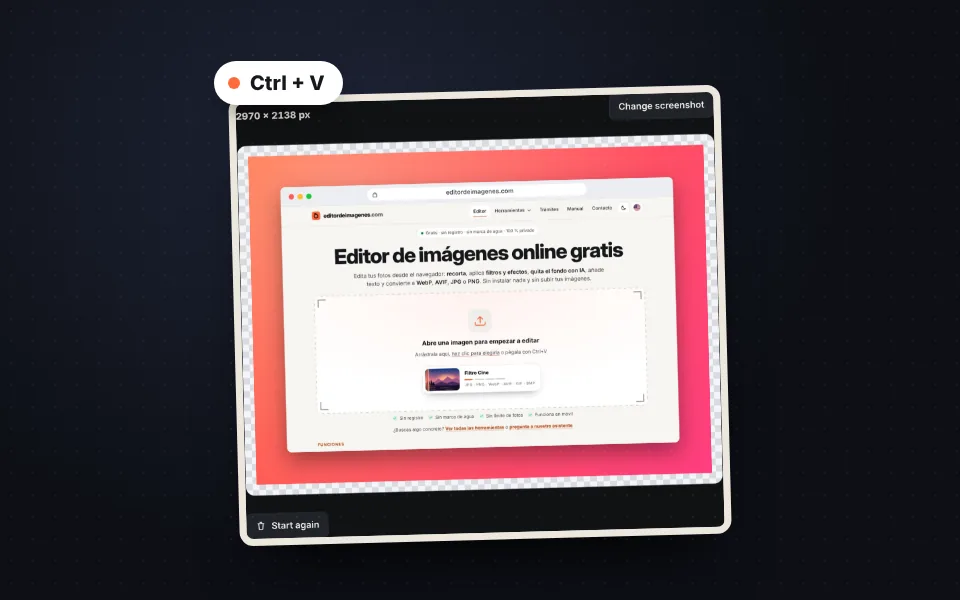
Paste the screenshot
Paste it with Ctrl+V, drag it or choose it.
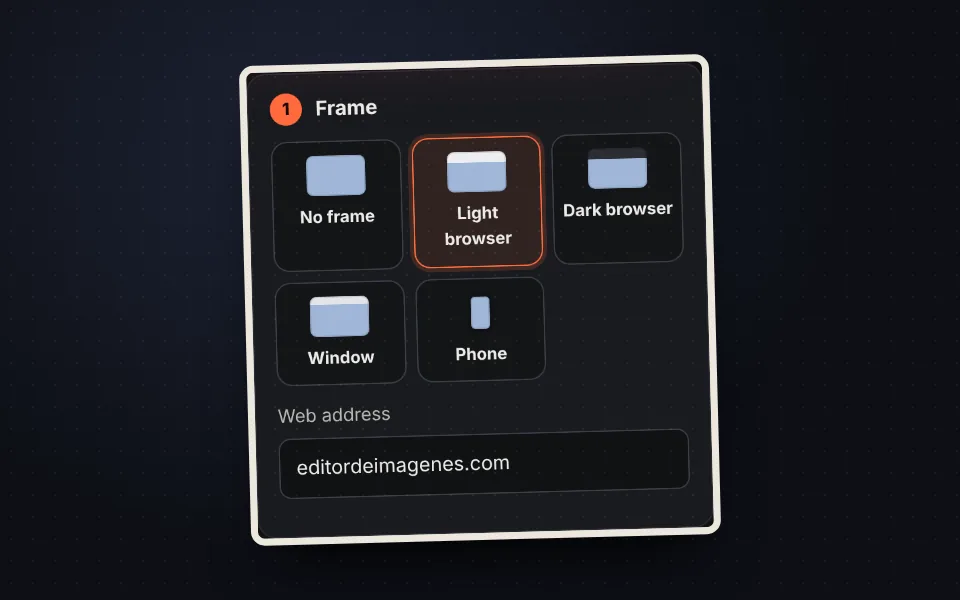
Choose the frame
Light or dark browser, window, phone or no frame.
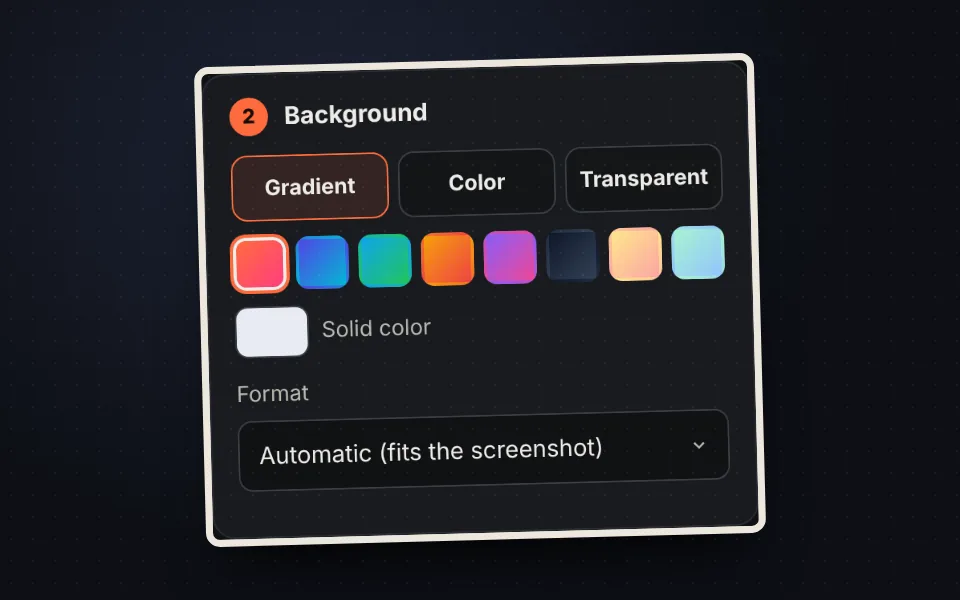
Choose the background
A gradient, a solid color or transparent, and the format.
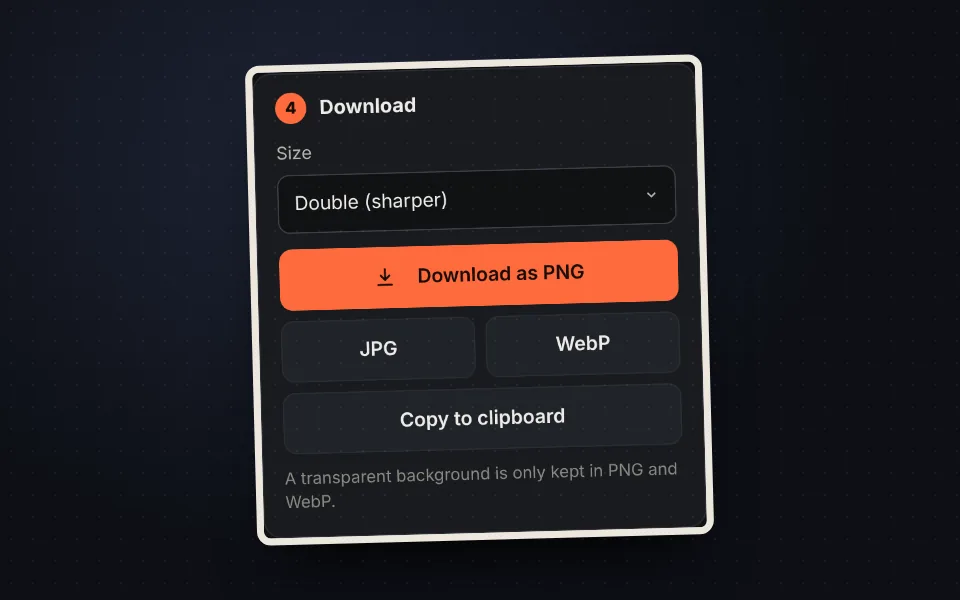
Download or copy it
As PNG, JPG or WebP, or copy it to paste it anywhere.
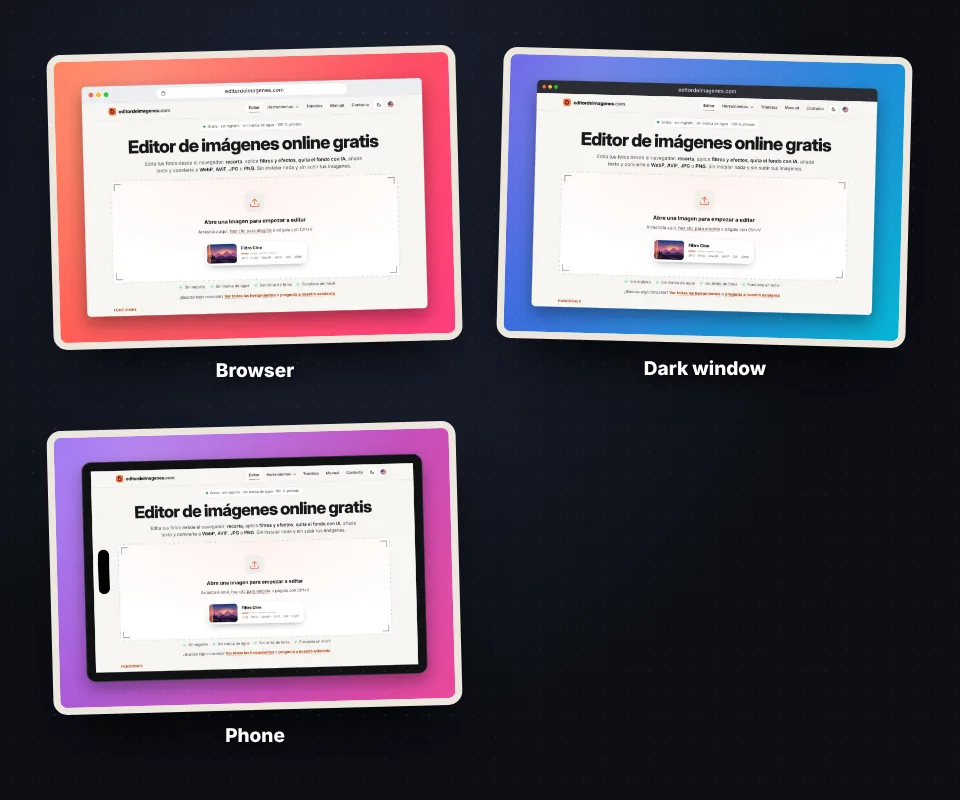
Browser, window and phone frames
- Light and dark browser: with the three buttons and the web address you type.
- Window: thin title bar for app screenshots.
- Phone: phone frame with the camera island.
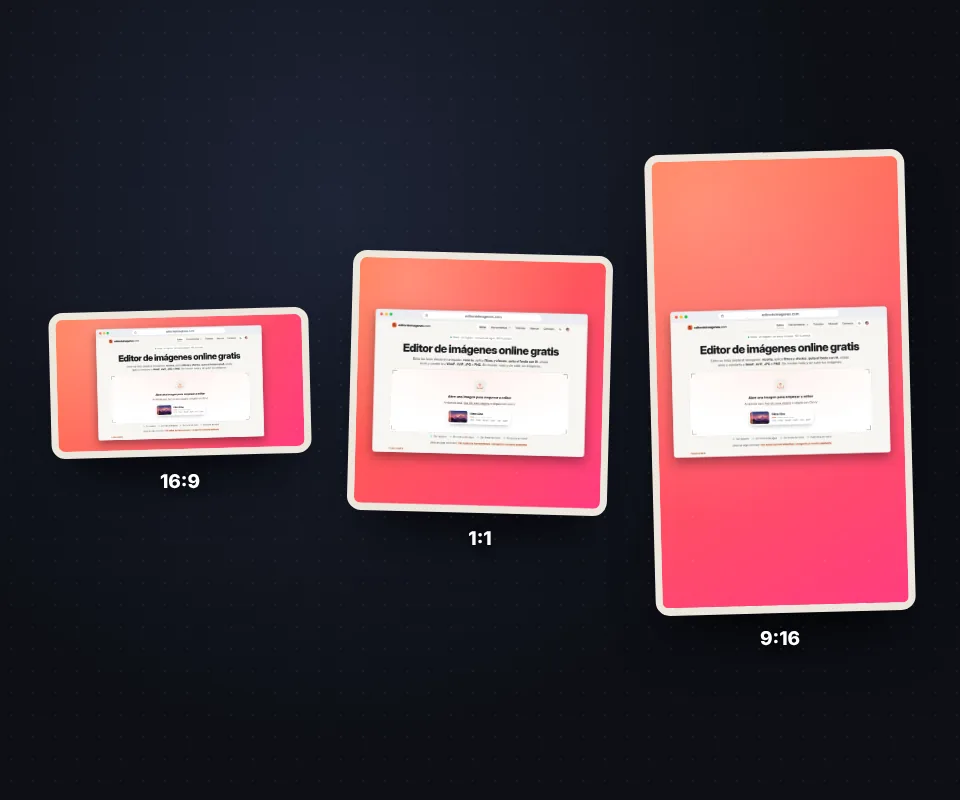
Formats for social media
- 16:9: YouTube, slides, X and LinkedIn.
- 1:1 and 4:5: Instagram and Facebook posts.
- 9:16: stories, reels and TikTok.
Tips
Take the screenshot with Windows + Shift + S on Windows or Cmd + Shift + 4 on Mac and paste it here with Ctrl+V. Download at double size so it looks sharp on high-resolution screens.
Your screenshot is not uploaded
The image is created in your browser, so you can use it even with private data.
Frequently asked questions
How do I make a beautiful screenshot?
Paste it with Ctrl+V, choose frame, background and format, and download it.
Which frames are there?
Light browser, dark browser, window, phone and no frame.
Can I change the web address?
Yes, type any or leave it empty.
Can the background be transparent?
Yes, download it as PNG or WebP.
Can I copy it without downloading?
Yes, with "Copy to clipboard".
Is it free?
Yes, free and with no watermark.