How to rotate an image in 4 steps
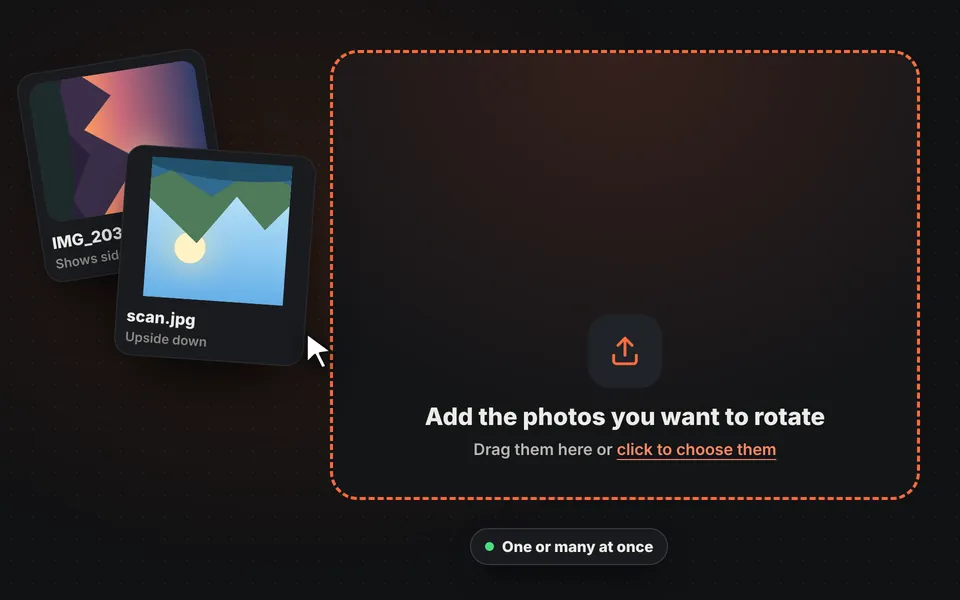
Add your images
Drag one or more photos onto the upload area, choose them from your device or paste them with Ctrl+V.
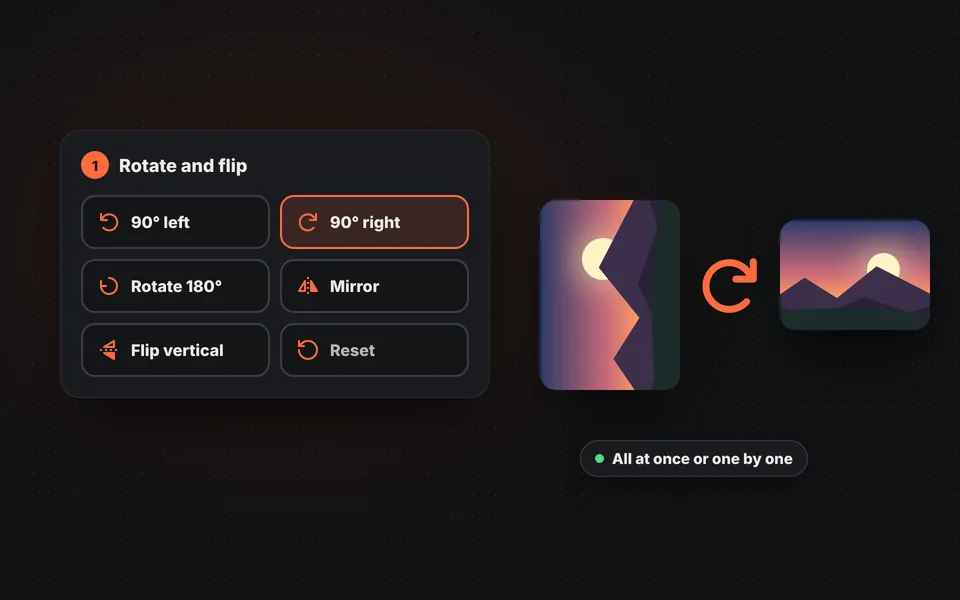
Rotate or flip them
Use the panel buttons to rotate them all at once, or the buttons on each card to rotate just one: 90°, 180° or mirror.
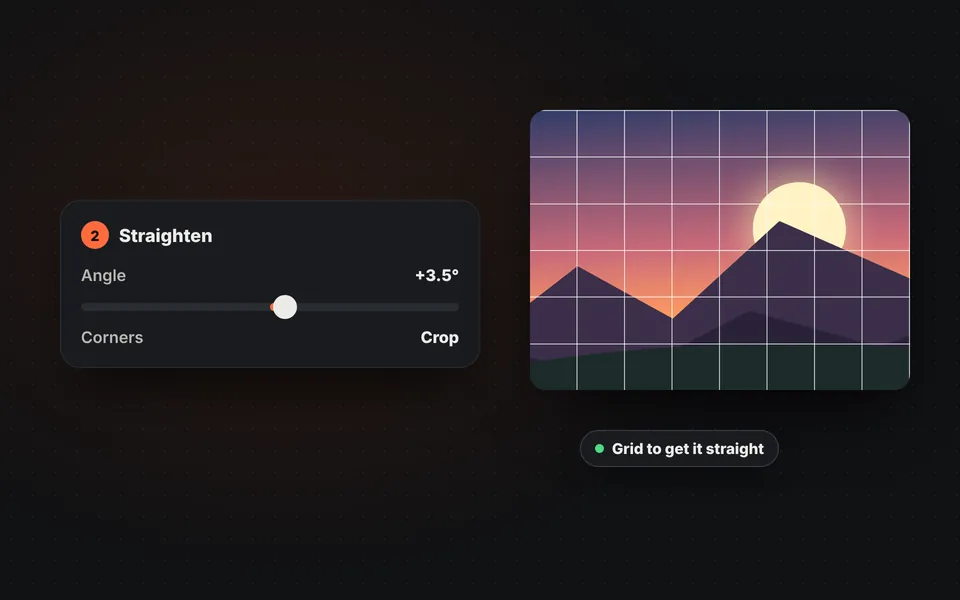
Straighten if needed
If the horizon is tilted, move the angle control until it's level. The grid will help you.
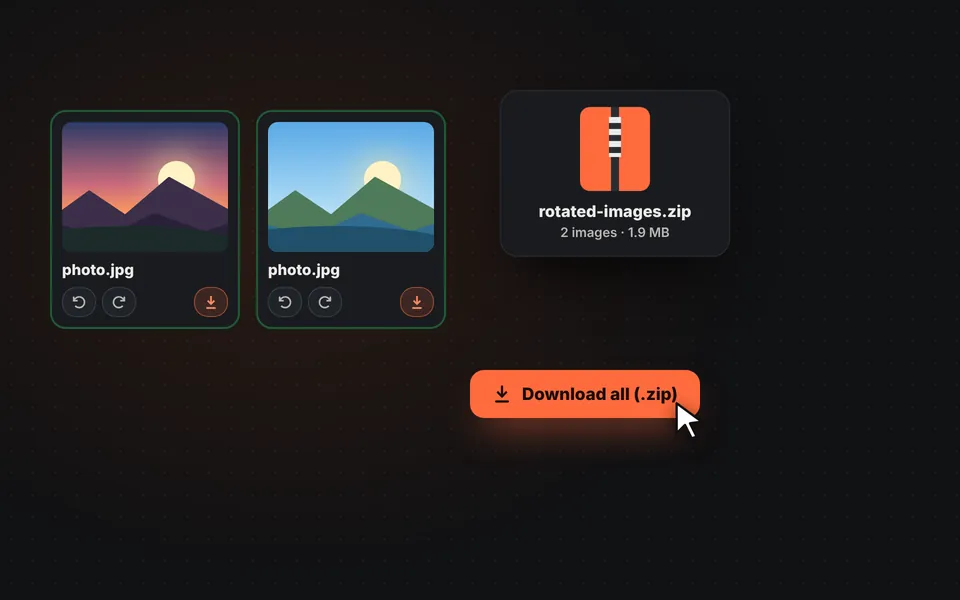
Download the images
Download each image separately or all together in a ZIP, in their original format or as JPG, PNG or WebP.
Video tutorial: how to rotate a photo
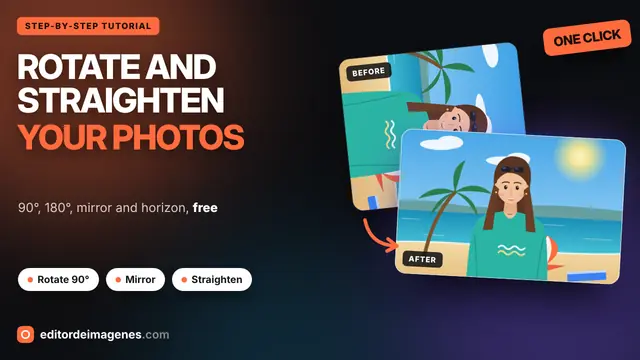
In this video you'll see how to rotate each photo 90°, fix a photo that's upside down, flip it like a mirror or vertically, rotate them all at once, straighten a crooked horizon, choose what to do with the corners and download the photo. Click a chapter to jump straight to that part.
The video only loads from YouTube when you press play, and YouTube may then set its cookies. More information in the cookie policy.
Why do my photos come out rotated?
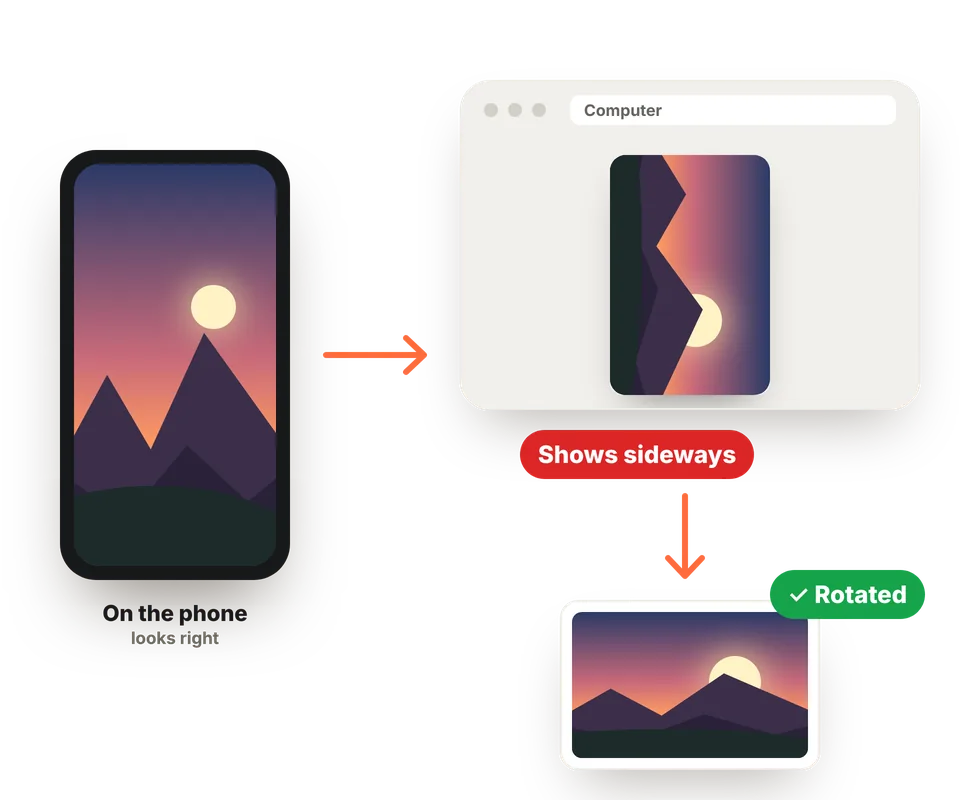
When you take a photo with your phone held upright, many cameras save it sideways and add a hidden tag, the orientation, that says how it should be displayed. Your phone's gallery reads it and shows it correctly, but some programs, websites and forms ignore that tag and the photo appears sideways or upside down.
This tool reads the orientation when it opens the photo and displays it correctly. When you download it, the image is truly rotated, without relying on that tag, so it will look upright everywhere.
Rotate, flip or straighten: which do I need?
They seem the same, but each option solves a different problem:
| Option | What it's for | Does it lose anything? |
|---|---|---|
| Rotate 90° | Sideways photos: taken with the phone upright but showing on their side. | No: only the position of the pixels changes. |
| Rotate 180° | Upside-down photos and scans. | No. |
| Mirror | Selfies with backwards text, or designs where you want to change the direction of the gaze. | No. |
| Flip vertical | Water reflections, creative effects and documents scanned upside down. | No. |
| Straighten | Slightly tilted horizons, buildings or documents. | A little of the edges, if you choose "Crop". |
Mirrored selfies: how to flip them
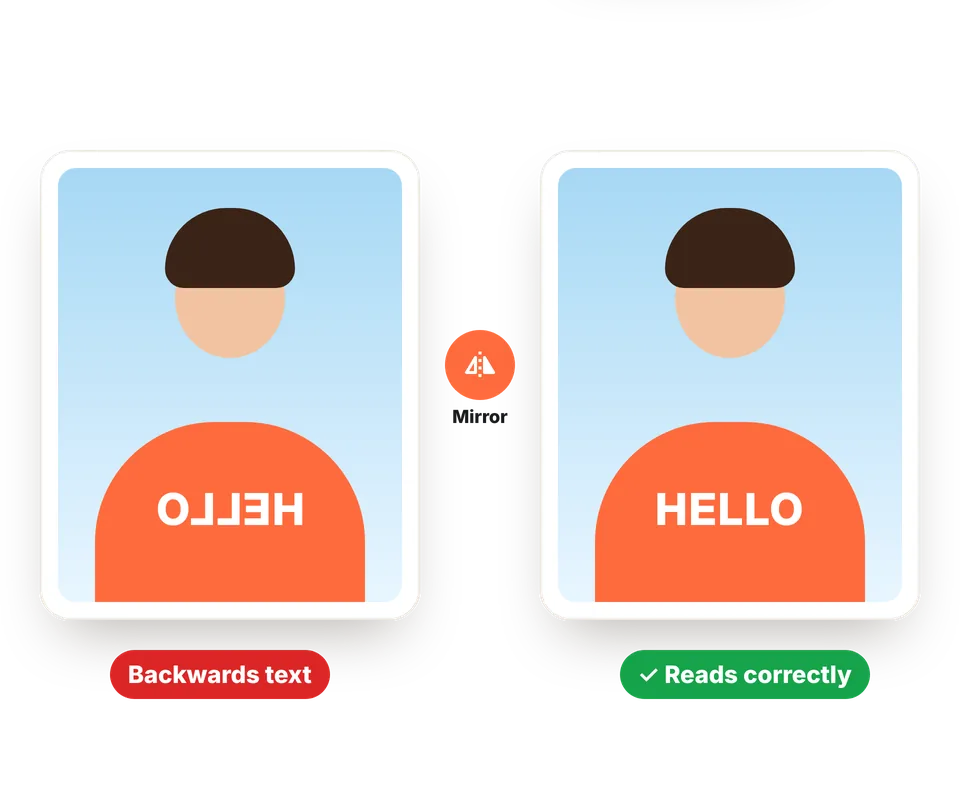
Your phone's front camera shows you as in a mirror, and depending on the model the photo is saved that way or reversed. That's why sometimes the letters on a T-shirt or a sign come out backwards, or your hair seems parted on the other side.
Click "Mirror" and the photo flips horizontally: the text reads correctly and you see yourself as others see you. If you want to touch it up afterwards, try our photo filters.
Does rotating a photo reduce its quality?
When you rotate 90° or 180° or flip, the pixels just move: the image doesn't lose sharpness. If you download it as PNG it stays identical; in JPG and WebP it's saved at 92% quality, which is indistinguishable from the original to the naked eye.
Straightening is different: rotating by a few degrees means recalculating the pixels and, if you choose "Crop", a strip of the edges is lost. That's why it's best to straighten only as much as needed and, if you then want to adjust the framing, use our tool to crop the image.
Frequently asked questions
How do I rotate an image?
Add the image and click "90° left" or "90° right" until it's upright. Then click the download button.
Can I rotate several images at once?
Yes. Add as many as you like: the panel buttons rotate them all at once. Then you can download them separately or together in a ZIP.
What if I only want to rotate one of them?
Use the buttons below its preview. Those changes only affect that image.
How do I mirror a photo?
Click "Mirror" and the image flips horizontally, as if you were seeing it in a mirror. It's what you need when the text in a selfie is backwards.
Why does my photo appear rotated when I upload it to a website?
Because your phone saved it sideways with an orientation tag that the website ignores. Open it here and download it: it will be truly rotated and look right everywhere.
How do I straighten a tilted photo?
Move the "Angle" control or use the − and + buttons to rotate in half-degree steps. While you adjust it, a grid helps you level the horizon.
Does rotating an image reduce its quality?
Not when rotating 90° or 180° or flipping. If you choose JPG or WebP it's saved at very high quality, and in PNG it stays identical. Straightening by a few degrees crops the edge slightly.
What format are they downloaded in?
By default, the same format as the original. You can also choose JPG, PNG or WebP for all of them.
Does it work on my phone?
Yes, on Android and iPhone. Choose photos from your gallery, rotate them and download them on the same phone.
Are my photos uploaded to a server?
No. Everything happens in your browser and your photos never leave your device.
Is it free?
Yes: free, no sign-up, no watermark and no image limit.