How to add a watermark in 4 steps
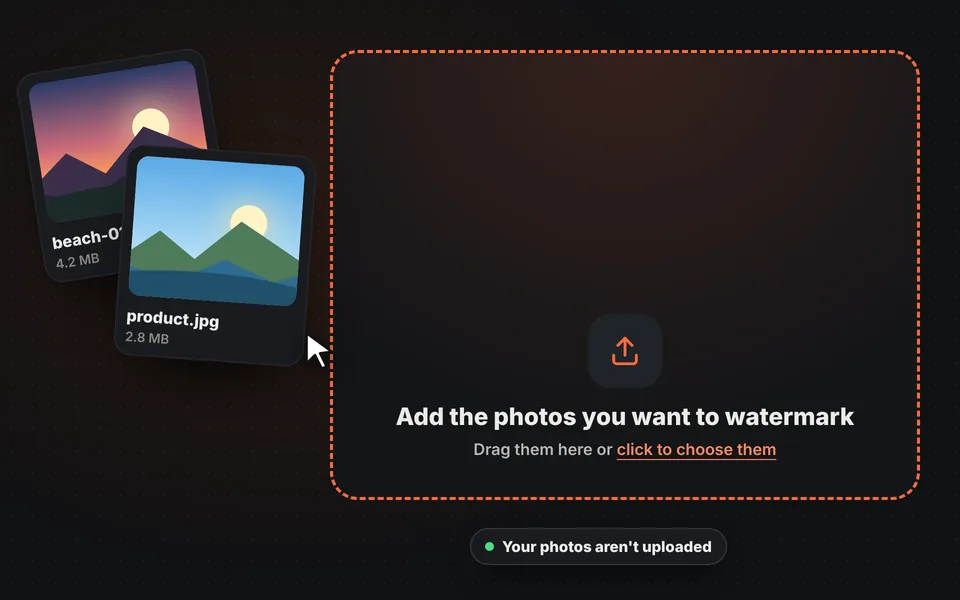
Add your photos
Drag one or more photos onto the upload area, choose them from your device or paste them with Ctrl+V.
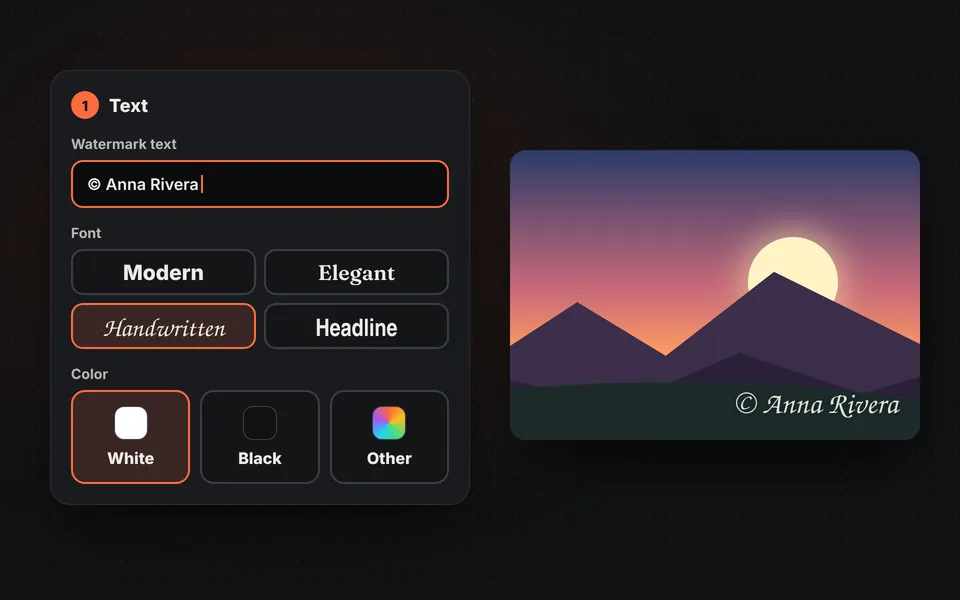
Type your text or add your logo
Type your name or website, choose the font and color, or add your logo as a PNG. You can use both at once.
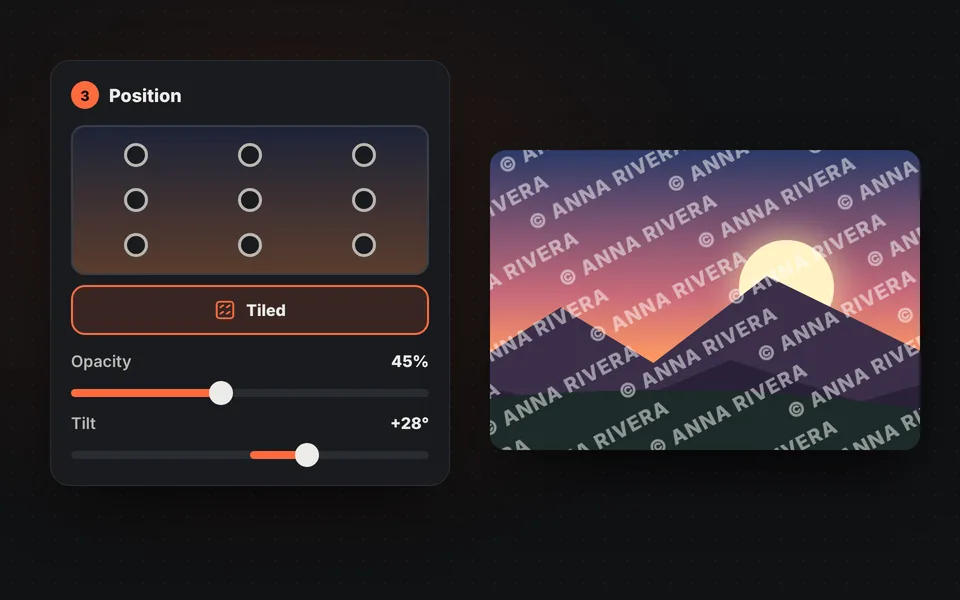
Place it where you want
Choose one of the 9 positions, drag it anywhere or repeat it as a tile pattern. Adjust the opacity and tilt.
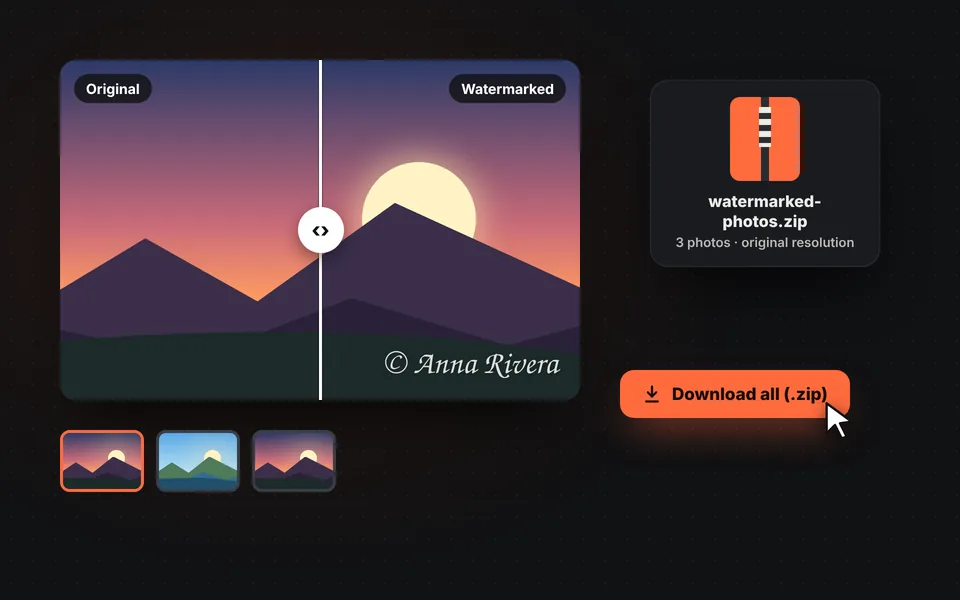
Compare and download
Check the result with zoom and the comparison slider, and download the photo or all of them together in a ZIP.
Video tutorial: how to add a watermark
In this video you'll see how to upload several photos at once, type your text, choose the font, color and size, add your logo, place the watermark or tile it, adjust the opacity and the angle, and download all the photos in a ZIP. Click a chapter to jump straight to that part.
The video only loads from YouTube when you press play, and YouTube may then set its cookies. More information in the cookie policy.
What is a watermark for?
A watermark makes it clear who the author of a photo is and discourages using it without permission. It's common among photographers, online stores, real estate agents, artists and content creators, and it's also an easy way for your name or website to travel with the image when someone shares it.
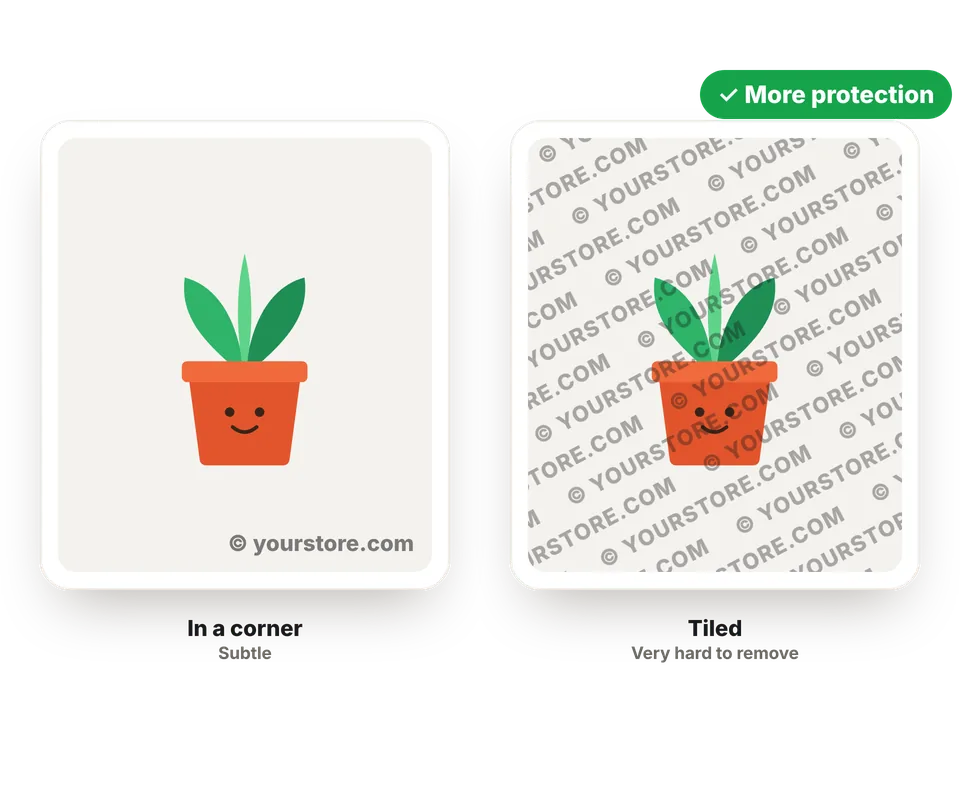
No watermark makes a photo impossible to copy, but the bigger it is and the more of the image it covers, the harder it is to remove. That's why it's worth choosing the type of watermark based on what you want to protect.
Corner, center or tiled: which watermark should I choose?
No option is better than another: it depends on whether you want the photo to shine or to be well protected.
| Watermark type | Protection | Visibility | Ideal for |
|---|---|---|---|
| Small, in a corner | Low: it can be cropped out. | Low. | Social media, portfolios and signing your photos. |
| Centered, semi-transparent | Medium. | Fairly noticeable. | Product photos, real estate and client proposals. |
| Tiled | High: very hard to remove. | High. | Client proofs, documents and photos you don't want anyone to reuse. |
How to make a watermark that looks good
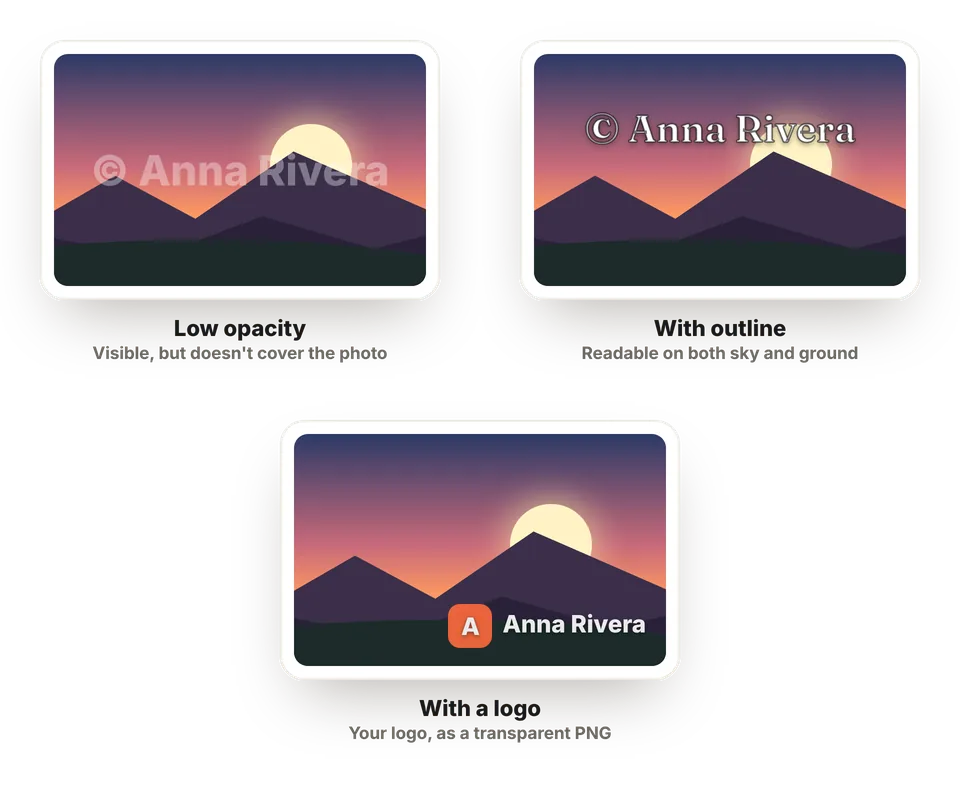
Use short text, such as "© Your name" or your website, and an opacity between 30 and 60%: it's visible but doesn't cover the photo. If the photo has light and dark areas, keep the soft outline on so it reads well on both.
If you have a logo, upload it as a PNG with a transparent background. And if you want it to be hard to erase, place it over a detailed area of the photo, not over the sky or a plain background, which are easy to retouch.
After adding the watermark
If your watermarked photos then need to be smaller to upload them to a website, you can compress them or resize them. And if they come out sideways, rotate them before adding the watermark.
Frequently asked questions
How do I add a watermark to a photo?
Add the photo, type your text or add your logo, choose where to place it and the opacity, and click "Download image". You'll see the result in the preview before downloading it.
Can I watermark several photos at once?
Yes. Add as many as you like: the watermark is placed the same way on all of them, in proportion to their size. Check them one by one in the preview and download them together in a ZIP.
Can I use my logo as a watermark?
Yes. Click "Add your logo" and choose your image, ideally a PNG with a transparent background. You can combine it with text, and your logo never leaves your device either.
What opacity is best?
Between 30 and 60% usually looks good: the watermark is visible but doesn't cover the photo. To protect proofs you send to a client, raise it and use the tile pattern.
How do I make a tiled watermark?
Under "Position", choose "Tile". The watermark is repeated across the whole photo and you can adjust the spacing and tilt.
Can a watermark be removed?
A small watermark in a corner can be cropped or retouched. A large, semi-transparent watermark over detailed areas, or a tiled one, is much harder to remove.
Does the photo lose quality?
Its size isn't reduced: it's saved at its original resolution. In PNG it stays identical, and in JPG or WebP it's saved at very high quality.
Can I change the watermark for just one photo?
The watermark is applied the same way to all the photos you add. If you want a different one for some, download it separately, remove it with "Remove" and prepare the next one with other settings.
Are my photos uploaded to a server?
No. Everything happens in your browser and your photos and logo never leave your device.
Is it free?
Yes: free, no sign-up, no photo limit and we don't add any watermark of our own.