How to convert JPG to PDF in 4 steps
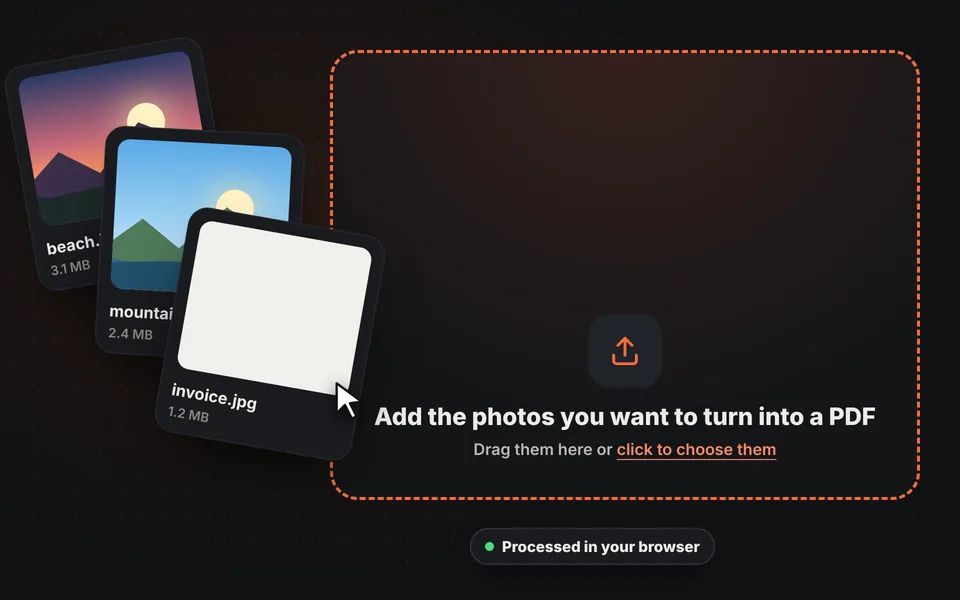
Add your photos
Drag the photos to the upload area or choose them from your phone or computer. You can add JPG, PNG or WebP, as many as you want.
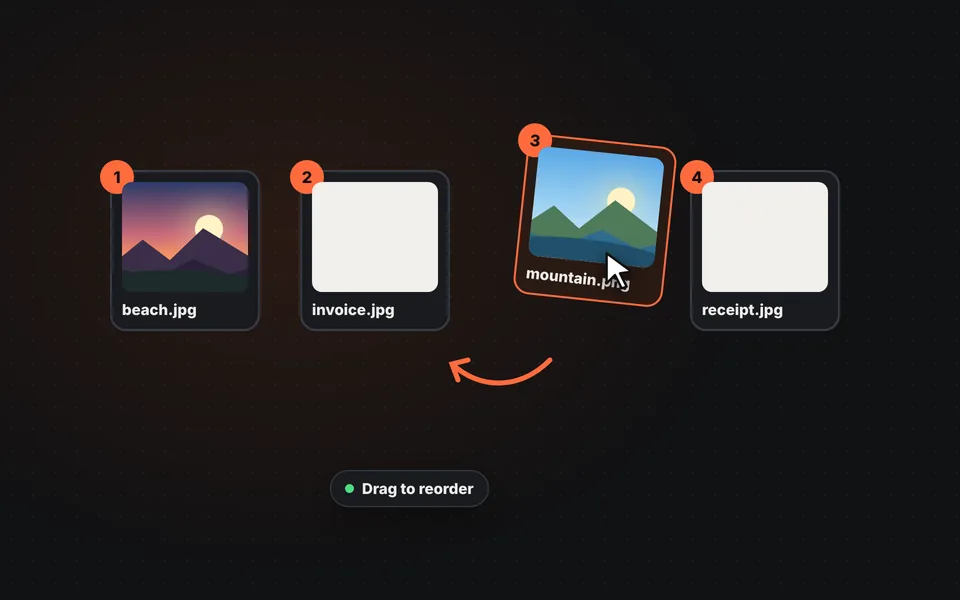
Put them in order
Drag each photo into place or use the arrows. If one is sideways, rotate it, and if you want to crop it, open it with the "Edit" button.
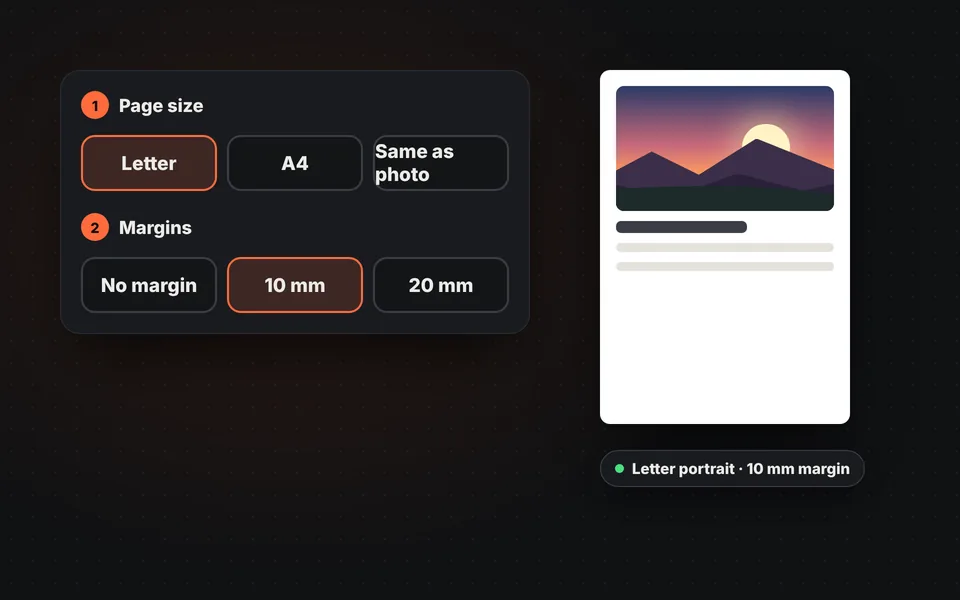
Choose the page size
Letter, A4 or the same size as the photo, with or without margins. The preview shows how the first page will look.
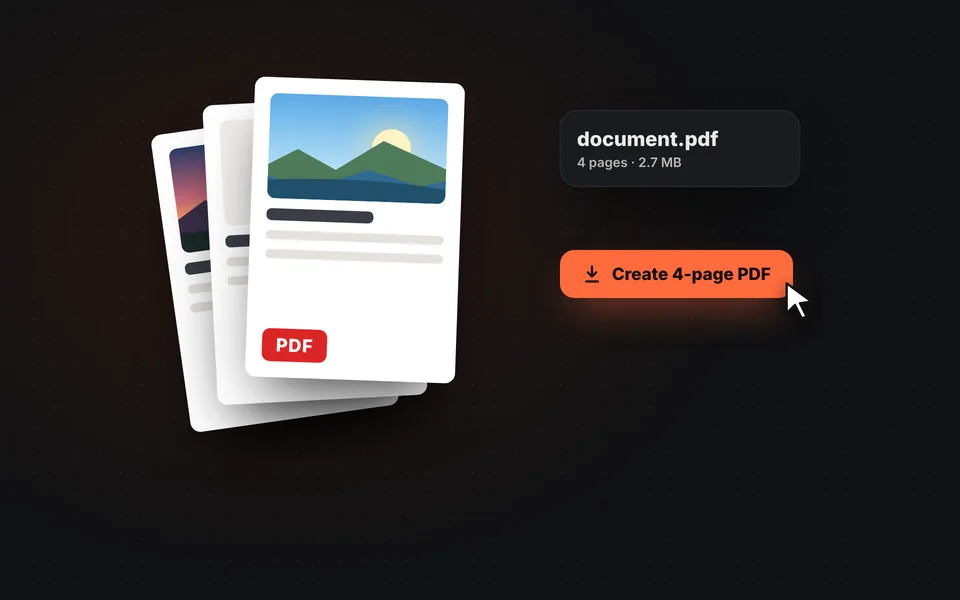
Download the PDF
Click "Create PDF" and a single file will download with one photo per page, ready to send or print.
Video tutorial: how to convert JPG to PDF
In this video you'll see how to upload the photos, order the pages, choose the page size, set the margins, quality and name, and create the PDF. Click a chapter to jump straight to that part.
The video only loads from YouTube when you press play, and YouTube may then set its cookies. More information in the cookie policy.
What is converting photos to PDF for?
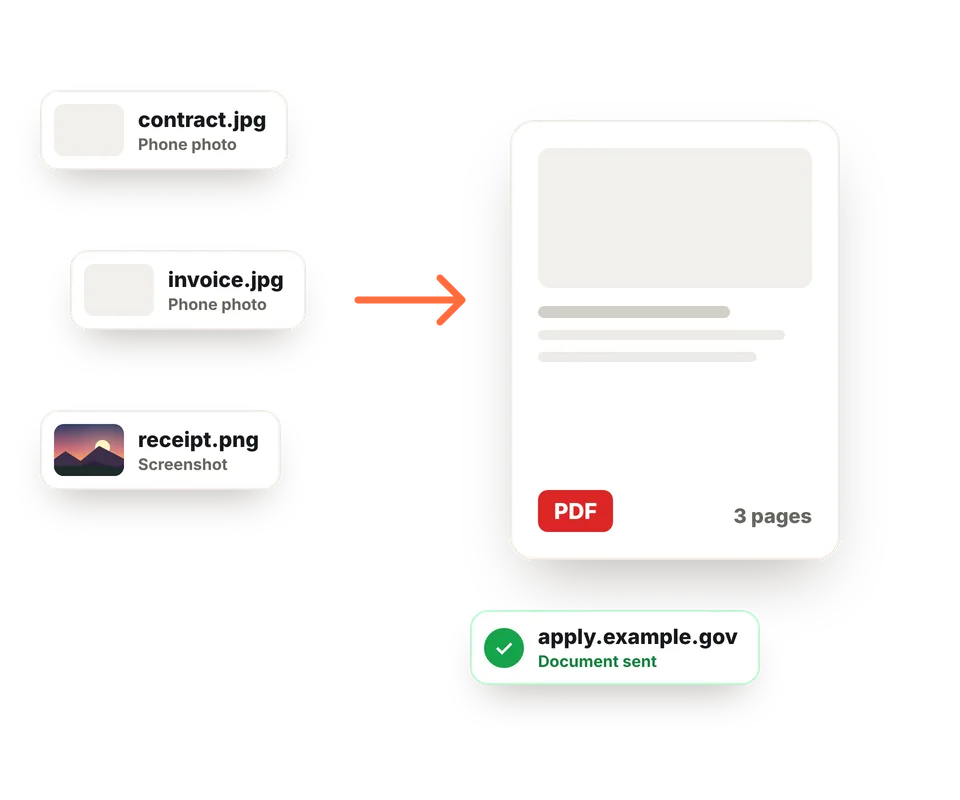
Many government portals, banks, insurance companies and universities only accept documents in PDF. If you've photographed a contract, your driver's license front and back or a certificate with your phone, here you turn it into a single file ready to upload.
It's also the easiest way to send several photos in one file: receipts and invoices for your accountant, notes or homework for a teacher, a quote with photos or a small portfolio. Whoever receives it can open it on any phone or computer, with the pages in the order you chose.
Do you lose quality converting JPG to PDF?
No. With "Original" quality, JPG photos are stored inside the PDF exactly as they are, without recompressing them, so they look the same as before. PNG and WebP images, and photos you've rotated or edited, are converted to JPG at very high quality.
If the PDF is too large to email or upload to a form, choose "Compressed": each photo is reduced to 2000 pixels and the PDF can be several times smaller while staying easy to read. If you need a single photo with a specific file size, use compress images.
Page sizes
| Size | Dimensions | When to use it |
|---|---|---|
| Letter | 8.5 × 11 in | The standard in the United States, Canada and part of Latin America. For forms and printing. |
| A4 | 8.3 × 11.7 in (210 × 297 mm) | The standard in Europe and most of the world. For documents you send abroad. |
| Same as photo | Each image's own size | Each page is the same size as its photo. Ideal for viewing the PDF on screen. |
How to scan a document with your phone
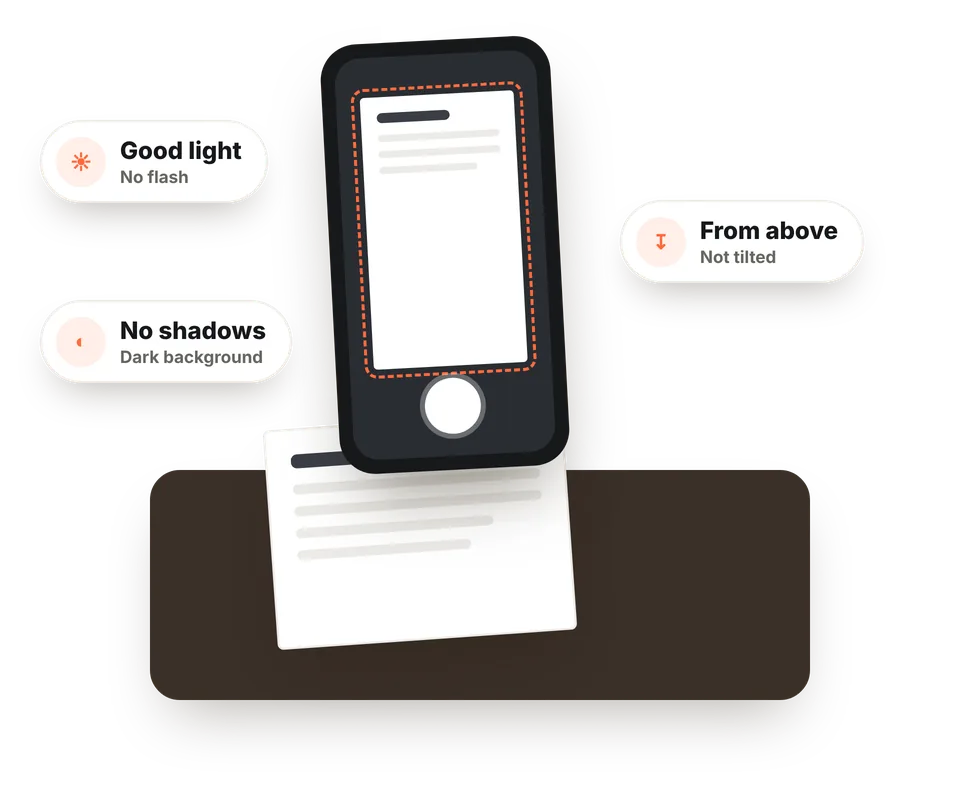
You don't need a scanner. Place the document on a dark, flat table, find a spot with good light and no shadows and take the photo from above, holding the phone parallel to the page so it doesn't come out crooked.
Take one photo per page, in order. Then add them here, crop off any extra edges with the "Edit" button and create the PDF in Letter size. It will look like a scanned document, ready to send or print.
Frequently asked questions
How do I combine several photos into one PDF?
Add all the photos at once, drag them into order and click "Create PDF". A single file will download with one photo per page.
Do I lose quality converting JPG to PDF?
No. With the "Original" option, JPG photos are stored inside the PDF as is, without recompressing them. PNG and WebP images are converted to JPG at very high quality.
Can I change the order of the pages?
Yes. Drag each photo into place, use the arrows on each one or click "Sort by name" if your files are numbered.
How many photos can I put in one PDF?
There's no fixed limit. You can combine dozens or even hundreds of photos; with many large photos, the PDF will take a little longer to create and will be larger.
Does it work with PNG, WebP or screenshots?
Yes. You can mix JPG, PNG, WebP, GIF, BMP and AVIF in the same PDF. Phone and computer screenshots work perfectly.
What about iPhone HEIC photos?
The browser can't open HEIC photos directly. Convert them to JPG first, or on your iPhone turn on Settings > Camera > Formats > Most Compatible.
Which page size should I choose?
Letter is the standard in the United States, Canada and part of Latin America. A4 is the standard in Europe and most of the world. "Same as photo" creates pages the same size as each image, ideal for viewing on screen.
How do I make the PDF smaller?
Choose "Compressed" quality. Photos are reduced to 2000 pixels and compressed a bit more, so the PDF is much smaller and still easy to read.
Are my photos uploaded to a server?
No. The PDF is created in your browser and your photos never leave your device, so it's safe to use with personal documents.
Can I do the opposite, PDF to JPG?
Yes, with our PDF to JPG converter, which turns each page into an image.
Is it free?
Yes, free, with no sign-up, no watermark and no usage limit.