How to create a QR code in 4 steps
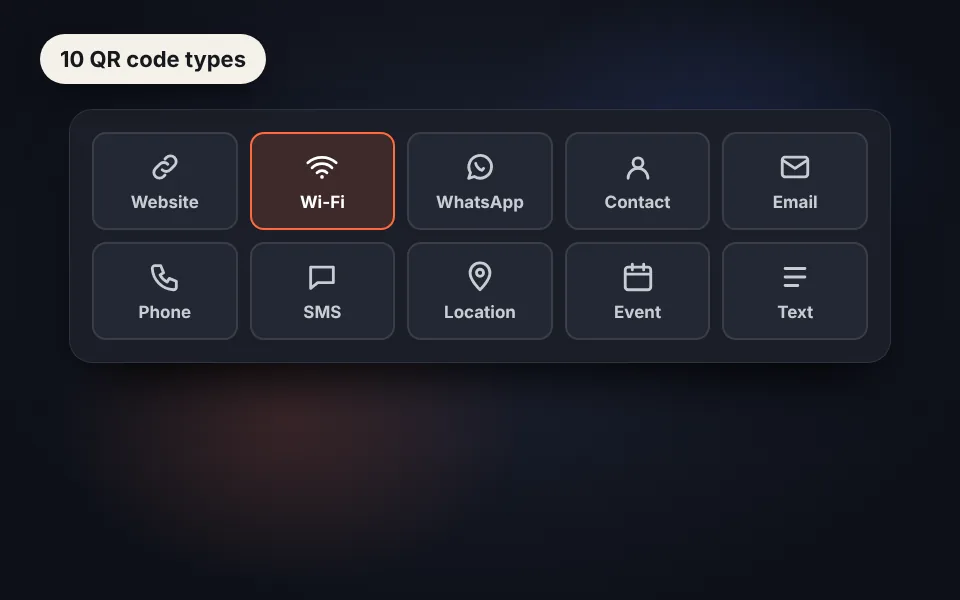
Choose the type
Website, Wi-Fi, WhatsApp, contact, email, phone, SMS, location, event or text.
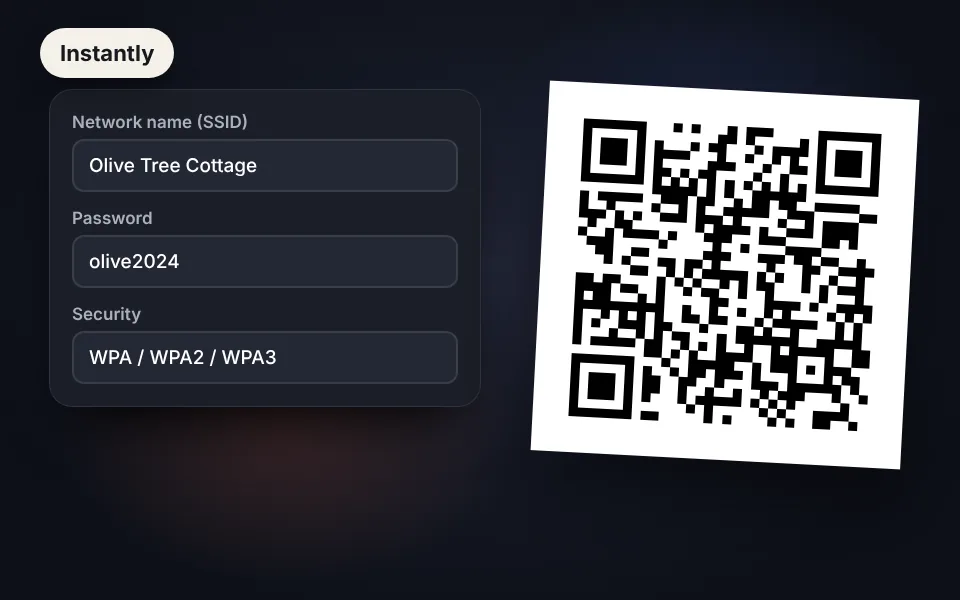
Enter the details
Fill in the fields and the QR code appears instantly in the preview.
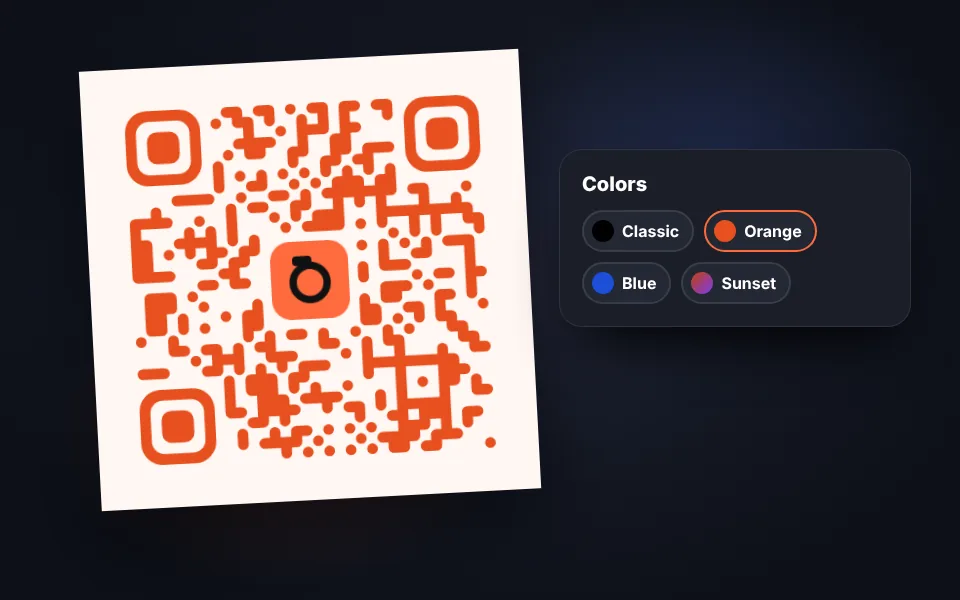
Customize the design
Change the colors and shapes, add your logo and a frame with text.
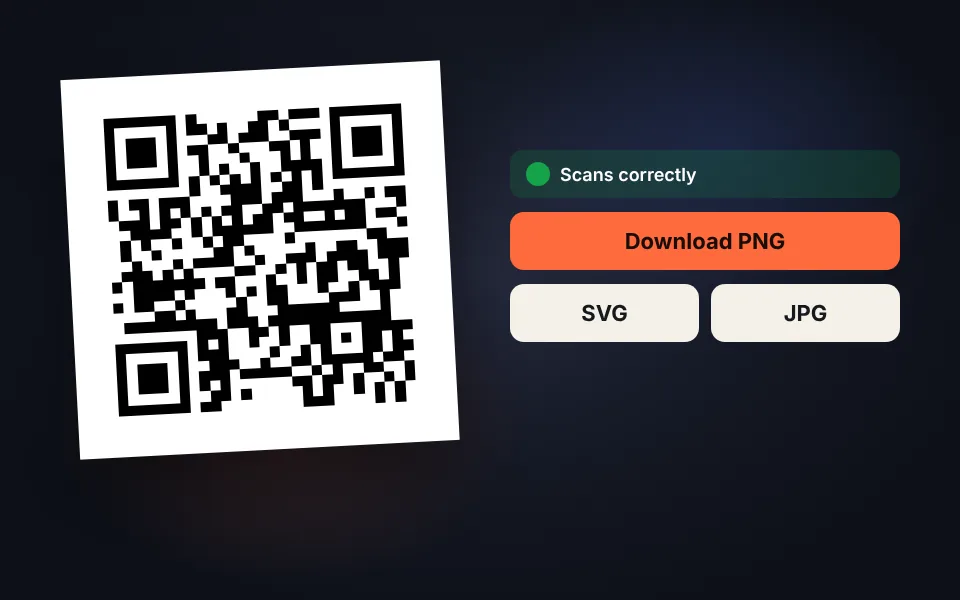
Check and download
Check that it scans and download it as PNG, SVG or JPG, or copy it.
Video tutorial: how to create a QR code
In this video you'll see how to create a Wi-Fi QR code step by step, change its colors and shapes, put your logo in the center, add a frame with your text, check the code details and download it as PNG, SVG or JPG. Click a chapter to jump straight to that part.
The video only loads from YouTube when you press play, and YouTube may then set its cookies. More information in the cookie policy.
What you can put in a QR code
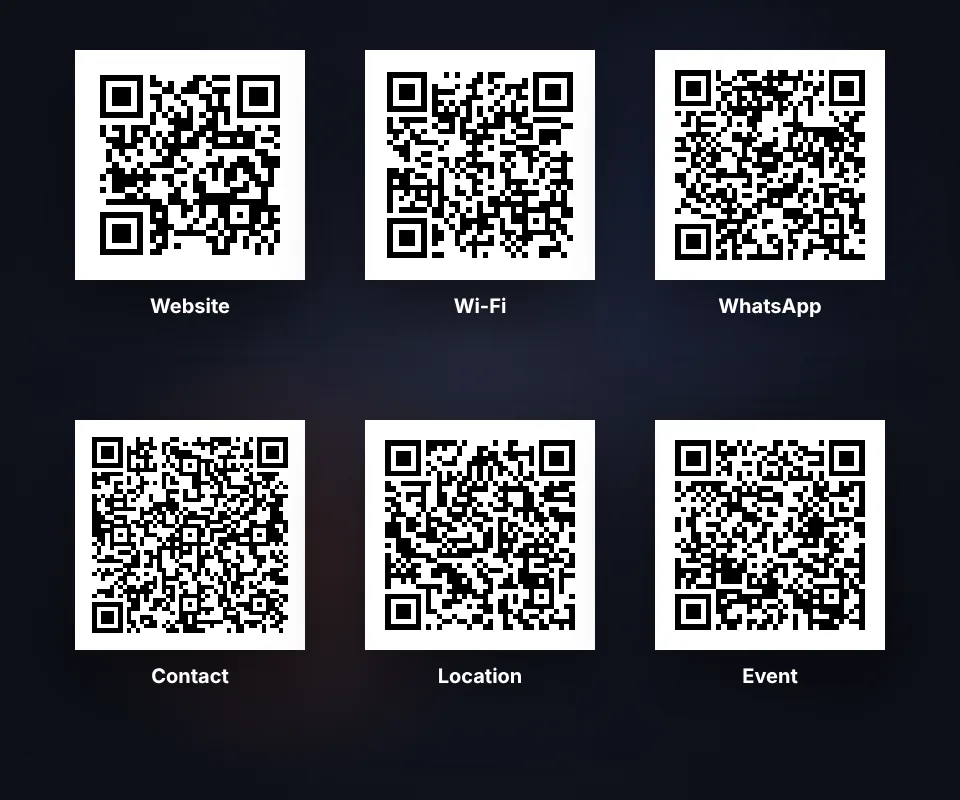
Each type of code does something different when scanned with a phone camera:
- Website: opens a page, a restaurant menu, a form or your social media.
- Wi-Fi: connects to your network without reading out the password. Ideal for vacation rentals, cafes and offices.
- WhatsApp: opens a chat with you with a message already written.
- Contact: saves your name, phone, email and company to the contacts, like a business card.
- Email, phone and SMS: prepare an email, a call or a text message.
- Location and event: open the map or add an appointment to the calendar.
Design your QR code: colors, shapes and logo
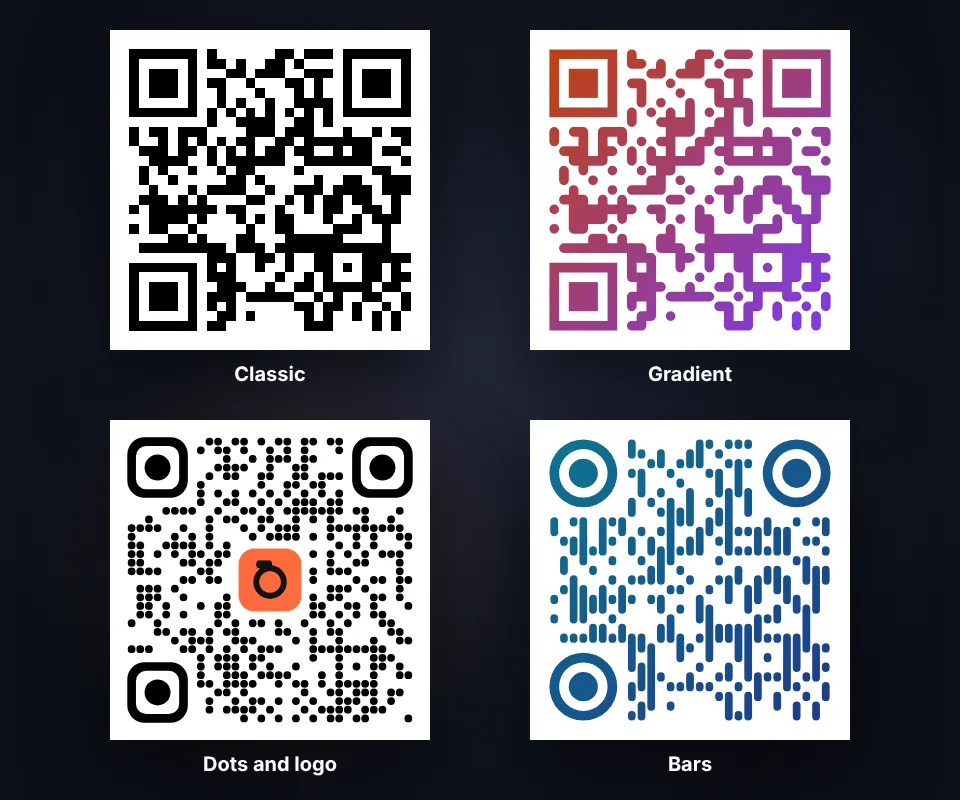
A QR code with your style stands out more and builds trust:
- Colors and gradients: use your brand colors or pick a palette. Keep the code dark on a light background.
- Shapes: square, rounded, dot or bar modules, and square, rounded or circular corners.
- Logo: place it in the center with a cleared background; error correction goes up automatically so it still scans.
After each change the contrast is checked and, in compatible browsers, whether the code scans.
Frame with text and printing tips
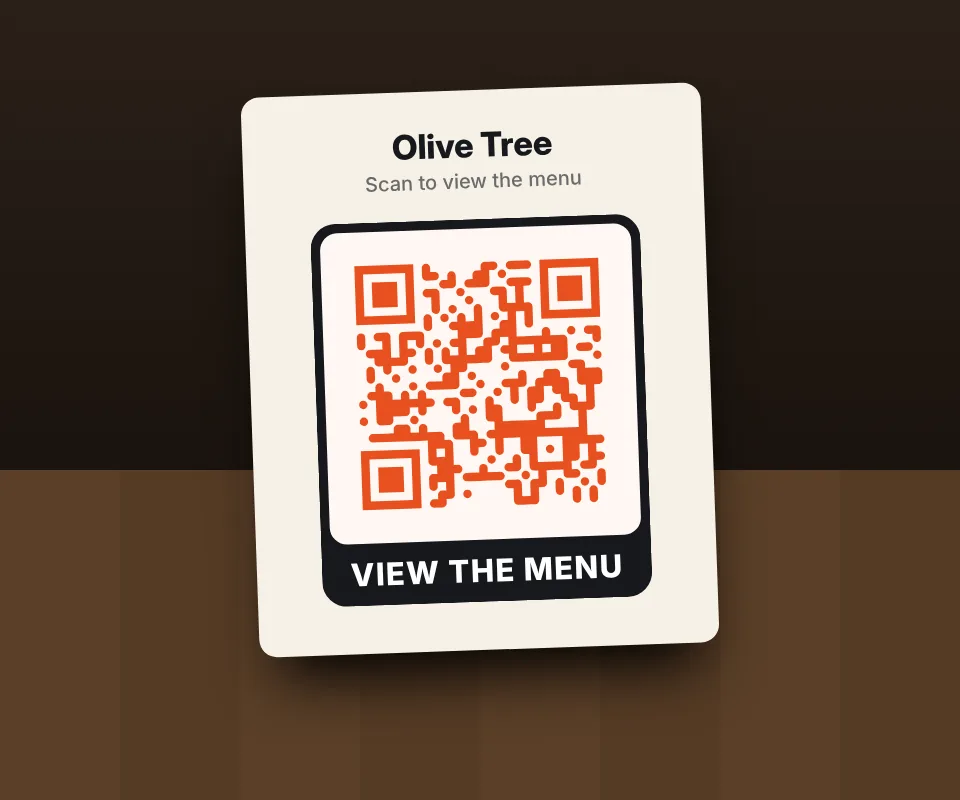
A frame with text like "Scan me" or "Menu" tells people what to do and gets more scans. To make sure it always scans:
- Size: at least 0.8 × 0.8 inches (2 × 2 cm), and larger the farther away it will be scanned.
- Format: SVG for professional printing, or a 2048 or 4096 px PNG.
- Margin: leave blank space around it and don't place it on patterned backgrounds.
- Test: scan it with several phones before printing hundreds of copies.
Static QR codes: free and forever
Many websites create "dynamic" QR codes that go through their servers and stop working if you don't pay a subscription. The codes on this page are static: the link, the Wi-Fi or the contact is inside the code itself, so they work forever, don't collect data from whoever scans them and don't depend on anyone. The only downside is that you can't change the destination after printing it; if you need to, point it to a page of your own that you can edit.
Frequently asked questions
How do I make a QR code for free?
Choose the type of code, enter the details and the QR code appears instantly. Customize the colors or add your logo if you like and download it as PNG, SVG or JPG. No sign-up needed.
Do QR codes expire?
No. They're static QR codes: the data is inside the code itself, so they work forever and don't depend on any server or subscription.
Can I change the destination after printing it?
No, because the link is inside the code. If you think you'll change it, point it to a page of your own that you can edit or redirect later.
How do I make a QR code to connect to Wi-Fi?
Choose the Wi-Fi type, enter the network name and password and choose the security type, usually WPA. When scanned, the phone connects without typing the password.
Can I put my logo on the QR code?
Yes. Upload your logo as PNG, JPG or SVG and adjust its size. When you add it, error correction goes up to maximum so the code still scans even though the logo covers part of it.
What colors can I use?
Any you like, including gradients, as long as the code is darker than the background and there's good contrast. If contrast is low, a warning appears.
How do I know my QR code works?
In compatible browsers the code is checked automatically and you'll see whether it scans correctly. Either way, scan it with your phone camera before printing it.
Which format is best for printing?
SVG, because it's a vector and doesn't lose quality at any size. If your program doesn't support it, download it as a 2048 or 4096 pixel PNG.
What is the minimum print size?
As a rule of thumb, at least 0.8 × 0.8 inches (2 × 2 cm) and about ten times smaller than the scanning distance. For a poster scanned from 6 feet away, about 8 inches.
What is error correction?
It's the part of the code that lets it be read even if it's dirty, damaged or covered by a logo. The higher it is, the more resistant, but the code has more modules.
What is the margin?
It's the blank space around the code. Readers need it to find the code; don't remove it if you'll place it on a patterned background.
Is my data saved?
No. The QR code is created in your browser and your data, like the Wi-Fi password, isn't sent to any server.
Can I use it for my business?
Yes, free and without a watermark, also for commercial use: restaurant menus, business cards, posters or packaging.