How to combine photos in 4 steps
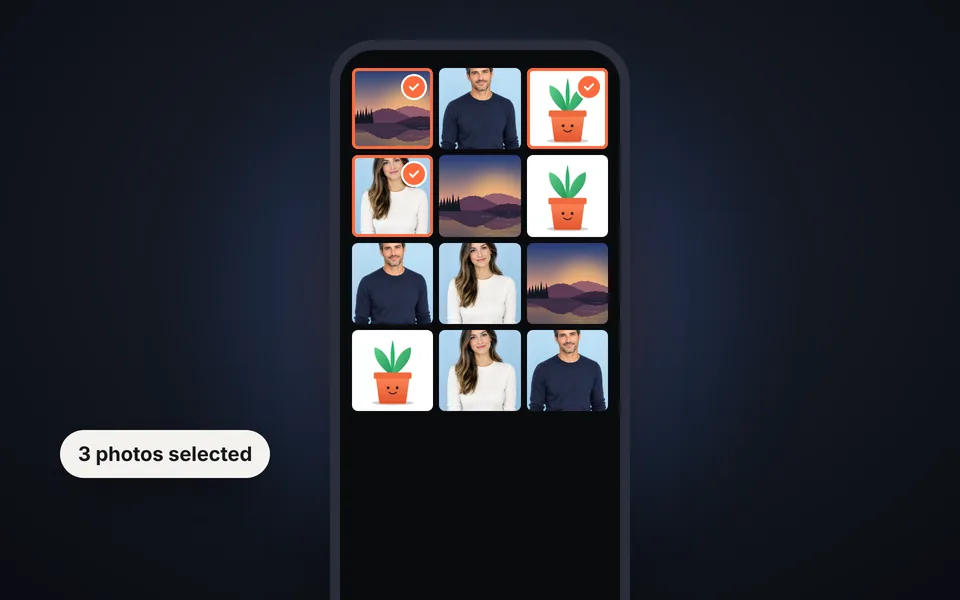
Upload the photos
Choose two or more photos at once from your phone or computer, or drag them onto the upload area. You can combine up to 12.
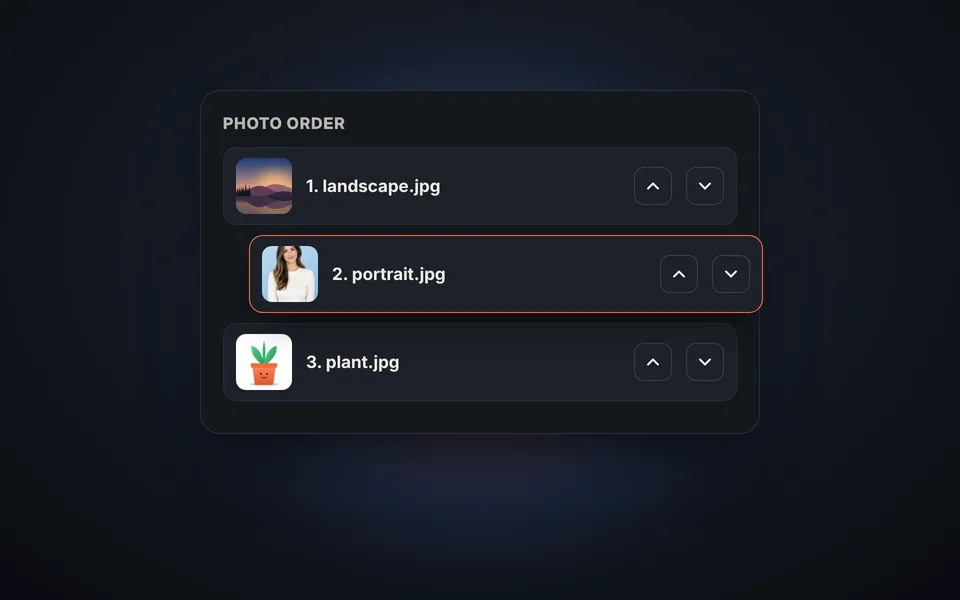
Put them in order
Use the arrows on each photo to change the order they'll appear in the final image.
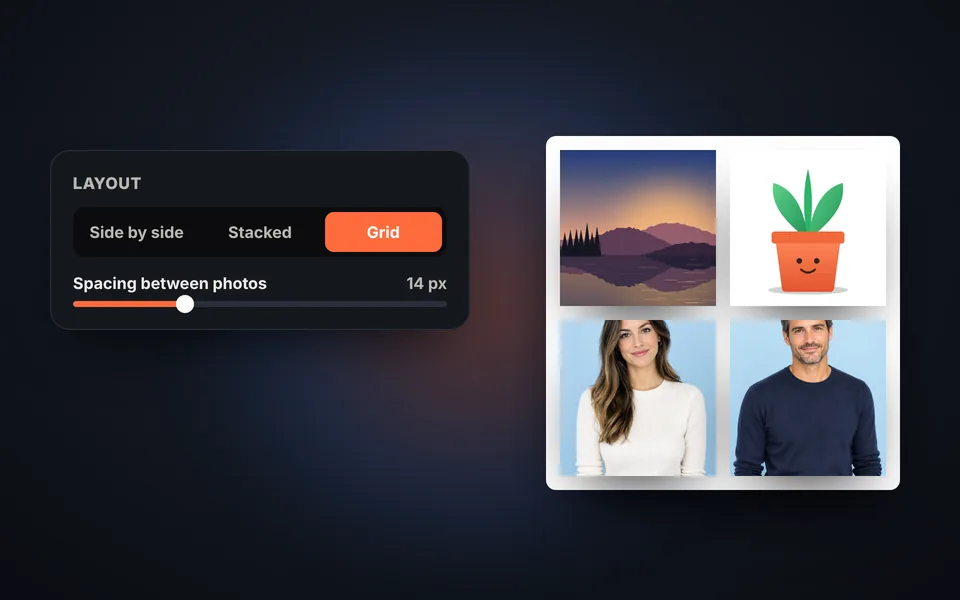
Choose the layout
Place them side by side, stacked or in a grid, and adjust the spacing, background and corners.
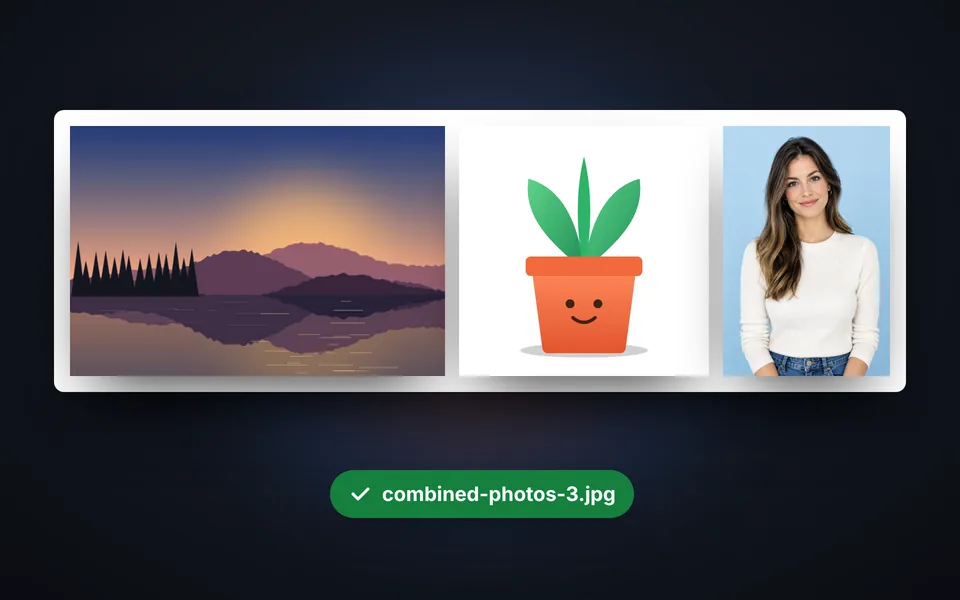
Download the image
Choose the width and format, and download all the photos combined into a single image.
Video tutorial: how to combine photos into one image
In this video you'll see how the photos are uploaded, how to change the order, how to choose a side by side, stacked or grid layout, how to adjust spacing, borders and background and how to download the final image. Click a chapter to jump straight to that part.
The video only loads from YouTube when you press play, and YouTube may then set its cookies. More information in the cookie policy.
Side by side, stacked or in a grid
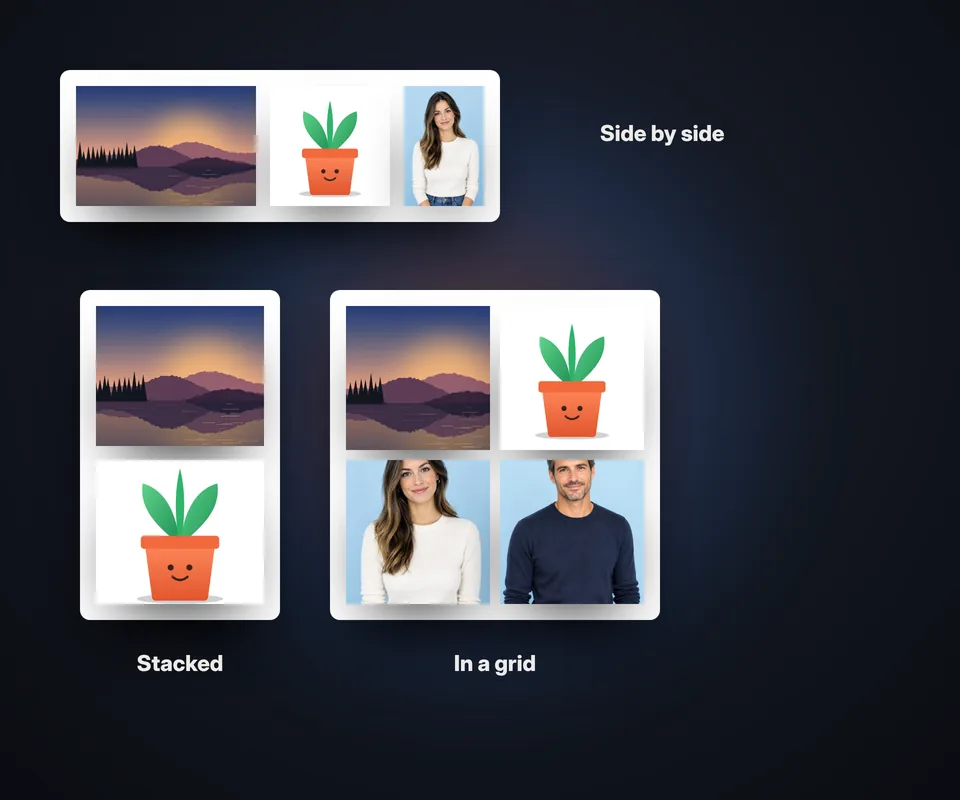
Choose the layout based on what you want to show:
- Side by side: the photos are matched in height. Perfect for a before and after or for comparing two photos.
- Stacked: they're matched in width. Ideal for joining screenshots or long conversations.
- In a grid: create a collage with 2, 3 or 4 columns and square, portrait or landscape cells. Choose whether each photo fills the cell or is shown in full. For collages with templates, shapes and styles, use Collage maker.
In every case you can change the order, the spacing between photos, the outer margin and the background color, and round the corners.
What combining photos is useful for
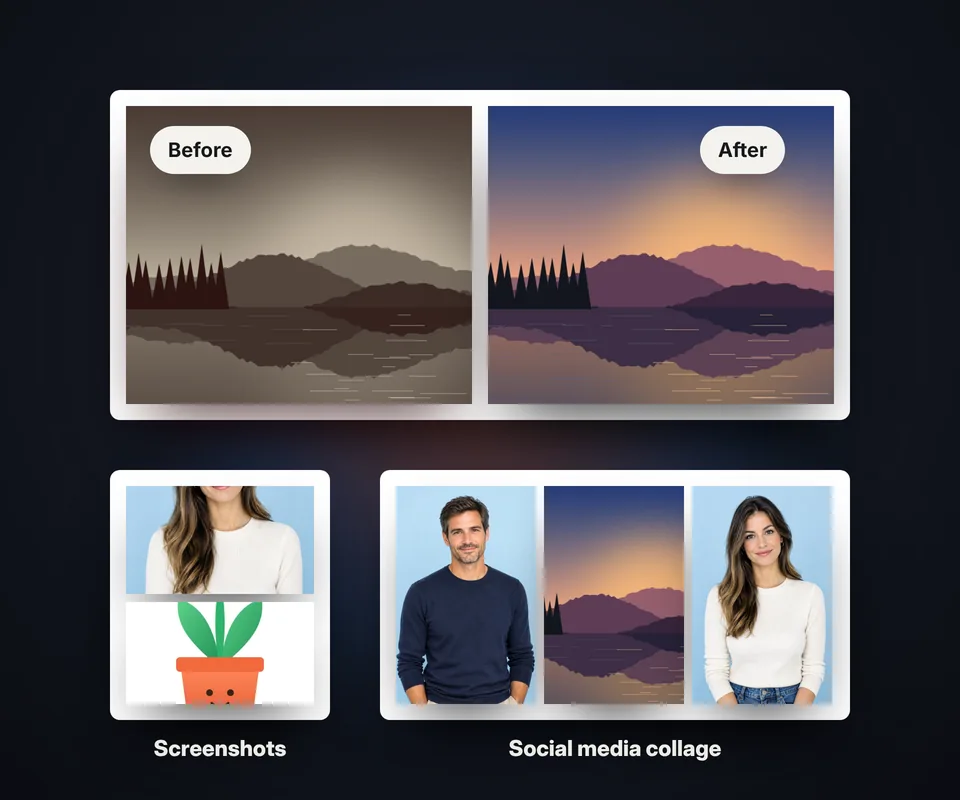
Merging several photos into a single image comes in handy in many everyday situations:
- Before and after: a remodel, a haircut, a restoration or your progress at the gym.
- Screenshots: combine several WhatsApp or website screenshots into one image that's easy to send.
- Social media: post a collage of a trip or an event as a single photo.
- Documents: if you're asked for both sides of a document in a single image, stack them.
- Online stores: show a product from several angles in one photo.
Tips for a great-looking result
If you combine photos of very different sizes, the tool matches them to the smallest one so it doesn't invent pixels; that way the result looks sharp. For social media, a width of 1080 px is enough; for printing, choose Original. Use PNG or WebP if you want a transparent background, and JPG for the smallest file. If the result is too large, reduce it afterwards with Compress images.
Frequently asked questions
How do I combine two photos into one?
Upload both photos, choose whether you want them side by side or stacked and click Download image. In a few seconds you'll have both photos combined into one image.
How many photos can I combine?
Up to 12 photos at once. With more than four, a grid usually looks better than a single row.
Can I make a collage?
Yes. Choose the Grid layout, the number of columns and the cell shape, and adjust the spacing and background.
Can I change the order of the photos?
Yes. Use the arrows on each photo to move it up or down the list.
Are the photos cropped when combined?
Side by side or stacked, no: the photos are matched in height or width and shown in full. In a grid you can choose between filling the cell or showing the whole photo.
Can I make the background transparent?
Yes, if you download as PNG or WebP. In JPG the background uses the color you choose.
Does it work on my phone?
Yes, on Android and iPhone. You can choose several photos at once from your gallery.
Are my photos uploaded to a server?
No. The photos are combined in your browser and never leave your device.
Is it free?
Yes: free, no sign-up and no watermark.