How to restore an old photo in 4 steps
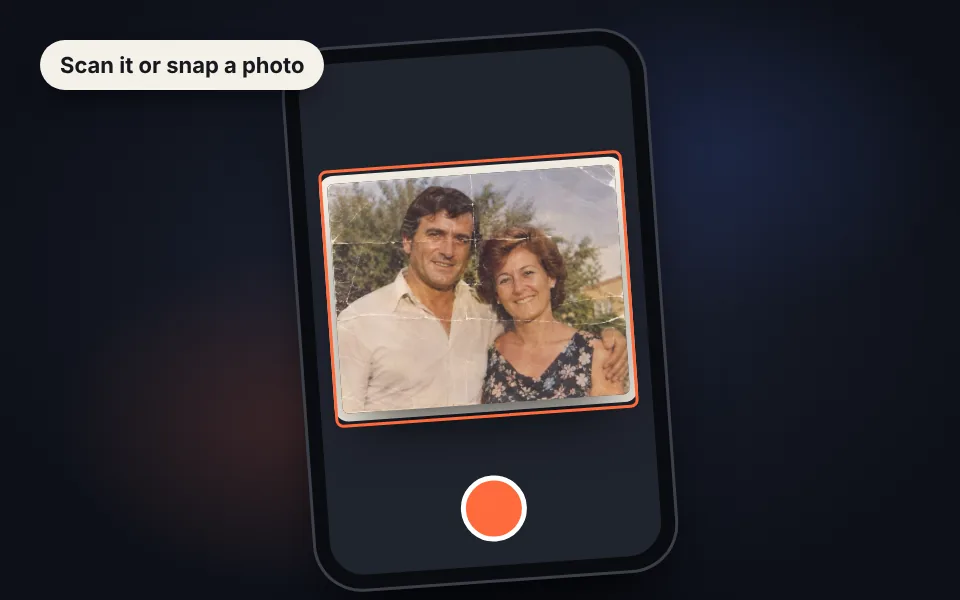
Upload the photo
Scan it or take a picture of it with your phone and upload it. You can also paste it with Ctrl+V.
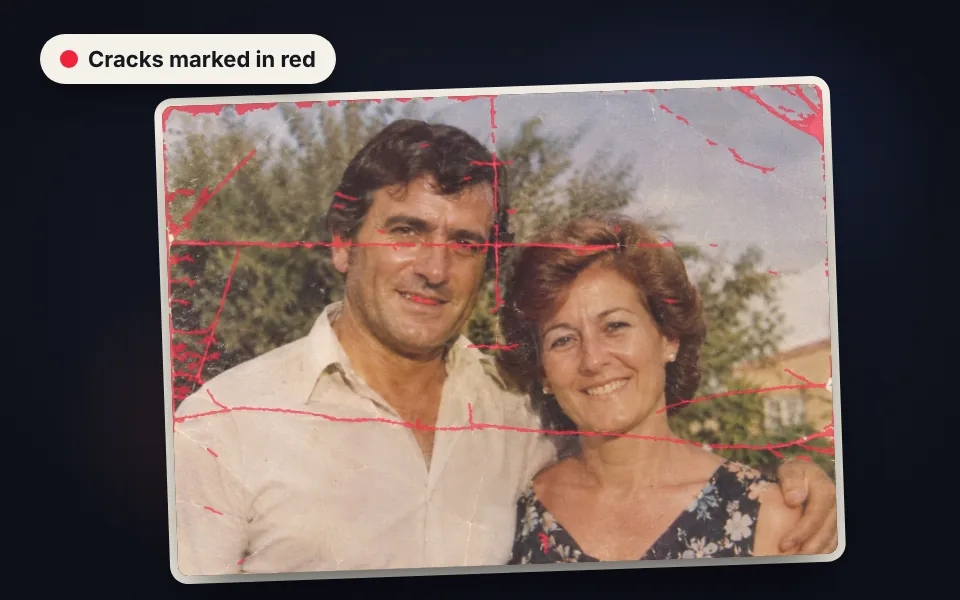
Check the red marks
The auto mode marks cracks, scratches and torn edges in red and fills them in right away.
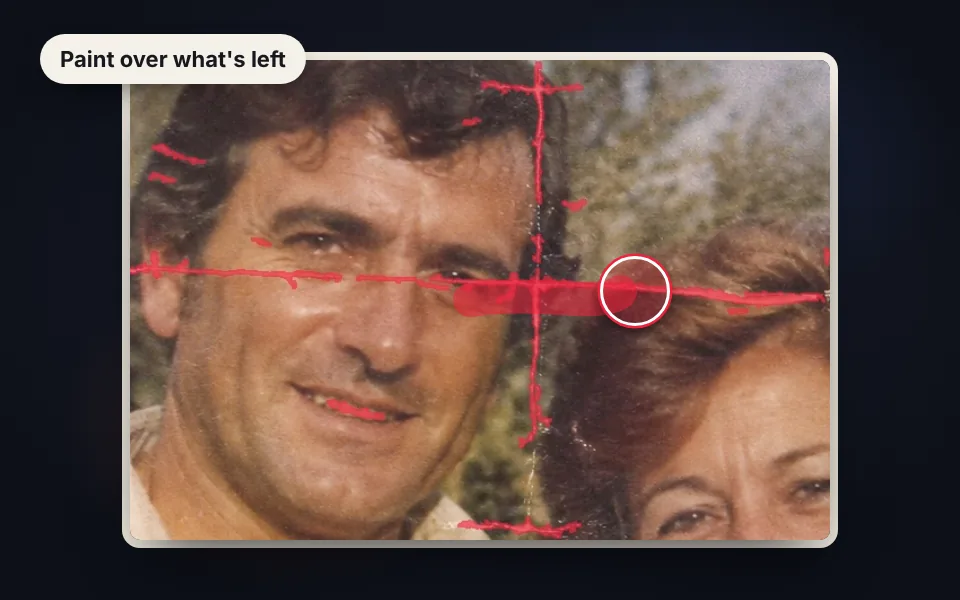
Touch up with the brush
Paint over anything left to repair and remove with the eraser any marks that aren't damage.
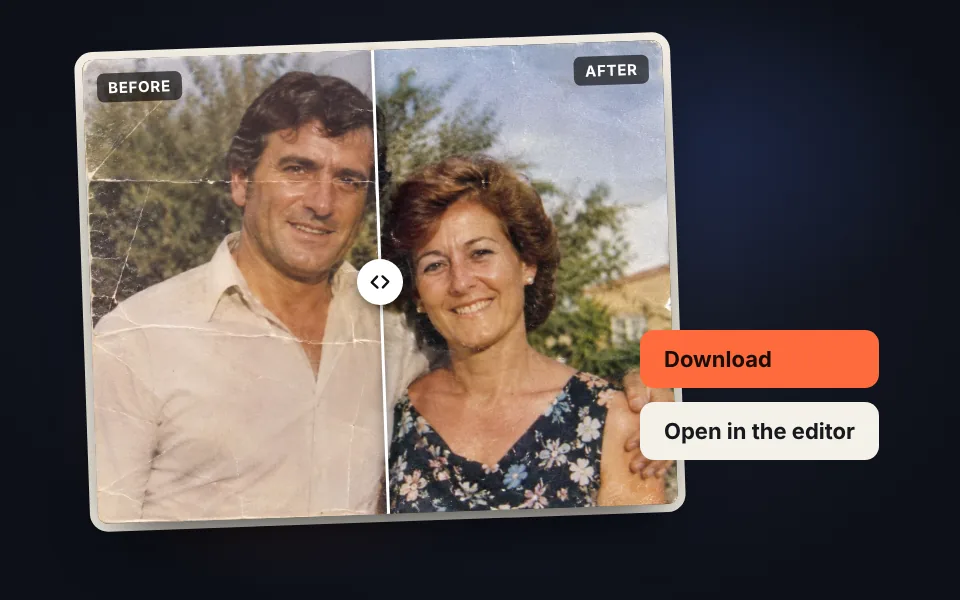
Download or keep editing
Compare before and after, download the restored photo or open it in the editor to apply filters.
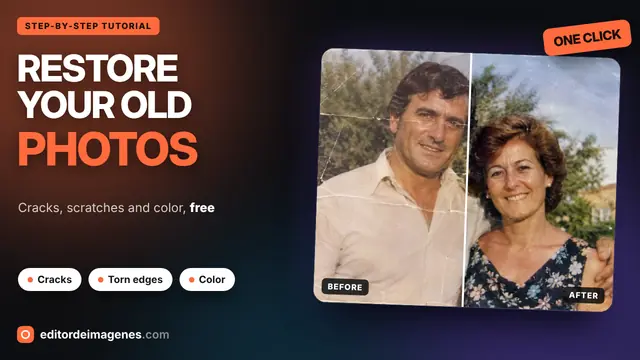
Video tutorial: how to restore an old photo
In this video you'll see how damage on a scanned old photo is marked automatically, how to adjust the sensitivity and crack thickness, how to touch up with the brush and the eraser, how to bring back faded color, how to compare before and after and how to save the restored photo. Click a chapter to jump straight to that part.
The video only loads from YouTube when you press play, and YouTube may then set its cookies. More information in the cookie policy.
What damage can be fixed
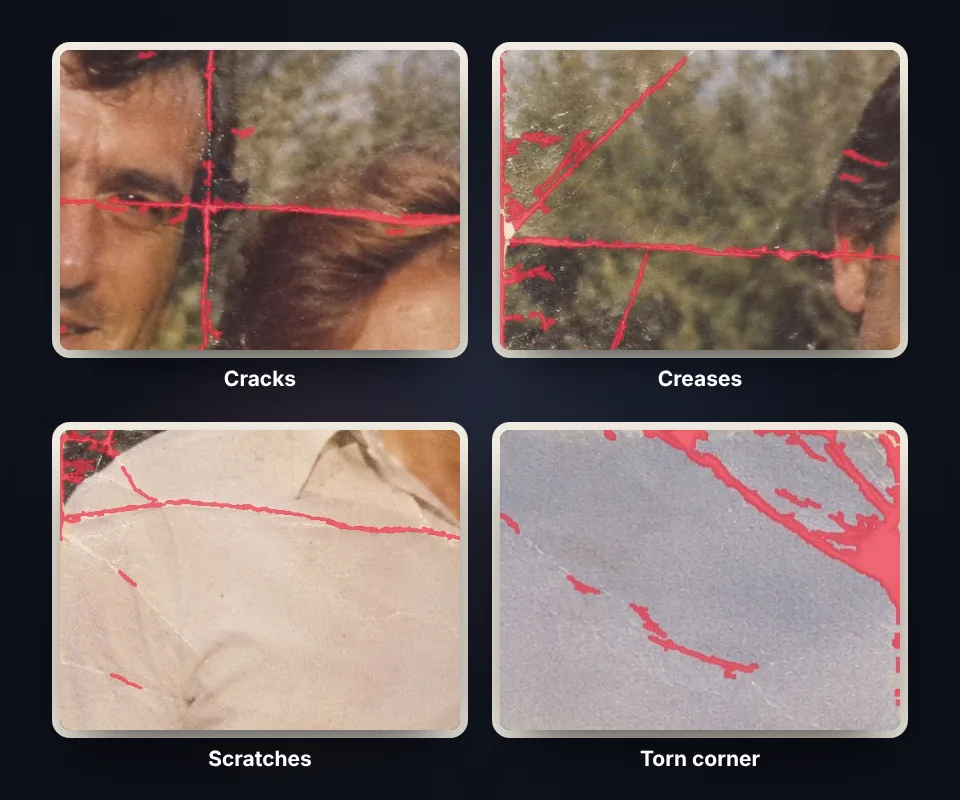
Paper photos age in many ways. The auto mode is designed for the most common damage in family photos:
- Cracks and creases: the white lines left by a photo that was folded or kept in a wallet.
- Scratches and lines: thin marks from rubbing against other photos or the album.
- Dust and white specks: spots that show up when scanning or from worn emulsion.
- Torn corners and edges: missing pieces of paper at the edge are filled in with the photo's background.
If a crack isn't fully marked, raise the sensitivity or the maximum width and press "Detect the damage again".
The repair brush, for anything left
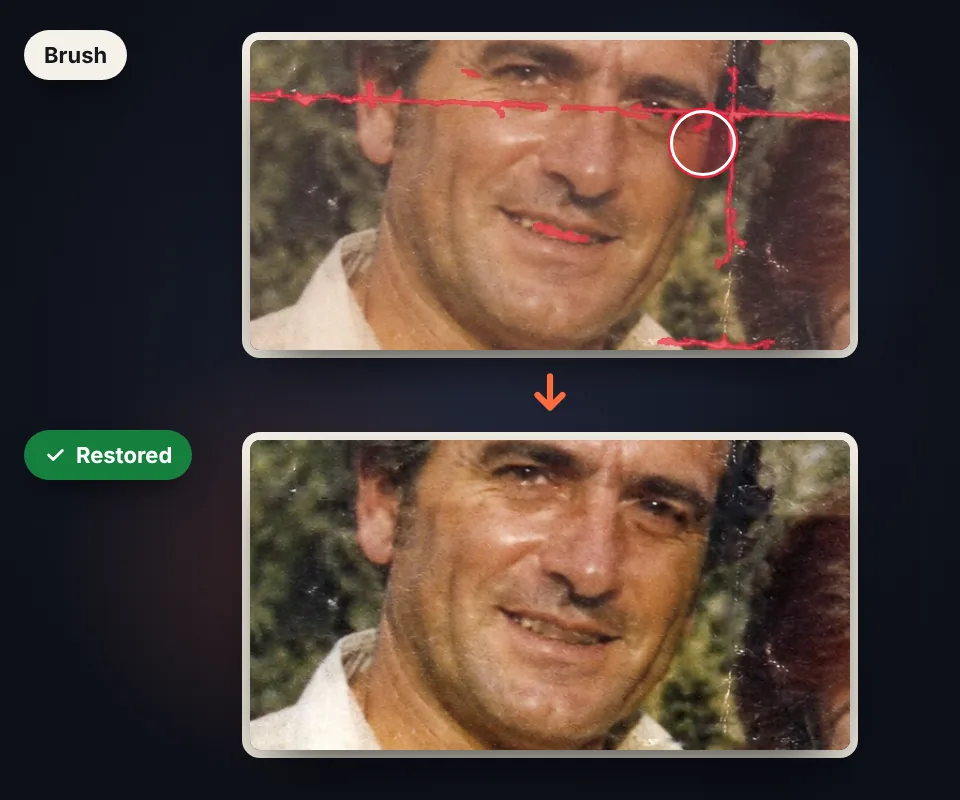
No auto mode gets everything right, so you have a brush and an eraser to get the photo just the way you want:
- Repair: paint over a crack, stain or scratch that wasn't marked. When you release, the area is filled in with the surrounding colors.
- Eraser: removes marks from the auto mode that aren't damage, like teeth or the shine in the eyes. That area goes back to the original.
- Move: with zoom on, drag the photo to move around it without painting.
Change the brush size to match the damage, and if you make a mistake, undo with Ctrl+Z.
Restore the color and finish in the editor
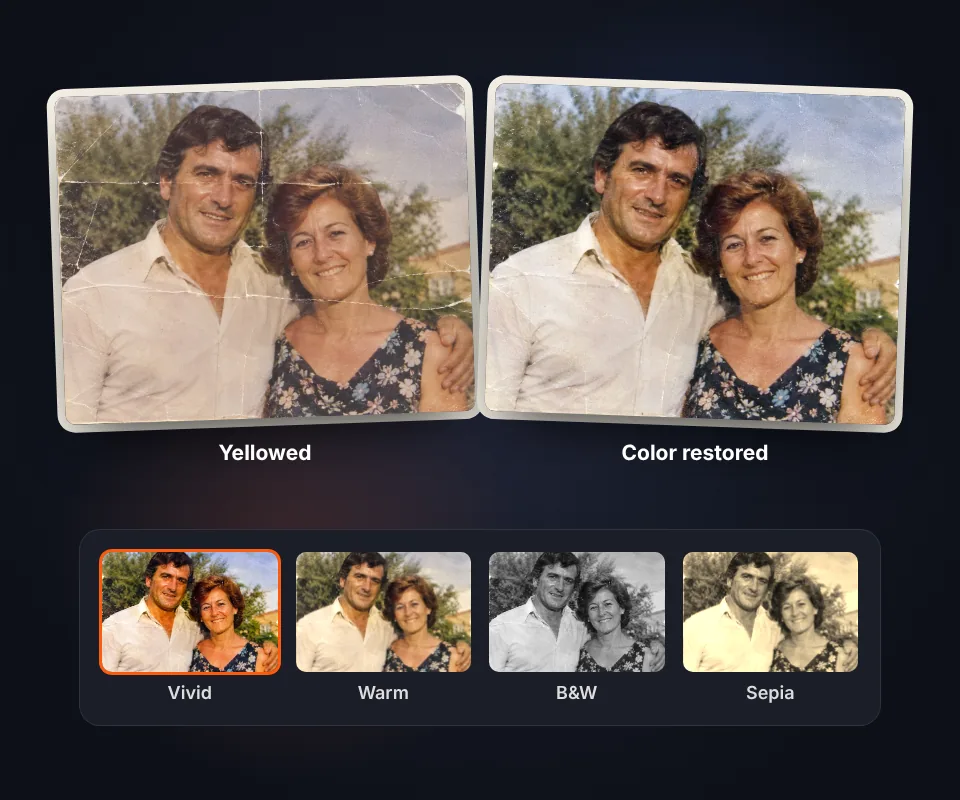
Over the years, the color of photos fades and takes on a yellow or reddish cast. The Restore faded color option stretches the colors of each channel to bring back contrast and remove much of that cast.
- Before and after: drag the bar over the photo to see the difference anywhere.
- Open in the editor: the restored photo goes to the image editor without downloading it, to adjust brightness and contrast, crop it or apply filters.
- Black and white or sepia: if the color is badly damaged, turn it black and white or give it a sepia tone with the photo filters.
Tips for scanning an old photo
The better the digital copy, the better the cracks are repaired. If you have a scanner, use 600 dpi or more and clean the glass first. If you use your phone, lay the photo on a table, take it straight on with natural light and no flash to avoid glare on glossy paper, and trim any extra edges with crop image.
Why it's restored with JavaScript and not with AI
Tools that restore photos with artificial intelligence use very heavy models that run on a server, so to use them you have to upload the photo, and with it your family's faces. Here the restoration is done with JavaScript in your own browser: the photo never leaves your device, there's no upload to wait for and it works on your phone too.
Cracks are found by measuring the brightness of each point against its surroundings and filled in by blending the surrounding colors. That's why the result stays true to the original: no faces or details are made up. On the other hand, it can't rebuild large missing parts, like half a face. For cracks, creases, scratches and torn corners the result looks very natural.
Frequently asked questions
How do I restore an old photo with cracks or tears?
Upload the scanned or photographed picture. The auto mode marks cracks and scratches and fills them in with the surrounding colors. Touch up anything left with the brush, compare before and after and download the photo.
Do I have to scan the photo?
Not necessarily. You can take a picture of it with your phone, straight on and without glare. A scanner at 600 dpi gives better results, because the cracks are sharper.
Does it use artificial intelligence?
No. AI that restores photos runs on a server and would require uploading the photo. Here the cracks are detected by analyzing brightness and filled in with the surrounding colors, all with JavaScript in your browser, so the photo never leaves your device and no details are made up.
What kind of damage can it fix?
White cracks and creases, scratches, dust spots, small stains and torn corners or edges. It works best on thin damage rather than large areas.
Can it rebuild a face or a missing part?
No. If a large piece is missing, like half an eye or a hand, it's filled in with the surrounding colors and the detail isn't recovered. For small areas and thin damage the result looks very natural.
What is the repair brush for?
To fix damage the auto mode didn't find: paint over it and it's filled in when you release. The eraser does the opposite: it removes marks from the auto mode and that area goes back to the original.
What if something that isn't damage gets marked?
Go over it with the eraser, for example on teeth or the shine in the eyes. If a lot of things get marked, lower the sensitivity of the auto mode.
Can I restore the colors of a yellowed photo?
Yes. Turn on "Restore faded color" and adjust the strength. It stretches the colors of each channel and removes much of the yellow or reddish cast of old photos.
How do I compare before and after?
Press "Before and after" and drag the bar over the photo, or use the arrow keys. With zoom you can get closer to check each crack.
Can I apply filters after restoring it?
Yes. Press "Open in the editor" and the restored photo opens in the image editor, where you can adjust brightness and contrast, apply filters or crop it.
Does the photo lose quality?
The photo is processed at its original size up to 3200 pixels on the long side. You can download it as lossless PNG, JPG or WebP.
Is my photo uploaded to a server?
No. The photo is restored in your browser and never leaves your device.
Is it free?
Yes, free, with no sign-up and no watermark.