How to make a photo collage in 4 steps
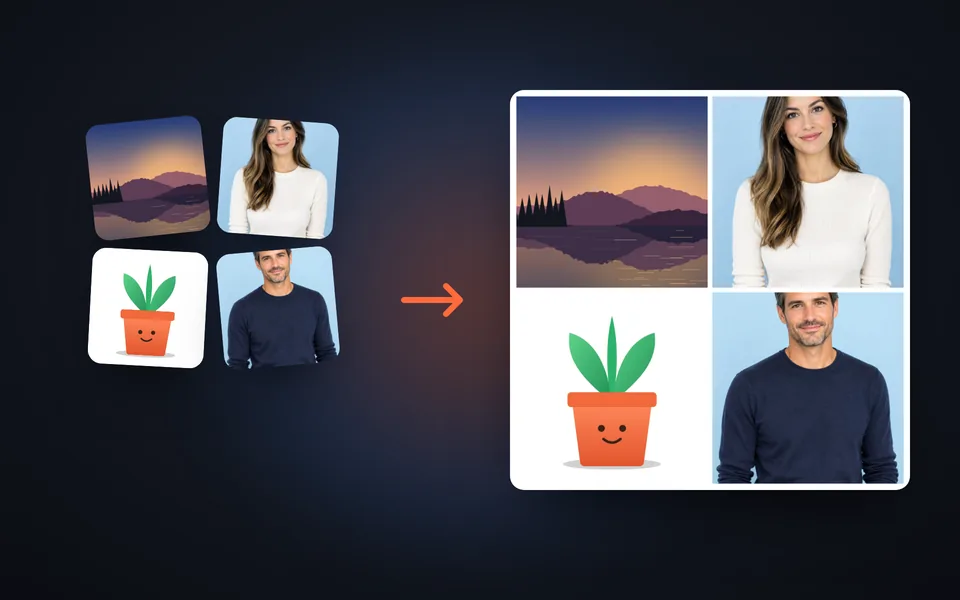
Upload your photos
Choose several photos at once. They place themselves automatically in a template with the same number of slots.
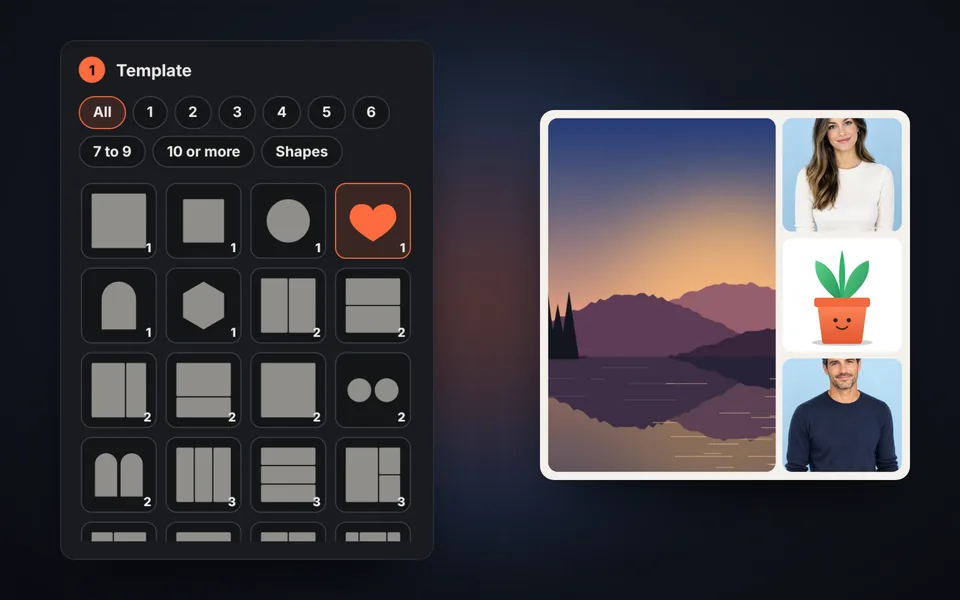
Choose the template
Filter by number of photos or by shapes and tap the template you like best. Drag each photo to frame it.
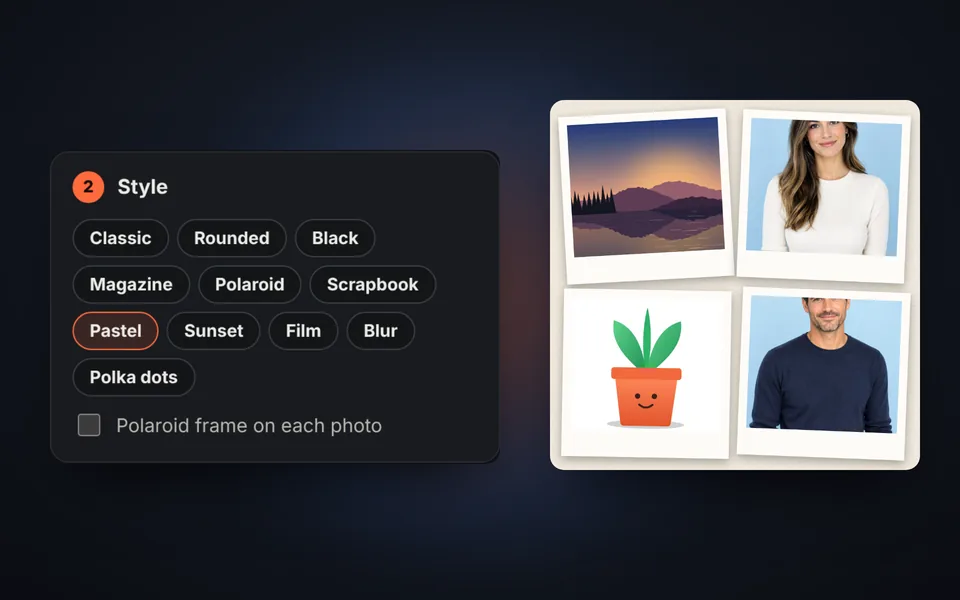
Give it style
Try the styles, change the background, spacing, corners and shadows, apply a filter and add some text.
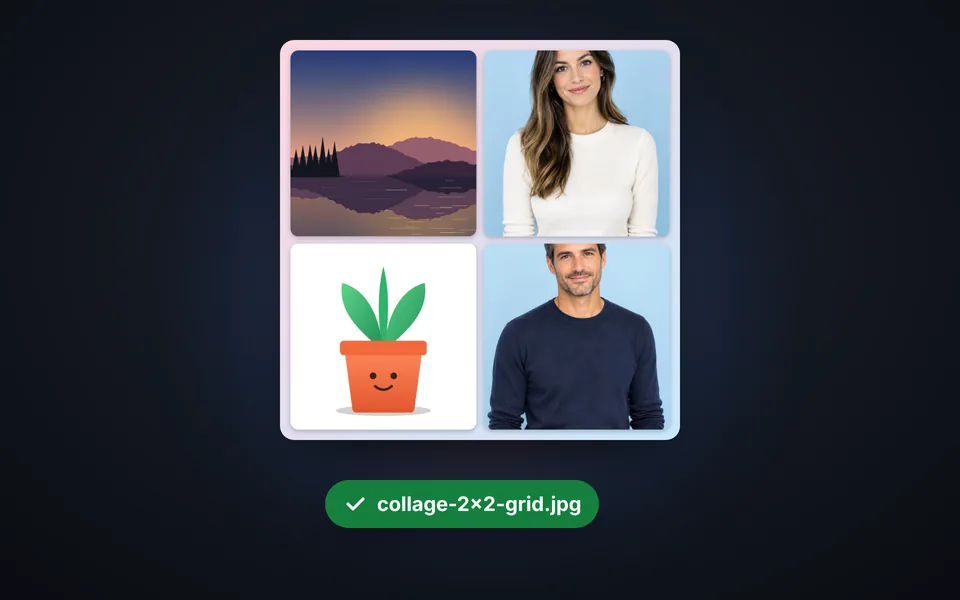
Download the collage
Choose the format and size, for Instagram, stories or to print on Letter or A4, and download it as JPG, PNG or WebP.
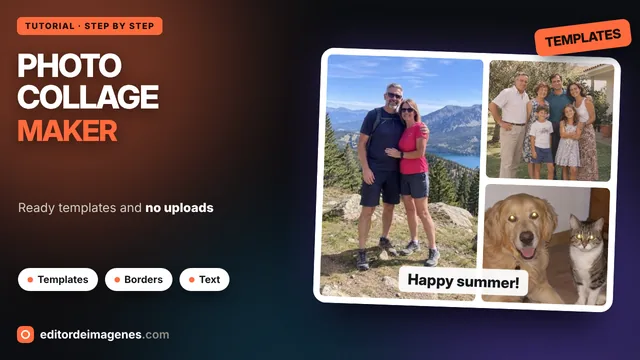
Video tutorial: how to make a photo collage
In this video you'll see how the photos are uploaded, how to choose a template, how to style it with borders, corners and background, how to touch up each photo, how to add some text and how to download the collage. Click a chapter to jump straight to that part.
The video only loads from YouTube when you press play, and YouTube may then set its cookies. More information in the cookie policy.
More than 50 templates for every occasion
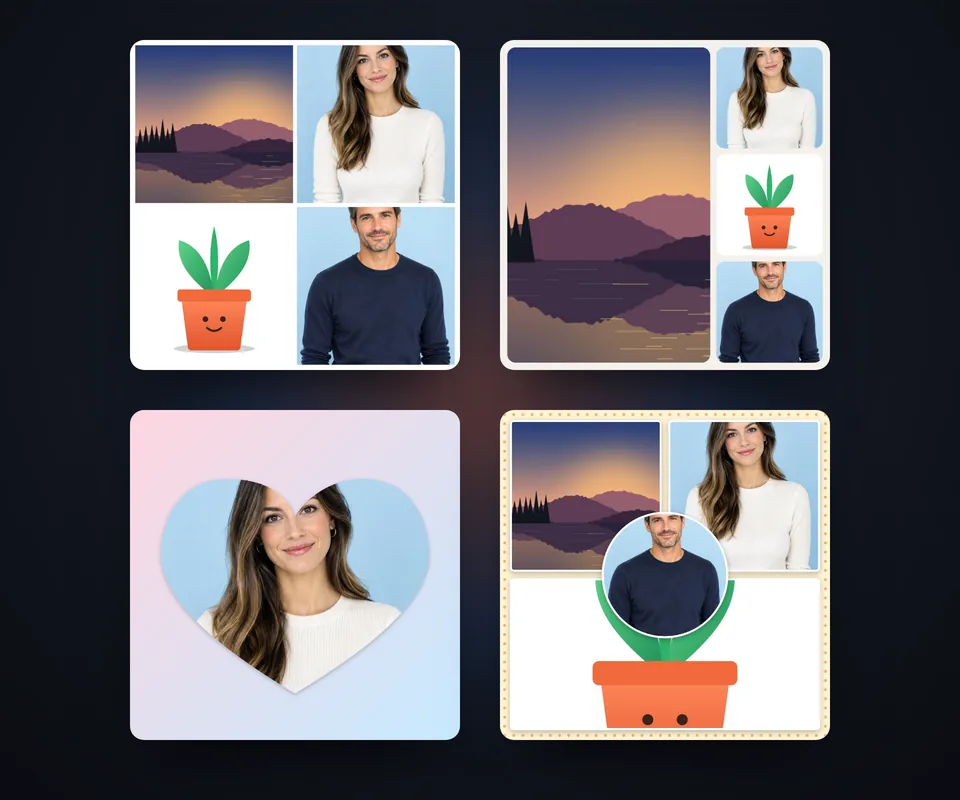
There are templates for any number of photos, from 1 to 20, and when you upload your photos one that fits is chosen automatically. You can change it whenever you want without losing your work:
- Grids: from 2 × 2 to 5 × 4, perfect for a recap of your trip or your year.
- A featured photo: one large and several small ones around it, on the left, on top or in the center.
- Mosaics: photos of different heights, like a photo wall.
- Shapes: heart, circle, arch, hexagon and honeycomb, ideal for gifts, Valentine's Day or birthdays.
You can also change the shape of any slot separately, for example putting a heart in the middle of a grid.
Styles, backgrounds and text
One tap changes the whole look of the collage, and then you can fine-tune every detail:
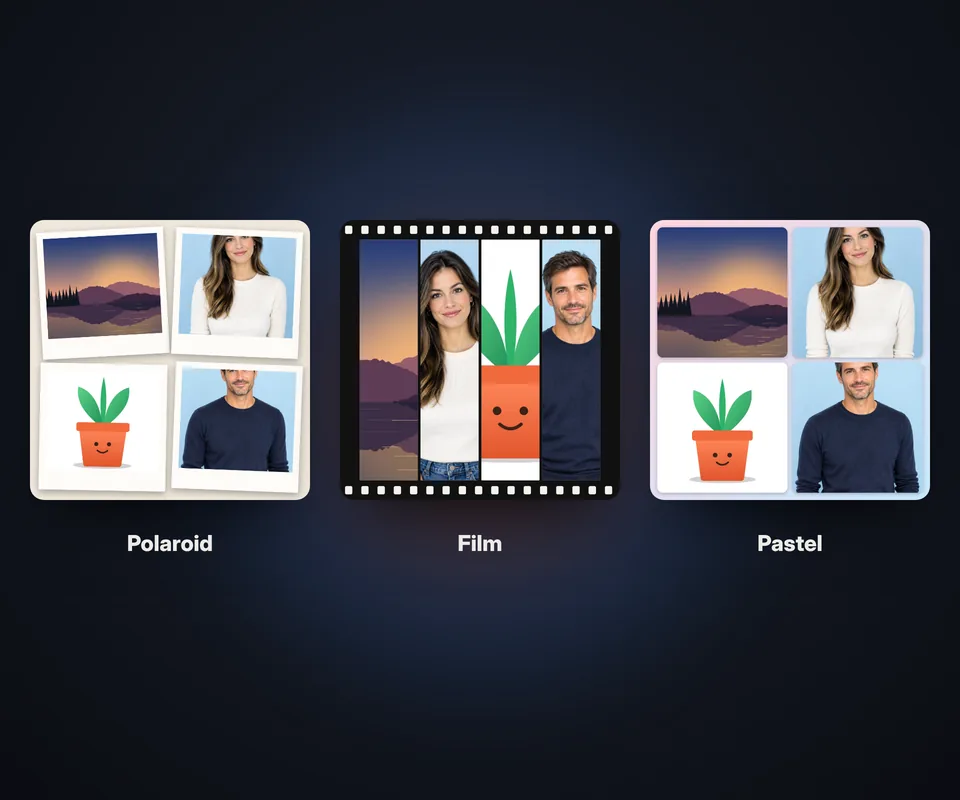
- 11 styles: classic, rounded, black, magazine, polaroid, scrapbook, pastel, sunset, film, blur and polka dots.
- Backgrounds: color, gradient, polka dots, stripes, gingham, paper, the photo itself blurred, a film strip or transparent.
- Polaroid frame and scattered photos: for a handmade album look.
- Borders, corners and shadows with the thickness and color you want.
- Filters: black and white, sepia, warm, cool, vintage, vivid or soft, for the whole collage or just one photo.
- Text: with five fonts, a colored label or band and a shadow. Drag it wherever you like.
Sizes for social media and printing
Choose the format based on where you'll use it: square 1:1 or 4:5 for Instagram posts, 9:16 for stories, Reels, TikTok and WhatsApp status, 16:9 for covers and screens, and A4 at 300 ppi to print it on paper or give it as a framed gift; it also fits US Letter paper with a small margin. For social media 1080 px is enough; for printing, choose A4 or the maximum size. If you just want to put two or three photos together without templates, try Combine photos.
Frequently asked questions
How do I make a photo collage for free?
Upload your photos, choose a template and a style, adjust the framing of each photo and click Download collage. It's free, with no sign-up and no watermark.
How many photos can I put in a collage?
There are templates for 1 to 20 photos, and you can upload up to 40 to choose which ones to use.
Can I move and frame each photo?
Yes. Tap a slot and drag the photo to frame it. Use zoom to get closer, and you can also rotate it, flip it or swap it with another slot.
Are there heart-shaped templates?
Yes. In the Shapes category you'll find heart, circle, arch, hexagon and honeycomb. You can also change the shape of any slot.
Can I add text to the collage?
Yes. Click Add text, type it, choose the font, color and background, and drag it into place.
What size should I use for Instagram?
Square 1:1 or portrait 4:5 for posts and 9:16 for stories, 1080 px wide.
Can I print the collage?
Yes. Choose the A4 format and the A4 at 300 ppi size so it comes out sharp on paper. It also fits US Letter with a small margin.
Can I undo a change?
Yes, with the Undo button or Ctrl+Z, and redo with Ctrl+Y.
Does it work on my phone?
Yes, on Android and iPhone. Frame the photos with your finger right on the collage.
Are my photos uploaded to a server?
No. The collage is created in your browser and your photos never leave your device.