How to merge PDF files in 4 steps
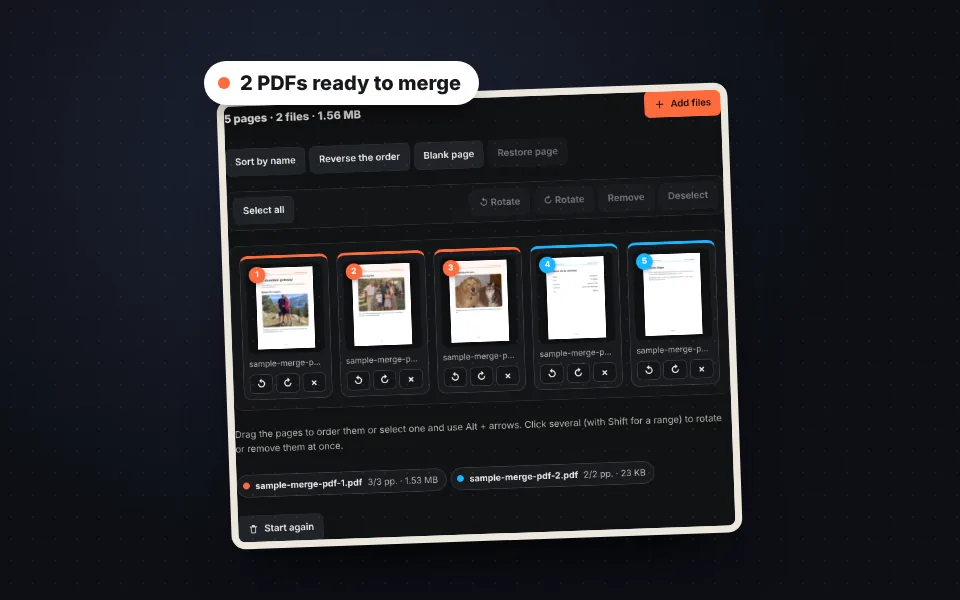
Upload the PDFs
Drag all the PDFs at once or choose them. You can also add JPG or PNG photos.
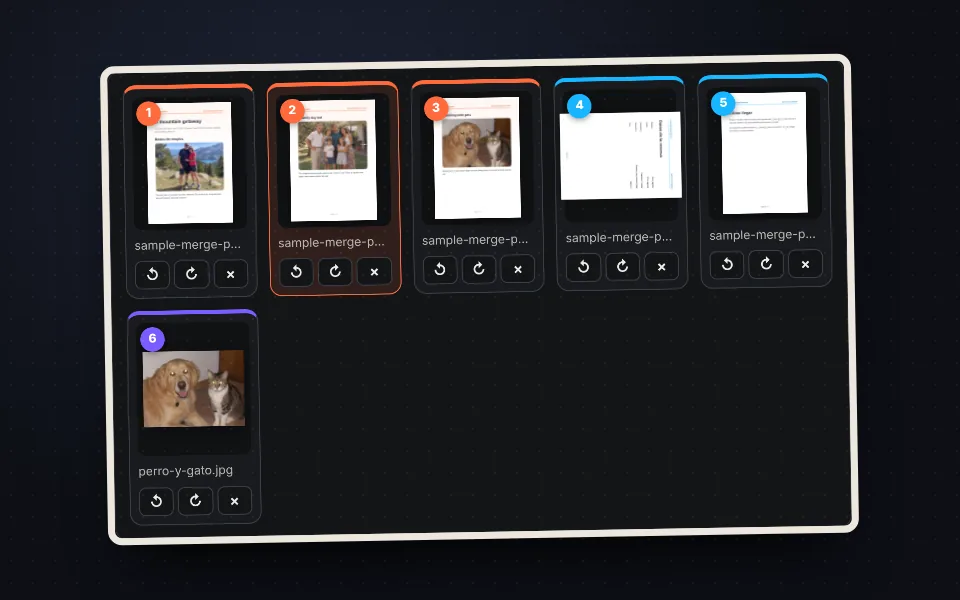
Order the pages
Drag the pages, rotate the ones that are sideways and remove the ones you don't need.
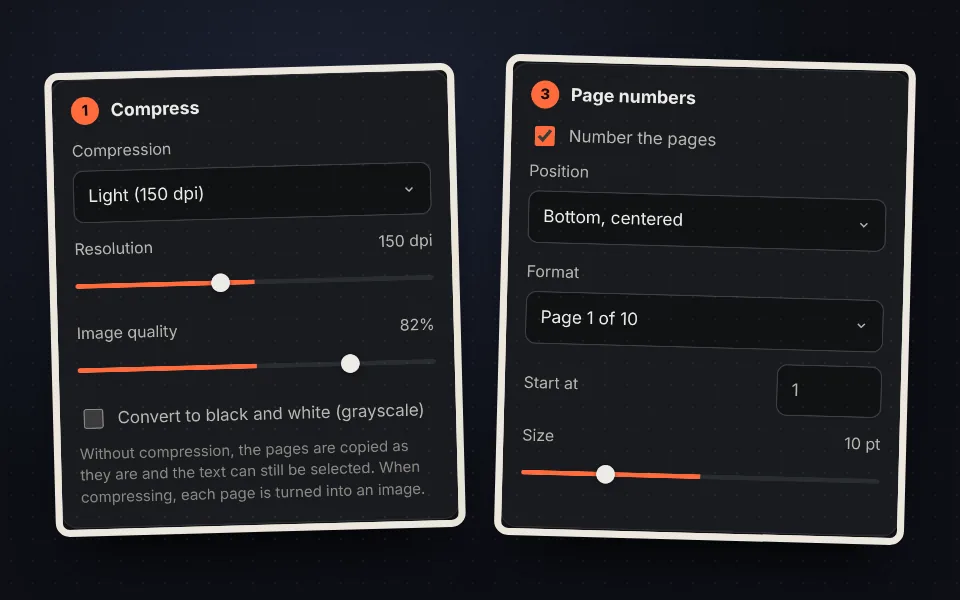
Choose the options
Compress the PDF, put every page in A4 or Letter, number the pages and change the title.
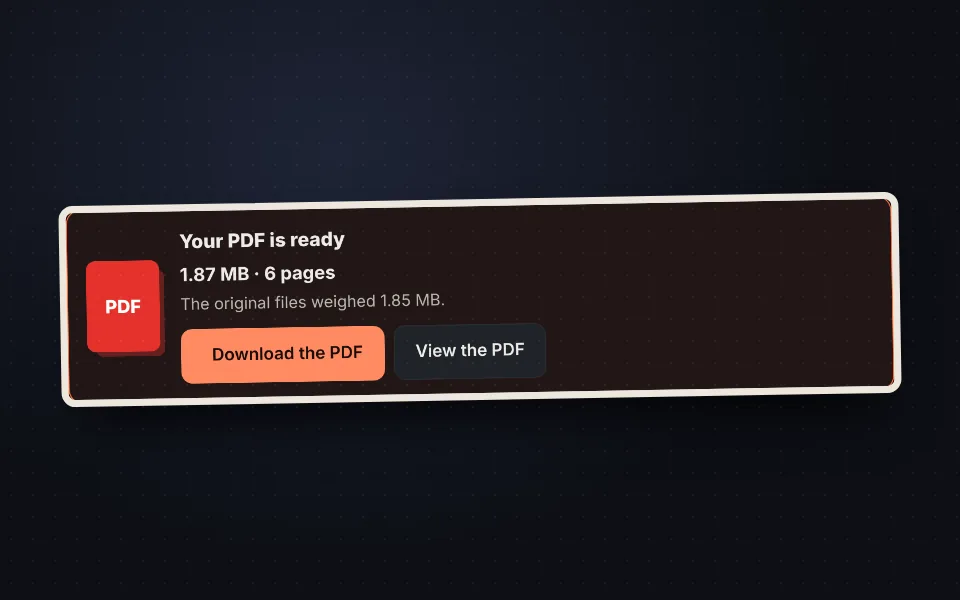
Merge and download
Press "Merge the PDFs", check the size and download the document.
Video tutorial: how to merge PDF files
In this video you'll see how to upload two PDFs, add a photo, order, rotate and remove pages, compress and number the document, and merge and download it. Click a chapter to jump straight to that part.
The video only loads from YouTube when you press play, and YouTube may then set its cookies. More information in the cookie policy.
Reorder, rotate and remove pages before merging
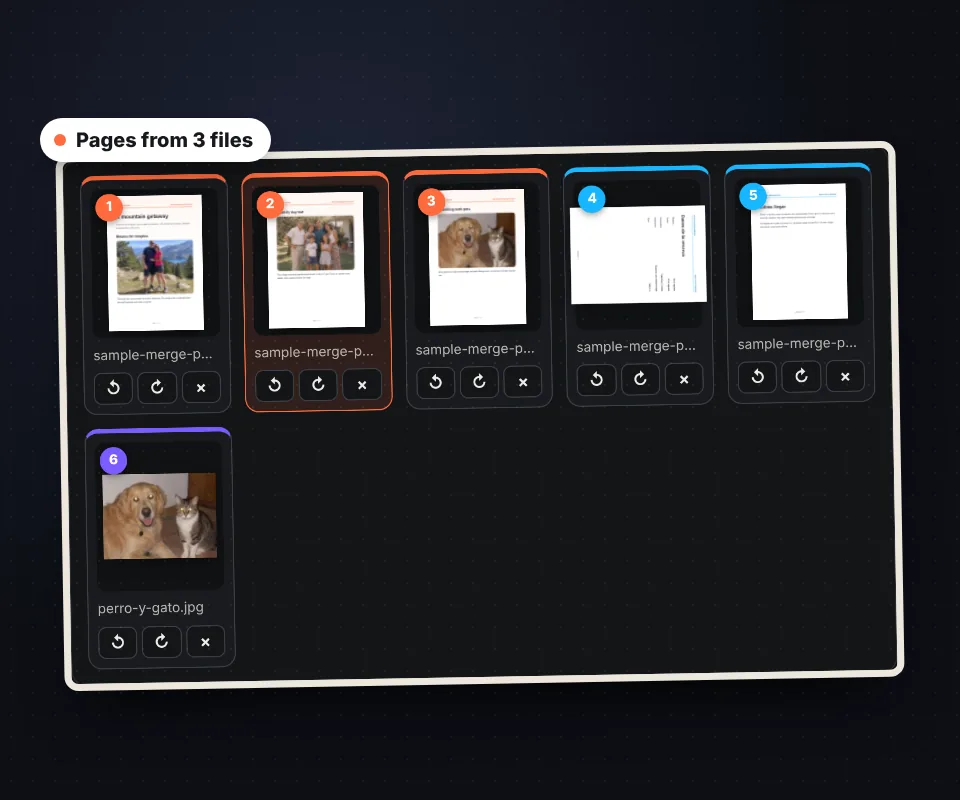
Each page of each PDF appears as a separate thumbnail, so you don't merge whole files blindly:
- Reorder: drag any page, even if it comes from another PDF, or use Alt and the arrow keys.
- Rotate: fix pages that were scanned sideways or upside down.
- Remove: leave out blank pages, covers or duplicate pages. "Restore page" brings back the last one removed.
- Several at once: select several pages to rotate or remove them together.
- Blank page: add a separator between documents, for example to print double-sided.
Compress the PDF to send it by email or upload it
Many forms and email services limit the size of attachments. When merging, you can make the PDF lighter:
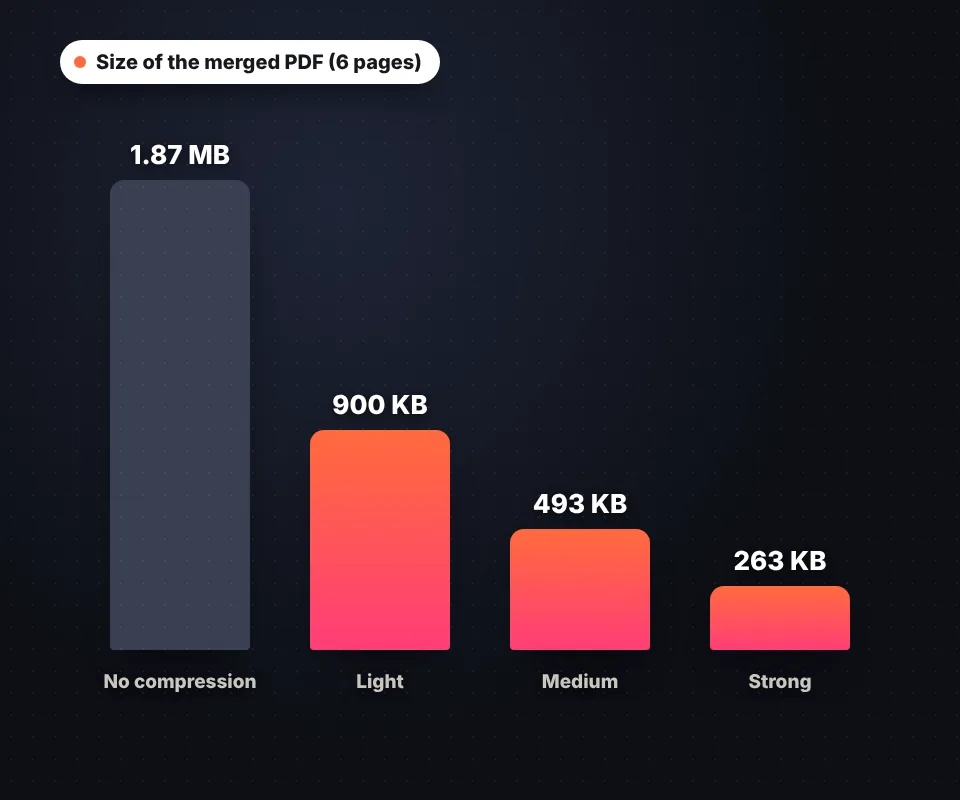
- Light, medium or strong compression: each page is turned into an image at 150, 120 or 96 dpi.
- Custom: choose the resolution and the image quality yourself.
- Black and white: grayscale reduces the size even more for text documents.
Without compression, the pages are copied exactly as they are and the text can still be selected and searched. You will see the final size before downloading.
Merge PDFs and photos in the same document
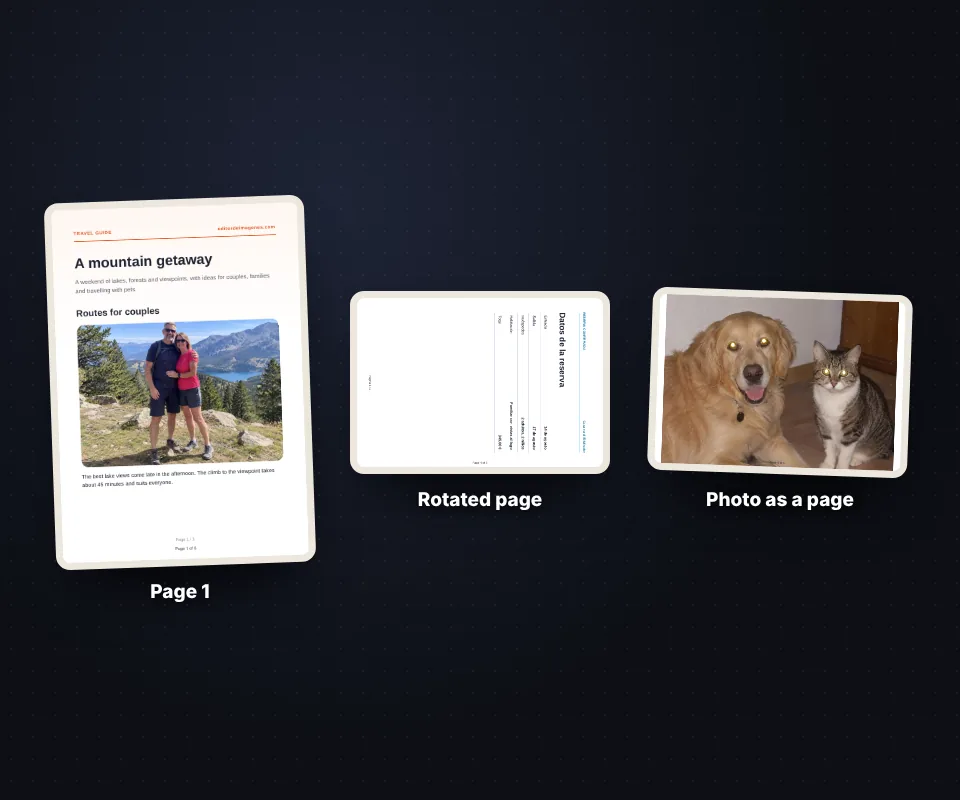
Add JPG or PNG photos between the PDFs, for example the photo of a receipt or of an ID card. Each photo becomes a page that you can move like any other.
If the pages have different sizes, choose "All in A4" or "All in Letter" so the whole document has the same size; the orientation of each page is kept.
With Number the pages you add the numbering in the position and format you prefer, for example "Page 1 of 10".
When you need to merge PDFs
Merging PDFs is useful whenever a form only allows one file: an application with your ID, certificates and receipts, a job application with your resume and qualifications, the invoices of the month for your accountant or the chapters of a project into a single document. To turn photos into PDF separately, use JPG to PDF, and to sign the result, sign PDF.
Your documents never leave your device
The PDFs are read and merged in your browser with pdf.js and pdf-lib. They are not uploaded to any server, so you can merge contracts, bank statements or personal documents with peace of mind. There is no limit on files or pages and no watermark: the only limit is your device's memory.
Frequently asked questions
How do I merge several PDFs into one?
Upload all the PDFs, order the pages and press "Merge the PDFs". Then download the document with "Download the PDF".
Can I change the order of the pages?
Yes. Each page appears as a thumbnail that you can drag, even between different PDFs. "Sort by name" orders the files alphabetically.
Can I remove pages before merging?
Yes. Select the page and press "Remove". If you made a mistake, "Restore page" brings it back.
Can I merge PDFs and photos?
Yes. Add JPG or PNG photos and each one becomes a page of the PDF.
How do I make the merged PDF smaller?
Choose light, medium or strong compression, or custom compression with your own resolution and quality. Grayscale reduces the size even more.
Is the text still selectable?
Yes, if you don't compress: the pages are copied as they are. When compressing, each page is turned into an image.
Can I number the pages?
Yes. Turn on "Number the pages" and choose the position, the format, the size and the starting number.
What happens if a PDF has a password?
The password is requested to open it. If you don't have it, you can skip that file.
Is there a limit on files or pages?
No. The only limit is your device's memory.
Are my documents uploaded to a server?
No. Everything happens in your browser and your documents never leave your device.
Is it free?
Yes, free, with no sign-up and no watermark.