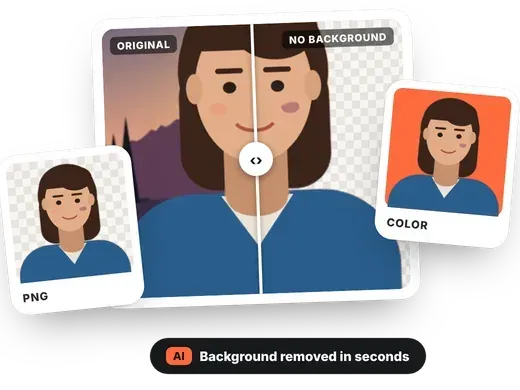
How to remove the background from an image in 4 steps
-
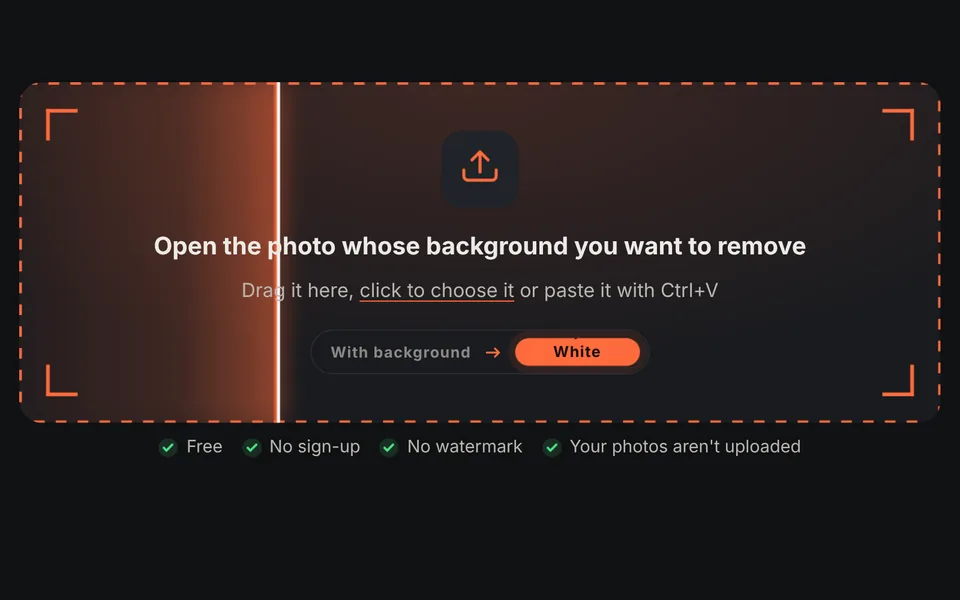
Open the photo
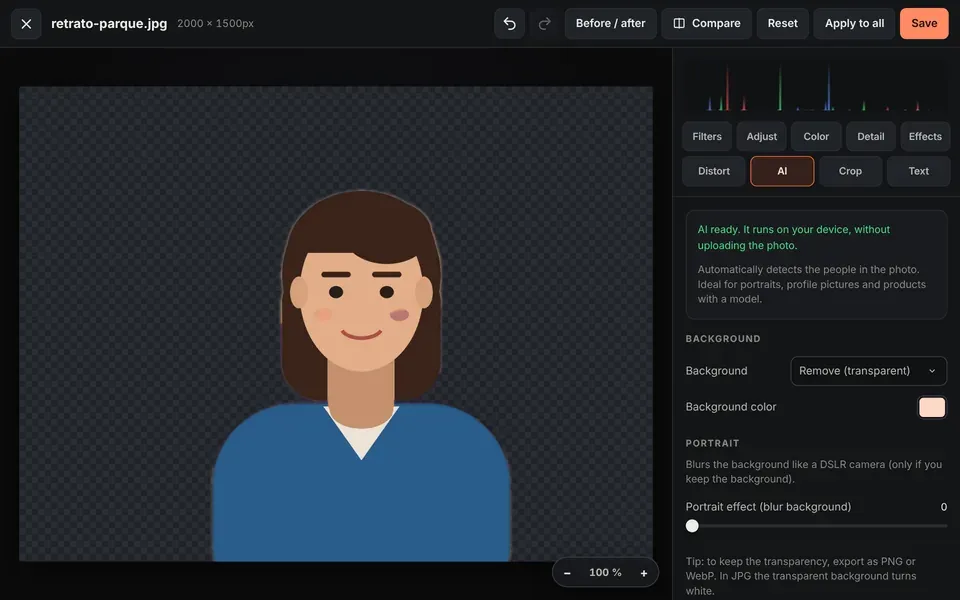
Drag the image onto the upload area or click to choose it. The editor opens in the AI tab with "Remove background" already turned on.
-
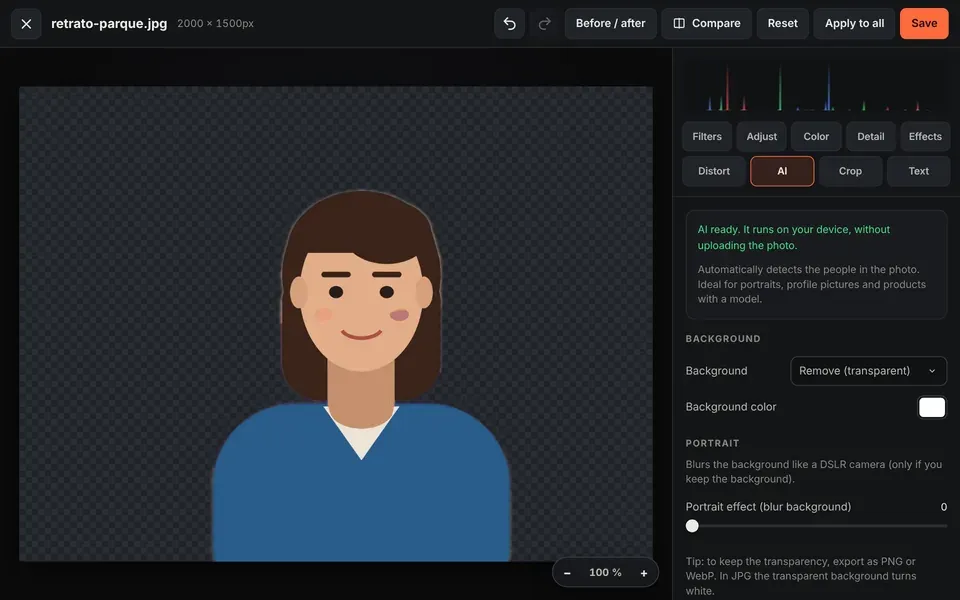
Wait for the AI
The first time, the artificial intelligence model is downloaded (a few seconds). Then it detects the person automatically.
-
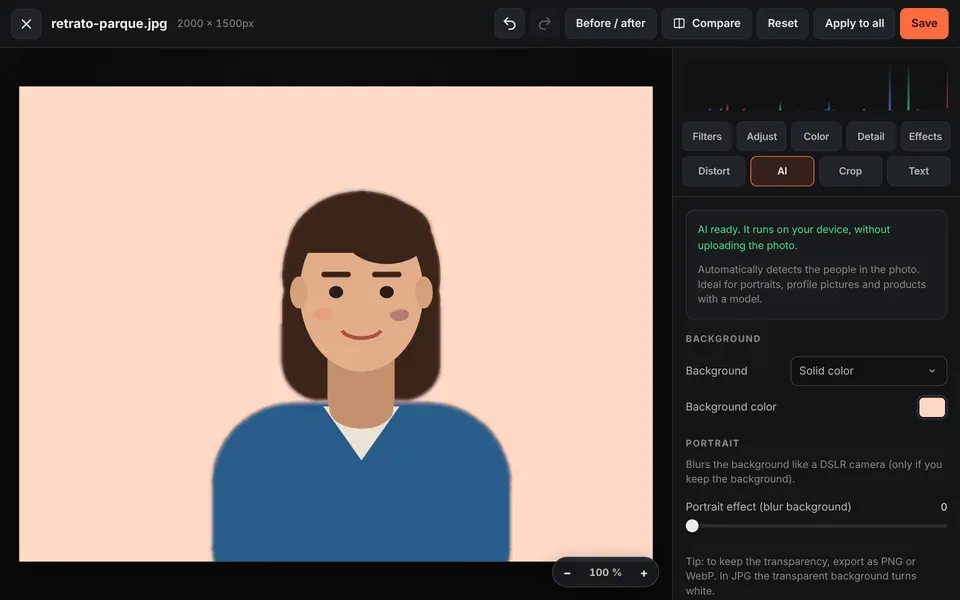
Choose the background
Leave it transparent or choose "Solid color" and any color you like, for example white for product or ID photos.
-
Save as PNG
Click "Save" and download the image. On this page PNG is selected by default to keep the transparency.
Video tutorial: how to remove the background from a photo
In this video you'll see how the AI removes the background from a portrait in an instant, how to compare with the original, how to put a colored background or blur it like a portrait, how to save it as a transparent PNG and how to get the best results. Click a chapter to jump straight to that part.
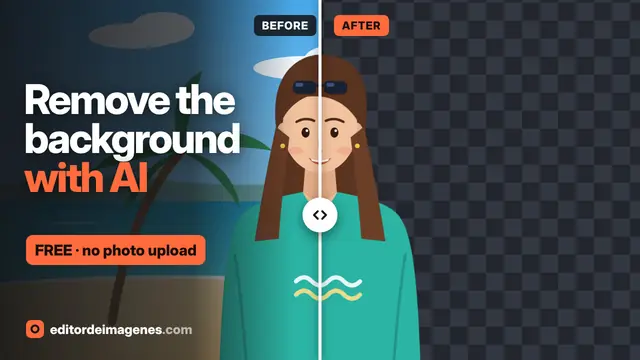
The video only loads from YouTube when you press play, and YouTube may then set its cookies. More information in the cookie policy.
Remove the background from a photo in seconds
Removing a background by hand with the magic wand or the eraser can take a long time. This tool uses artificial intelligence to automatically detect the person in the photo and separate the background in a few seconds, without you having to select anything.
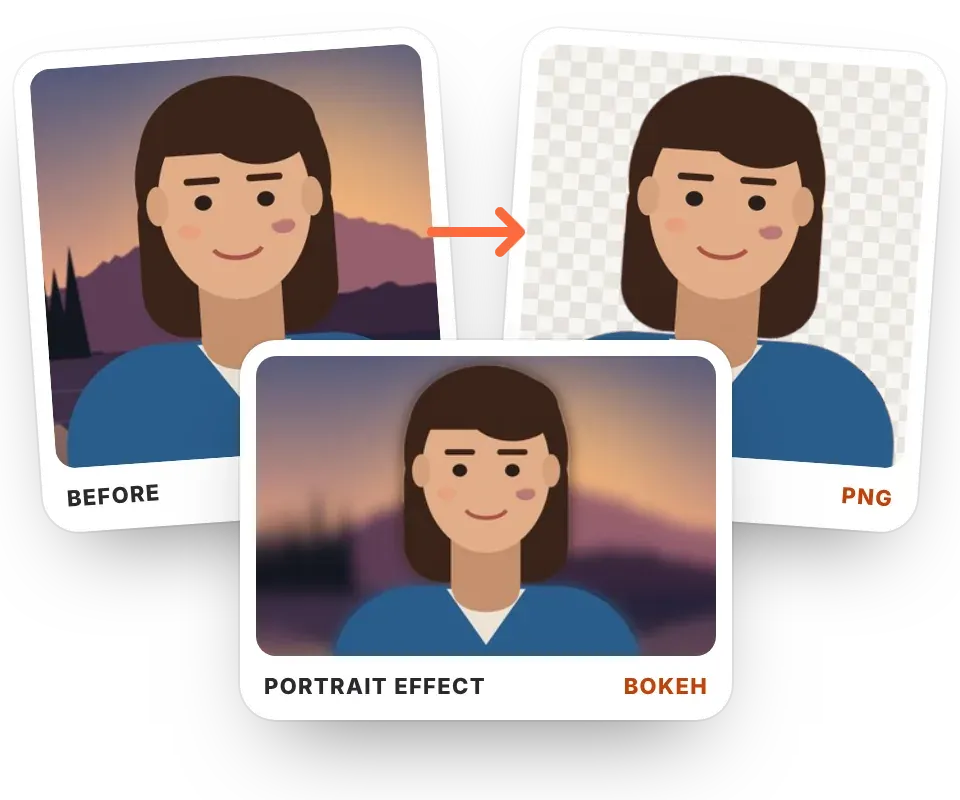
The result is a PNG with a transparent background, ready to place on another background or use in a presentation, a design or as a profile picture. If you prefer, you can replace the background with a solid color or, instead of removing it, blur it for a portrait effect like a DSLR camera.
Private: the photo never leaves your device
Most background removal sites upload your photo to their servers to process it. Here the AI runs inside your browser: the model is downloaded once and the image is analyzed on your own computer or phone. It's ideal for personal photos, client photos or documents.
What removing the background is useful for
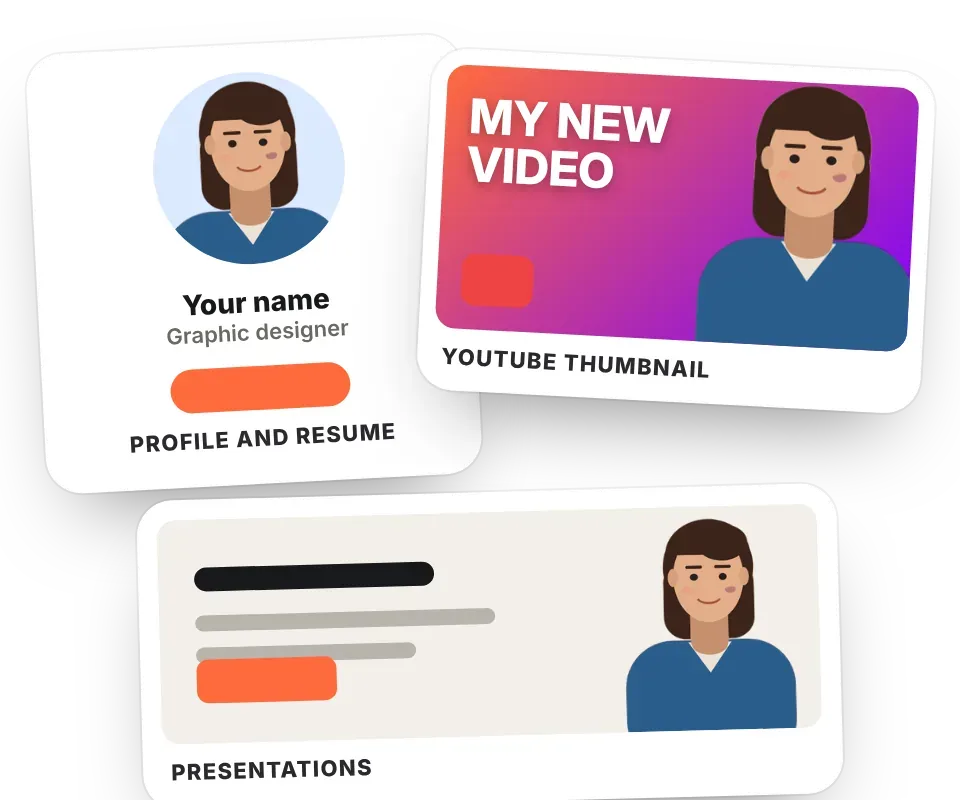
- Profile pictures and résumés: give your photo a plain, professional background.
- Online stores and catalogs: uniform white backgrounds so all products with models look the same.
- Design and social media: cut out the person for collages, YouTube thumbnails, covers or stickers.
- Presentations and documents: place a person on any slide background.
- Portrait effect: blur the background to make the subject stand out without a professional camera.
Tips for the best result
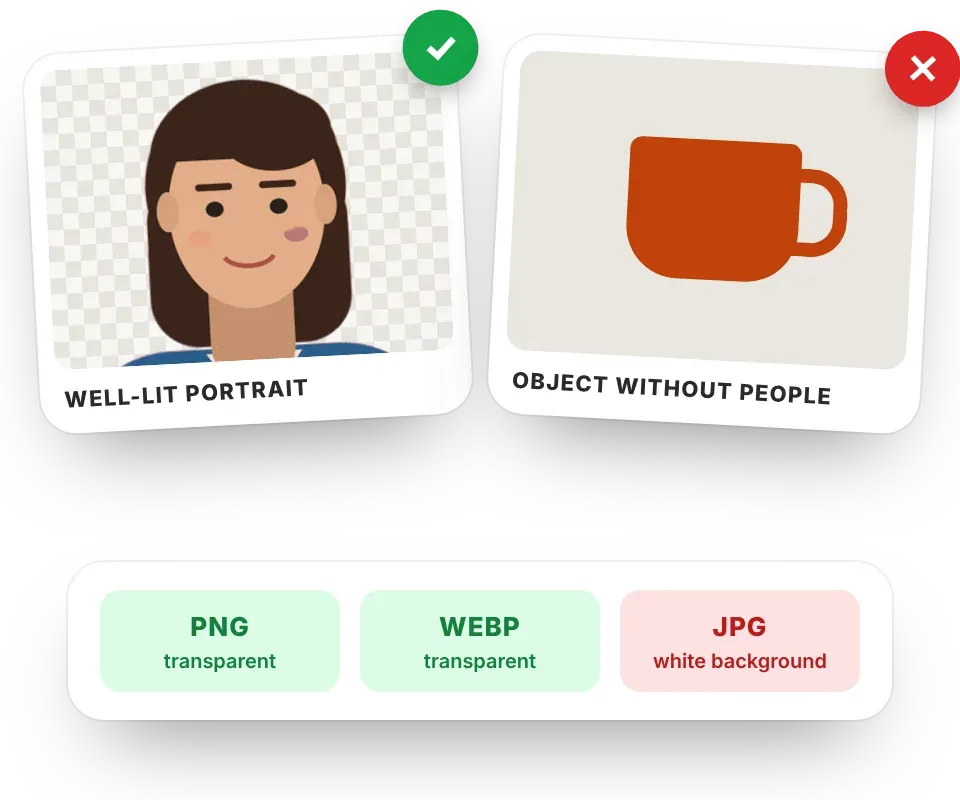
- The AI is trained to detect people. It works very well on portraits, full-body photos and groups; with objects, animals or products without people the result may not be good.
- Use photos with good lighting where the person clearly stands out from the background.
- Download as PNG or WebP to keep the transparency. In JPG, transparent areas are filled with white.
- Then you can keep editing: adjust the light, apply a filter, add text or crop the image.
Frequently asked questions
How do I remove the background from an image for free?
Open the photo on this page: the editor turns on "Remove background" automatically. The AI detects the person and makes the background transparent. Click "Save" and download the image as PNG.
How do I make the background of a photo transparent?
Remove the background with the "Remove (transparent)" option and download the image as PNG or WebP, the formats that support transparency.
Can I use a white or colored background?
Yes. In the AI tab, change "Background" to "Solid color" and pick the color. It's useful for ID, profile or product photos.
Does it work with objects or animals?
The AI is designed to detect people. With objects or animals and no people, it may detect nothing or give an incorrect cutout.
Is it free and without a watermark?
Yes. There's no photo limit, no sign-up, and images download without a watermark and at full resolution.
Are my photos uploaded to a server?
No. The artificial intelligence runs in your browser; only the model is downloaded the first time.