How to scan a document with your phone in 4 steps
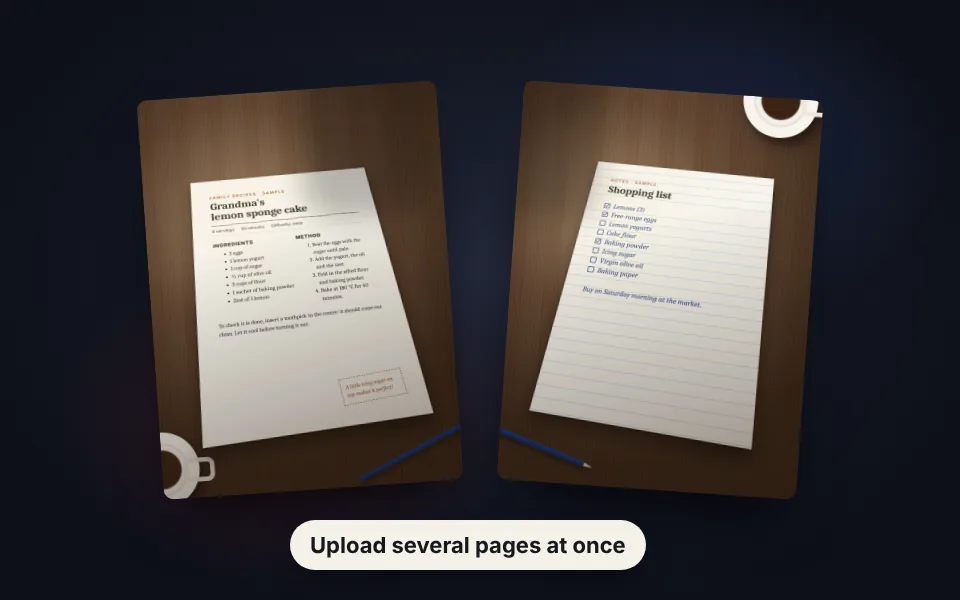
Take or upload the photos
Photograph each page with your phone or upload the photos you already have. You can add several at once.
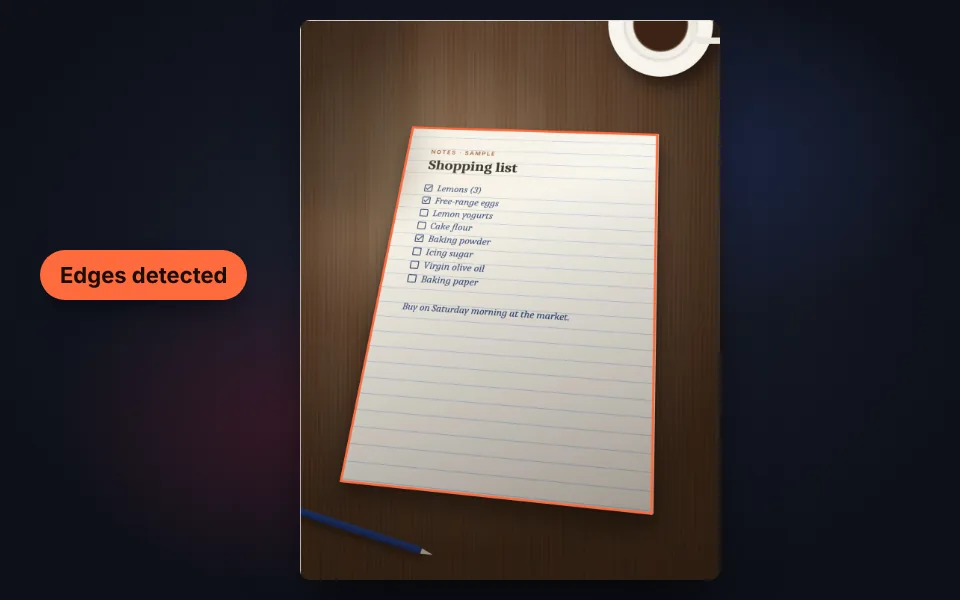
Check the crop
The paper edges are found automatically and the perspective is corrected. If needed, adjust the four corners.
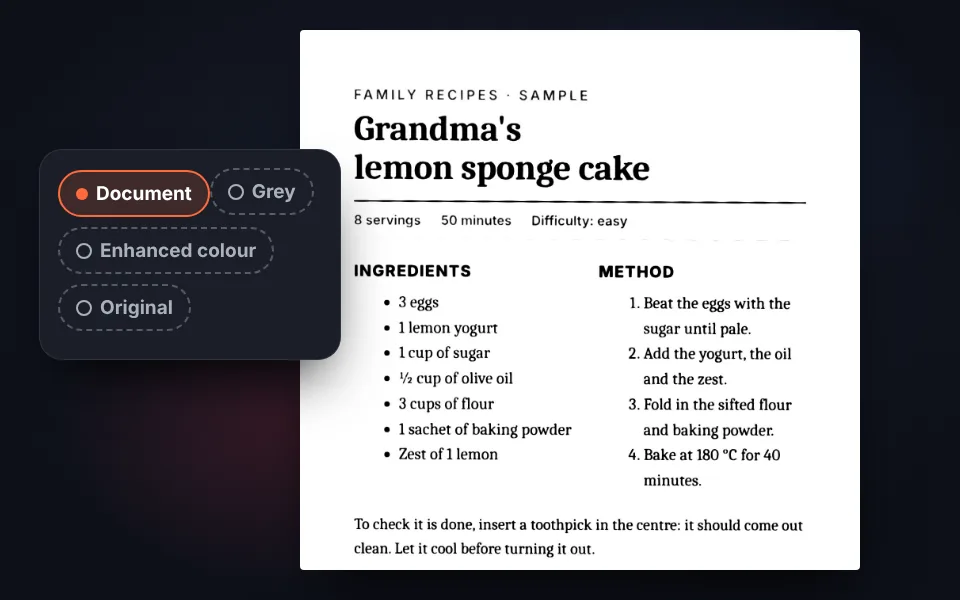
Choose the filter
Document for clean black and white, grey, enhanced colour or original. Shadows are removed automatically.
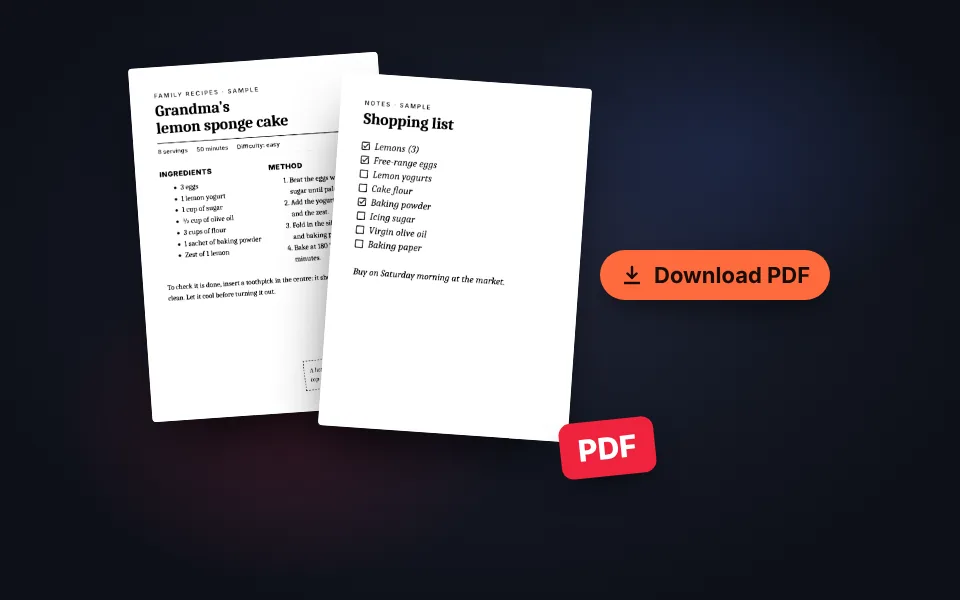
Order and download
Rotate and reorder the pages and download them all in one PDF or each one as a JPG.
Video tutorial: how to scan documents with your phone
In this video you'll see how the edges of the paper are found automatically, how to adjust the corners by hand, how to choose the filter, how shadows disappear, how to put several pages in one PDF and how to check the file size before downloading. Click a chapter to jump straight to that part.
The video only loads from YouTube when you press play, and YouTube may then set its cookies. More information in the cookie policy.
How a phone document scanner works
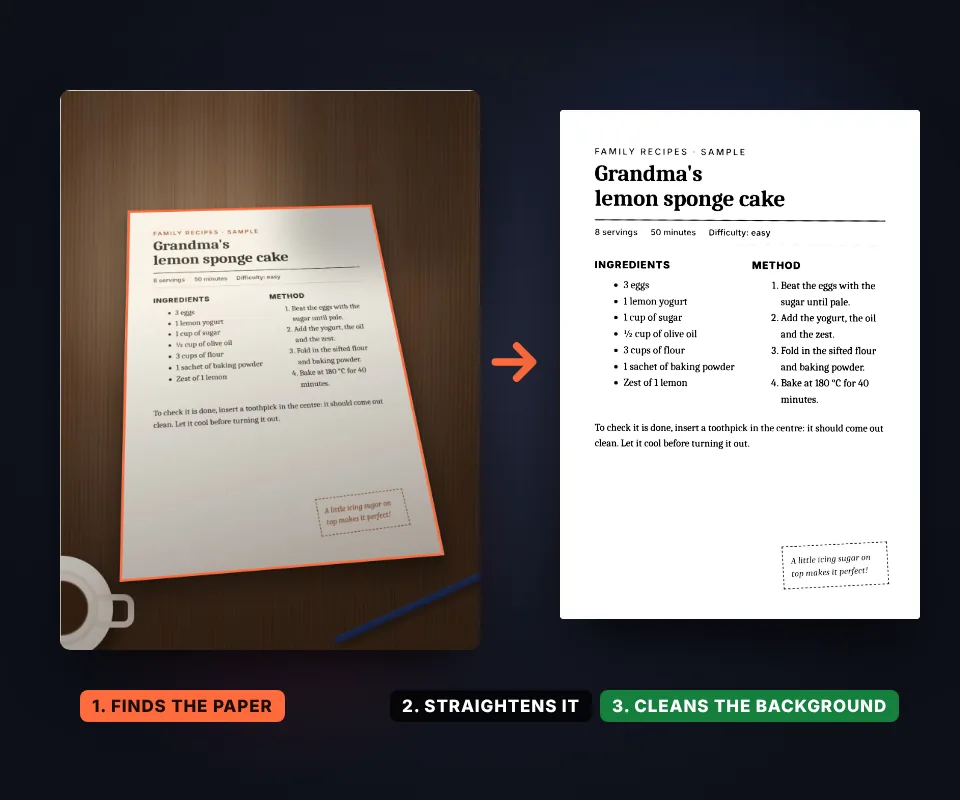
A document scanner turns a photo of a sheet of paper into a page that looks like it came from a real scanner. It does it in three steps:
- Finds the paper: it looks for the edges of the sheet on the table and its four corners.
- Corrects the perspective: it stretches the photo so the sheet is straight and rectangular, even if you took it at an angle.
- Cleans the image: it removes shadows, makes the background white and darkens the text.
It's what phone scanning apps do, but here it works in the browser, with nothing to install and no account.
How to take the photo for a perfect scan
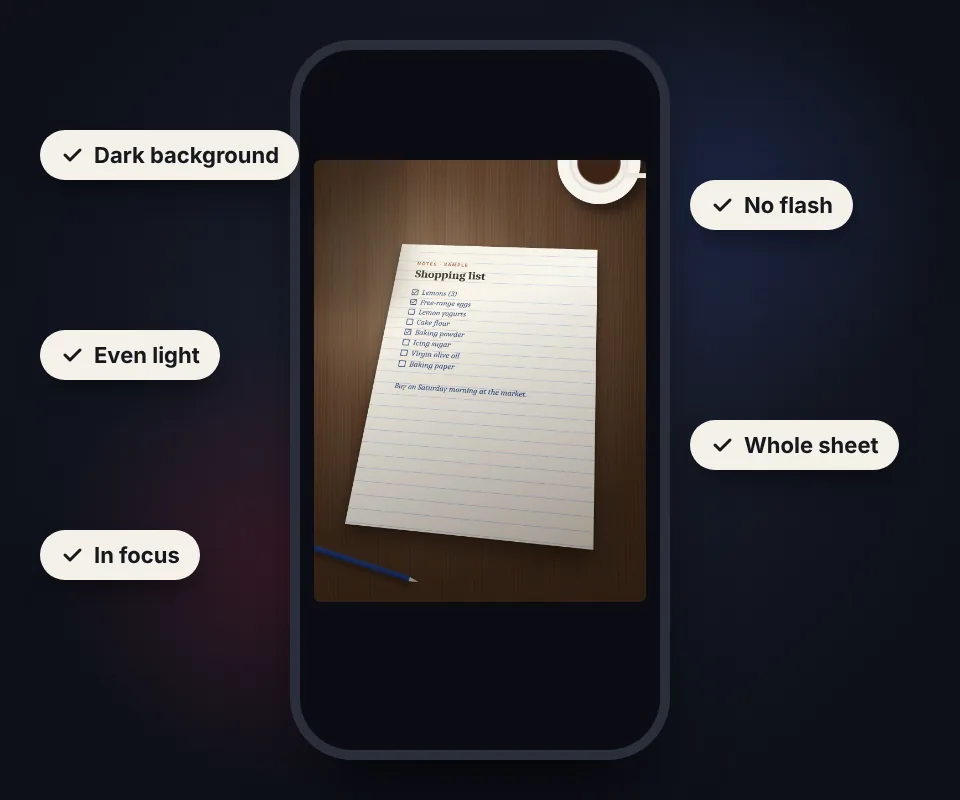
The quality of the scan depends mostly on the photo. These tips make a big difference:
- Dark background: put the sheet on a wooden table or a dark surface so the edges stand out.
- Even light: natural or ceiling light is best; don't let your hand or phone cast a shadow.
- No flash: it creates a bright glare in the middle of the paper.
- The whole sheet: leave a little table visible around all four corners.
- Hold the phone steady: and tap the screen on the text to focus.
The photo doesn't need to be straight: the perspective is corrected afterwards.
Which filter to choose
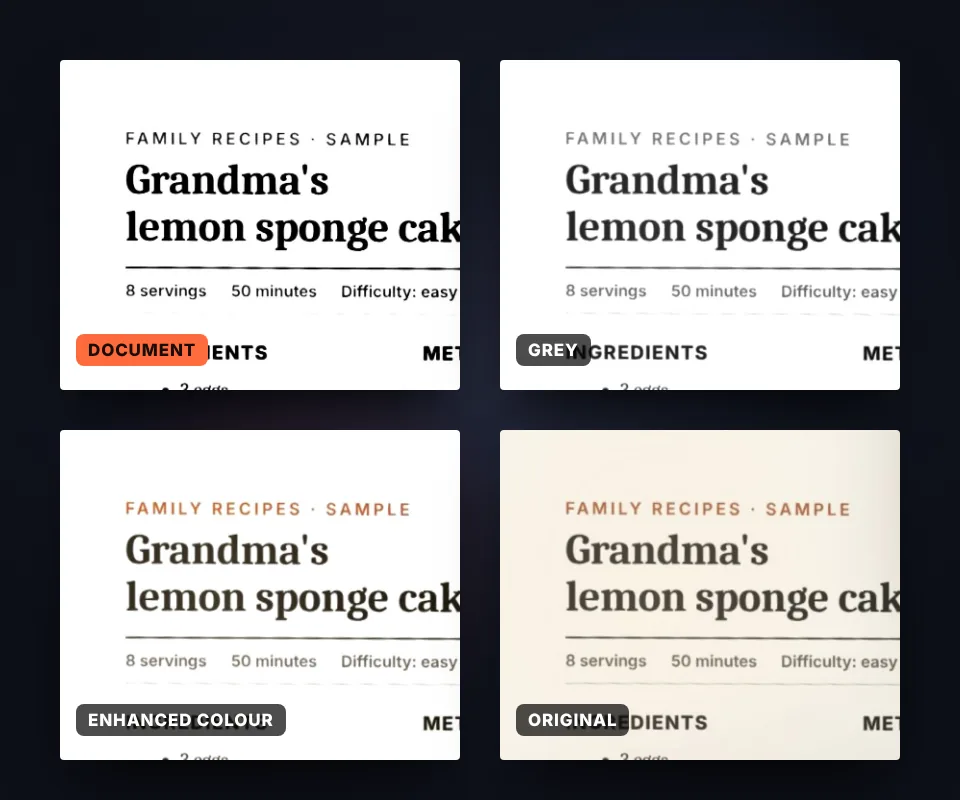
Each document looks best with a different filter:
- Document: clean black and white, ideal for text, contracts, invoices and notes. It's the lightest file.
- Grey: keeps the shades, useful for stamps, pencil or faint signatures.
- Enhanced colour: whitens the paper and brightens colours, for documents with logos, charts or highlighting.
- Original: only crops and straightens, without changing the colours.
With the contrast control you can darken the text if it's too light or lighten it if details get lost.
Why removing shadows matters so much
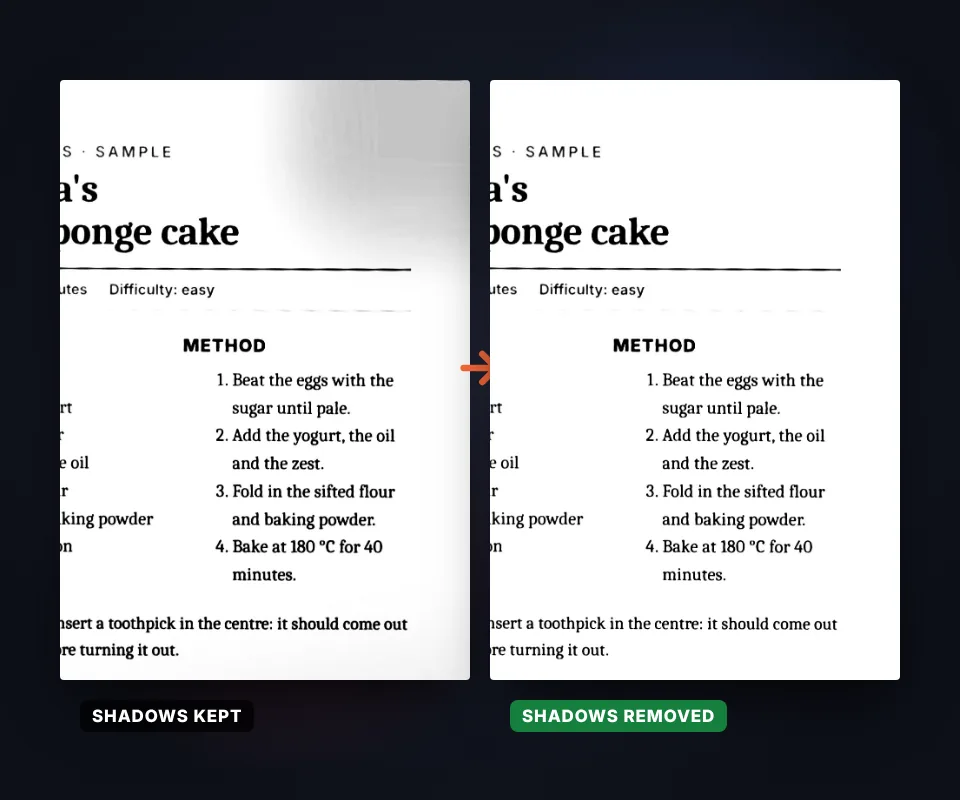
A photo of paper almost never has even light across the sheet: one corner is darker, there's the phone's shadow or a yellowish tint from a lamp. If it's simply turned black and white, those areas become grey or black patches.
So first the paper background is estimated in each area and the image is divided by that background. The paper becomes truly white across the whole sheet and the text stays sharp, even where there was a shadow.
This is the difference between a scan that looks like a photocopy and a photo with a filter.
Several pages in one PDF
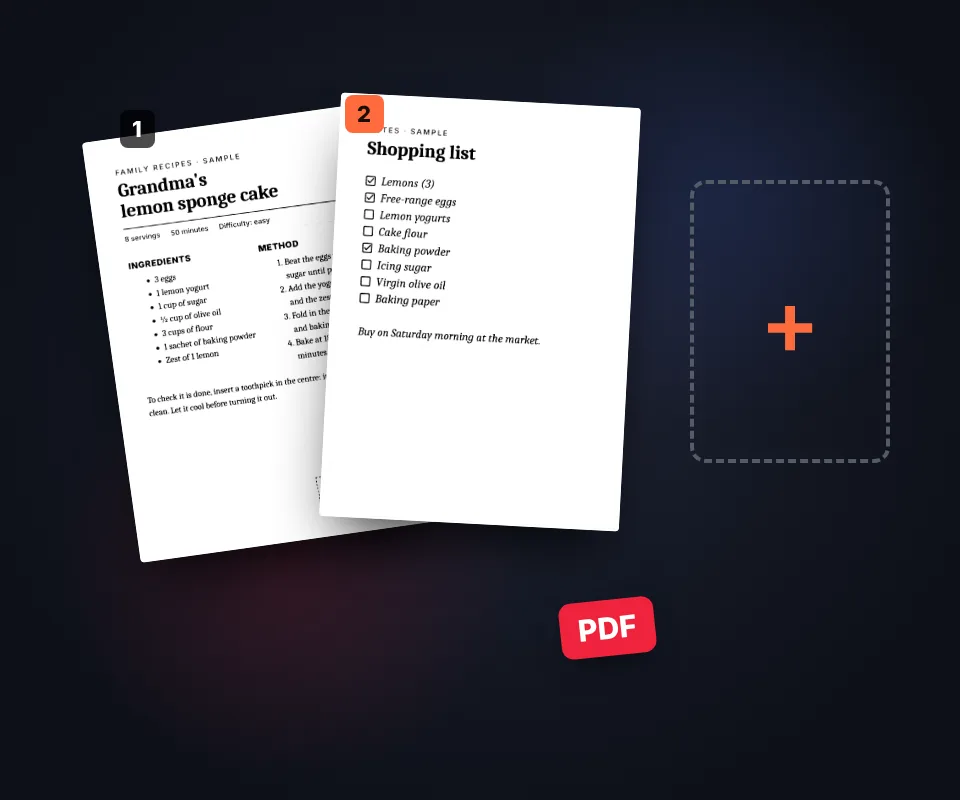
A contract, notes or an assignment usually have several sheets. You can add all the photos at once or take them one by one with the camera, and then:
- Reorder them by dragging the thumbnails or with the arrows.
- Rotate them if any is sideways or upside down.
- Delete the ones you don't need.
- Choose the paper: A4, Letter or the original sheet proportions.
If your images are ready and you just want to combine them, JPG to PDF is quicker. And if the document needs signing, use Sign PDF afterwards.
Private documents, never uploaded anywhere
What people scan is usually private: payslips, contracts, prescriptions, tax returns or ID documents. Many scanning apps keep a copy in the cloud.
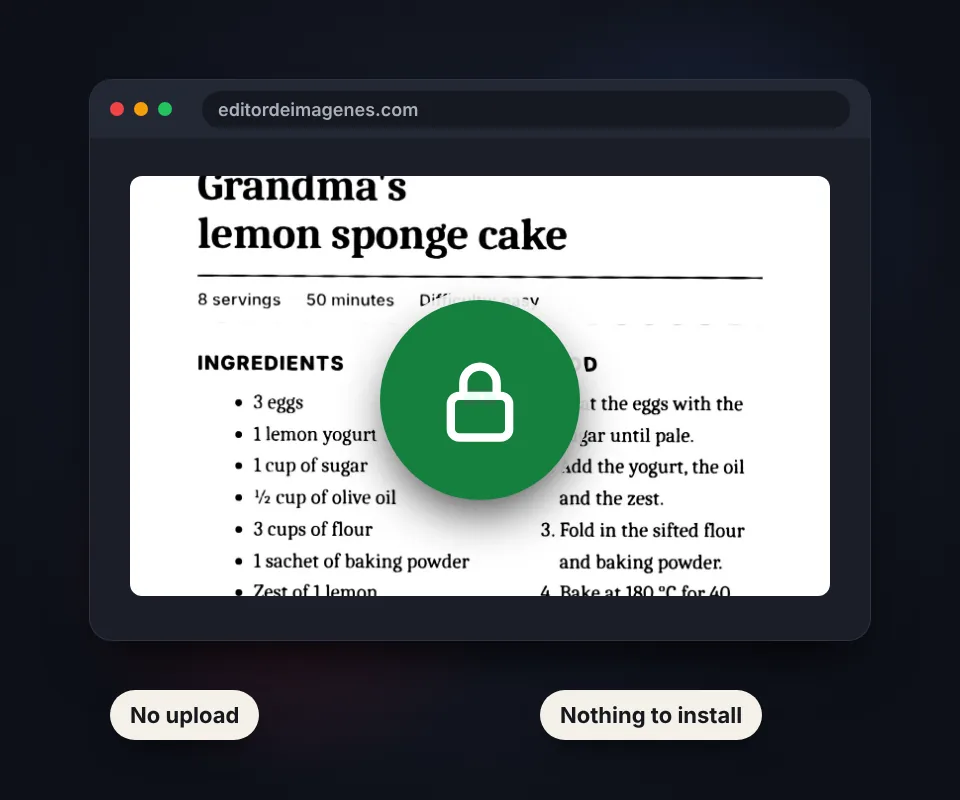
Here everything happens in your browser: the photos aren't uploaded to any server, aren't stored and nobody else sees them. You can check by going offline once the page has loaded.
That's why it's fast, free and works even on a slow connection.
What you can scan
Any paper: contracts, invoices, receipts, notes and exams, recipes, letters, children's drawings, certificates or proof documents for online forms. It also works with long receipts and notebooks if you choose the original paper proportions.
Frequently asked questions
How do I scan a document with my phone?
Take a photo of each page, upload them here and they are cropped, straightened and cleaned automatically. Then download all the pages together in one PDF.
Do I need to install an app?
No. It works in your phone or computer browser, with nothing to install and no sign-up.
Can I scan several pages into one PDF?
Yes. Add as many photos as you like, up to 30 pages, put them in order and download them as a single PDF.
How do I change the order of the pages?
Drag the thumbnails or select a page and use the arrows in the toolbar to move it earlier or later.
What if a page comes out sideways?
Select it and rotate it left or right. The rotation is also applied in the PDF.
What if the paper edges aren't detected properly?
Click Crop and drag the four corners to the corners of the paper. A magnifier helps you place them precisely.
How do I remove shadows from a scanned document?
Leave Remove shadows and yellowish background ticked. The paper background is estimated in each area and made white across the whole sheet.
Which filter is best for a contract or an invoice?
Document: it makes the paper white and the text black, it's easier to read and it's the lightest file.
How big is the PDF?
The size is shown before you download it. With Light quality and the Document filter each page takes very little space, ideal for email or online forms.
Is my document uploaded to a server?
No. Everything happens in your browser and the photos never leave your device.
Is it free?
Yes, free, with no sign-up and no watermarks.