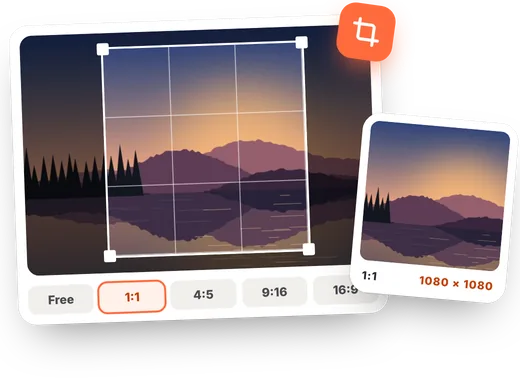
How to crop an image online in 4 steps
-
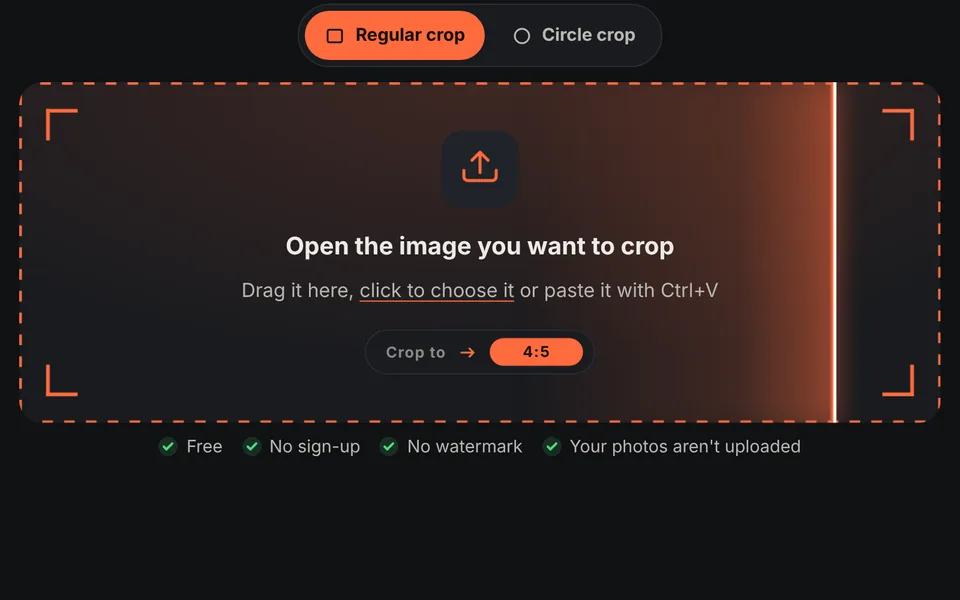
Open the image
Drag the photo onto the upload area or click to choose it. The editor opens straight in the crop tool.
-
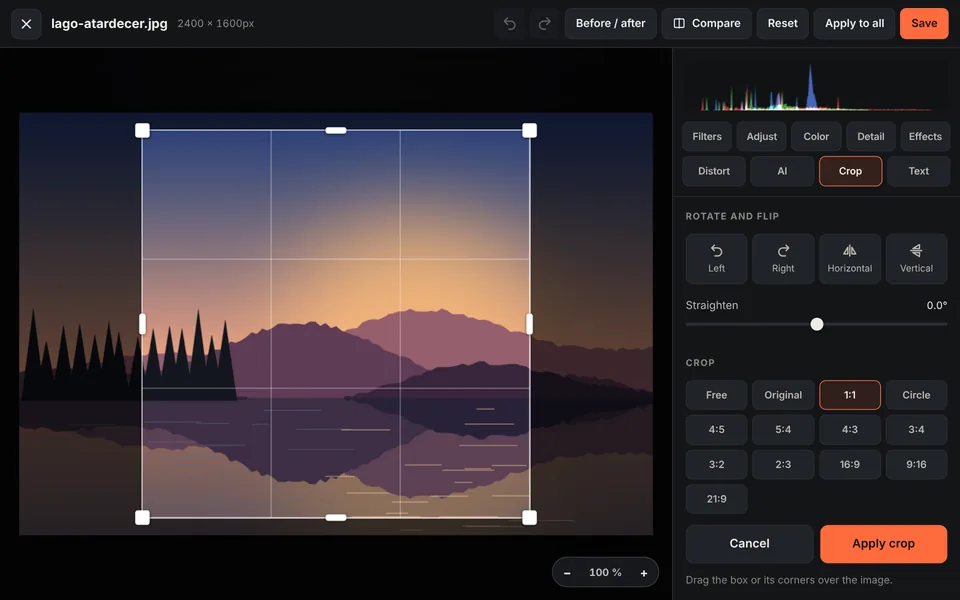
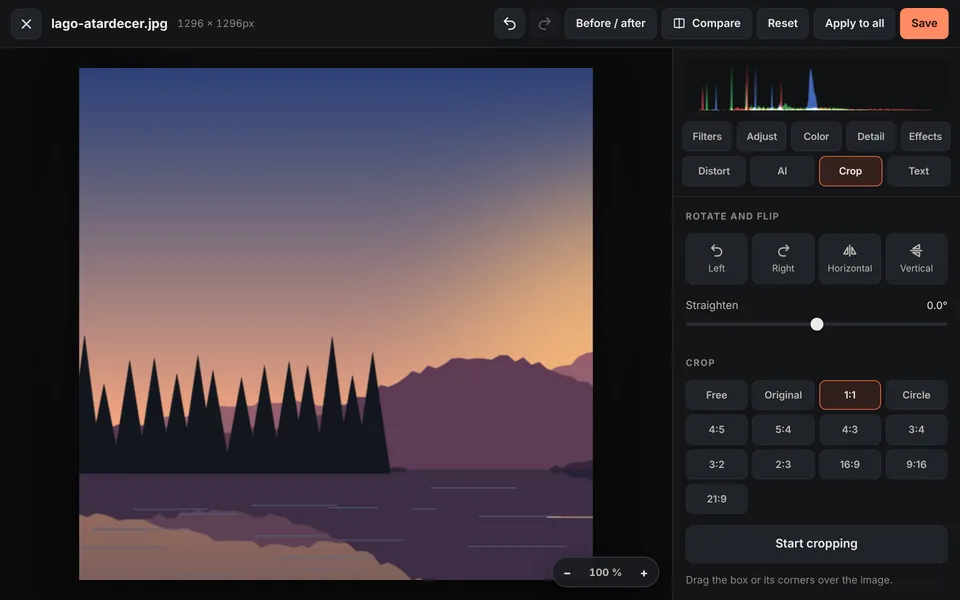
Choose the aspect ratio
Select "Free" to crop by hand, "Circle" for a round profile picture, or a fixed ratio: 1:1, 4:5, 9:16, 16:9, 3:2…
-
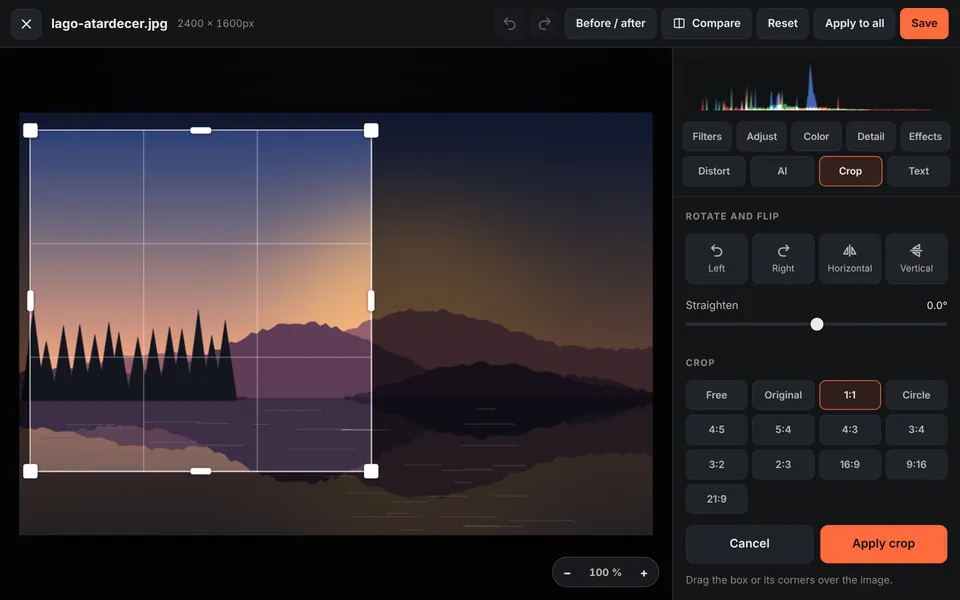
Adjust the crop box
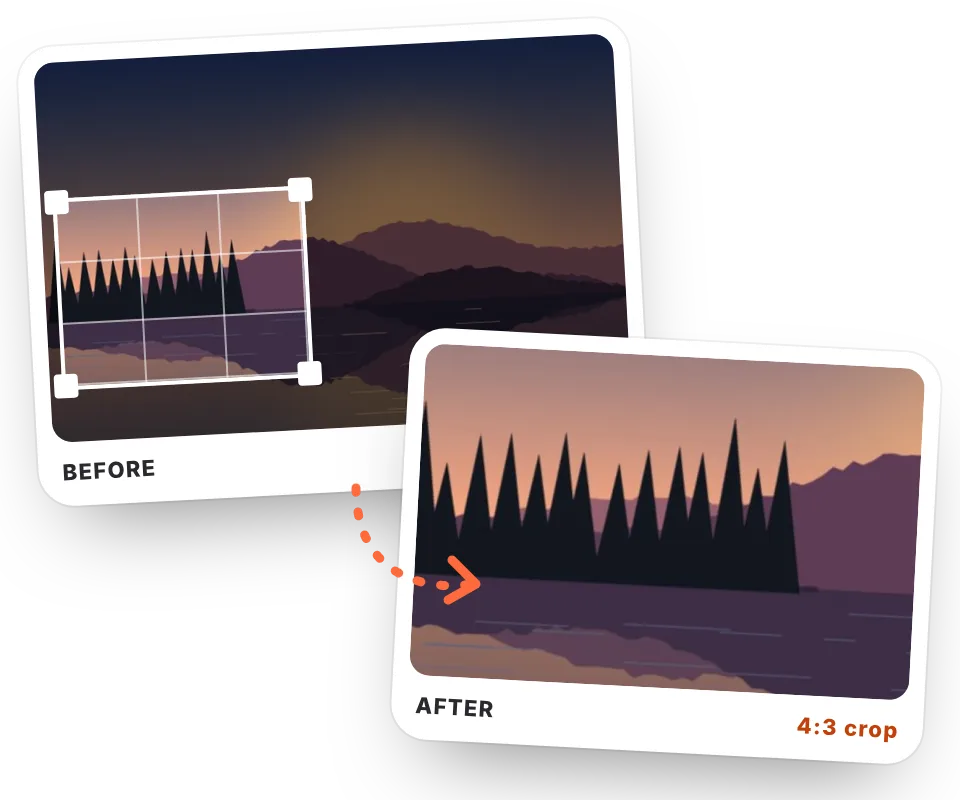
Drag the box to move it and pull its corners or edges to resize it. The grid helps you follow the rule of thirds.
-
Apply and download
Click "Apply crop" (or press Enter), then "Save", and download the image as JPG, PNG, WebP or AVIF.
Video tutorial: how to crop a photo
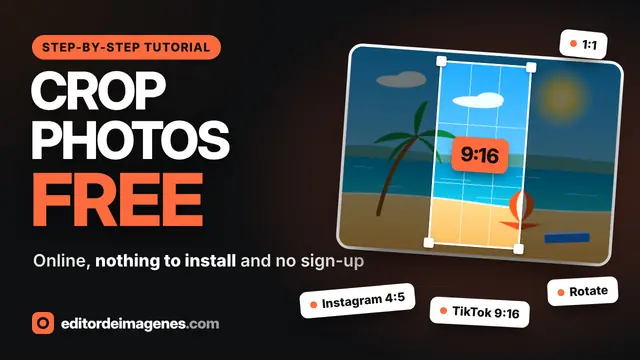
In this video you'll see how to crop a photo step by step: free crop, the sizes for Instagram (1:1 and 4:5), TikTok, Reels and Shorts (9:16) and YouTube (16:9), and how to rotate, flip, straighten and resize the image before downloading it. Click a chapter to jump straight to that part.
The video only loads from YouTube when you press play, and YouTube may then set its cookies. More information in the cookie policy.
Crop a photo without installing anything
Cropping is the quickest way to improve a photo: you remove what isn't needed, draw attention to what matters and adapt the format to where you'll post it. With this tool to crop images online you don't need Photoshop or any app: everything works in the browser on your computer or phone.
And unlike other online croppers, your photo isn't uploaded to any server. The crop happens on your own device, so it's instant and completely private, even for documents or personal photos.
Recommended sizes for social media
Each platform displays images with a different aspect ratio. If you crop the photo before uploading it, the platform won't crop it automatically and you decide what's shown.
| Use | Aspect ratio | Recommended size |
|---|---|---|
| Instagram, square post | 1:1 | 1080 × 1080 px |
| Instagram, portrait post | 4:5 | 1080 × 1350 px |
| Stories, Reels and TikTok | 9:16 | 1080 × 1920 px |
| YouTube thumbnail | 16:9 | 1280 × 720 px |
| Landscape post (X, Facebook, LinkedIn) | 16:9 or 1.91:1 | About 1200 × 675 px |
| Profile picture | 1:1 | 400 × 400 px or larger |
| Classic photography (camera) | 3:2 | Depends on the original |
| Ultrawide / cinema | 21:9 | 2560 × 1080 px |
Platforms change their formats from time to time; these are the most common sizes. After cropping, you can set the exact size in pixels with resize image.
Crop an image into a circle
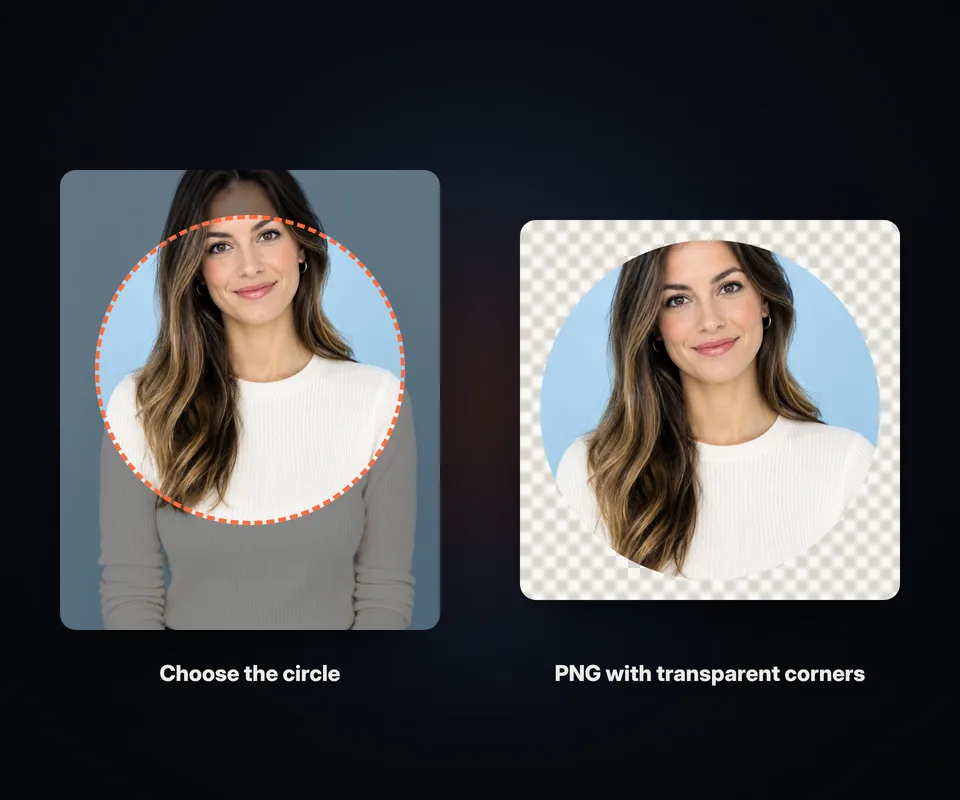
A circle crop is ideal for profile pictures, avatars and round logos. Choose "Circle crop" before opening the photo, or the "Circle" button in the editor's Crop tab:
- Move and adjust the circle over the face or main subject; it always stays perfectly round.
- Transparent corners: outside the circle the image is transparent, with no white background around it.
- Download as PNG or WebP to keep the transparency. In JPG the corners are filled with white.
- Perfect for social media: WhatsApp, Instagram, LinkedIn and Discord show profile pictures in a circle, so you can see in advance how it will look.
If you then need an exact size, such as 400 × 400 px, set it in the Resize section of the same tab.
Tips for cropping a photo well
- Use the rule of thirds. Place the main subject on one of the grid lines, not always in the center: the photo looks more dynamic.
- Leave space in the direction of the gaze. If a person is looking right, leave more room on that side.
- Straighten the horizon before cropping. The same tab has a "Straighten" control to fix tilted photos by up to 45°.
- Don't crop too much. The smaller the crop, the fewer pixels are left and the lower the quality when you enlarge it.
- Avoid cutting at the joints (wrists, knees, neck) when cropping photos of people.
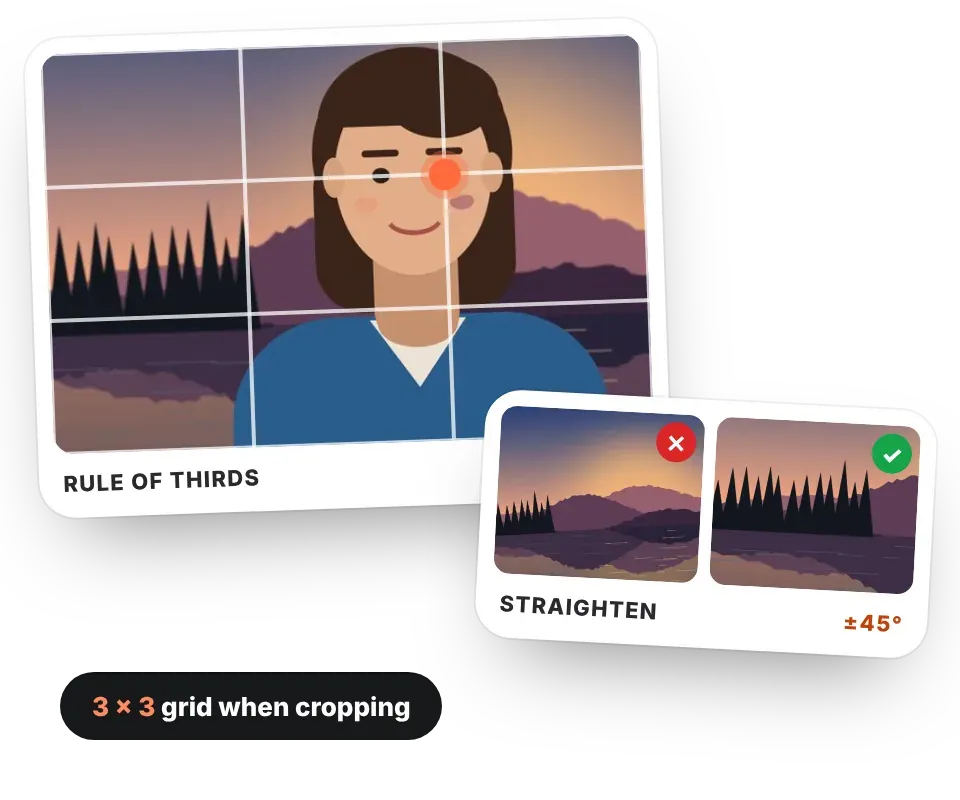
Other tools in the same tab
Besides cropping, in the editor's Crop tab you can rotate the image 90° left or right, flip it horizontally or vertically (mirror effect), straighten it in half-degree steps and change its size in pixels while keeping the aspect ratio. And if you want to keep editing, you have filters, light and color adjustments, effects, text and AI background removal at hand.
Frequently asked questions
How do I crop an image online for free?
Open the image on this page, choose an aspect ratio (or "Free"), adjust the box over the photo and click "Apply crop". Then click "Save" and download it. It's free, with no sign-up and no watermark.
How do I crop a photo into a square?
Choose the 1:1 aspect ratio in the Crop tab. The box stays square while you move or resize it.
How do I crop a photo into a circle?
Choose "Circle crop" before opening the photo, or click "Circle" in the Crop tab. Adjust the circle, apply the crop and download the image as PNG or WebP so the corners stay transparent.
Why are the corners of my circle white?
Because you downloaded it as JPG, which doesn't support transparency. Choose PNG or WebP as the output format and the corners will be transparent.
Does cropping an image reduce its quality?
No. Cropping only removes the edges; the remaining pixels don't change. The final quality depends on the format and quality you choose when downloading.
Can I crop photos on my phone?
Yes. The tool works on Android and iPhone: drag the box and its corners with your finger to adjust the crop.
Can I crop several images at once?
Cropping is done photo by photo, because each image needs its own framing. What you can do in bulk is resize, convert and apply filters to all of them.
Are my photos uploaded to the internet?
No. Cropping happens in your browser and your images never leave your device.