How to extract text from an image in 4 steps
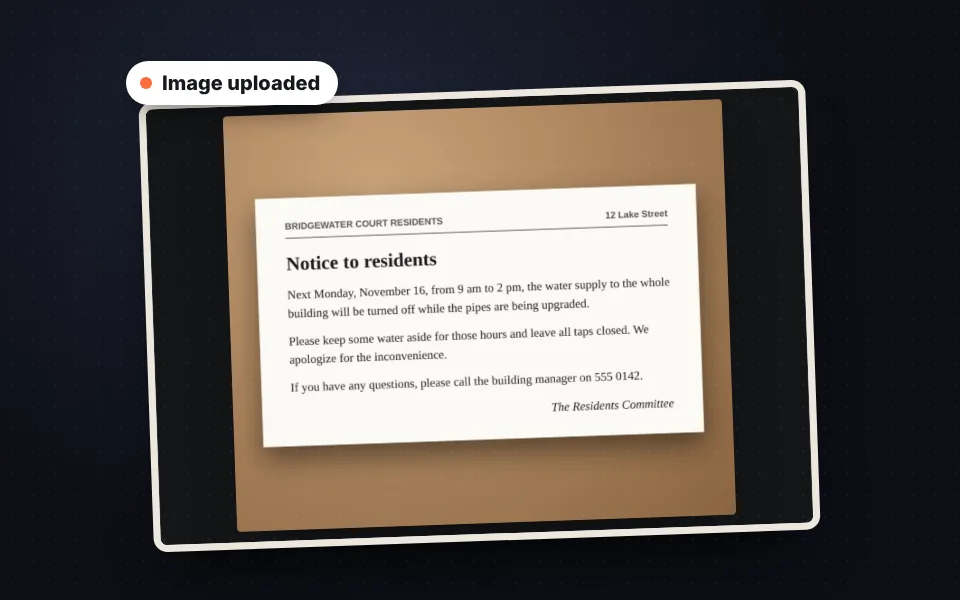
Upload the image
Drag a photo, a screenshot or a PDF, or paste it with Ctrl+V. Several images or every page of a PDF are read in one go.
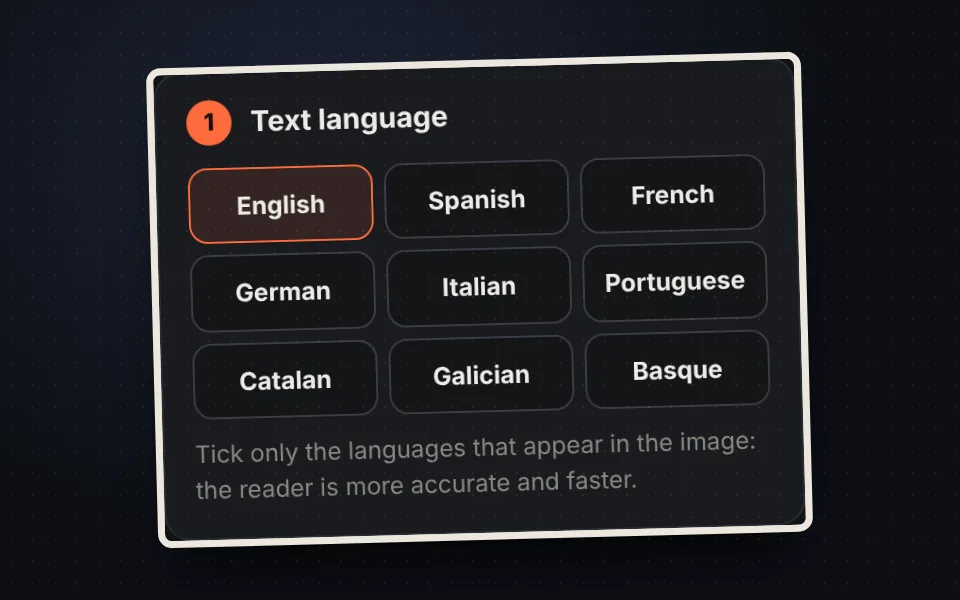
Choose the language
Tick the languages in the text. If the photo is poor, raise the contrast or use pure black and white.
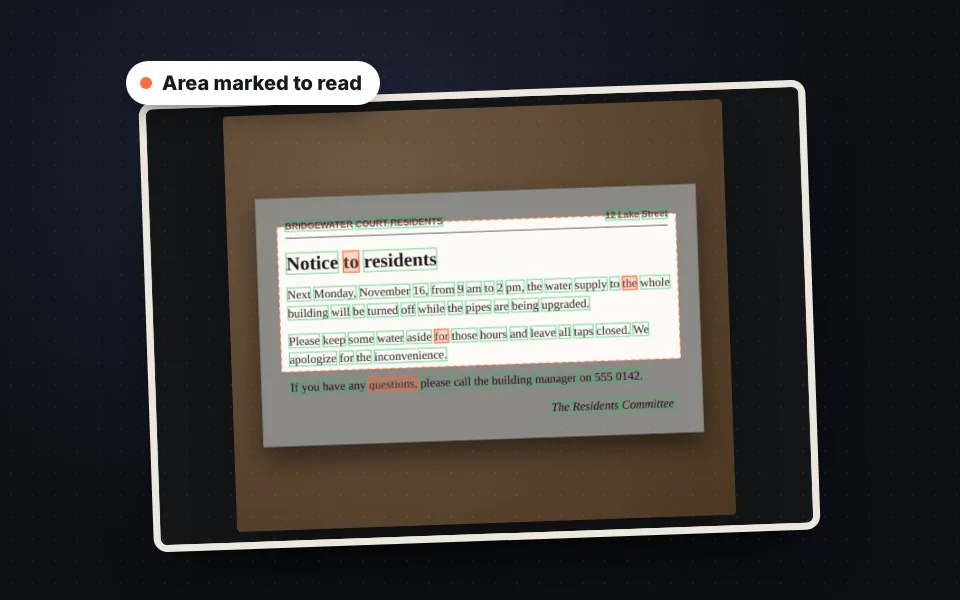
Read the text
Press "Read the text". To read just one part, drag over the image to mark the area first.
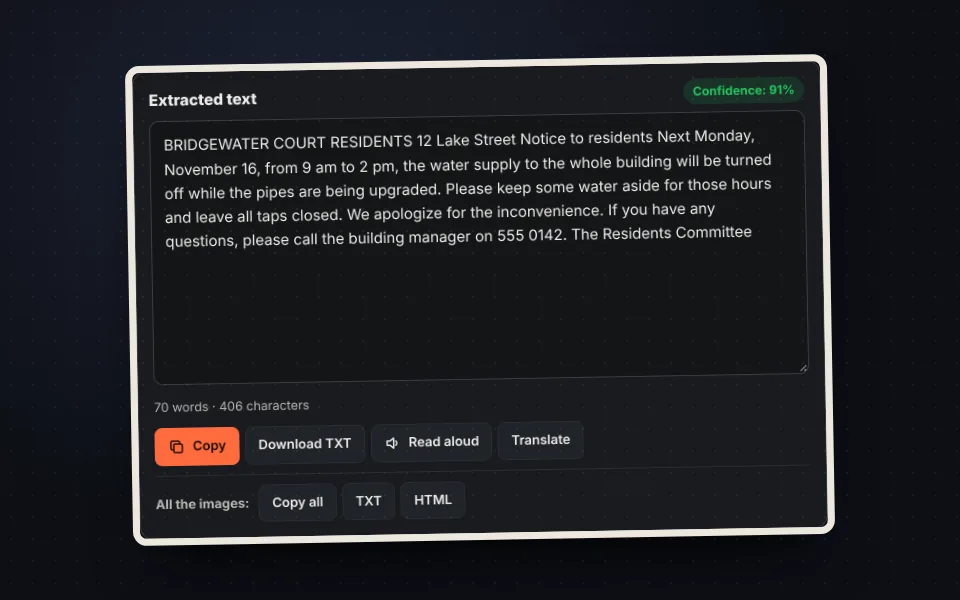
Correct and copy
Check the words marked in orange, correct the text and copy it, download it as TXT or listen to it.
Video tutorial: how to get the text from a photo
In this video you'll see how to upload a photo of a document, choose the language, enhance the image, mark an area and read the text, and correct, copy and download it as TXT. Click a chapter to jump straight to that part.
The video only loads from YouTube when you press play, and YouTube may then set its cookies. More information in the cookie policy.
Which images can be turned into text
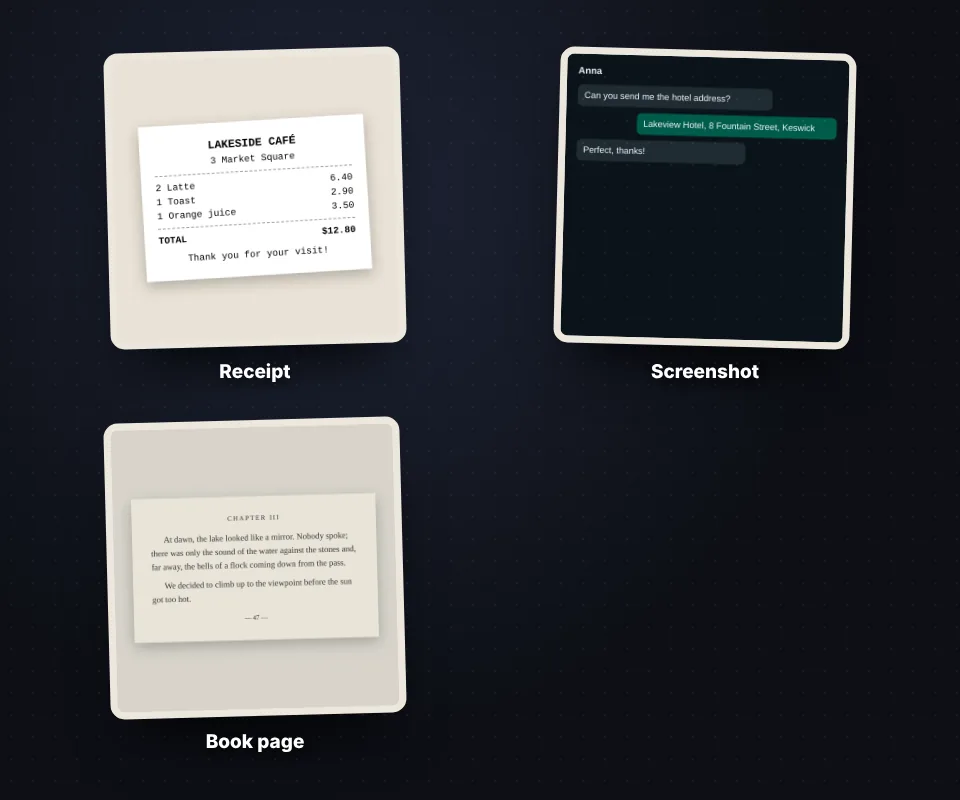
Text recognition works with almost any image that contains printed letters:
- Photos of documents: letters, invoices, contracts, receipts, book pages or notes.
- Screenshots: a message, a website, an error on screen or a slide from a video call.
- Scanned PDFs: each page is read as an image, even if the PDF has no selectable text.
- Signs and labels: menus, posters, product labels or business cards.
Accepted formats: JPG, PNG, WebP, BMP, GIF, AVIF and PDF. Handwriting is usually not recognized well.
How to get the best result
The quality of the text depends a lot on the image. These settings help when the reader gets it wrong:
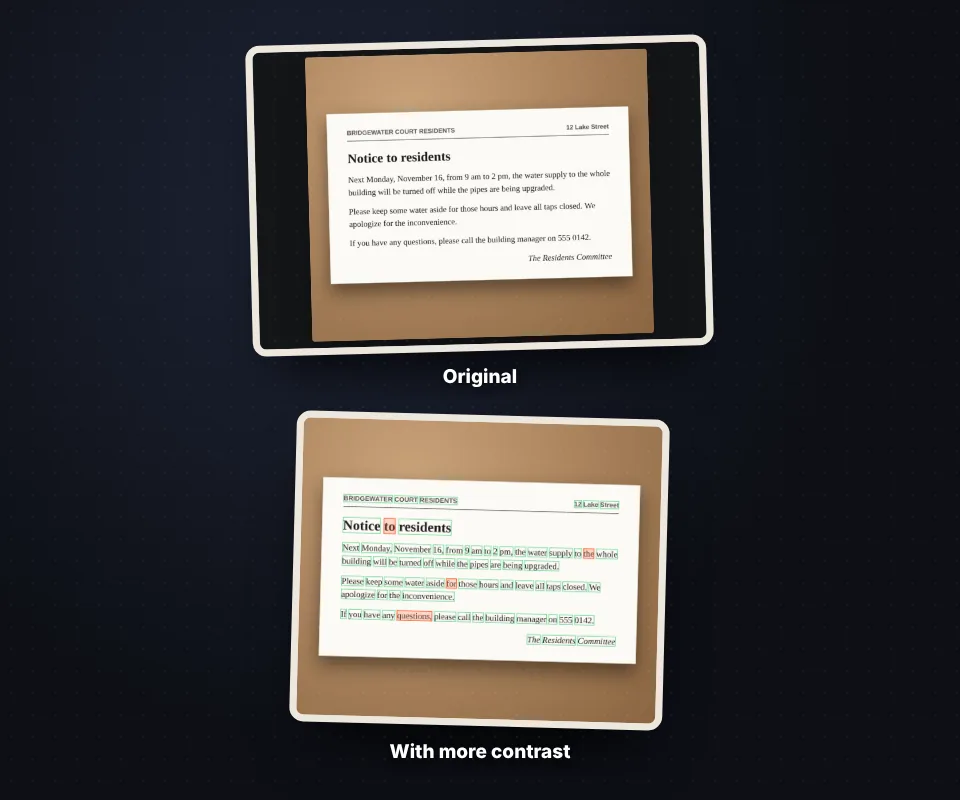
- Choose the right language: ticking only the languages in the text avoids invented words and accents.
- Enhance the image: grayscale, contrast and pure black and white clean up shadows and the paper background. The changes show instantly on the image, exactly as the reader will see it, and "See the original" compares it with the untouched image.
- Light text on a dark background: it inverts the colors so dark mode screenshots and signs can be read.
- Enlarge twice: it helps with small print or low-resolution screenshots.
- Read only one area: drag over the image to mark the paragraph you're interested in and skip the rest.
Check and use the text
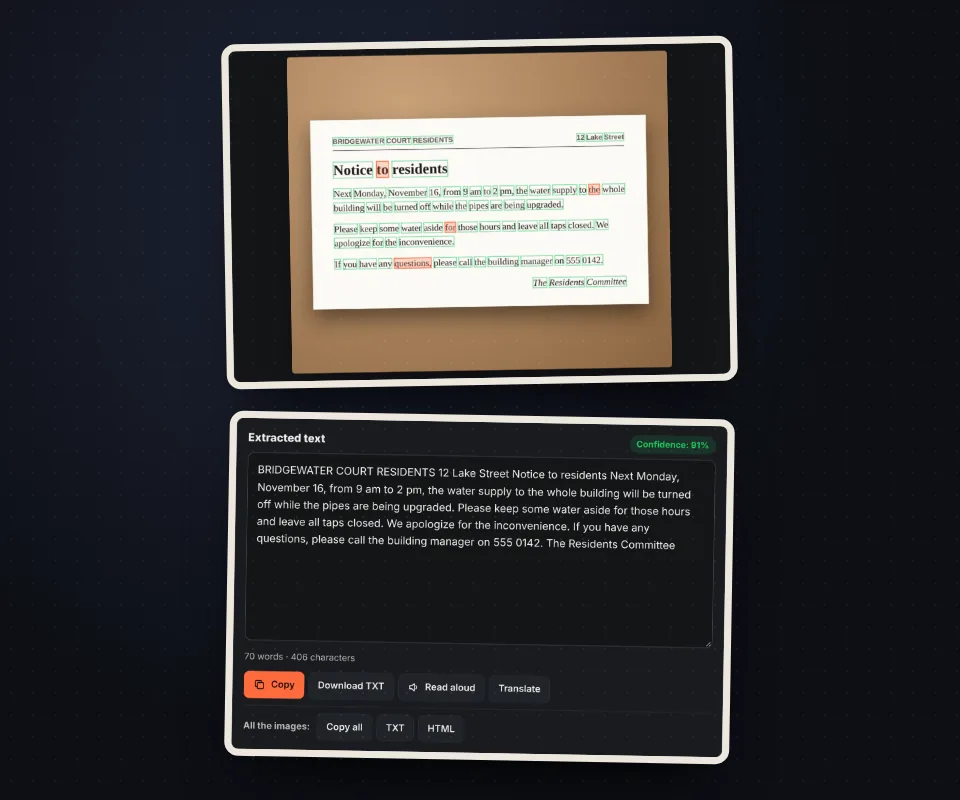
The extracted text appears in a box where you can correct it before copying it. The words the reader is unsure about are marked with an orange box on the image, so you know where to look.
- Join the lines into paragraphs: it removes line breaks in the middle of sentences.
- Copy, download as TXT or read aloud with your device's voice.
- Translate: it opens Google Translate with the text.
- Several images: read them all and copy or download the full text in one file.
What image to text is useful for
Getting the text from a photo saves you from typing it: copy the details of an invoice into a spreadsheet, quote a paragraph from a book, recover the text of an old document you only have on paper, translate a sign while traveling, or copy the text of a screenshot someone sent you. If what you need is a clean copy of the document, use the document scanner first, and if the PDF has several pages, you can turn it into images with PDF to JPG.
How text recognition works without uploading the image
The reader is Tesseract, an open-source text recognition engine that runs inside the page. The first time you use it, the program and the dictionary for the language you choose are downloaded; after that they stay in the browser cache and it works faster. The image is processed on your device and is not sent to any server, so you can use it with private documents.
Frequently asked questions
How do I get the text from a photo?
Upload the photo, tick the text language and press "Read the text". The text appears in a box where you can correct it, copy it or download it.
Can I extract text from a scanned PDF?
Yes. Upload the PDF and each page is turned into an image that you can read separately or all at once with "Read all the images".
Which languages does it recognize?
English, Spanish, French, German, Italian, Portuguese, Catalan, Galician and Basque. You can tick several if the text mixes languages.
Why does the text come out with mistakes?
Usually because of a blurry photo, shadows, small print or the wrong language. Try "Enhance the image", enlarge twice and check that the language is right.
Can I read just part of the image?
Yes. Drag over the image to mark the area and press "Read the text". "Remove the area" goes back to reading the whole image.
Does it recognize handwriting?
Only very clear block capitals. Joined-up handwriting is usually not recognized well.
What do the orange boxes mean?
They are the words the reader is unsure about. Check them in the text before using it.
Can I copy text from a screenshot?
Yes. Paste the screenshot with Ctrl+V and press "Read the text". For dark mode screenshots, turn on "Light text on a dark background".
Is it slow the first time?
The first time it downloads the reader and the language, which can take a few seconds. After that it is much faster.
Are my images uploaded to a server?
No. Recognition happens in your browser and your images never leave your device.
Is it free?
Yes, free, with no sign-up and no usage limit.