How to convert PNG to JPG in 4 steps
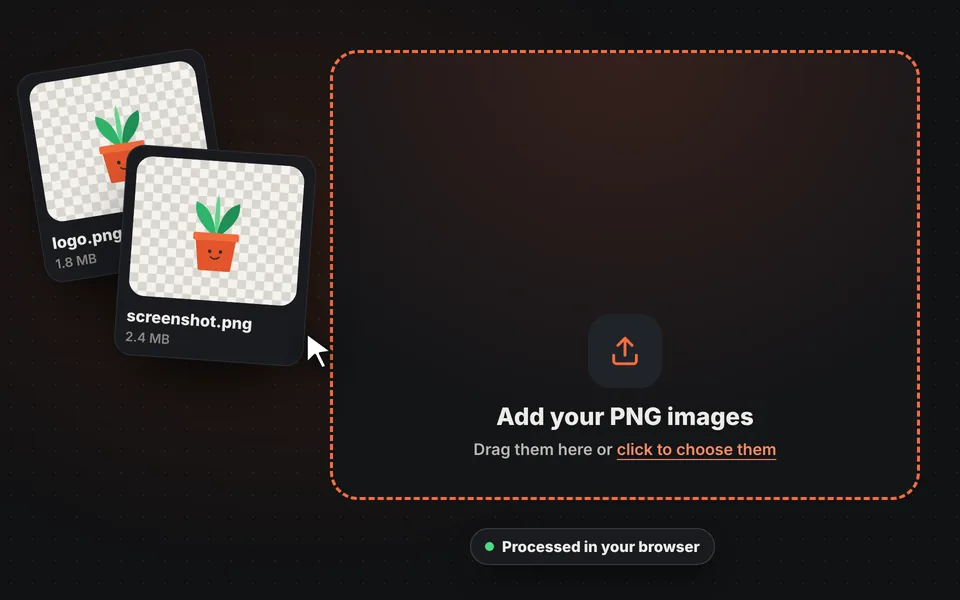
Add your images
Drag one or more PNG images to the upload area, choose them from your device or paste them with Ctrl+V.
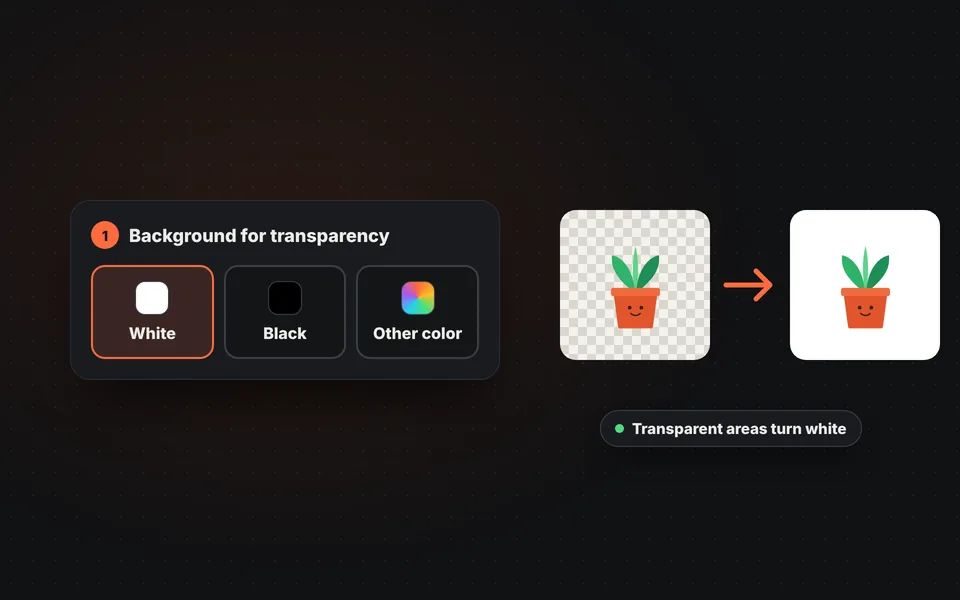
Choose the background
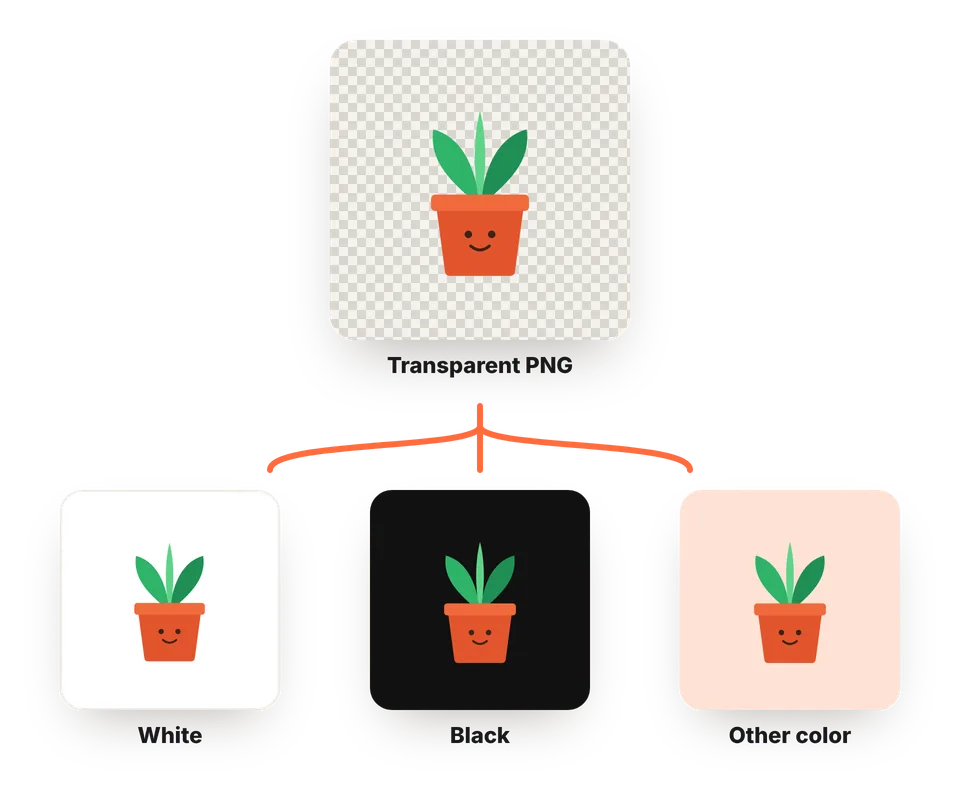
Decide which color fills the transparent areas: white, black or any color you want.
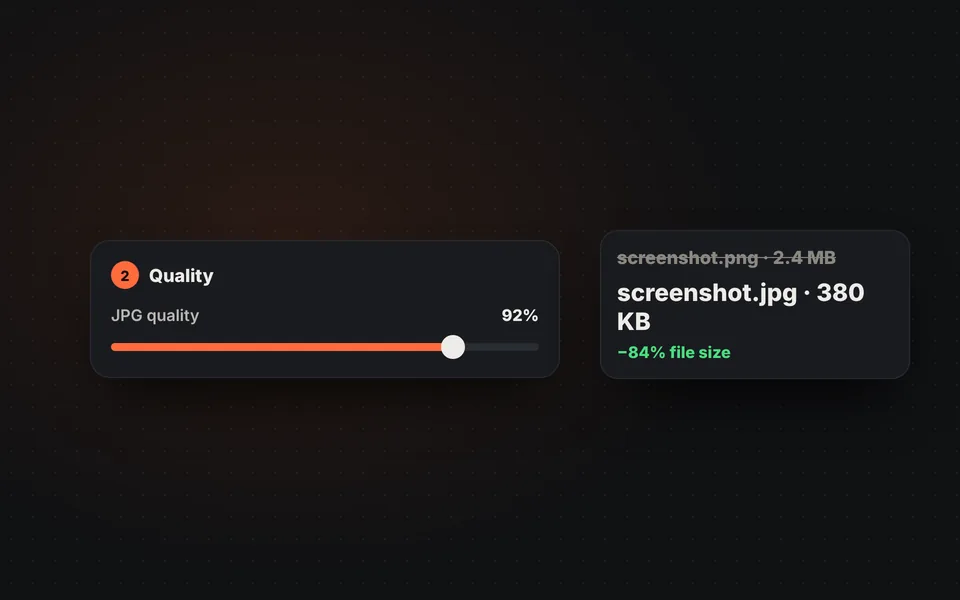
Adjust the quality
At 92% the image looks the same as the original. Lower it if you need an even smaller file.
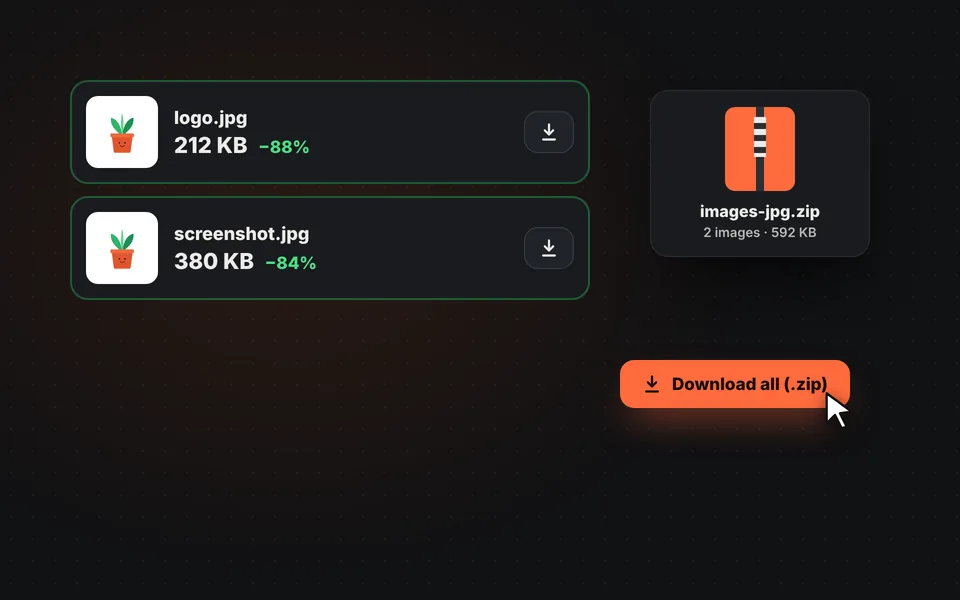
Download the JPGs
Download each image separately or all together in a ZIP, with the same name and the .jpg extension.
Video tutorial: how to convert PNG to JPG
In this video you'll see how to upload the PNG images, compare their size before and after, choose the background for transparency, adjust the quality and download them in a ZIP. Click a chapter to jump straight to that part.
The video only loads from YouTube when you press play, and YouTube may then set its cookies. More information in the cookie policy.
Why convert PNG to JPG?
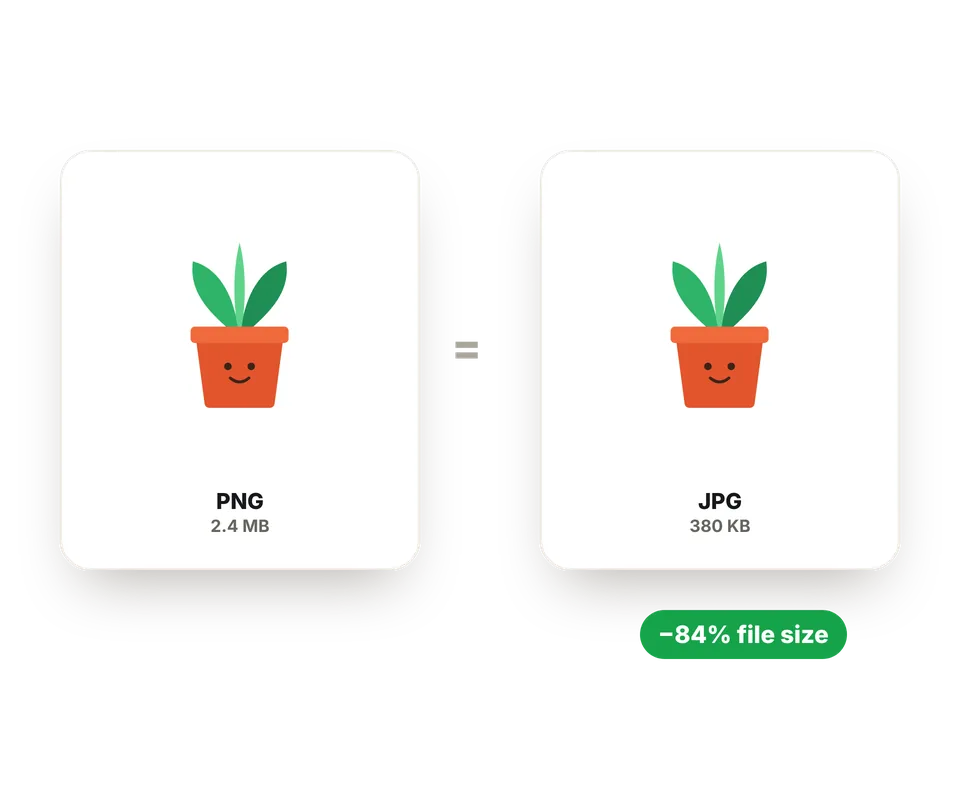
PNG stores every pixel without losing anything, and that comes at a price: a large photo or screenshot in PNG can be several times larger than the same image in JPG, with no visible difference.
Converting it to JPG is the quickest way to make it smaller so you can email it, upload it to a website or attach it to a form. Plus, many government portals, job sites and online stores only accept JPG, and some older programs don't handle PNG files well.
If you need a specific file size, for example under 100 KB, use our tool to reduce image size in KB.
PNG vs. JPG: the differences
Both formats look the same on screen, but they store the image very differently. This table helps you decide which one suits you in each case:
| Feature | PNG | JPG |
|---|---|---|
| Compression | Lossless: stores every pixel as is. | Lossy: discards details that are barely visible. |
| Transparency | Yes. | No: transparent areas are filled with a color. |
| Size of a photo | Large, several times more than JPG. | Small. |
| Best for | Logos, icons, screenshots with text, graphics and designs. | Photos and any image with lots of colors. |
| Compatibility | Very high. | Universal: every program, website and form accepts it. |
What happens to transparency?
The JPG format doesn't support transparency. If your PNG has transparent areas, like the background of a logo or a cut-out product, they have to be filled with a color when converting to JPG.
By default white is used, which works well in documents, online stores and most websites. If the image goes on a dark background, choose black, or use "Other color" to match your website's or presentation's background exactly.
If you need to keep the transparency and still have a small file, the best option is to convert to WebP.
When is it better not to convert to JPG?
JPG is perfect for photos, but not for everything. With logos, icons, screenshots with lots of text or flat-color graphics, JPG compression can leave small smudges around edges and letters. In those cases, if you don't need it to be a JPG, keep the PNG or convert it to WebP.
It's also not a good idea to save as JPG an image you're going to keep editing many times: each time it's saved again it loses a little quality. Work with the original PNG and create the JPG only at the end, to share it.
Frequently asked questions
How do I convert a PNG to JPG?
Add the PNG image, choose the background color and the quality, and download it. The conversion is automatic and takes less than a second per image.
Can I convert several PNG images at once?
Yes. Add as many as you want and they'll be converted one after another with the same settings. Then you can download them separately or all together in a ZIP.
Do I lose quality when converting PNG to JPG?
Very little. At 90% quality or higher the difference isn't visible to the naked eye in photos. In logos or screenshots with small text it may show a little around the edges.
What happens to the transparent background?
JPG doesn't support transparency, so transparent areas are filled with the color you choose: white, black or any other.
Why is the JPG larger than the PNG?
It happens with some very simple images, like logos with few colors, that are already tiny as PNG. In those cases it's best to keep the PNG. With photos and screenshots, the JPG is almost always much smaller.
What quality should I choose?
92% is a good balance: the image looks the same and is much smaller. Lower it to 80–85% if you need an even smaller file, or raise it to 100% if you're going to print it.
Does it work with WebP, GIF or BMP?
Yes. Although the tool is designed for PNG, it also converts WebP, GIF, BMP and AVIF images to JPG.
Are my images uploaded to a server?
No. The conversion happens in your browser and your images never leave your device.
Can I do the opposite, JPG to PNG?
Yes, with our JPG to PNG converter, which can also make a white background transparent.
Is it free?
Yes, free, with no sign-up, no watermark and no image limit.