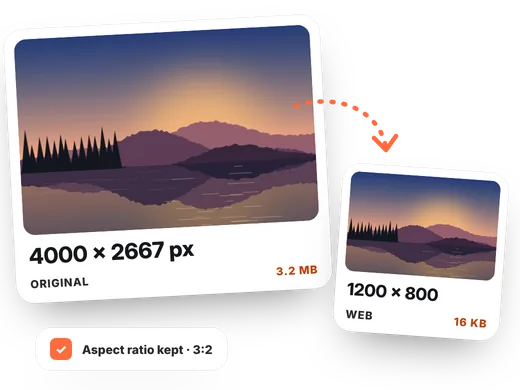
How to resize an image in 4 steps
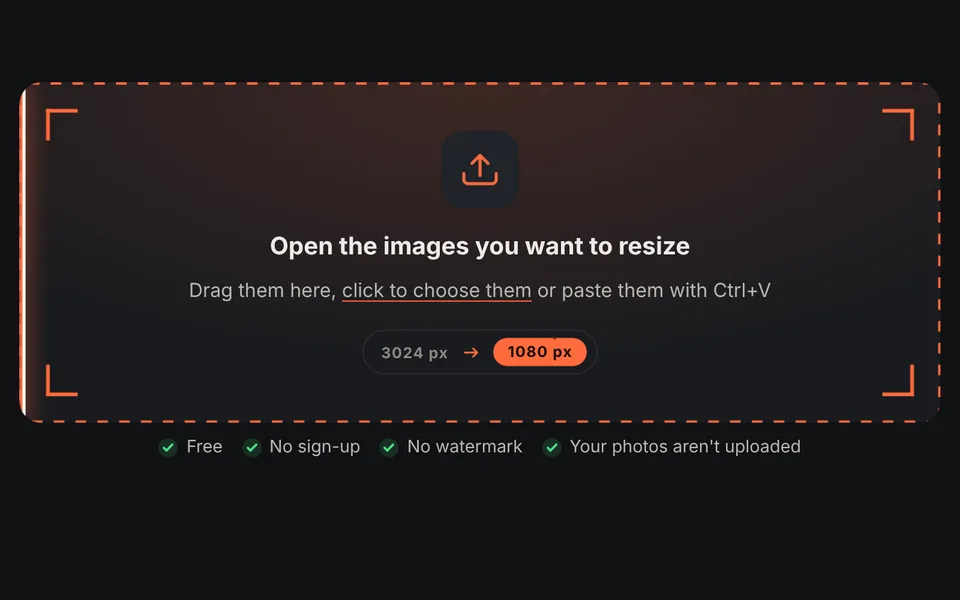
Add the images
Drag one or more photos onto the upload area.
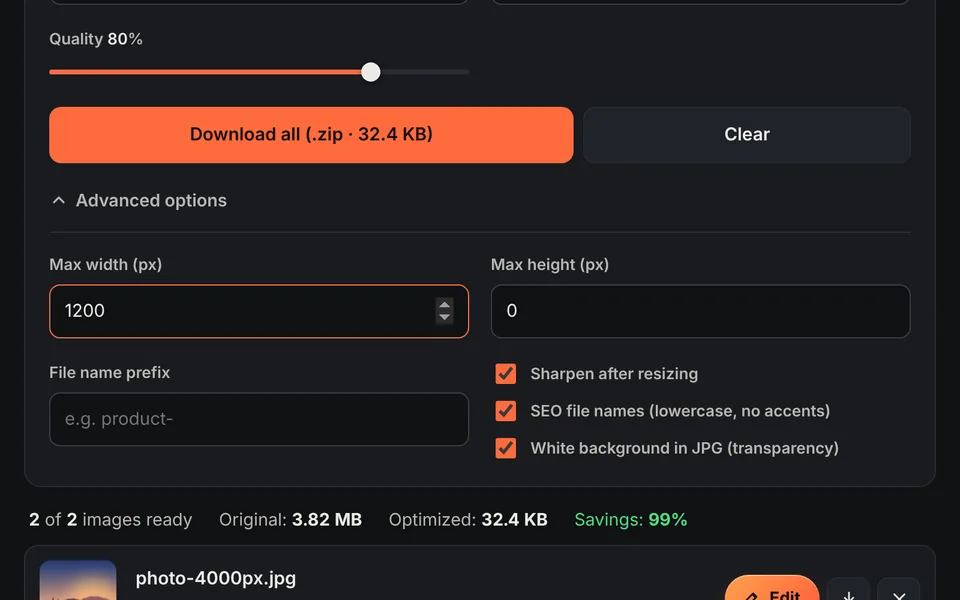
Set the maximum size
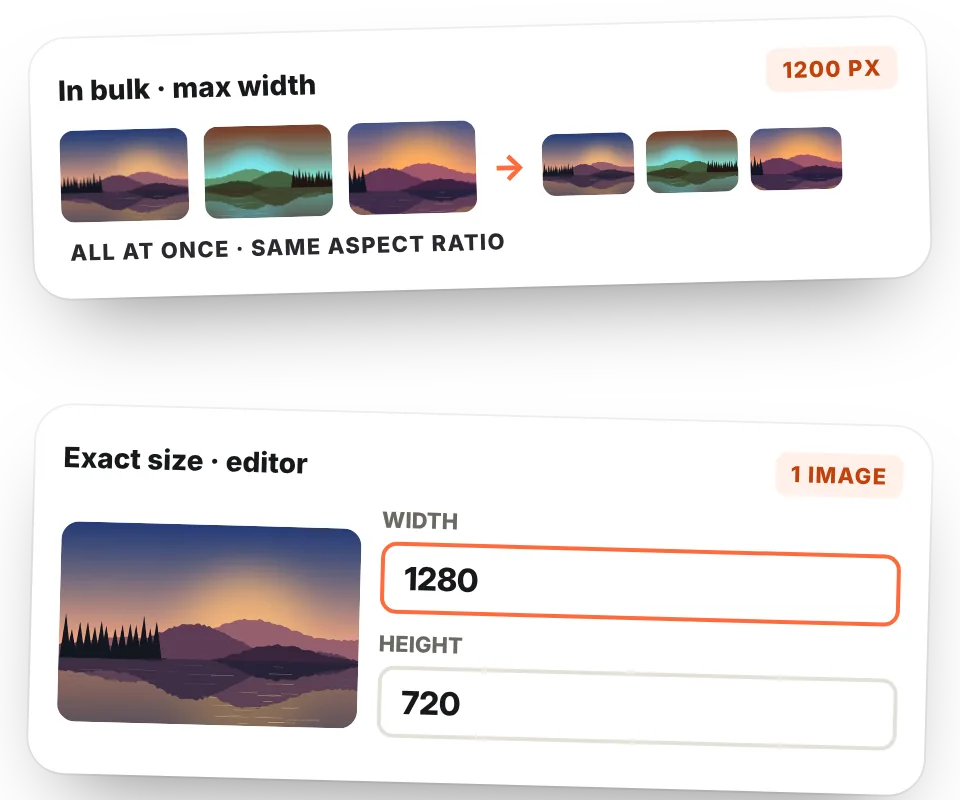
In "Advanced options" (already open on this page) enter the maximum width and/or height in pixels. The aspect ratio is always kept.
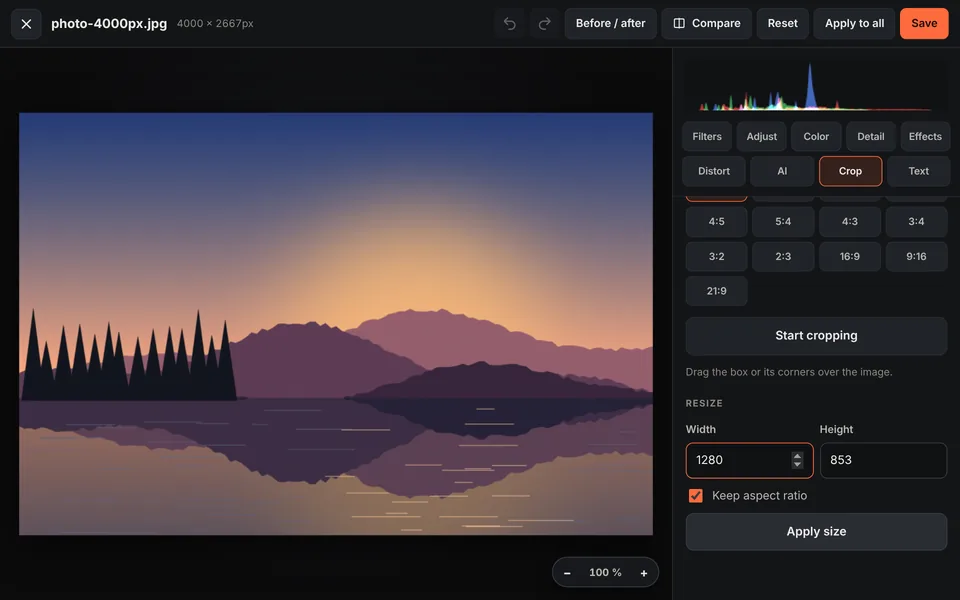
Or an exact size
For a single image, click "Edit", go to the Crop tab and under "Resize" enter the exact width and height.
Download
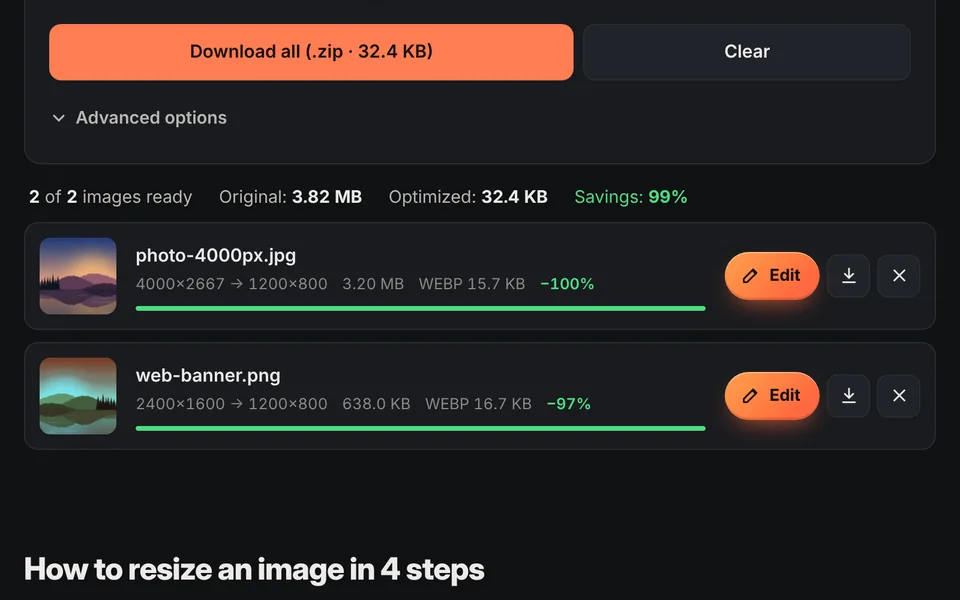
Choose the format and download the images one by one or all together in a ZIP.
Video tutorial: how to resize images
In this video you'll see how the images are uploaded, how to choose a preset for the web, social media or email, how to set the maximum size, how to choose the format and quality and how to download the images in a ZIP. Click a chapter to jump straight to that part.
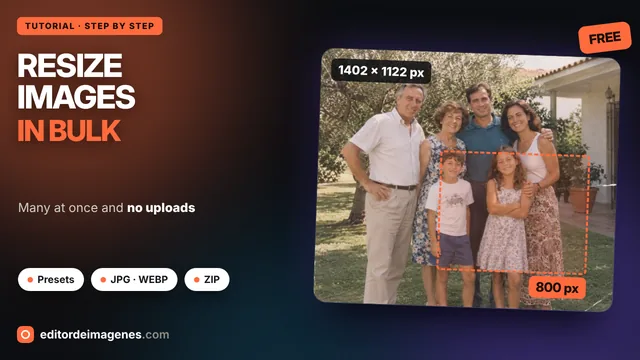
The video only loads from YouTube when you press play, and YouTube may then set its cookies. More information in the cookie policy.
Change the size of an image in pixels
Resizing an image means changing its dimensions, that is, the number of pixels wide and high. It's what you need when a website, a social network or a form requires a specific size, or when you want a photo to be smaller.
This tool gives you two ways to do it:
- In bulk with a maximum size: enter a maximum width and/or height and all images are reduced to fit inside it, keeping their aspect ratio. Smaller images aren't enlarged.
- Exact size in the editor: in the Crop tab, under "Resize", enter the exact width and height, with or without keeping the aspect ratio.
Resize without losing sharpness
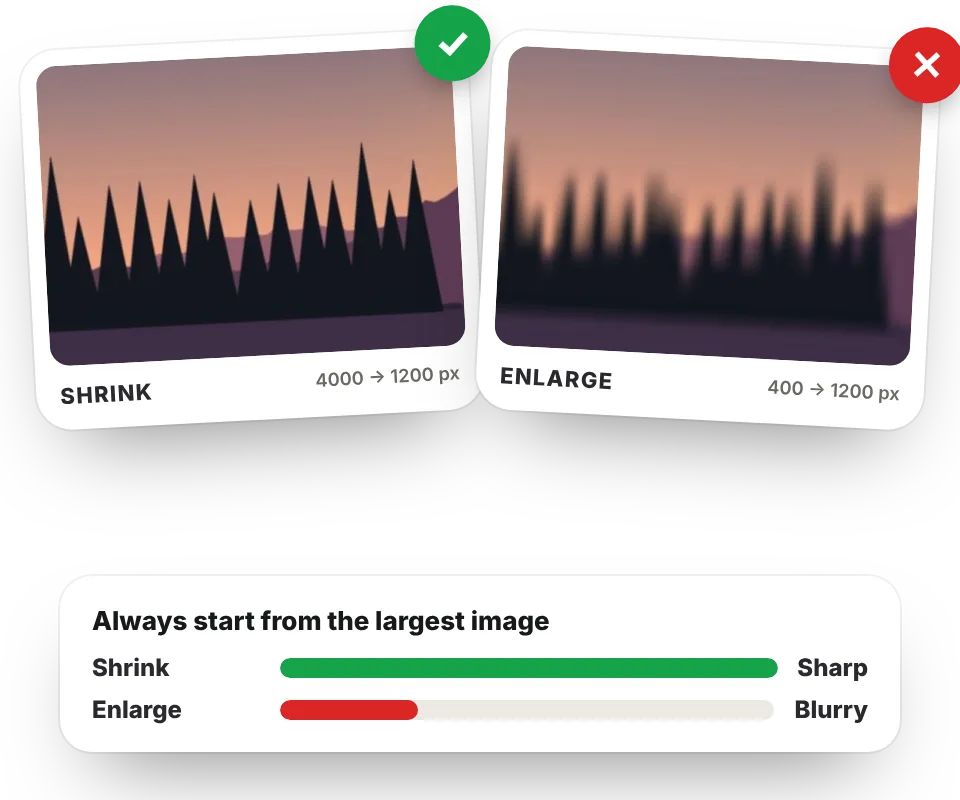
When you shrink a photo, fine details are lost and it can look a little soft. To avoid that, the tool reduces the image in steps with a high-quality algorithm and, if you turn on "Sharpen after resizing", applies a light final sharpening that restores crispness.
Enlarging an image, on the other hand, can't create detail that isn't there: if you stretch a small photo it will look blurry or pixelated. Whenever you can, start from the largest original image.
A good trick is to resize to the actual size the image will be displayed at, or double it if you want it to look perfect on high-density screens like phones and Retina laptops. And always keep a copy of the original: if you need the photo larger later, you can resize it again without losing quality.
Most common sizes
| Use | Recommended size |
|---|---|
| Website hero image | 1600–1920 px wide |
| Image inside a blog post | 1200 px wide |
| Online store product photo | 1000–1500 px (square) |
| 1080 px wide | |
| 600–800 px wide | |
| YouTube thumbnail | 1280 × 720 px |
| Full HD wallpaper | 1920 × 1080 px |
If you also need a specific aspect ratio, first crop the image and then resize it. To make it even smaller, save it as WebP with convert to WebP.
Pixels, resolution and file size: the differences
The dimensions (for example 1920 × 1080) tell you how many pixels the image has. The file size (KB or MB) is how much space the file takes up, and it depends on the dimensions, the format and the quality. DPI or PPI only matter when printing: on screen, what counts is the pixels. If your goal is a smaller file, see also compress images.
Frequently asked questions
How do I change the size of an image?
Add the image and, under "Advanced options", enter the maximum width in pixels. For an exact size, click "Edit" and use "Resize" in the Crop tab.
How do I resize an image without distorting it?
Keep the aspect ratio: with the maximum width and height it's always kept, and in the editor leave the "Keep aspect ratio" box checked.
How do I resize several images at once?
Add all the images and set the maximum width or height: they're all resized at once and you can download them in a ZIP.
Does shrinking an image reduce its quality?
Some fine detail is lost because there are fewer pixels, but with high-quality resizing and sharpening afterwards the image looks sharp.
Can I enlarge an image?
Yes, with the exact size in the editor, but enlarging doesn't add detail: the more you enlarge it, the softer it will look.
Is it free?
Yes, with no sign-up, no watermark and no image limit. Everything is processed in your browser.