How to get the color from an image in 4 steps

Upload the image
Drag it, choose it or paste a screenshot with Ctrl+V.
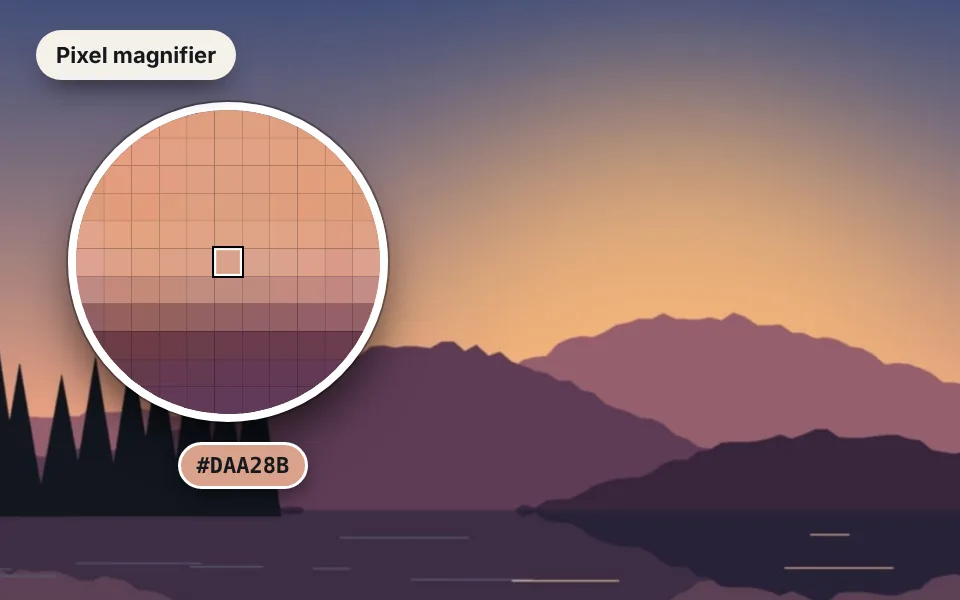
Zoom in
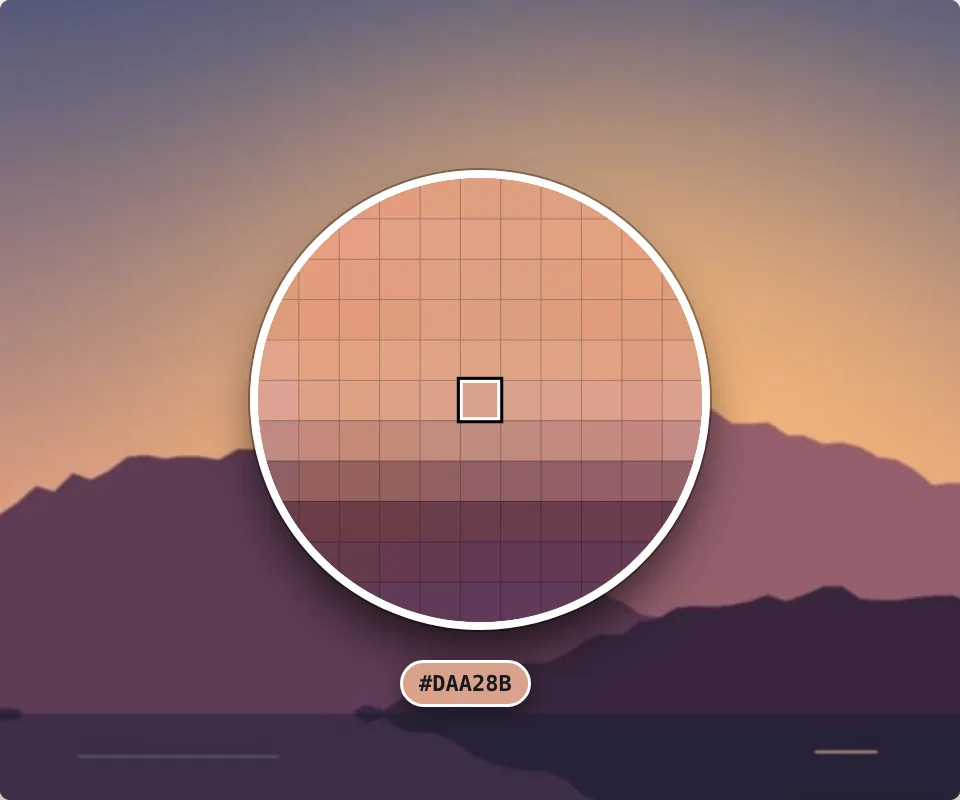
Hover over it: the magnifier enlarges the pixels so you can pick the exact one.
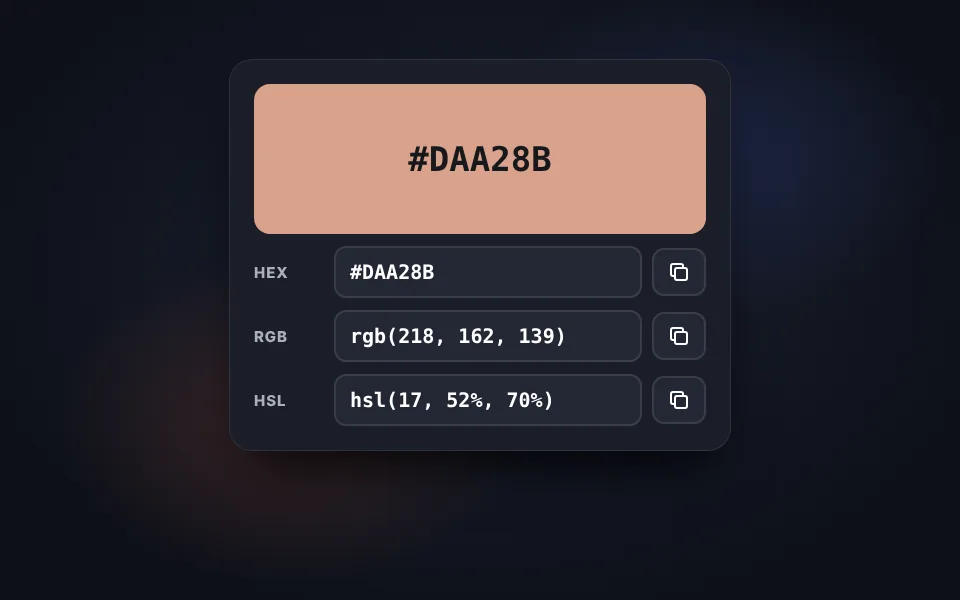
Click the color
The color stays in the panel with its HEX, RGB and HSL codes.
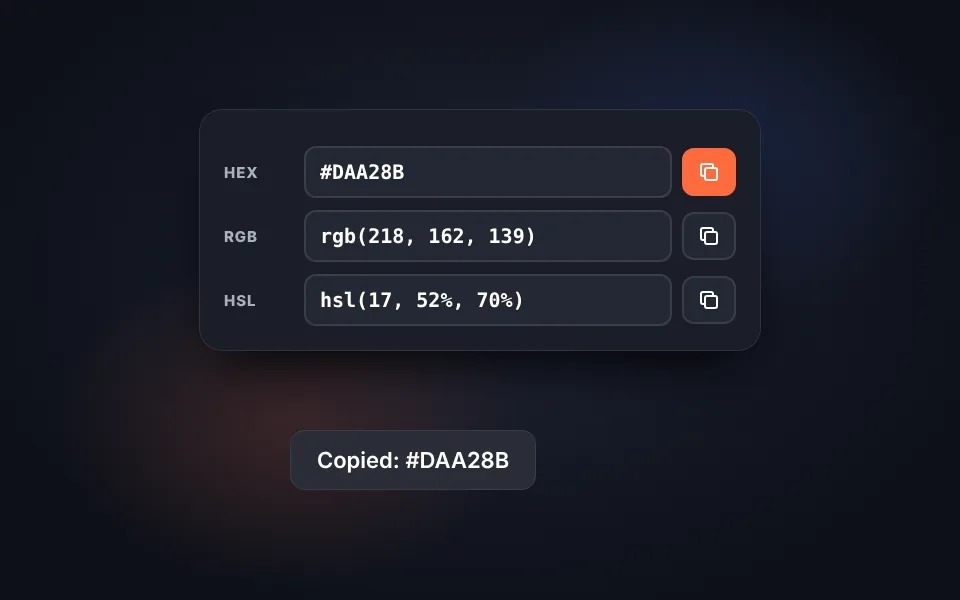
Copy it
Copy the code with one click and use it on your website, in Photoshop or in Canva.
Video tutorial: how to get the color code from an image
In this video you'll see how an image is uploaded, how to pick a color with the color picker, how to zoom in for precision, how to copy the HEX, RGB and HSL codes and how to get the color palette of the image. Click a chapter to jump straight to that part.
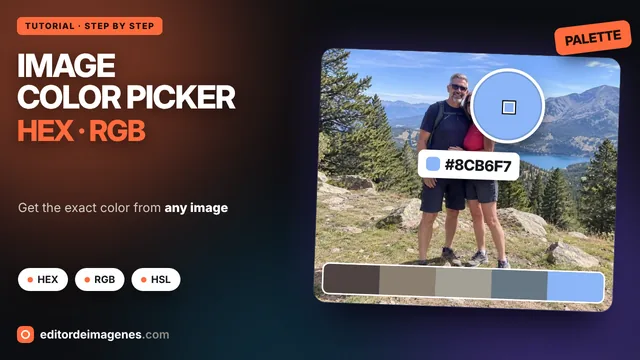
The video only loads from YouTube when you press play, and YouTube may then set its cookies. More information in the cookie policy.
Eyedropper with magnifier: the exact pixel
Just like the Photoshop eyedropper, but in your browser:
- Magnifier: enlarges the pixels around the cursor and marks the center one.
- Zoom: up to 3200% to pick a color on a thin edge, an icon or text.
- Click: the color stays on the right and is added to the saved colors list.
It also works with the keyboard: move the magnifier with the arrow keys and pick with Enter.
The image color palette
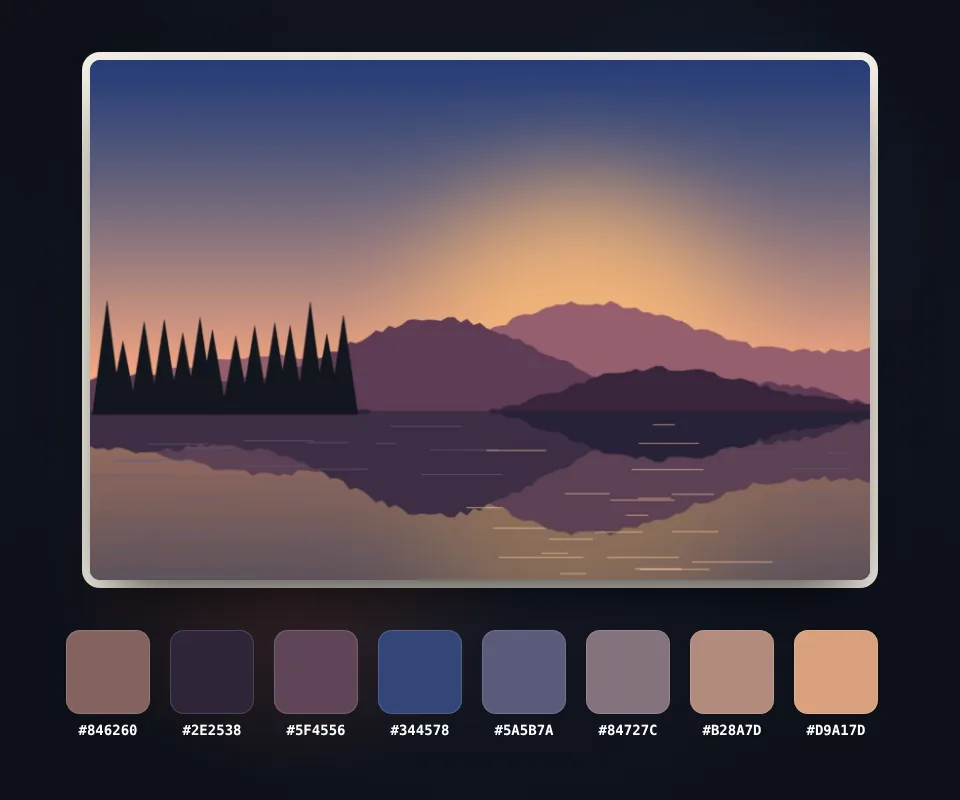
When you upload the image its main colors are calculated, ideal for getting the colors of a logo, a product photo or a website you like:
- Sorted from most to least common in the image.
- Copy as CSS:
--color-1,--color-2… variables ready for your stylesheet. - Download PNG: a strip with the colors and their codes to share it.
Colors ready for your website
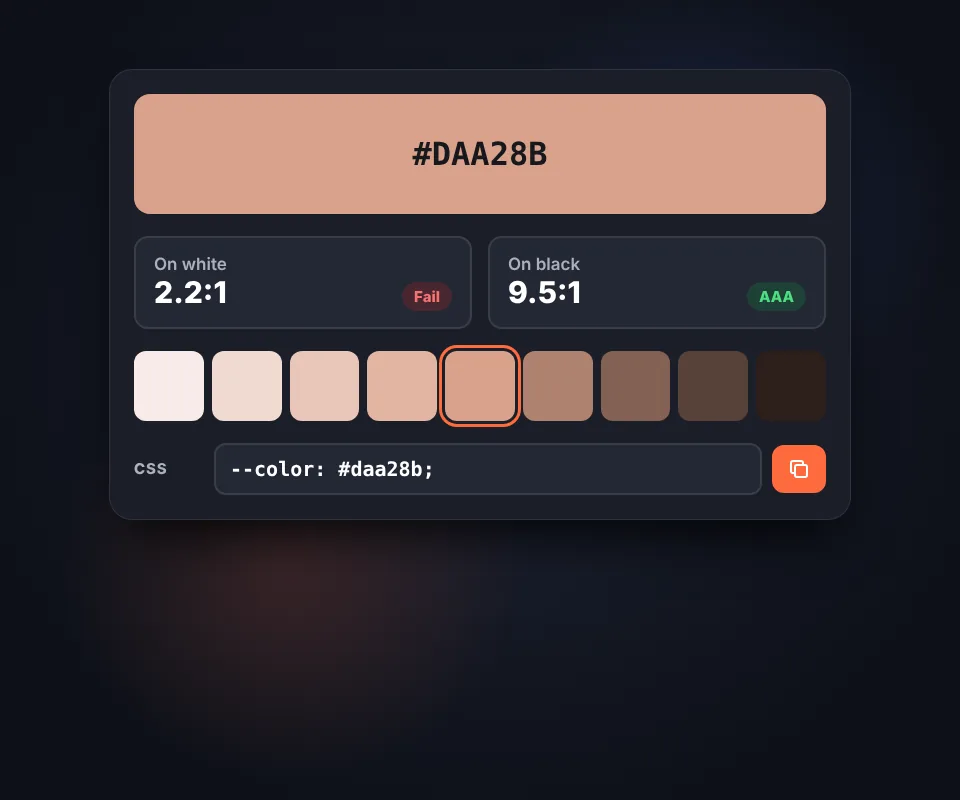
Each picked color comes with what you need to use it on a website:
- Contrast on white and on black with the WCAG rating: AAA, AA or fail.
- Shades lighter and darker for backgrounds, borders and button states.
- CSS variable to paste straight into your code.
Contrast, accessibility and Google
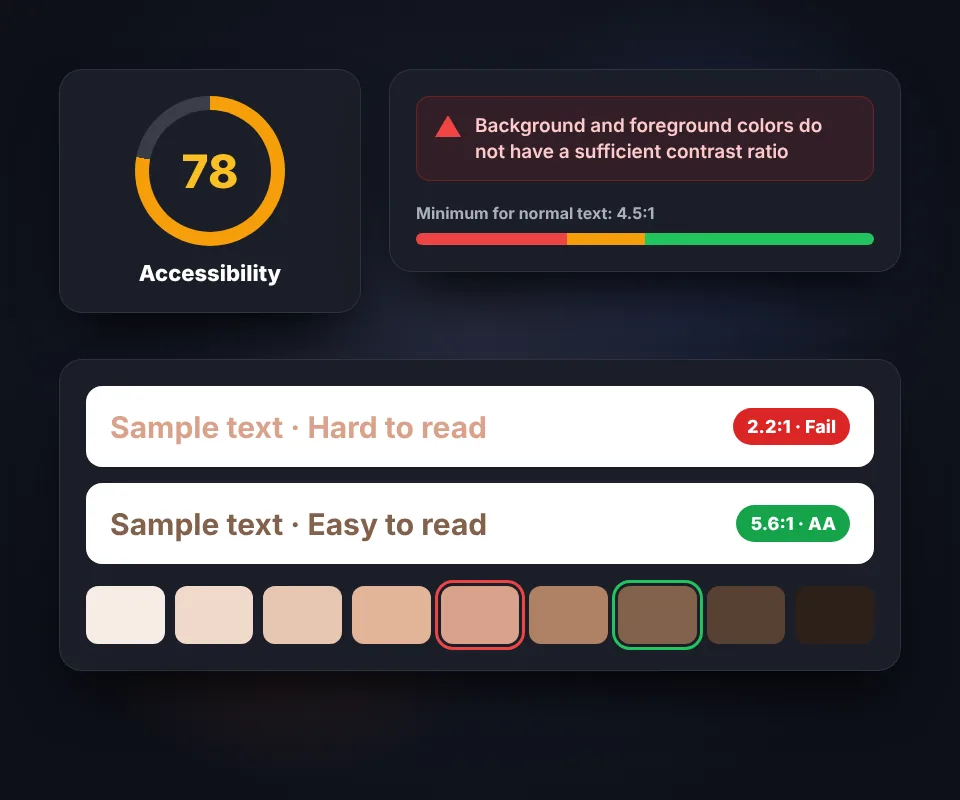
If you test your website with PageSpeed Insights or Lighthouse, the accessibility section warns you when text doesn't contrast enough with its background: "Background and foreground colors do not have a sufficient contrast ratio". Search Console doesn't show this warning and contrast isn't a direct ranking factor, but text that's hard to read makes the experience worse for your visitors.
- Normal text: minimum contrast of 4.5:1 to meet the WCAG AA level.
- Large text (24 px, or 18.66 px bold) and buttons or icons: minimum of 3:1.
- AAA level: 7:1 for normal text, the strictest.
Pick your text color with the eyedropper, check its rating on white and on black and, if it falls short, use one of the darker or lighter shades until it shows AA.
HEX, RGB or HSL: which to use
All three represent the same color. HEX (#FF6B3D) is the most common format in CSS, Photoshop, Figma or Canva. RGB (rgb(255, 107, 61)) is useful when you need transparency with rgba(). HSL (hsl(14, 100%, 62%)) separates hue from lightness, so it's the most convenient for creating lighter or darker variations of the same color.
Frequently asked questions
How do I get the color from an image?
Upload the image or paste a screenshot with Ctrl+V, hover over it and click the color. It appears on the right with its HEX, RGB and HSL codes ready to copy with one click.
How do I get a color from a website?
Take a screenshot (Print Screen on Windows or Cmd+Shift+4 on Mac), paste it here with Ctrl+V and click the color you want.
What is the difference between HEX, RGB and HSL?
They're three ways of writing the same color. HEX (#FF6B3D) is the most common on websites and in design, RGB gives the amount of red, green and blue, and HSL uses hue, saturation and lightness, which is handy for creating variations.
How do I pick an exact pixel?
Zoom in with the buttons or with Ctrl and the mouse wheel. The magnifier enlarges eleven by eleven pixels and marks the center one, which is the one picked when you click.
What is the image palette?
It's the main colors of the image, calculated by grouping similar pixels and sorted from most to least common. You can copy them as CSS variables, as a list of HEX codes or download them as PNG.
What is the contrast for?
It tells you whether the color is readable as text on a white or black background according to the WCAG accessibility guidelines: AA requires at least 4.5:1 and AAA, 7:1.
Does it work with transparent PNGs and SVG?
Yes. You can upload JPG, PNG, WebP, GIF, AVIF or SVG. In transparent areas the color taken is the pixel's, without the background.
Does it work on my phone?
Yes. Tap the image to pick the color; the magnifier briefly appears over your finger so you can see the picked pixel.
Is my image uploaded to a server?
No. Everything happens in your browser and the image never leaves your device.
Is it free?
Yes, free and with no sign-up.