How to convert HEIC to JPG in 4 steps
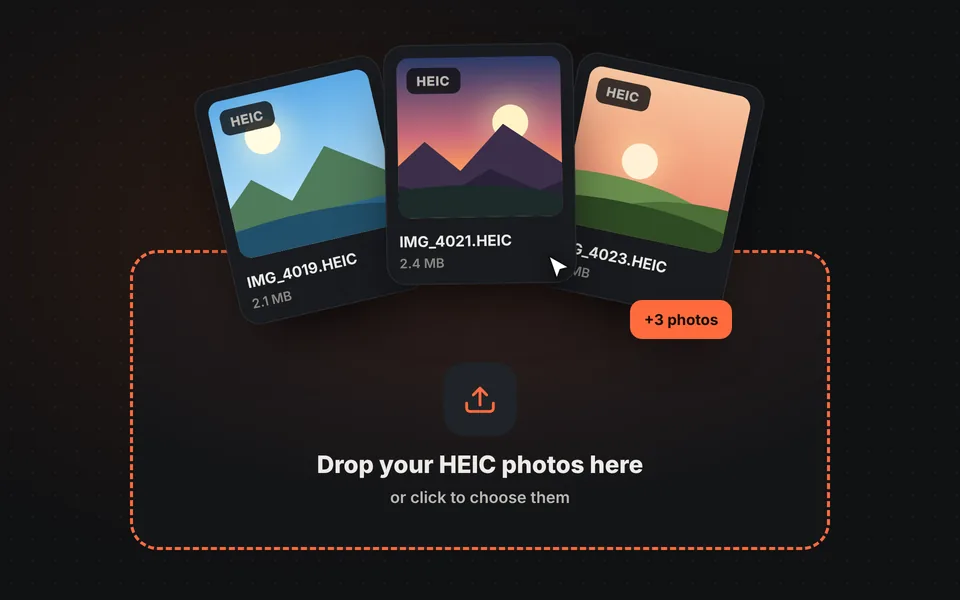
Add your HEIC photos
Drag your iPhone photos to the upload area or choose them from your computer or phone. You can add as many as you want at once.
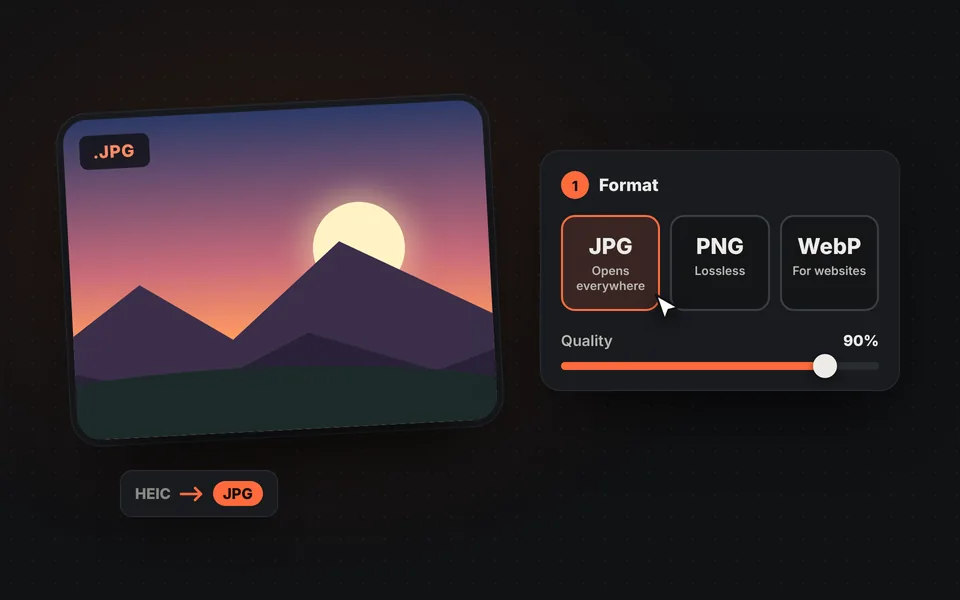
Choose the format
JPG to open them anywhere, PNG if you don't want to lose any quality, or WebP if you'll use them on a website.
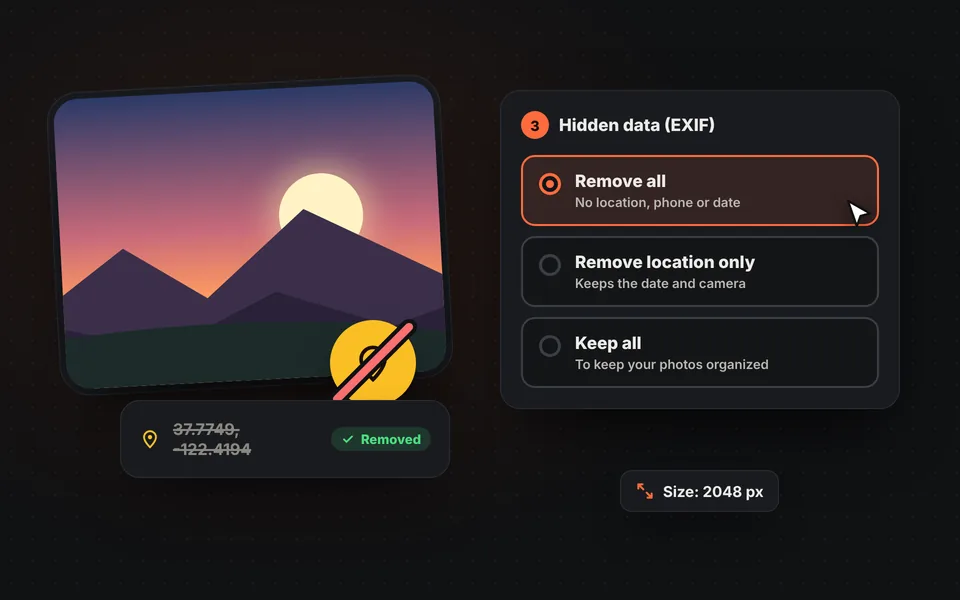
Decide what data to keep
Remove the GPS location and the rest of the hidden data, or keep them if you need them. You can also reduce the size.
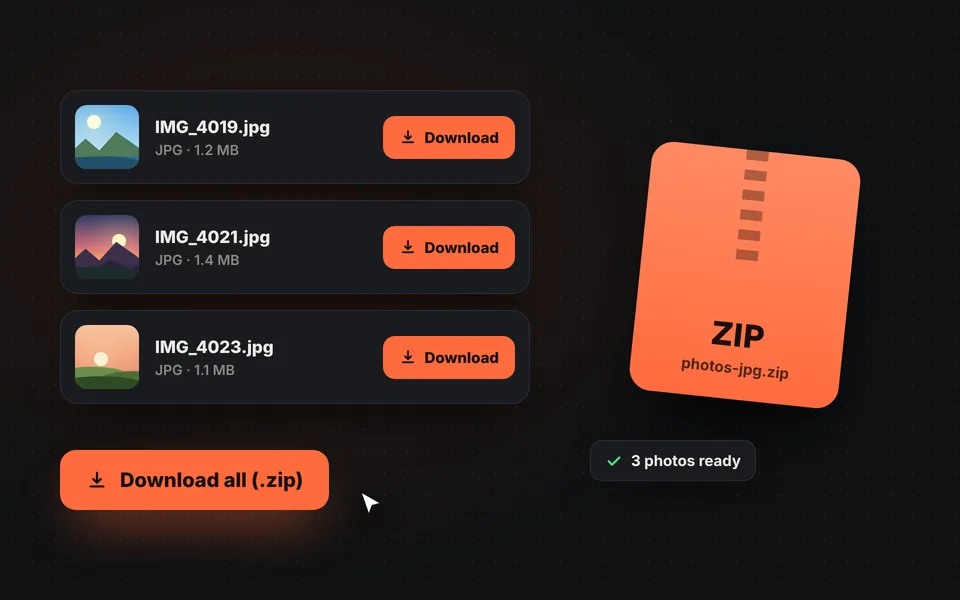
Download
Download each photo separately or all together in a ZIP. If you want to touch one up first, click "Edit".
Video tutorial: how to convert HEIC photos to JPG
In this video you'll see how to upload the HEIC photos, choose the format, change the size, decide which hidden data (EXIF) to keep and download them in a ZIP. Click a chapter to jump straight to that part.
The video only loads from YouTube when you press play, and YouTube may then set its cookies. More information in the cookie policy.
What is a HEIC file?
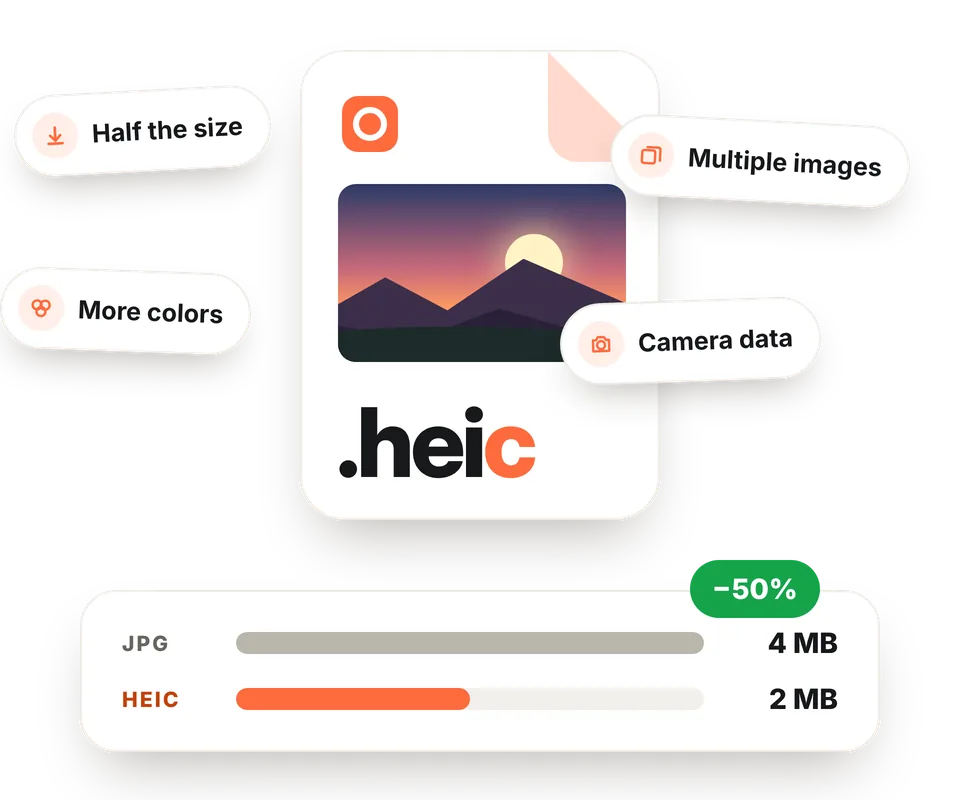
HEIC is the format the iPhone has used to save photos since iOS 11. It's a variant of HEIF (High Efficiency Image File Format) that compresses with the HEVC video codec and produces photos with the same quality as a JPG at roughly half the size. That's why Apple uses it by default: almost twice as many photos fit on the same phone.
Besides the image, a HEIC file can store several images at once (for example, the thumbnail or the Portrait mode depth map), more colors than a JPG and camera data. The problem is that outside Apple's ecosystem hardly anything handles it well.
Why HEIC photos won't open
On a Mac or an iPhone they open without problems, but elsewhere you'll usually run into one of these cases:
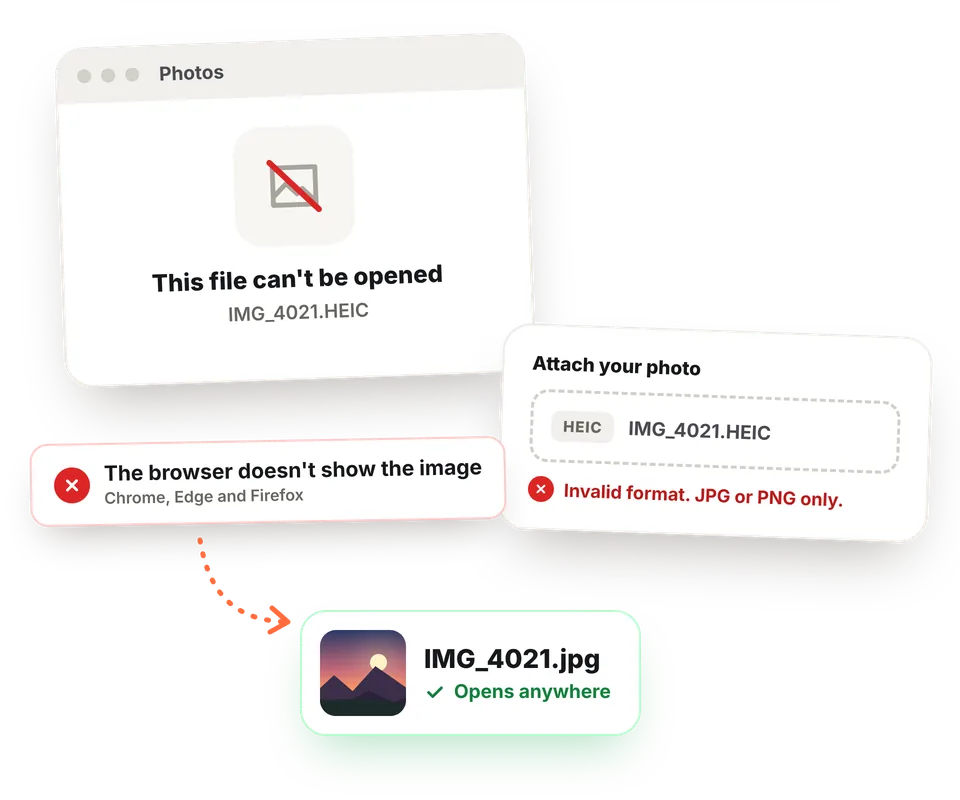
- Windows: to view them you need to install "HEIF Image Extensions", which is free, and "HEVC Video Extensions", which is paid, from the Microsoft Store.
- Websites and forms: most only accept JPG or PNG. When you upload a HEIC photo you're told the format isn't valid.
- Browsers: Chrome, Edge and Firefox don't display HEIC images. Only Safari opens them.
- Older software: many editors, viewers and photo managers don't recognize the .heic extension.
Converting them to JPG is the quickest fix: they open on any computer, phone, website or program, with nothing to install.
JPG, PNG or WebP?
| Format | When to use it | Approximate size* |
|---|---|---|
| JPG | For almost everything: sending, uploading to a website, printing or opening on Windows. It's the most compatible option. | 1.5–2 times the HEIC |
| PNG | If you're going to edit them and don't want to lose any quality. Takes up much more space. | 5–10 times the HEIC |
| WebP | To publish them on your website or online store: small files that look good in every browser. | Similar to the HEIC |
* Depends on the photo and the chosen quality.
Careful: your photos say where you took them
Every iPhone photo carries hidden data called EXIF. You can't see it when looking at the image, but anyone who has the file can read it in seconds:
GPS location
The exact coordinates of where you took the photo, accurate to within a few yards.
Date and time
The day and minute you took it, even if you send it months later.
Your phone
The brand, model and system version. Sometimes also the lens you used.
Camera settings
Exposure, aperture, ISO, focal length and whether the flash fired.
If you email a photo of your living room to sell a couch, whoever gets it can see on a map where you live. Some social networks remove this data when you post, but email, cloud storage, forms and many messaging apps send the file as is. That's why, when converting, "Remove all" is selected by default and you'll see a warning on every photo that has a location.
How to avoid HEIC photos on your iPhone
If you'd rather not have to convert them, you have two options in the iPhone settings:
- Take photos directly in JPG: go to Settings > Camera > Formats and choose "Most Compatible". Note: photos will take up almost twice as much space.
- Convert them when transferring to your computer: go to Settings > Photos and, under "Transfer to Mac or PC", choose "Automatic". When you connect the iPhone with a cable, the photos will be copied as JPG.
Photos you already have in HEIC will stay that way. For those, or for the ones other people send you, use the converter on this page. And if you want to touch them up afterward, open them in our online image editor, crop them or change their size.
Frequently asked questions
Are my photos uploaded to a server?
No. The conversion happens in your browser and your photos never leave your computer or phone. You can check it: with the page open, disconnect from the internet and you'll see it keeps working.
Do I lose quality when converting HEIC to JPG?
At 90% quality, the default, the difference isn't visible to the naked eye. The JPG will be somewhat larger than the HEIC because it compresses less efficiently. If you don't want to lose anything, choose PNG, although the file will be much larger.
How many photos can I convert at once?
As many as you want. They're converted one at a time so your device isn't overloaded, and at the end you can download them together in a ZIP.
Why can't I open HEIC photos on Windows?
Because Windows needs two Microsoft Store extensions to read them: "HEIF Image Extensions", which is free, and "HEVC Video Extensions", which is paid. If you don't want to install anything, convert them to JPG here.
What data does an iPhone photo store?
Besides the image, each photo carries EXIF data: the phone model, the date and time, the camera settings and, if camera location is turned on, the exact GPS coordinates of where you took it.
Why remove the location before sharing a photo?
Because anyone who receives the original file can see on a map where it was taken: your home, your kids' school or your workplace. Some social networks remove it when you post, but email, cloud storage and many messaging apps send the file as is.
Is the photo's orientation kept?
Yes. Photos taken vertically come out vertical. The orientation is applied to the image when converting, so it will look right in any program.
Does it work on my phone?
Yes, on Android and iPhone. On iPhone, when you pick photos from the photo library, the system sometimes already hands them over as JPG; if you pick the file from the Files app, it arrives as HEIC and the tool converts it.
Can I convert HEIF and Android photos?
Yes. HEIF is the same format with another extension, and some Android phones, such as Samsung Galaxy, can also save photos that way. The tool accepts .heic, .heif and .hif files.
How do I make my iPhone take photos in JPG?
Go to Settings > Camera > Formats and choose "Most Compatible". From then on photos will be saved as JPG, but they'll take up more space on your phone.
Can I edit the photos before downloading them?
Yes. Click "Edit" on any photo and it will open in our editor: you can crop it, rotate it, apply filters, adjust light and color or add text. When you save, the photo is converted again with the changes and the options you chose.
Is it free?
Yes, free, with no sign-up, no watermark and no photo limit.