How to add a Christmas filter to a photo in 4 steps

Upload your photo
Drag your photo, choose it or paste it with Ctrl+V. The Christmas magic filter is applied right away.
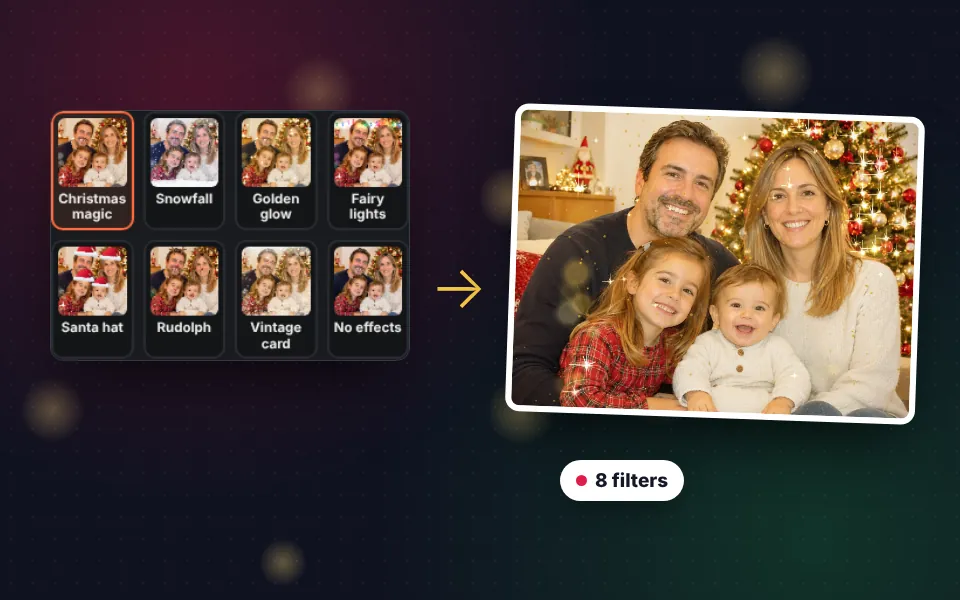
Choose a filter
Christmas magic, Snowfall, Golden glow, Fairy lights, Santa hat, Rudolph or Vintage card.
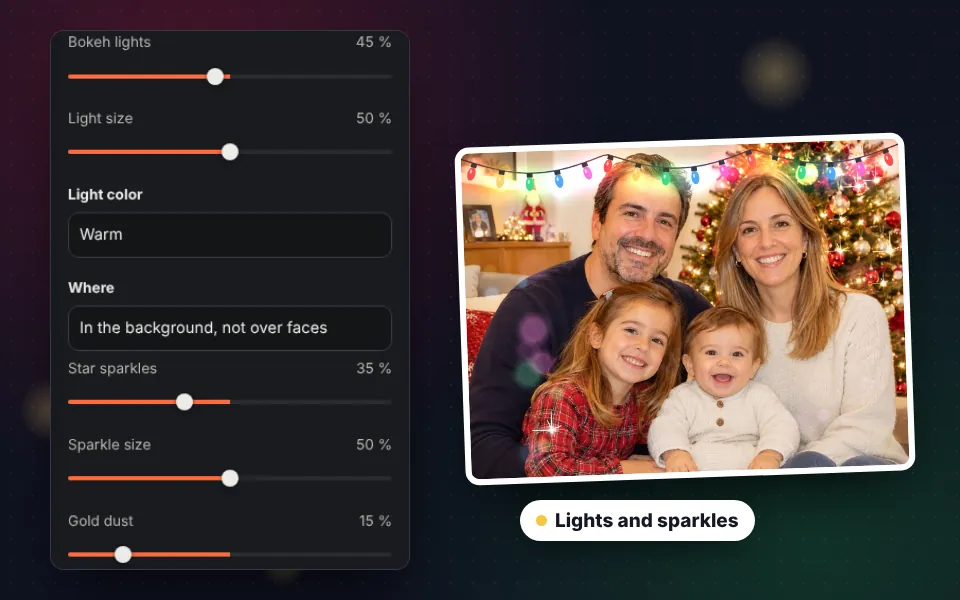
Adjust the effects
Change the tone, lights, sparkles, snow, frost and the props on faces.

Download or send
Save it as JPG, send it on WhatsApp, Telegram or email, or turn it into a greeting card.
8 Christmas filters for your photos
Each filter is a mix of effects designed for a type of Christmas photo. Tap one to apply it and, if you like, tweak any effect in the panel. Use Another variation to rearrange the lights and snowflakes until you love it.
- Christmas magic. Warm tone, gold bokeh lights in the background, sparkles on the tree lights and a touch of gold dust. The filter that looks best on almost any Christmas photo at home.
- Snowfall. Cold winter tone, snowflakes of different sizes, snow on the ground and frost around the edges, as if the photo were behind a frozen window.
- Golden glow. Golden shine, lots of star sparkles and glitter falling from above. Perfect for New Year's Eve and photos of dinners and toasts.
- Fairy lights. A string of bulbs across the top and colorful bokeh lights. For cheerful photos and photos with kids.
- Santa hat. Puts a red hat on every face and adds a light snowfall.
- Rudolph. Reindeer antlers and a shiny red nose for the whole family, even for the dog if you place them by hand.
- Vintage card. Sepia tone, strong vignette, frost and snow, like a Christmas postcard from decades ago.
- No effects. Starts from the original photo so you add only what you want.
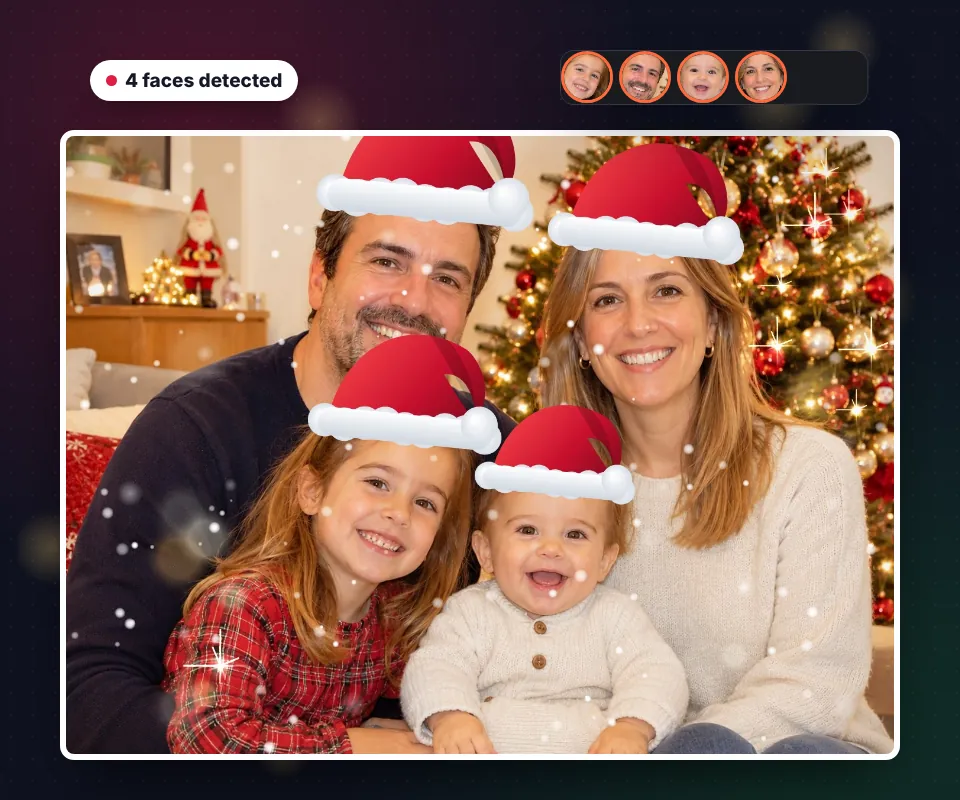
Santa hat on your photo, placed automatically
Adding a Christmas hat to a photo by hand is slow: you have to cut it out, resize it and rotate it for each person. Here the faces in the photo are detected and each one gets a hat at the right size and angle.
Under Props on faces you'll see a thumbnail of each face found. Tap it to add or remove its props. If a face wasn't detected, add the hat with Add by hand and drag it. It works the same with reindeer antlers, Rudolph's nose and Santa's white beard.
Face detection runs in your browser; the photo isn't sent anywhere.
Bokeh lights and star sparkles
Bokeh is those round, out-of-focus lights that make a photo look professional. The filter adds them to the background without covering faces, and you choose how many, their size and their color: warm, colorful, red and green, gold, silver or blue.
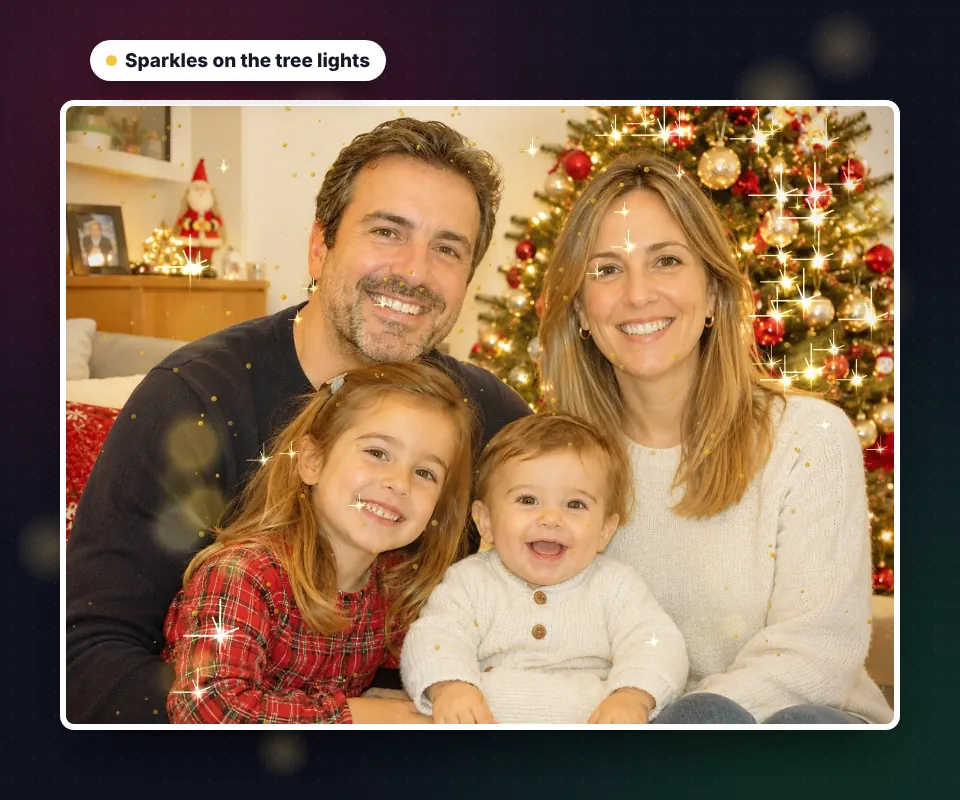
Star sparkles are placed on the brightest points of the photo, usually the tree lights, candles or street lamps, just like a camera star filter. If your photo has a lit-up tree, the result is stunning.
To finish it off, gold dust adds a shower of sparkling glitter and the light garland frames the photo at the top or on all four sides.
Snow effect on your photo
No snow this Christmas? With the Snow slider you add a snowfall to any photo, with sharp flakes in front and blurred ones behind for depth. Change their size, add snow on the ground and a layer of frost around the edges, as if you were looking through a frozen window.
Combine it with the Winter cold tone for a winter scene or with the warm tone for the contrast of snow outside and a cozy home inside.

Christmas color tones
The tone changes the mood of the whole photo. Adjust the intensity to make it subtle or strong.
| Tone | Effect | Best for |
|---|---|---|
| Christmas warmth | Warm, cozy orange light | Photos at home, by the tree or fireplace |
| Gold | Bright golden glow | New Year's Eve, dinners and toasts |
| Winter cold | Soft blues and clean light | Outdoor photos, snow or mountains |
| Red and green | Gradient in Christmas colors | Fun photos and social media |
| Christmas Eve | Bluish night with warm lights | Night photos and city lights |
| Vintage card | Soft sepia and low contrast | Nostalgic and family photos |
The vignette darkens the corners and draws the eye to the center of the photo, where people usually are.
Ideas for your Christmas photos
- Christmas profile picture. Put on Santa's hat and use the photo on WhatsApp, Instagram or at work throughout December.
- Family greeting card. Apply the filter and press Make a card with this photo to add a template, text and one of our Christmas messages.
- Status and stories. A photo with snow or lights looks great on WhatsApp status and Instagram stories.
- Pet photos. Add reindeer antlers or a hat to your dog or cat by hand. Smiles guaranteed.
- Business photos. The Golden glow filter on a team photo makes a different kind of company holiday card.
If you want more edits, you can crop the photo, add text or improve its quality.
Privacy: your photos never leave your device
The filters and face detection run in your browser. Your photos aren't uploaded to any server, they aren't stored and nobody else sees them, which matters even more with photos of children. The final photo is downloaded without EXIF data, so no location or phone model.
Frequently asked questions
How do I add a Christmas filter to my photo?
Upload the photo and the Christmas magic filter is applied. Tap any of the other filters to try it, adjust the effects if you like, then download it or send it on WhatsApp.
How do I put a Santa hat on a photo?
Choose the Santa hat filter or tick Santa hat under Props on faces. The faces in the photo are detected and each one gets its own hat. You can move, rotate or resize it, and remove it from a face by tapping its thumbnail.
Can I add reindeer antlers and a red nose?
Yes. The Rudolph filter puts antlers and a red nose on every face. You can also add Santa's beard.
What if a face isn't detected?
Faces in profile, very small or partly covered are sometimes missed. Add the hat, antlers, nose or beard with the Add by hand buttons and drag them into place.
How do I make it look like it's snowing in the photo?
Use the Snowfall filter or raise the Snow slider. You can change the flake size, add snow on the ground and frost around the edges.
What is the bokeh effect?
Those are the round, out-of-focus lights you see in Christmas photos taken with good cameras. Here they're added to the background without covering faces, in warm, colorful, gold or silver tones.
Where do the star sparkles come from?
The brightest points in the photo, like tree lights or candles, are found and given a star-shaped sparkle, like a camera star filter.
Can I compare before and after?
Yes. Press Before and after and drag the bar over the photo, or use the arrow keys, to see the original on one side and the filtered photo on the other.
Are my photos uploaded to a server?
No. The filters and face detection run in your browser and your photos never leave your device.
Does the photo lose quality?
No. The photo is saved at its original resolution, up to 2400 px on the long side, as a high-quality JPG.
Can I make a greeting card with the photo?
Yes. Press Make a card with this photo and it opens in our Christmas card tool, where you can add templates, texts and messages.
Is it free?
Yes. It's free, with no sign-up and no watermark.